
Uber Eats Integration with LithosPOS
Connect a LithosPOS store to your Uber Eats store from the Back Office. Sign in with Uber, pick the Uber store and menus, and Uber Eats orders arrive in LithosPOS with your menu, prices and store status kept in sync.
Connect a LithosPOS store to your Uber Eats store and Uber Eats orders arrive straight in LithosPOS. LithosPOS sends your menu and prices to Uber Eats, and you can pause the store on Uber Eats from the Back Office.
The setup takes three steps:
Start the connection in LithosPOS → Sign in to Uber → Pick the Uber store and menus
Before you start
- The Uber Eats integration is available to businesses in the UK, Europe, the US, Guatemala and India.
- You need the Uber Eats account that manages the store you want to connect.
- Add an aggregator with the Uber Eats platform under Settings → Aggregators. It sets the price list, tax and payment account for Uber Eats orders (see Aggregators settings).
- Create the menus you want to sell on Uber Eats (see Menu creation). Items must be allowed for online ordering and have a price in the store.
- Set the store's opening hours in LithosPOS. Uber Eats shows your menu during these hours.
Install Uber Eats
- Log in to the Back Office at my.lithospos.com.
- Go to Integrations and find Uber Eats under Aggregator.
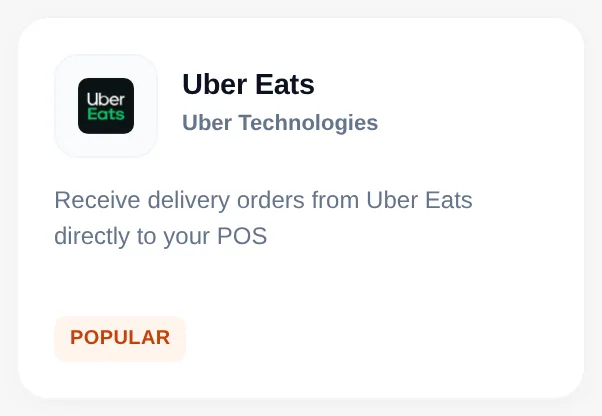
- Click the tile and click Install. Then click Manage to open the Uber Eats panel.
The panel lists your Configured stores. Each row shows the store, its aggregator and whether it is Active.
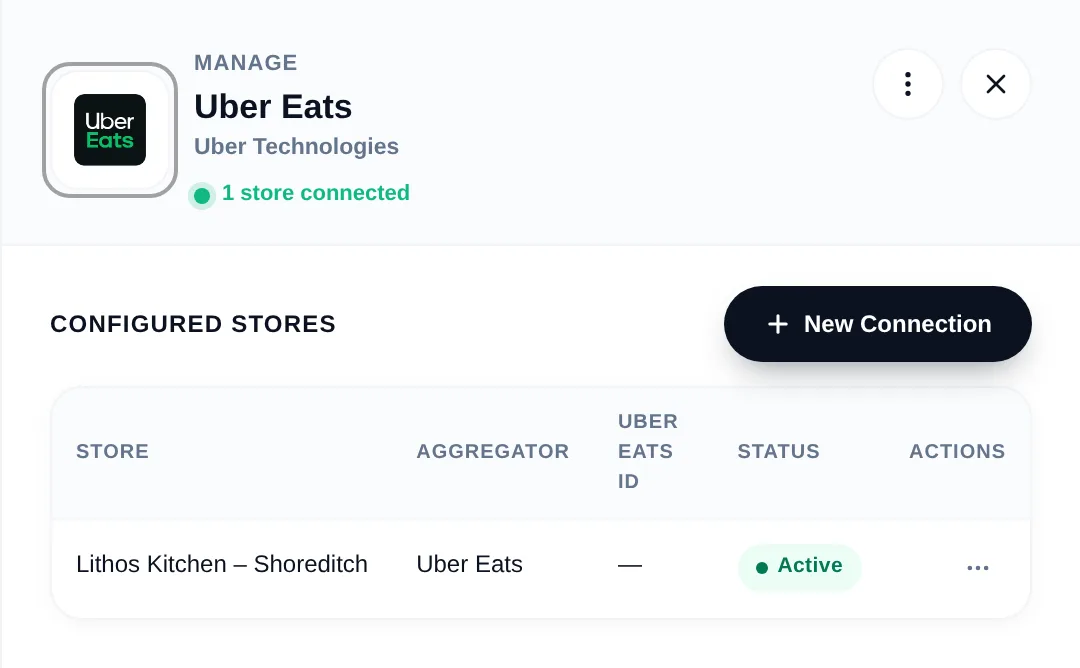
Connect a store
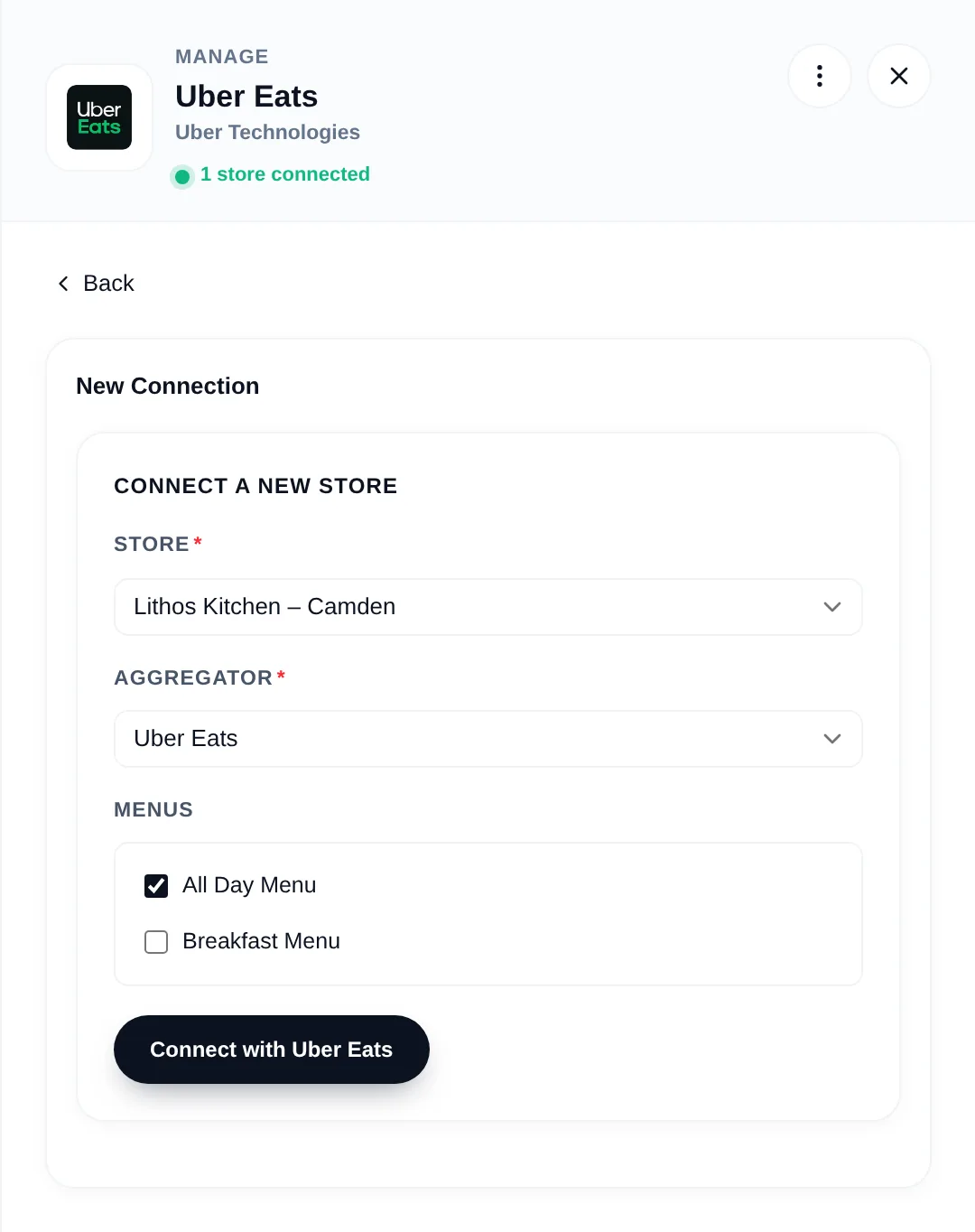
- In the Uber Eats panel, click + New Connection.
- Under Connect a new store, choose the Store and the Aggregator. Stores that are already connected are not listed.
- Under Menus, tick the menus to send to Uber Eats. You can also pick them after signing in.
- Click Connect with Uber Eats.
- Uber's sign-in page opens. Log in with the Uber Eats account that manages the store and allow LithosPOS access. Uber then sends you back to LithosPOS.
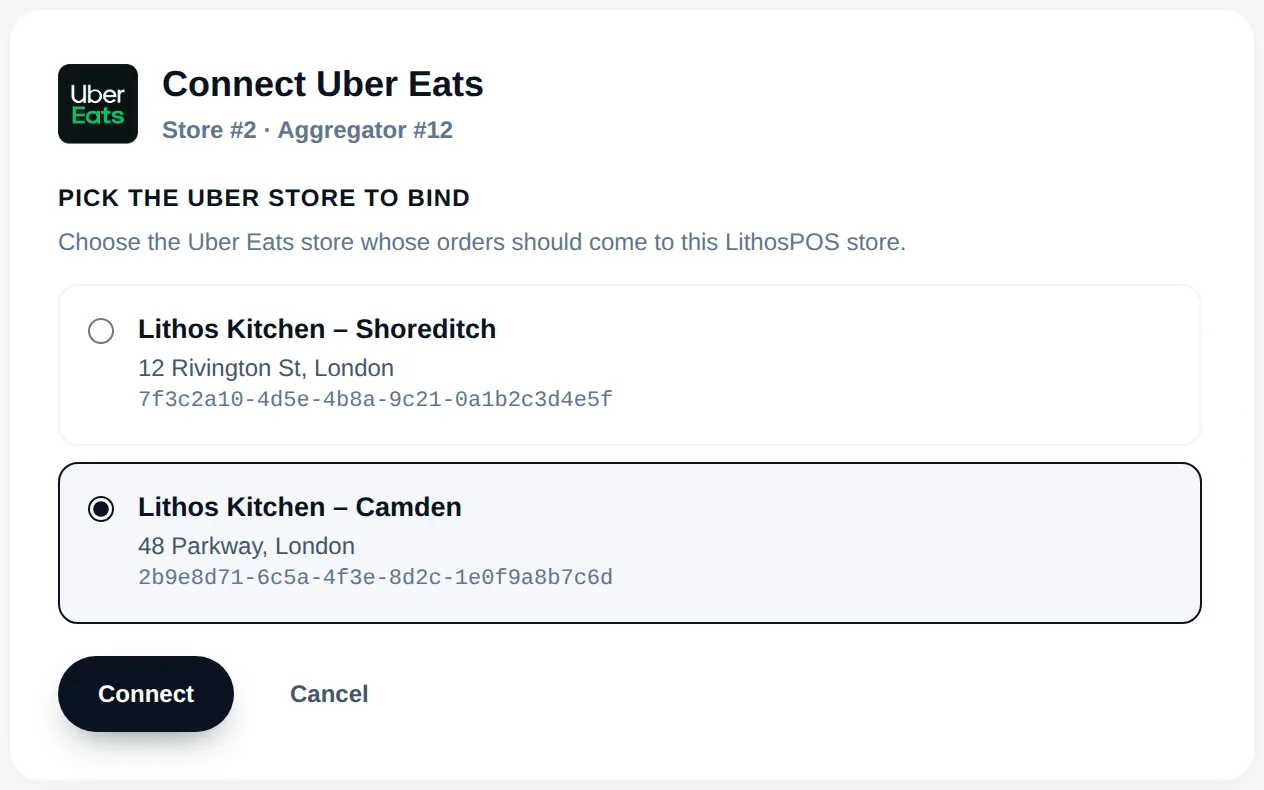
- Under Pick the Uber store to bind, choose the Uber Eats store whose orders should come to this LithosPOS store, and click Connect. If your account has a single Uber store, it is already selected.
- If you did not tick menus in step 3, Pick menus to push to Uber Eats appears. Tick the menus and click Push menus & activate.
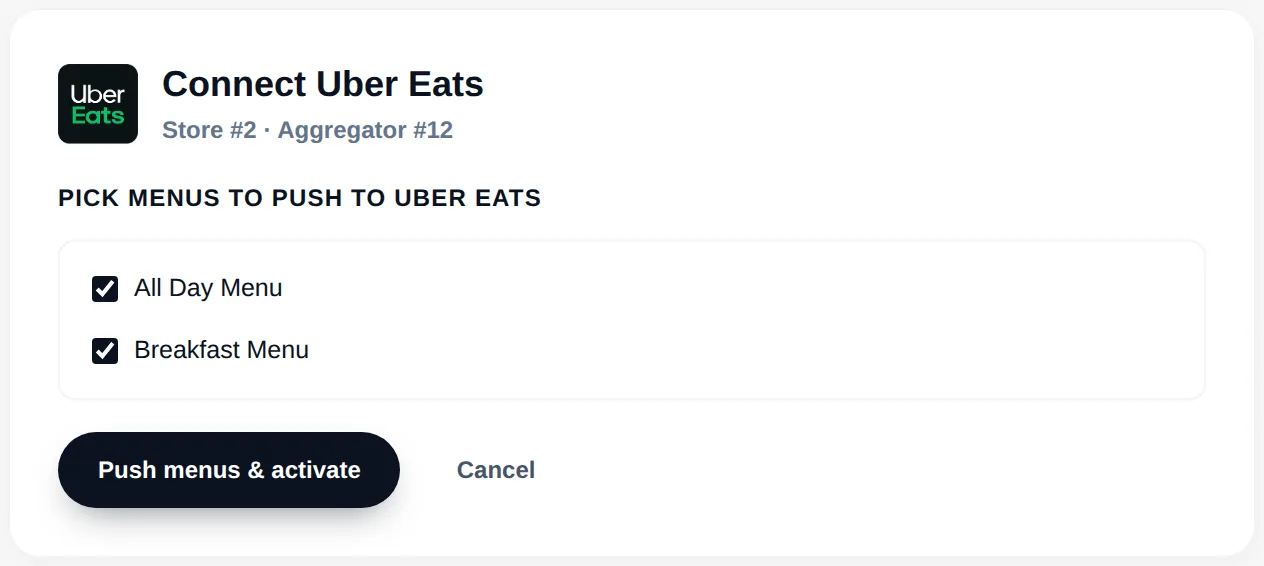
LithosPOS sends the menu to Uber Eats and activates the store. You see Uber Eats connected, followed by how many items were sent. The store now appears under Configured stores.
Manage a connected store
In the Uber Eats panel, click ⋯ on a store's row:
- Edit — opens the store's Uber Eats page (below).
- Update menu — sends the store's menus to Uber Eats again.
- Toggle status — pauses the store on Uber Eats, or reopens it.
- Remove — disconnects the store from Uber Eats.
The store's Uber Eats page
Open it with Edit, or go to Online Orders → Settings and choose the Uber Eats tab for the store.
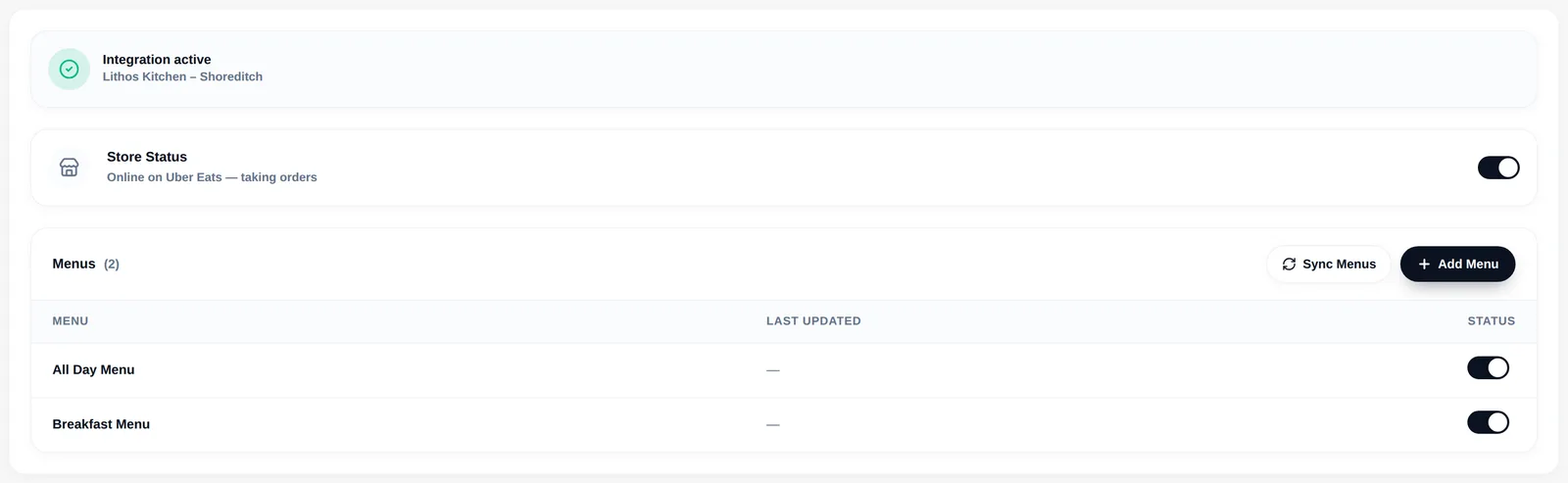
Store Status shows the store's status on Uber Eats. Switch it off to pause the store on Uber Eats, and on to take orders again. The line under it explains the current status, for example:
- Online on Uber Eats — taking orders
- Paused on Uber Eats — not taking orders (you paused it)
- Paused by Uber Eats — contact Uber Eats support to reopen
- Paused by Uber Eats after orders went unanswered
- Closed now — outside your menu hours (it opens with your menu hours)
Menus lists the menus sent to Uber Eats. Use + Add Menu to add a menu and the switch on a row to include or leave out a menu. Then click Sync Menus to send the menus to Uber Eats. Sync again whenever you change items, prices or menus.
Check what was sent to Uber Eats
After Sync Menus or Update menu, Menu sent to Uber Eats shows how many items reached Uber Eats and which items were not sent, with the reason and how to fix it.
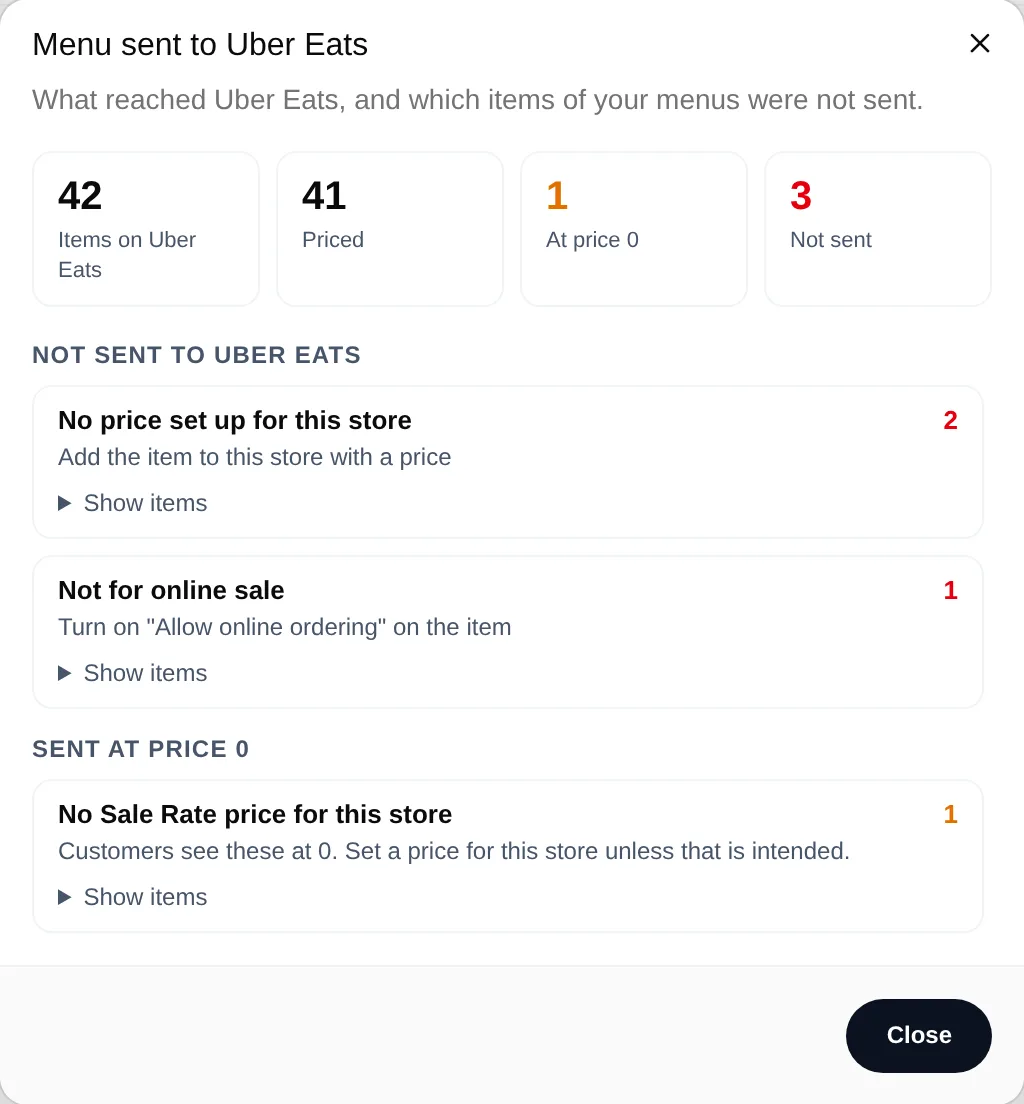
- Not sent to Uber Eats — for example No price set up for this store (add the item to the store with a price) or Not for online sale (turn on Allow online ordering on the item). Click Show items to see them.
- Sent at price 0 — items without a price in the price list the aggregator uses. Customers see these at 0, so set a price unless that is intended.
Uber Eats orders
Uber Eats orders appear in Online Orders in the Back Office and on your POS, marked Uber Eats. They arrive already accepted.
- Open an order to set its Ready time. Click In 5 min to In 45 min to tell Uber Eats when the food will really be ready, so the courier arrives on time.
- When you mark the order ready or cancel it in LithosPOS, Uber Eats is updated.
- Orders scheduled for later are saved for the requested time.
Disconnect Uber Eats
To remove the integration, open the Uber Eats panel, click ⋮ and choose Disconnect. Tick I understand this will disconnect the integration. and click Disconnect. You can reconnect later, but you need to set the stores up again.
Connect with us to know more
To learn more, book a meeting with our team.
Was this article helpful?