
Waiter App Plus
Waiter App Plus connects with the POS system, enabling waiters to take orders, send KOTs to the kitchen, and accept payments at the table using phones or tablets.
Updated
Install Waiter App Plus feature in the back office
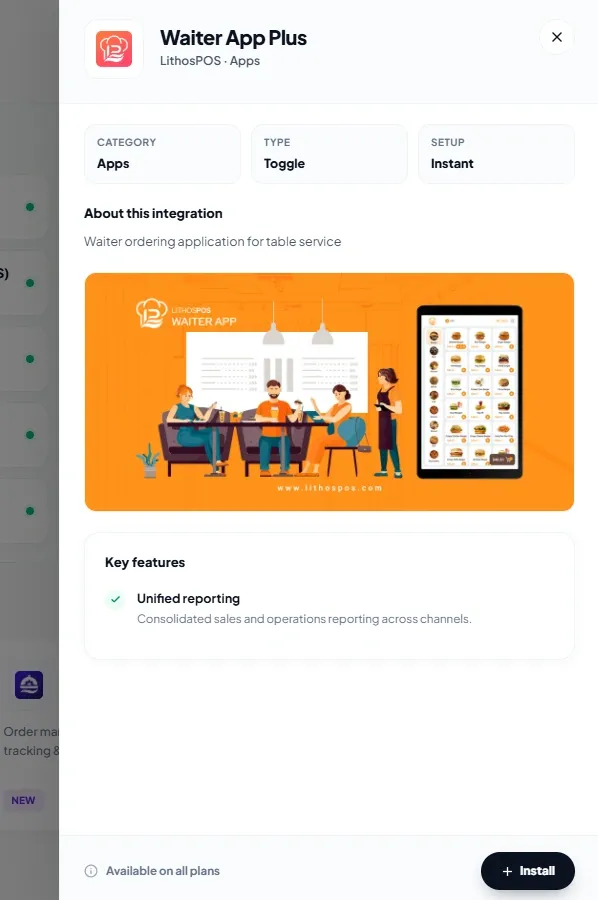
- Login to the Back office and select 'Integrations' in the side menu.
- Click on the Waiter App Plus and cllick 'Install Now' to install the feature.
Waiter App Plus feature in the Waiter App
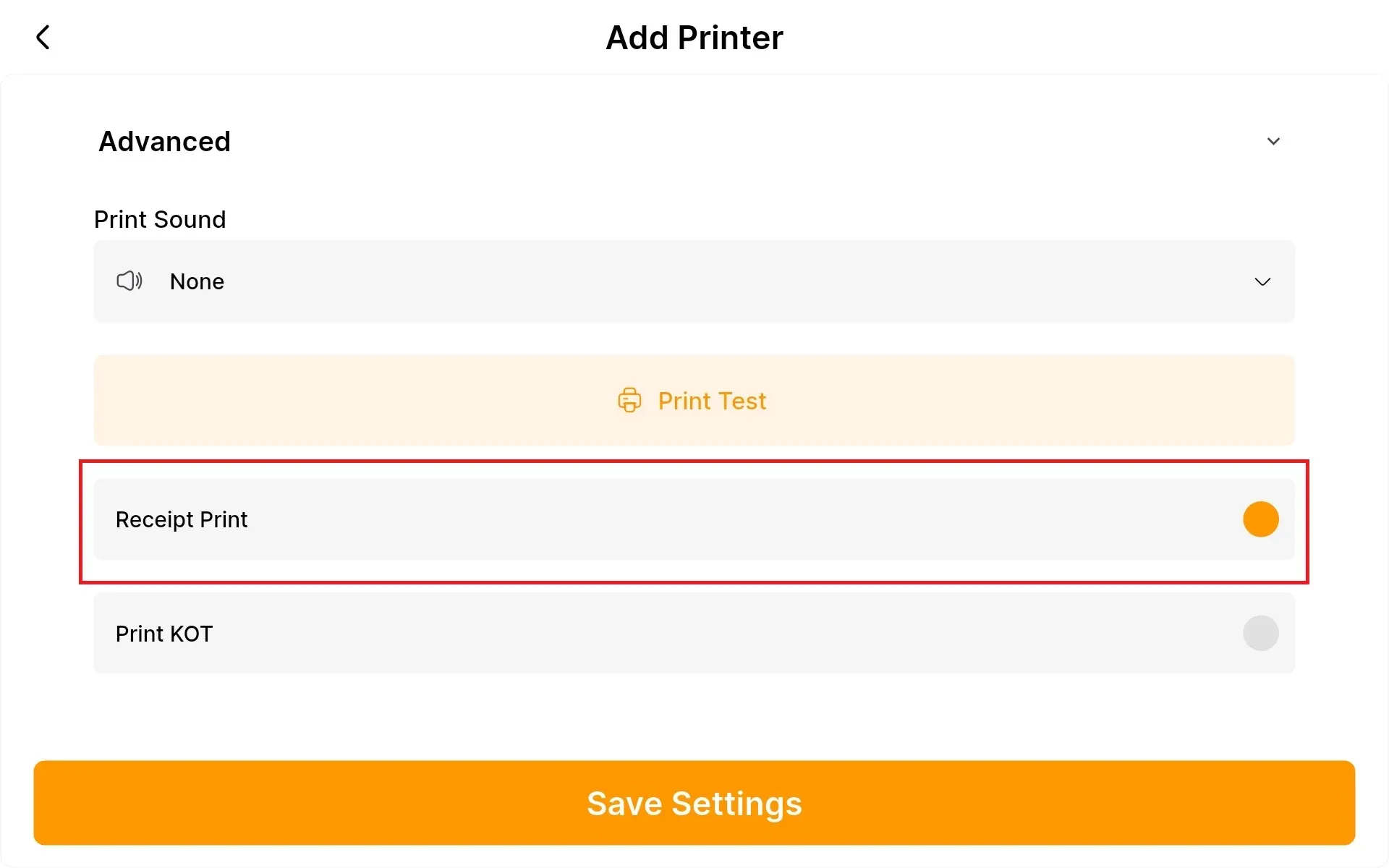
- Configure Receipt printer in the Waiter App settings and enable Receipt Print
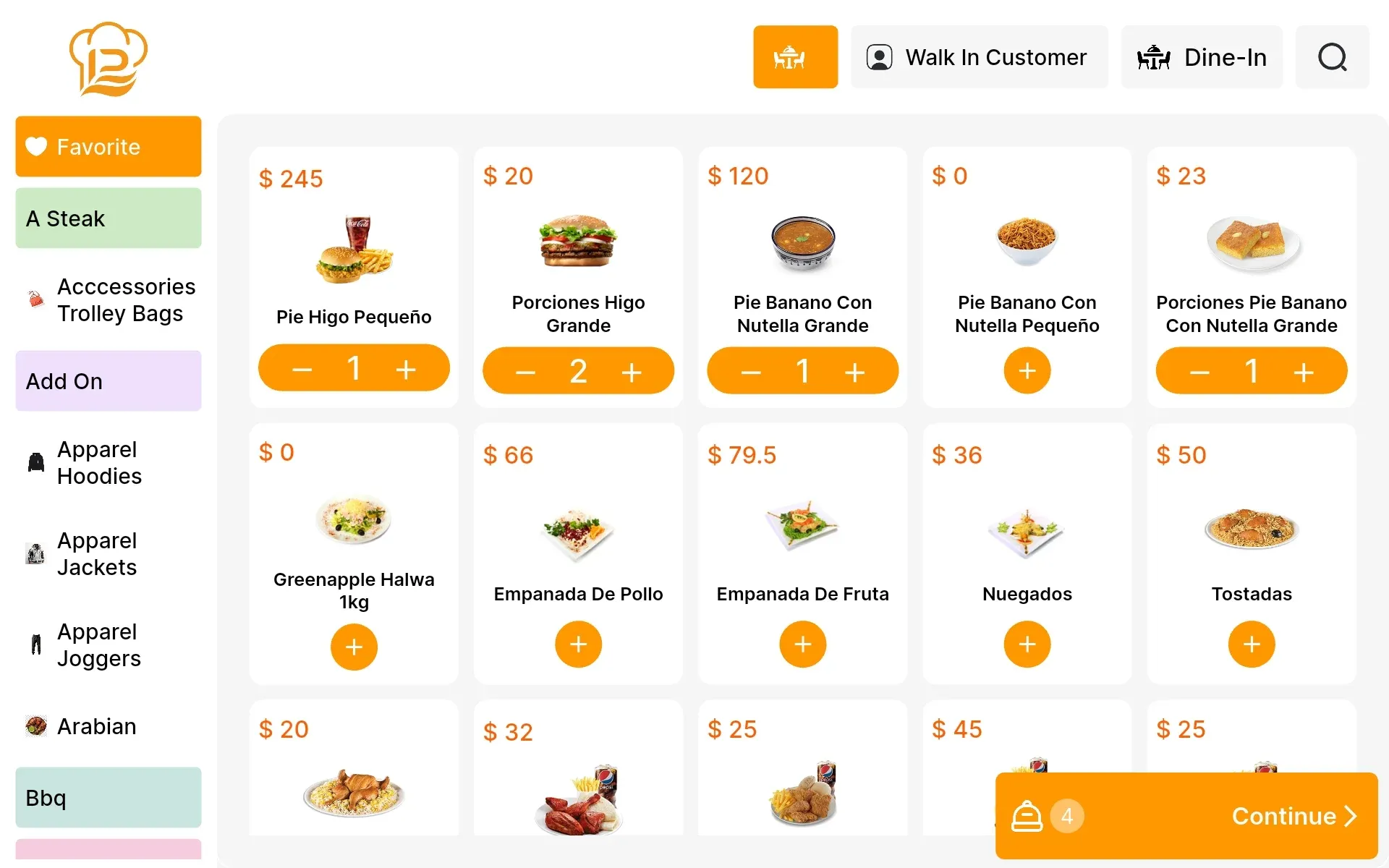
- Add items to the cart and place the order.
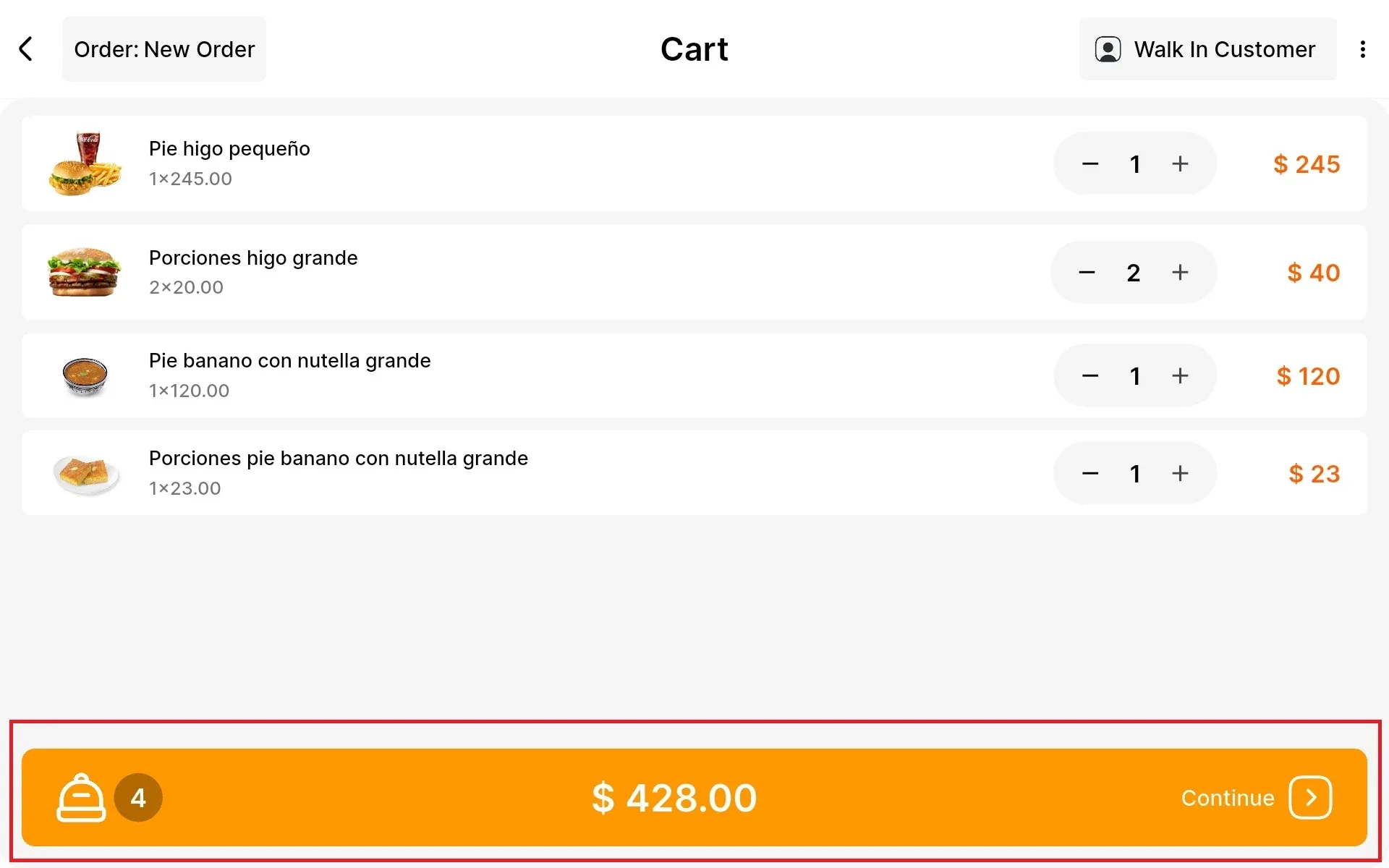
- Go to the orders tab and select the Order
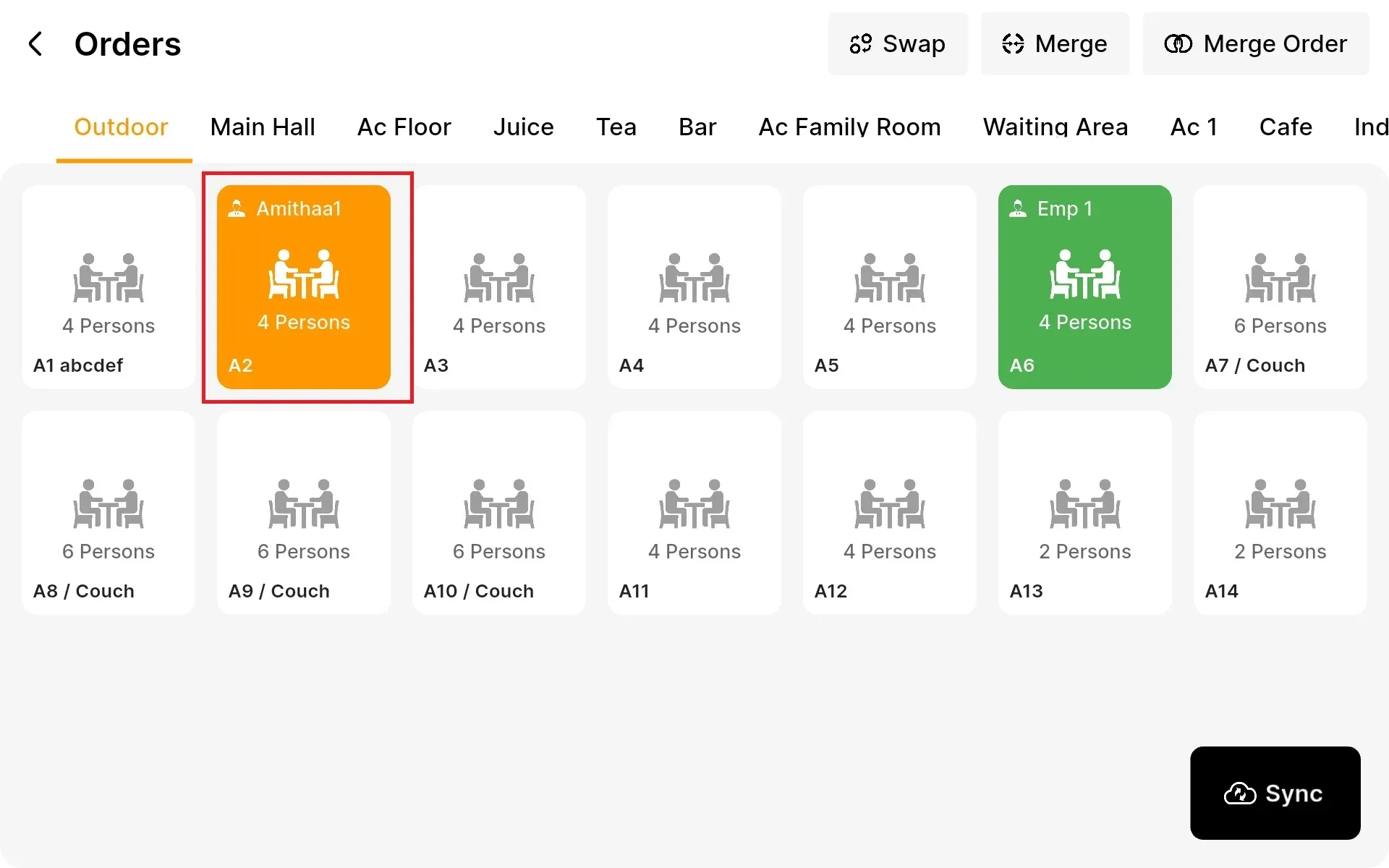
- Click on Print bill to print the bill.
Final Verification
- Double-check that all configurations are correct. Ensure all devices (Waiter App, LithosPOS, and printers) are on the same network. Test the entire system by placing a sample order to confirm that everything is functioning.
Conclusion
- This setup process ensures your LPOS Waiter App is fully integrated and ready to enhance your
restaurant’s service quality.
Connect with us to know more
To learn more about it feel free to book a meeting with our team
Was this article helpful?