
QuickBooks posting history and fixes
Check every register LithosPOS posted to QuickBooks Online, compare it with what QuickBooks recorded, post a register now or an earlier one, and fix a register that was held or rejected.
Every time LithosPOS posts a register to QuickBooks, or decides it cannot, the store's History records it. Open the store from Integrations > QuickBooks and go to History.
Read the history
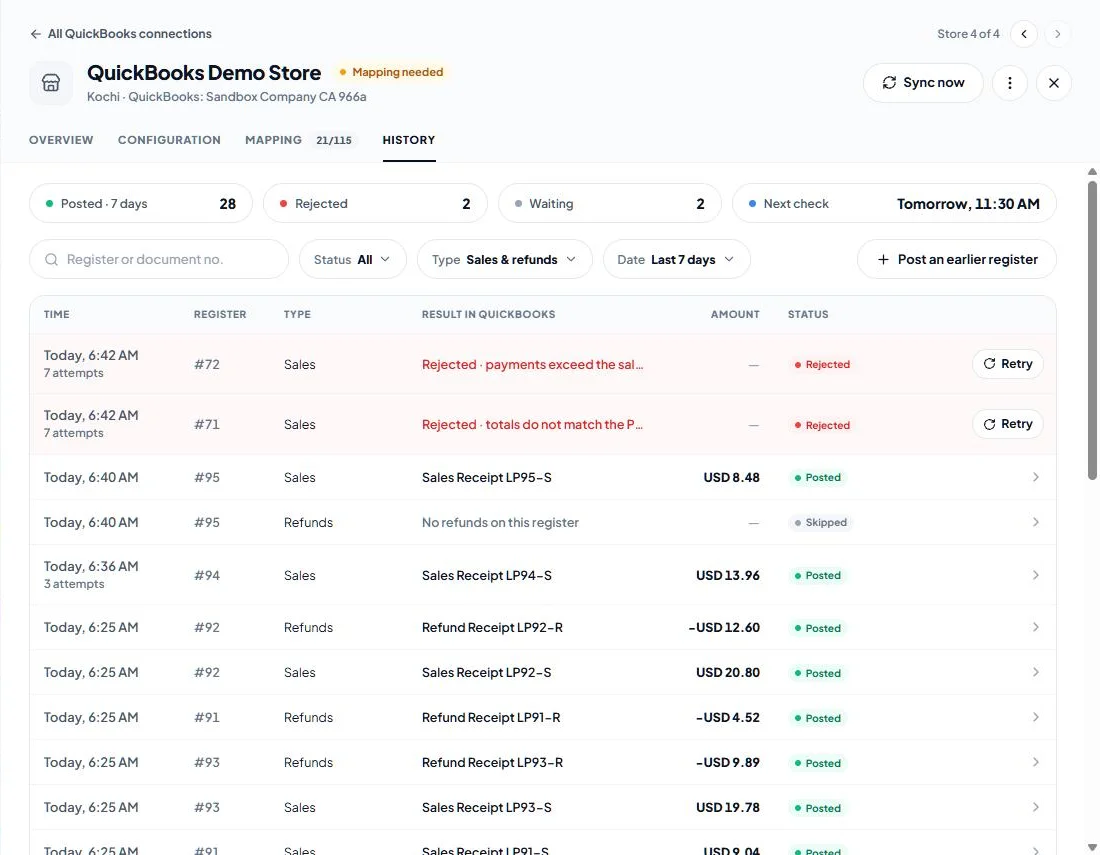
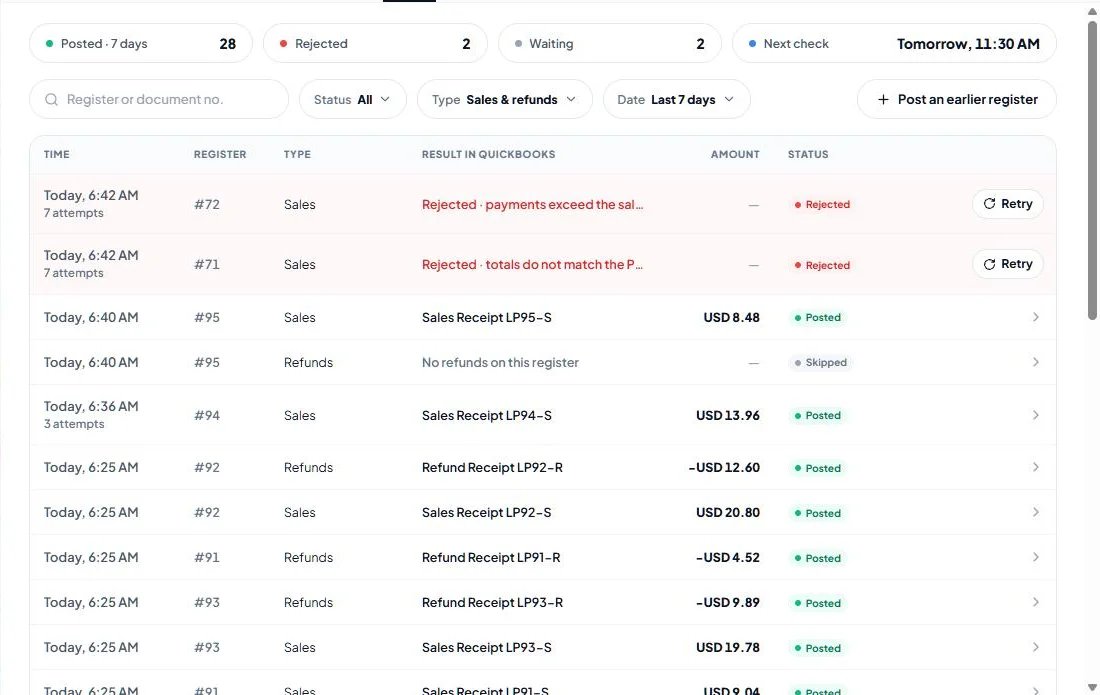
The tiles at the top show what was Posted in the last 7 days, how many registers were Rejected, how many are Waiting, and the time of the Next check.
Each closed register has a Sales row and a Refunds row with:
- Time and the number of attempts,
- Register number,
- Result in QuickBooks: the document type and numbers (for example Sales Receipt LP77-S, LP77-ST or Journal Entry LP78-S), or the reason it was not posted,
- Amount posted (refunds are shown negative),
- Status.
The statuses:
- Posted — QuickBooks accepted the documents and recorded the POS total and tax.
- Posted with difference — QuickBooks accepted the documents but recorded a different total or tax. Open the document in QuickBooks and compare it with the register close report.
- Rejected — the register was not posted. The row says why and offers Retry.
- Skipped — there was nothing to post (for example no refunds on the register), or the register was posted before the posting update and is left as it is.
Find a register with the search box (Register or document no.) and the Status, Type (sales, refunds or both) and Date filters.
See the details of a posting
Click a row to open its details:
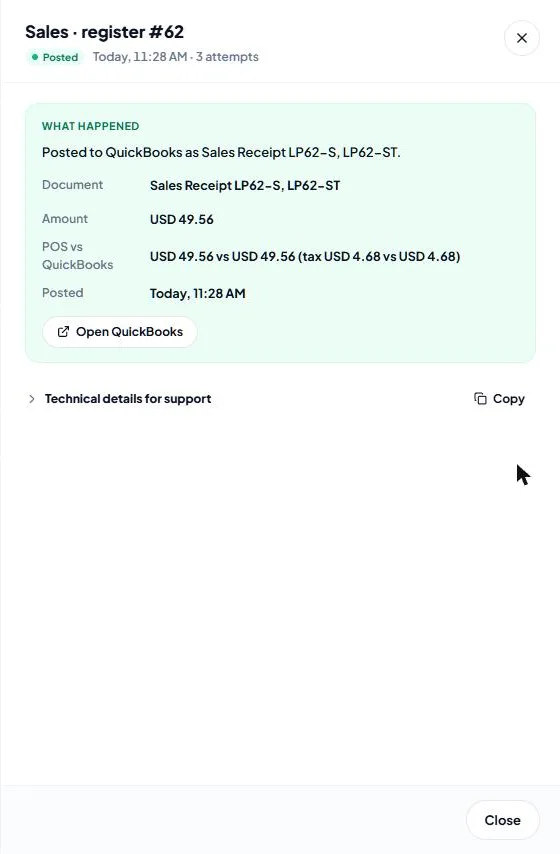
- What happened — the documents created, the amount, when it was posted and POS vs QuickBooks: the register's total and tax next to what QuickBooks recorded. Open QuickBooks opens the document in QuickBooks.
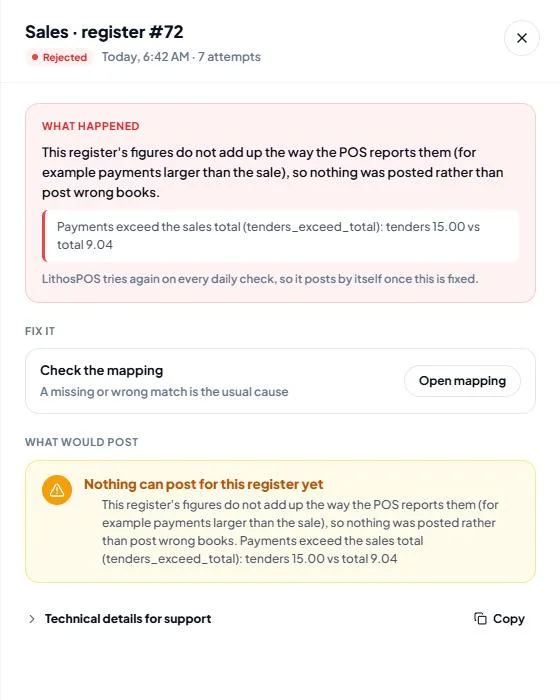
- For a rejected register: the reason in plain words, the message QuickBooks or LithosPOS gave, and Fix it with a button that opens the right place, such as the mapping section to complete.
- What would post — what LithosPOS would send now, or why nothing can post yet.
- Technical details for support — the request and response, with Copy, for when you contact support.
Post now, retry or post an earlier register
- Sync now (at the top of the store) posts every closed register that is ready, without waiting for the daily check.
- Retry on a rejected row, or Retry now in its details, posts that register again. You do not have to: LithosPOS tries again on every daily check, so a register posts by itself once the cause is fixed.
- Post an earlier register sends one closed register to QuickBooks, for example one that closed before the posting start date. Enter the register number shown on the register report, choose Sales, Refunds or Both, and click Post register. It appears in History a moment later.
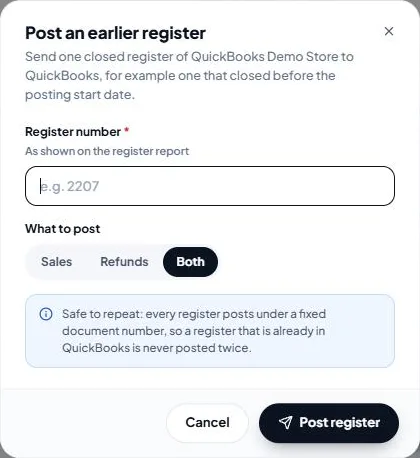
All three are safe to repeat. Every register posts under fixed document numbers (LP<register>-S, -R, -ST, -RT), so a register that is already in QuickBooks is never posted twice.
Fix a rejected or waiting register
- Item groups not mapped — map the item groups the register sold in Mapping > Item groups.
- Taxes not mapped — map the taxes the register charged in Mapping > Taxes, using a QuickBooks code with the same rate. Also shown when the mapped code has no sales rate for a tax the till charged.
- Payment types not mapped — in Journal Entry mode, choose a bank or clearing account for the payment type in Mapping > Payment types, or for the delivery partner in Mapping > Delivery partners. In Sales Receipt mode this only happens when the QuickBooks company has no active Undeposited Funds account.
- Account missing or … not set — set what it names: in Sales Receipt mode under Configuration > Other money on a register (such as Clearing account or Rounding item), in Journal Entry mode under Mapping > Accounts.
- Totals do not match the POS — the register's lines and its total disagree by more than a few cents. Check the register in LithosPOS before you retry.
- Payments exceed the sales total — a card or other non-cash payment was recorded for more than the bill. Cash handed over above the bill is change and does not cause this.
- Refunds exceed the returns total — a refund was paid out for more than the returns.
- A payment type has a negative total or The total is negative — the register's figures are negative where they cannot be. Check the register in LithosPOS.
- Journal mode cannot post this register — the register has tips, gift vouchers sold, a card surcharge or on-account sales, which Journal Entry mode has no account for.
- Journal not balanced — map the Rounding account in Mapping > Accounts.
- Record inactive in QuickBooks — an item, tax code or account the store uses was made inactive in QuickBooks; the drawer names it. Make it active again, or pick another one: in Mapping, or in Sales Receipt mode under Configuration > Other money on a register when it is the rounding, tips, gift vouchers, surcharge or other charges item.
- QuickBooks says an item is a category — the item group is mapped to a QuickBooks category. Map it to a product or service item instead.
- Sign-in expired — reconnect the store to QuickBooks (see QuickBooks store management).
- QuickBooks validation error — QuickBooks refused the document. Read its message in the details, fix it in QuickBooks or in the mapping, then retry.
Registers that were only waiting for mapping post on the next daily check once it is saved. Click Retry to post one straight away.
History for all stores
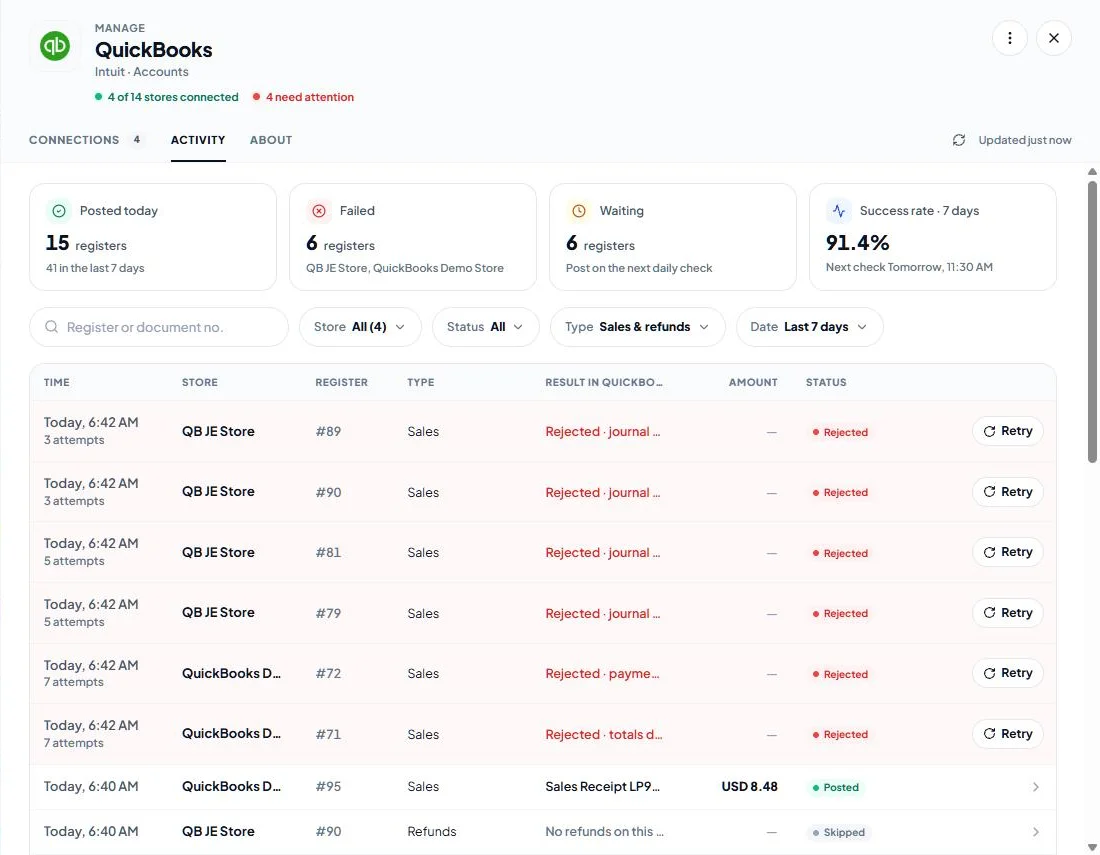
Integrations > QuickBooks > Activity lists the postings of every connected store in one place, with tiles for registers Posted today, Failed (and which stores), Waiting and the 7-day Success rate. Filter by Store, Status, Type and Date, and click a row to see its details.
Was this article helpful?