
Customer-Facing Display for LithosPOS
Enhance the customer experience with a customer-facing display that shows item details, prices, and payment QR codes during billing.
LithosPOS customer-facing display,Enhance your customer interaction. It is designed to showcase item images, prices, and additional details during billing. In addition, the display shows a QR code for payments while processing, allowing customers to make quick and secure transactions.
Utilize it for promotion
Customize your display to highlight special offers, store banners, and promotions when the POS system is
inactive.
For devices with an inbuilt customer display, the connection is automatic upon POS installation. If your POS
does not have an inbuilt display, you can easily connect tablets or phones via Wi-Fi.
To connect a customer-facing display with POS:
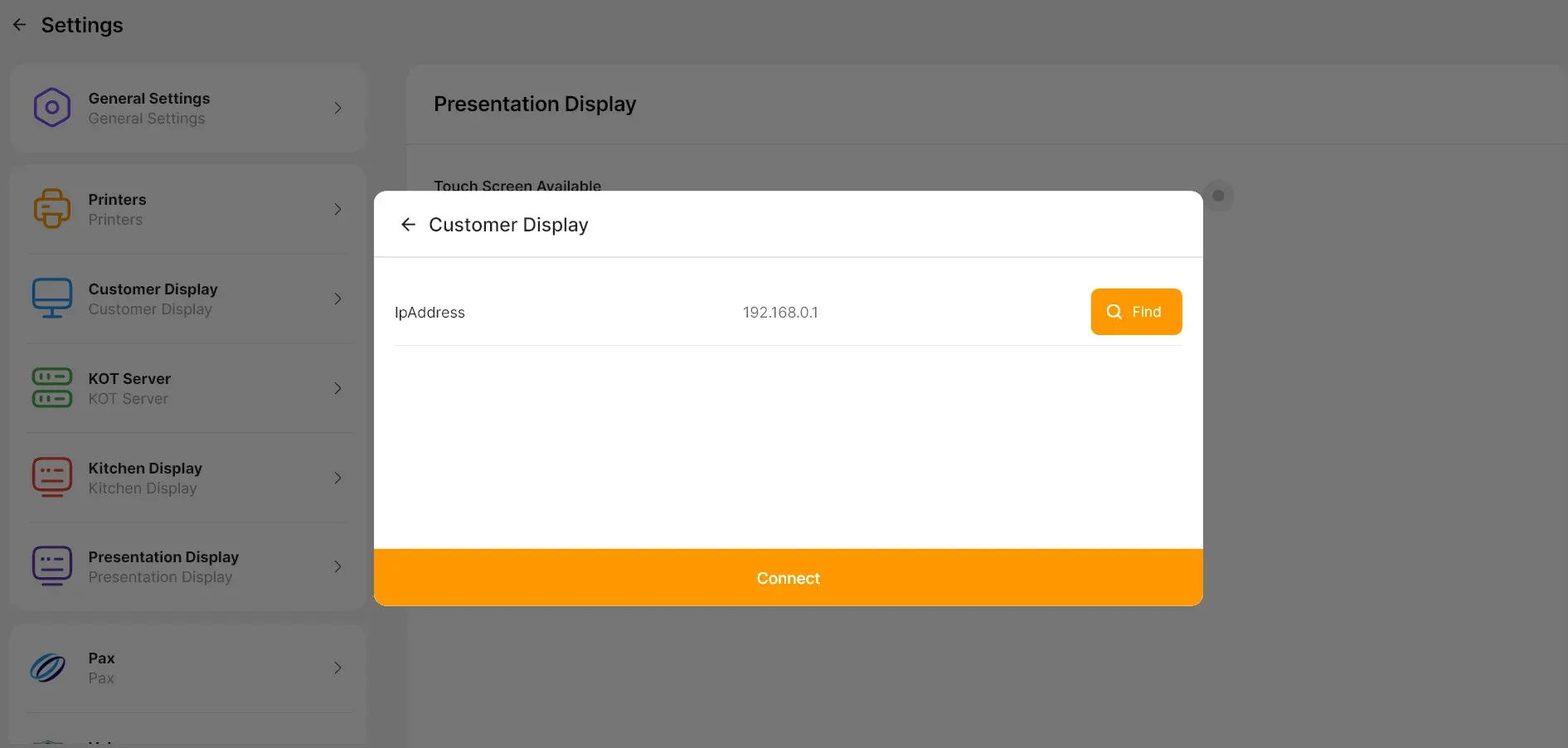
- Go to the POS and select Settings.
- Navigate to Customer Display.
- Enter the IP address of your external display device and click Connect.
Customer-Facing Display Images
Customize your customer-facing POS display by adding images like store banners or featuring special offers.
- Go to settings and click on the ‘Customer Display Image
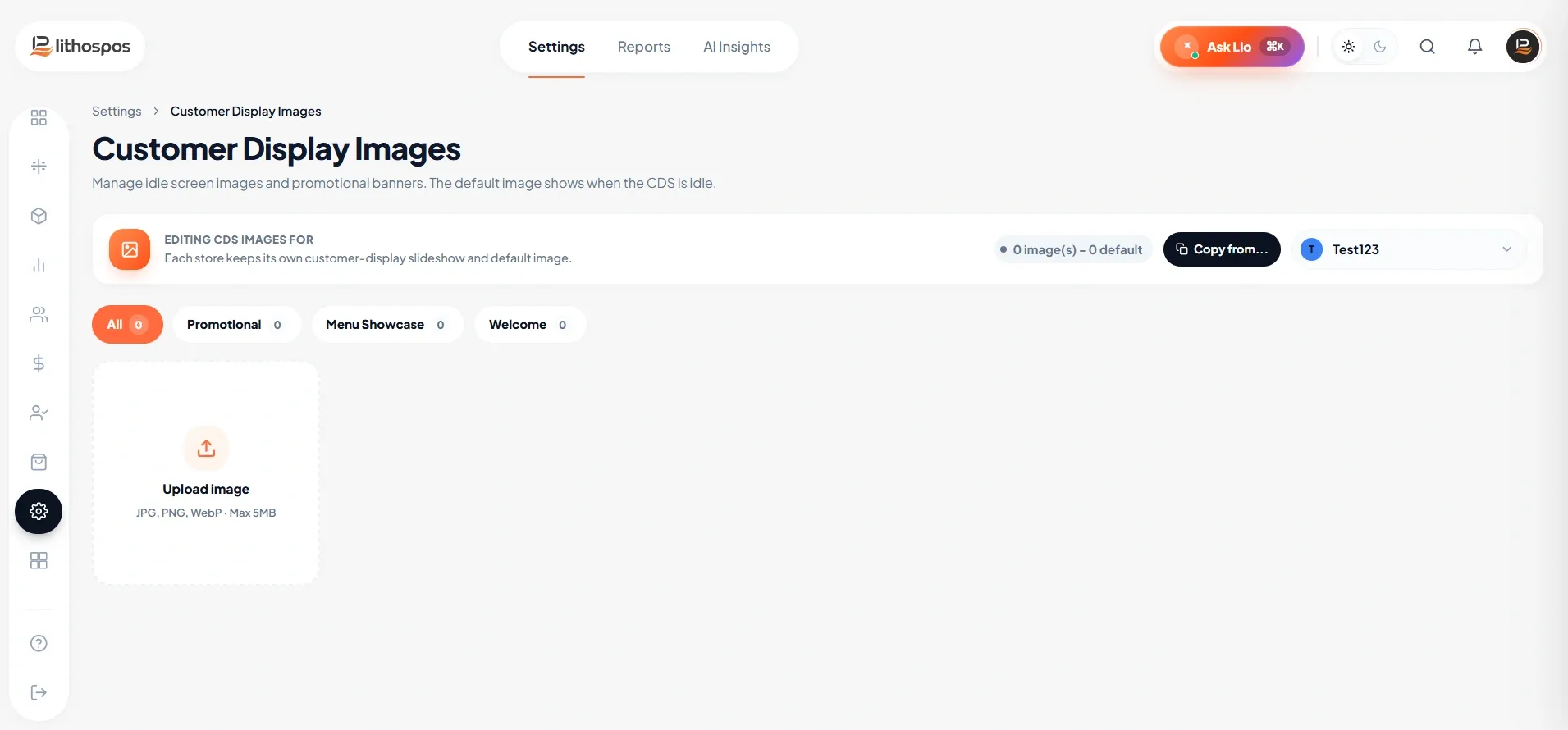
- Choose the Store you want to display this image
- Then click on the Upload image button
- To upload an image, drag or select a file that does not exceed the size of 500 KB. [Image dimensions: 1920x1080]
- After uploading the image click submit
- To delete an image you've added to your store, click on Settings, then navigate to 'Customer Display Image'. Select the store name to view the added images. Click on the close icon on the image, and then click 'OK' to confirm deletion.
Connect with us to know more
To learn more about it feel free to book a meeting with our team
Was this article helpful?