
Self Checkout
A LithosPOS Self Checkout solution that allows customers to scan, review, and pay for their purchases independently using the Kiosk / Self Checkout application, helping reduce queues and speed up the checkout process.
The Self Checkout system allows customers to independently scan, review, and pay for their items using the LithosPOS Kiosk / Self-Checkout application, without needing assistance from a cashier. It can be configured to run in either Kiosk mode (staff-assisted ordering) or Self Checkout mode (customer-operated billing), making it suitable for retail stores, supermarkets, and quick service outlets that want to speed up checkout and reduce counter queues. This guide walks through installing the Kiosk module, setting up the terminal and application, and configuring the interface for daily use.
Install the Kiosk Module
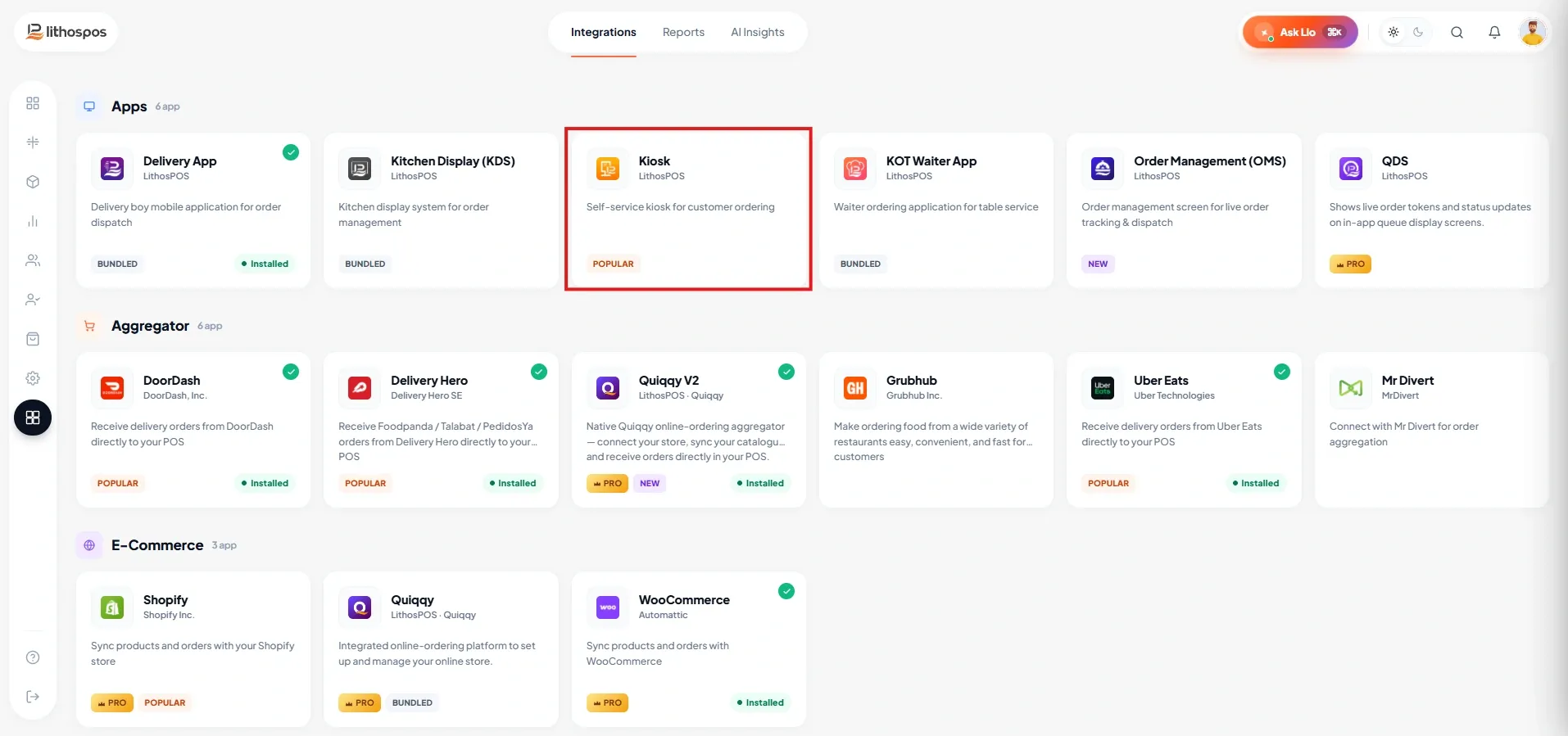
Go to the Integration tab in the Backoffice and install the Kiosk module.
Create a Kiosk Terminal
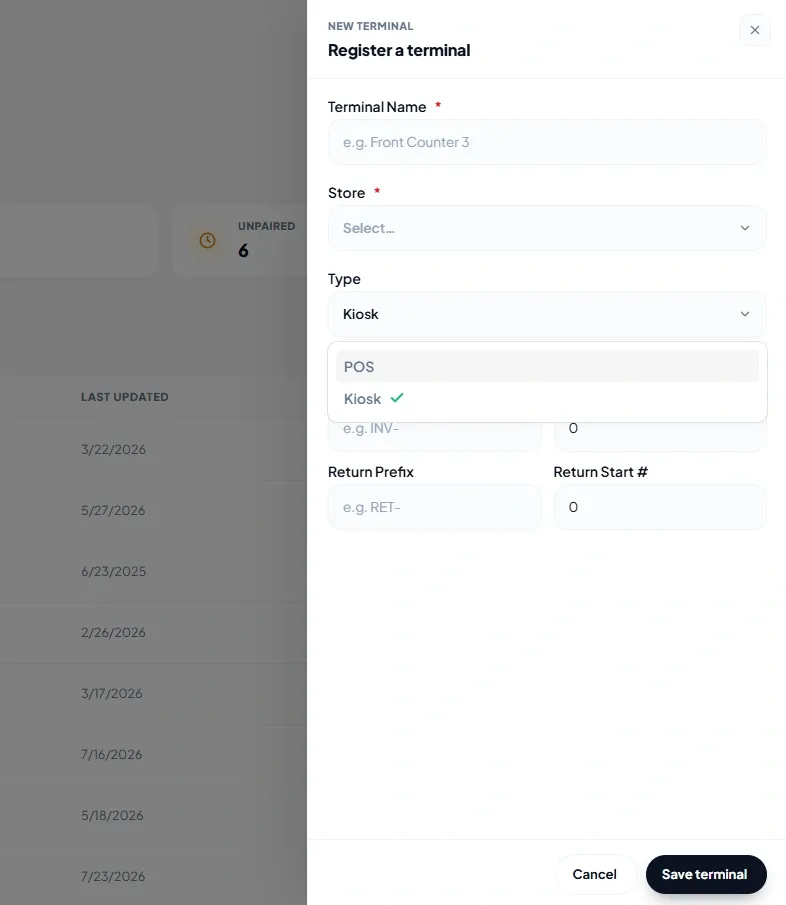
Navigate to Terminal Settings, create a new terminal, and set the Type to Kiosk.
Application Setup
Install the App
Download and install the latest LithosPOS Kiosk / Self-Checkout application from the Play Store.
Log In
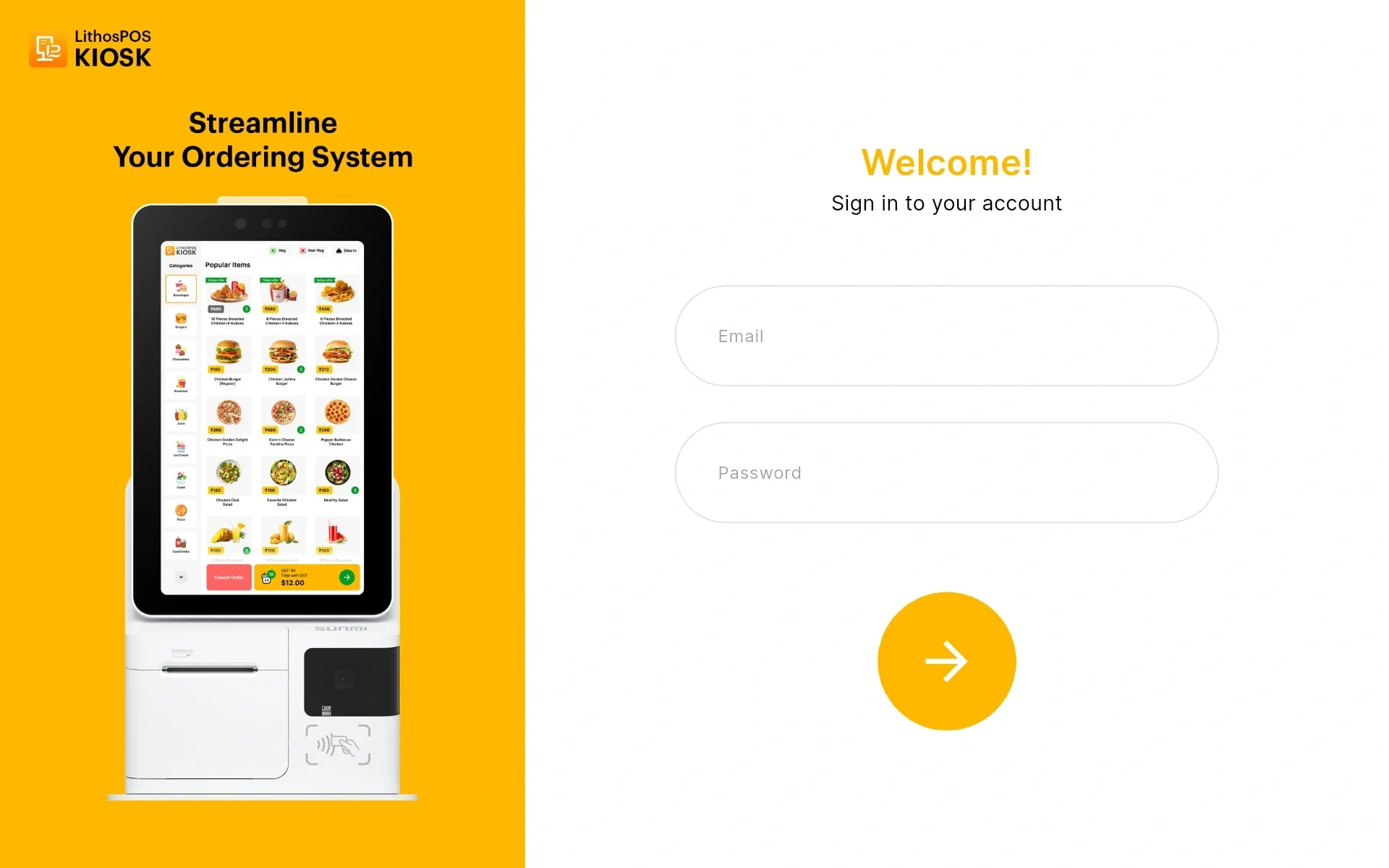
Open the app and log in using your registered mail ID and password.
Select Mode
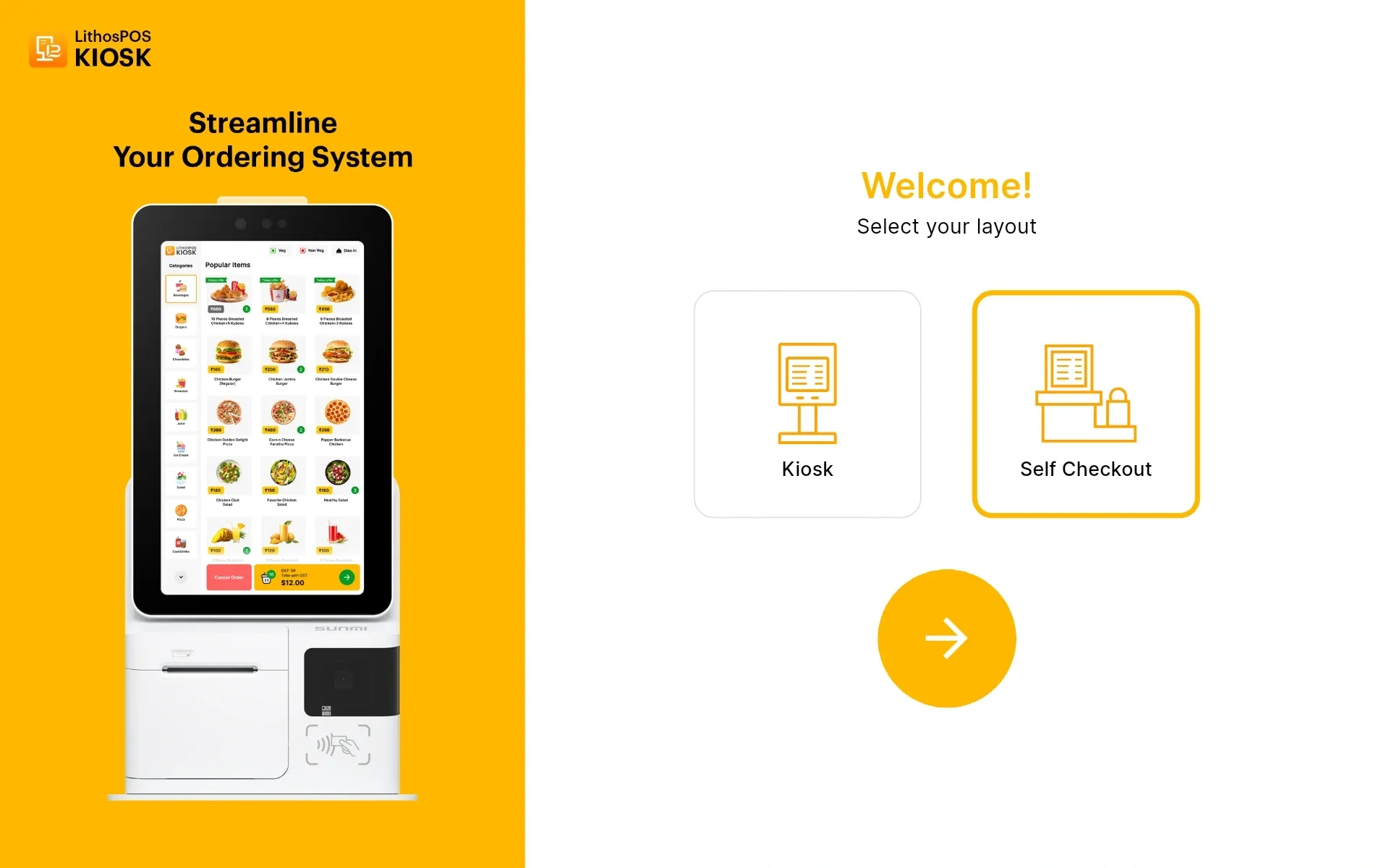
Choose between Kiosk or Self Checkout mode
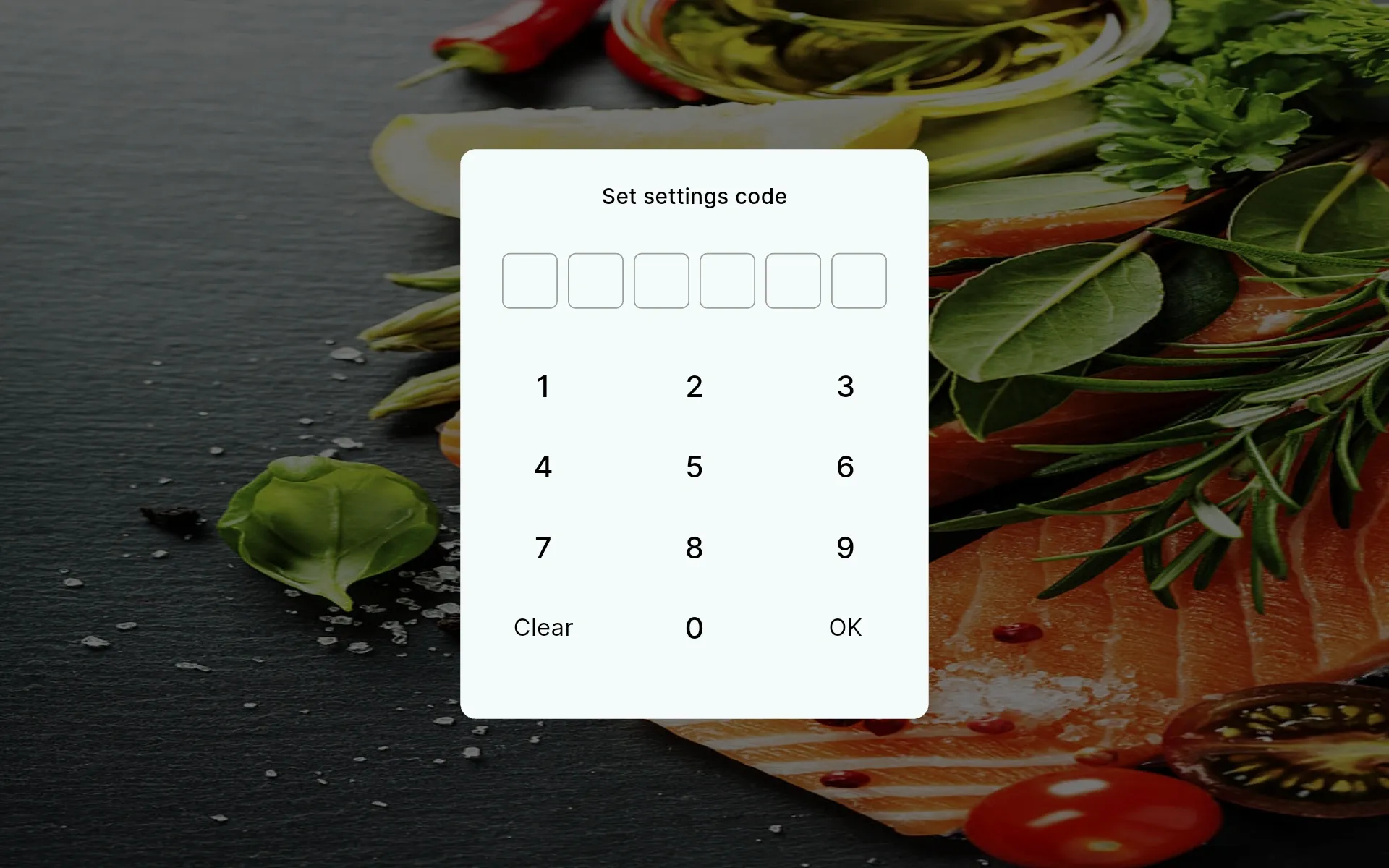
Enter Settings Code
After selecting the mode, you'll be prompted to enter a settings code. The default code is 123456.
Using the Kiosk Interface
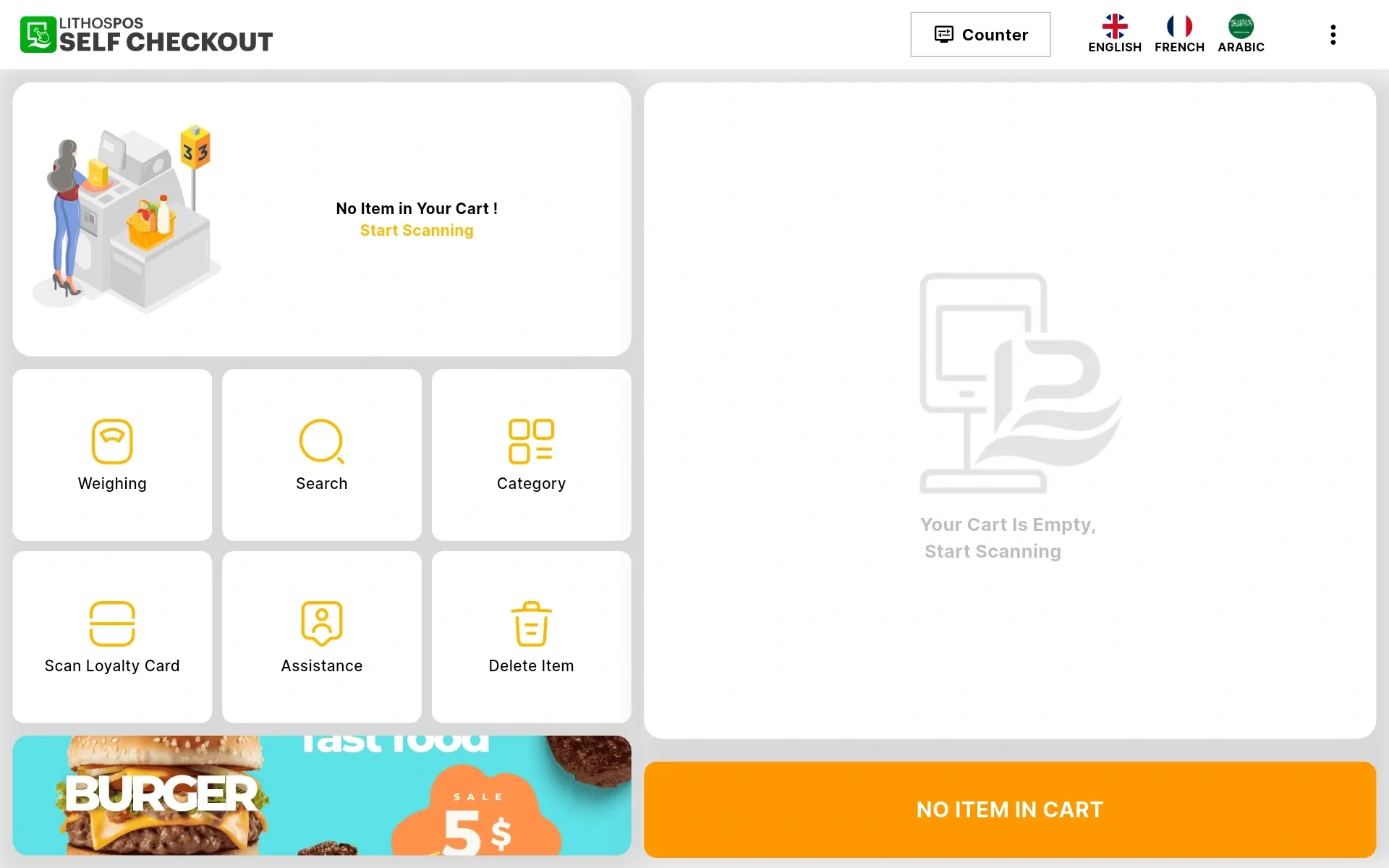
Once setup is complete, tapping into the Kiosk interface will display the default menu, ready for use.
Settings Tab
To open the Settings tab, draw an X in the middle of the screen. This will prompt you to enter the 6-digit code mapped earlier.
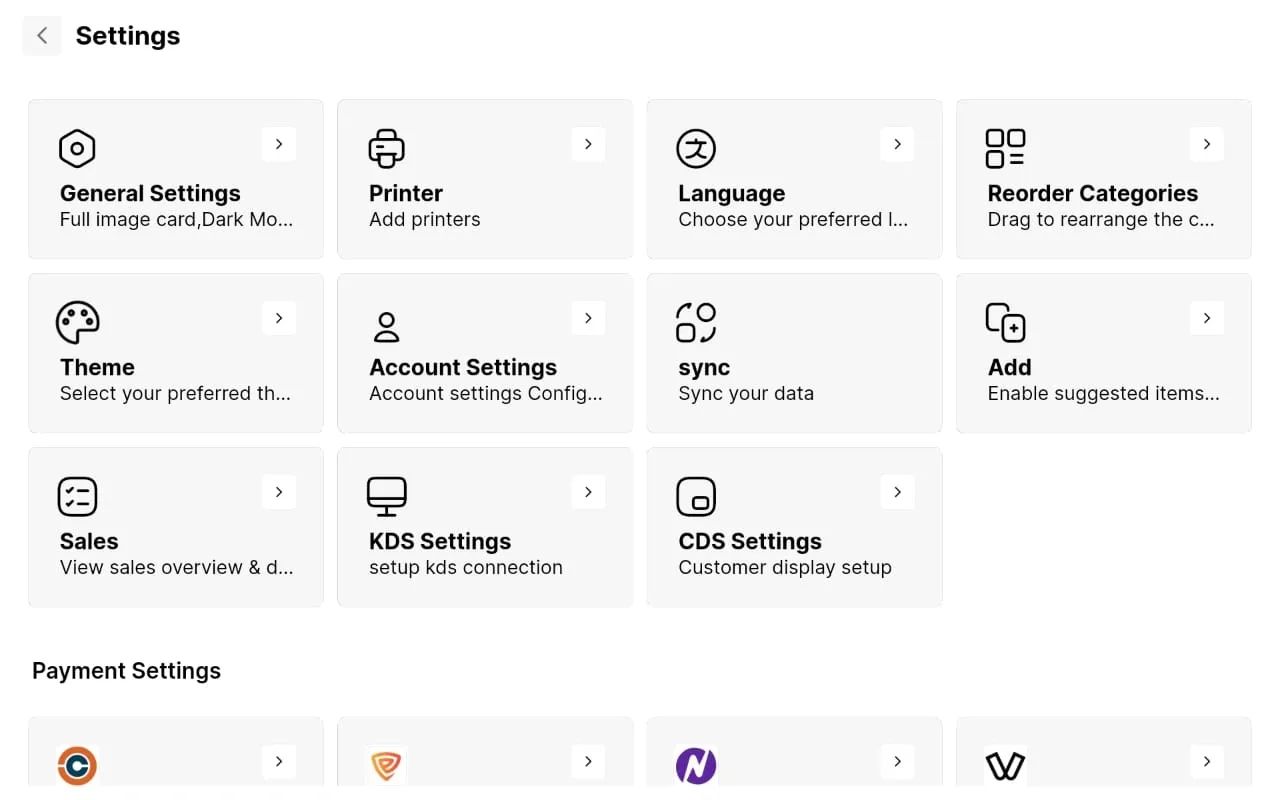
To enable the full image card, switch to dark mode, enable the side cart screen, and perform basic customization all done through General Settings in the Settings Tab.
Printer Configuration
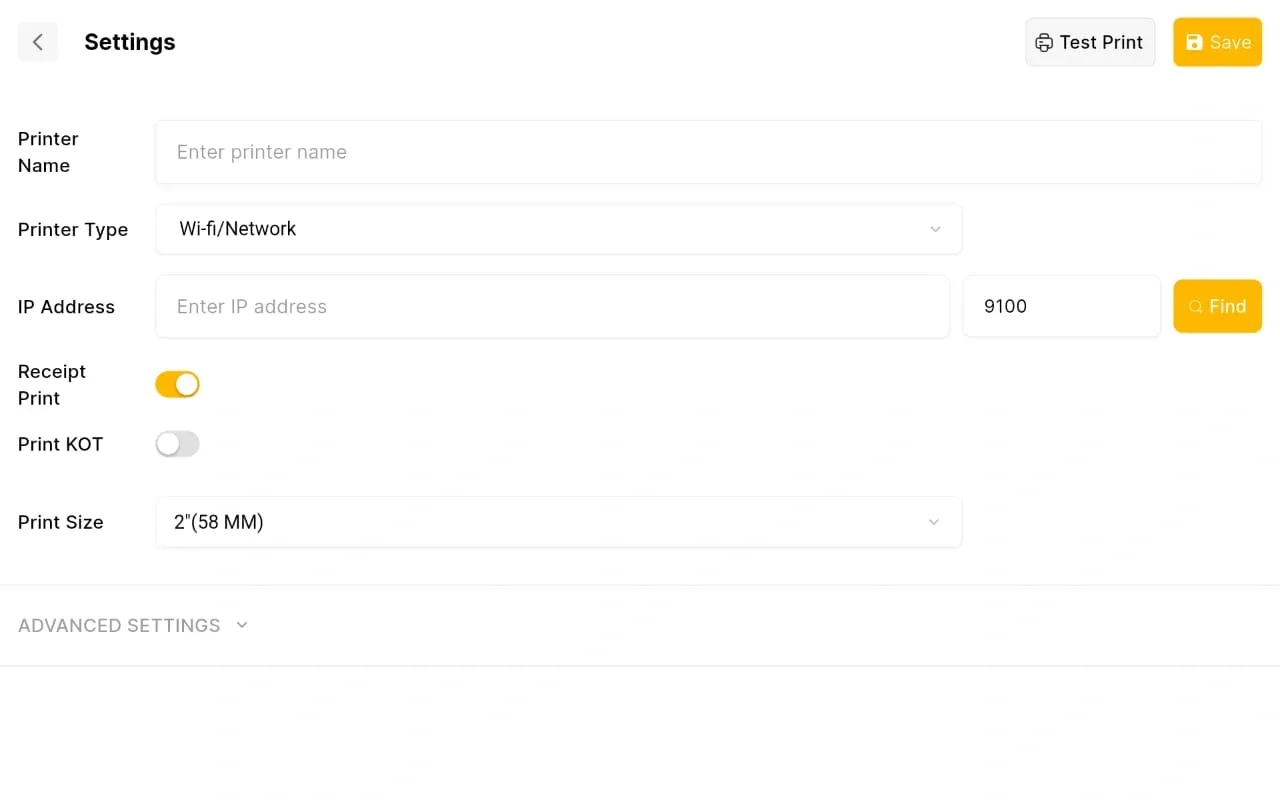
To add a printer, select Printer Settings in Kiosk Settings and enter the mandatory details. .
Language Configuration and Category Positioning
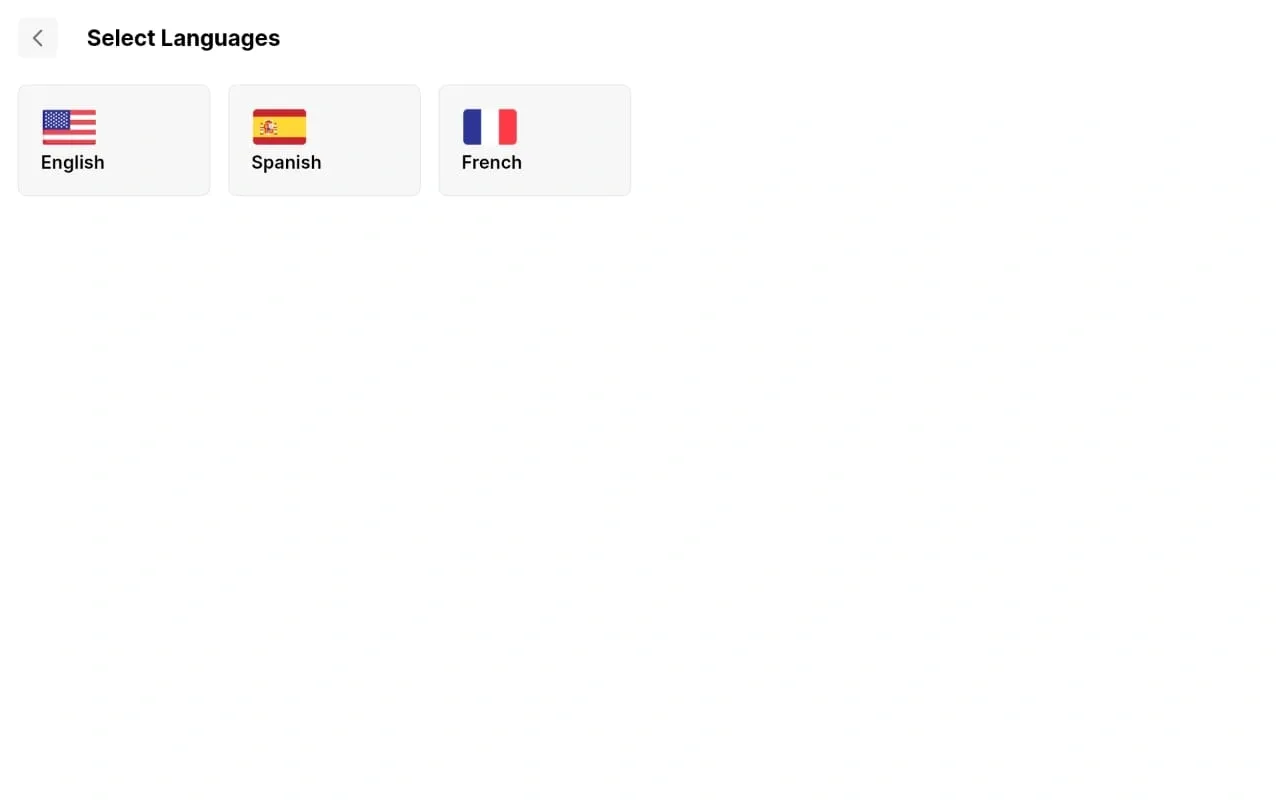
- Settings → Language: Choose your preferred language.
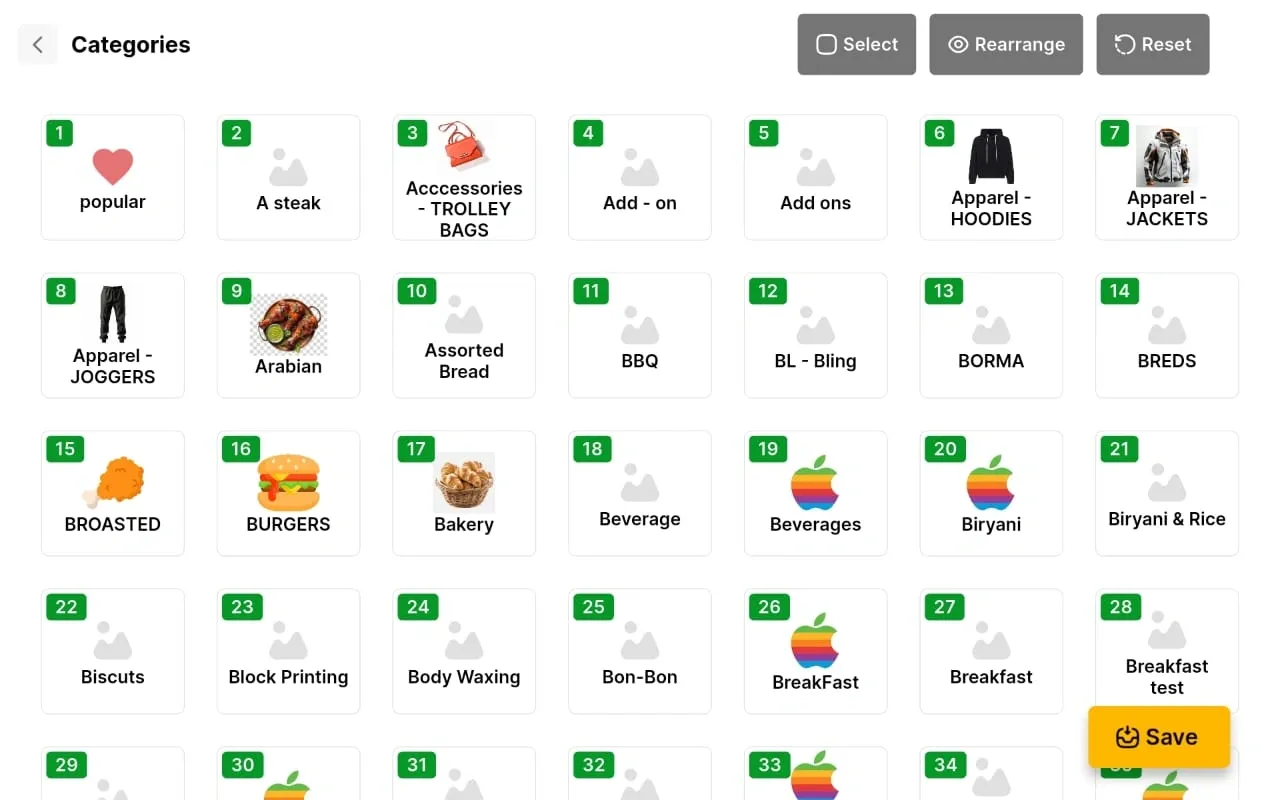
- Settings → Category Reorder: Rearrange the display order of categories.
To set the preferred language, go to the Language tab in Settings and select your desired language. To rearrange category positioning, use the Category Reorder tab in Settings.
Theme Customization
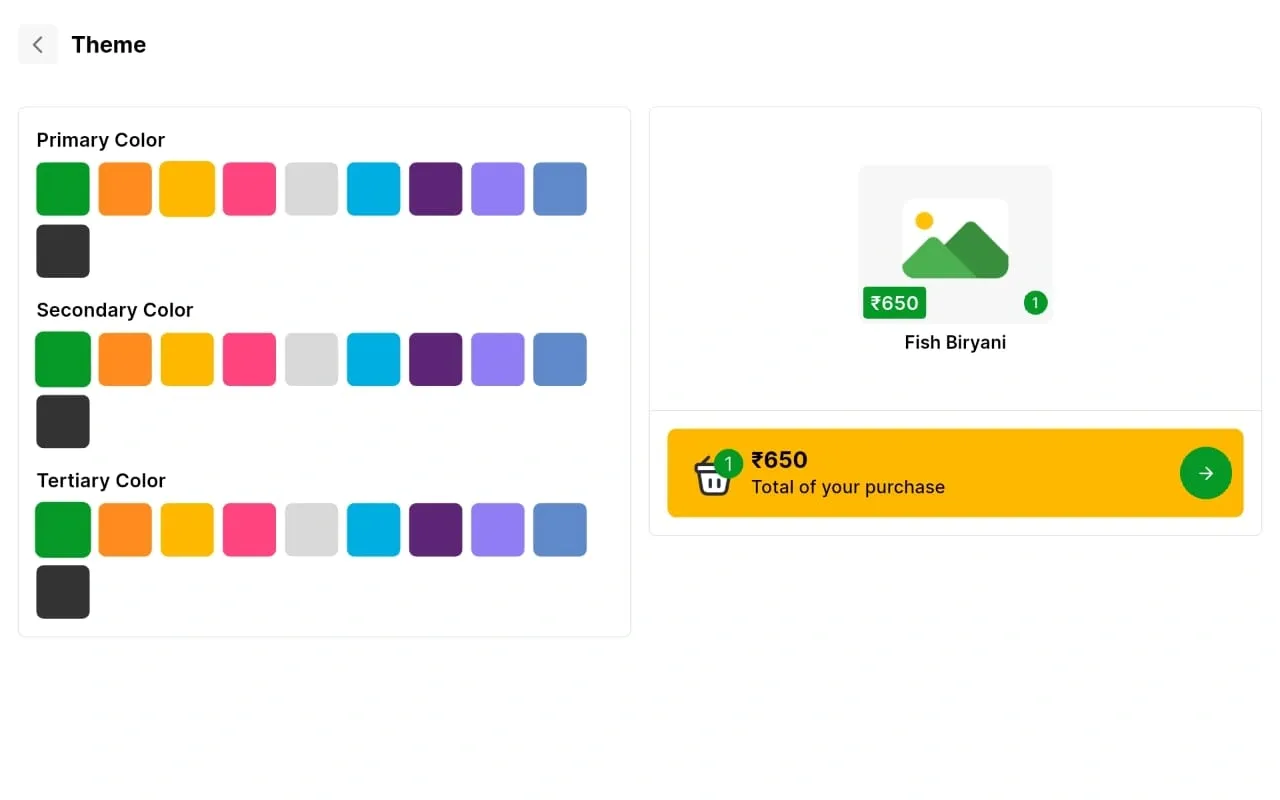
Customization of the self-checkout screen can be done through Theme Settings.
Settings → Theme settings
Deactivating the Terminal
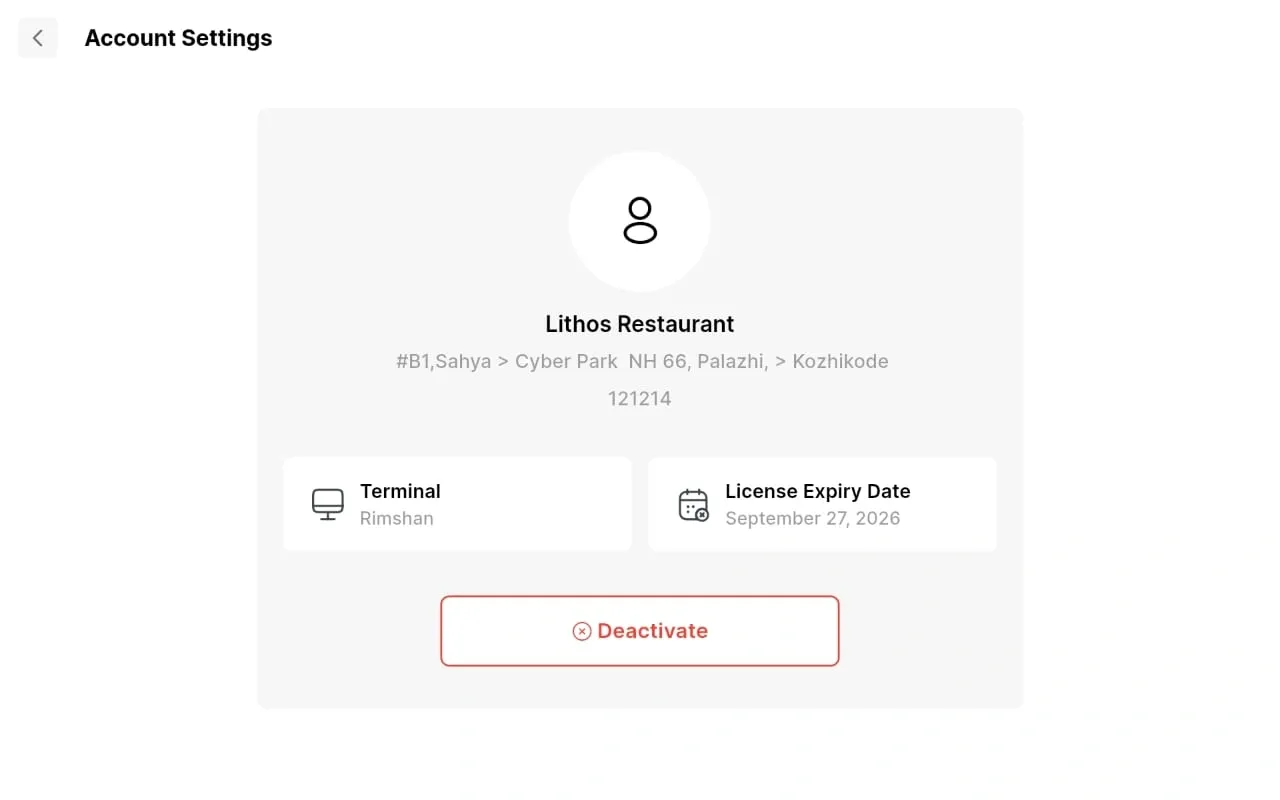
To remove the self-checkout kiosk terminal from the device:
Settings → Account Settings → Deactivate Account.
Suggested Items
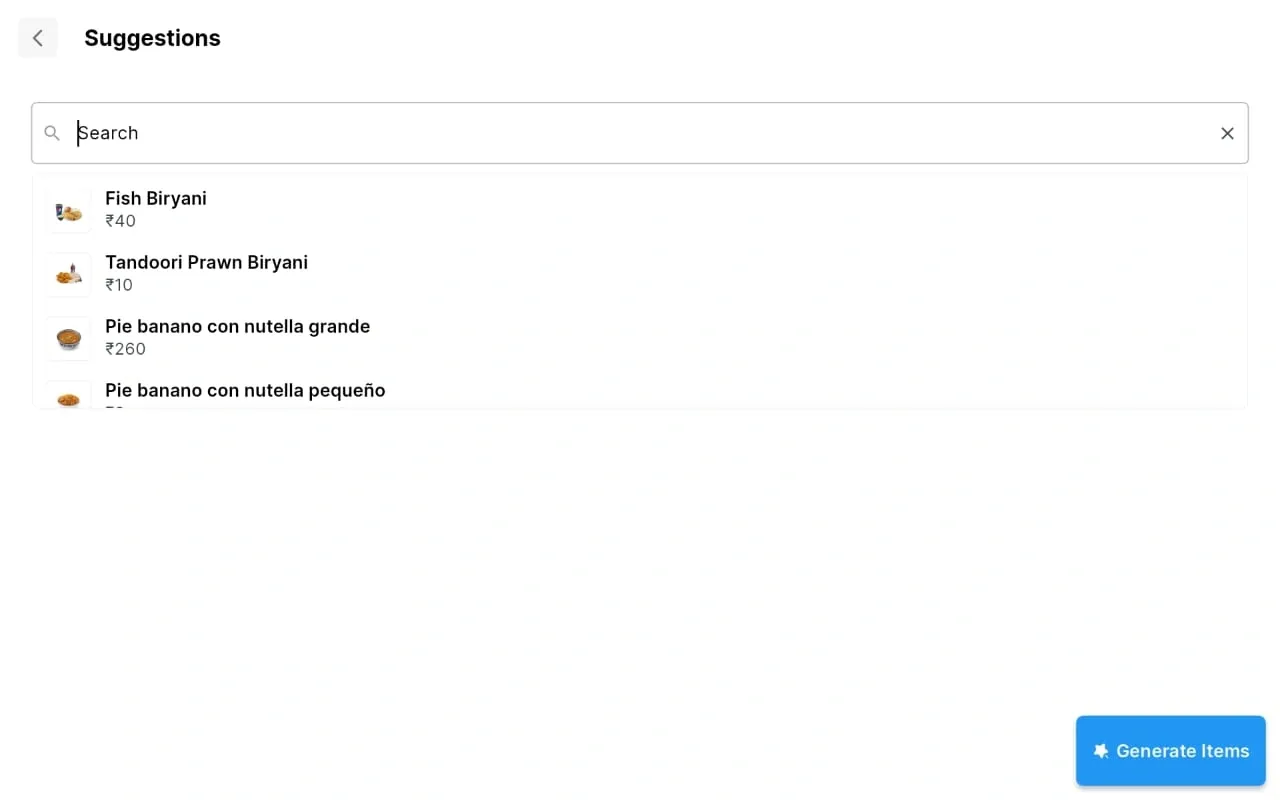
To show item suggestions on the display, enable this via Add/Enable Suggested Items in settings.
Sales Overview
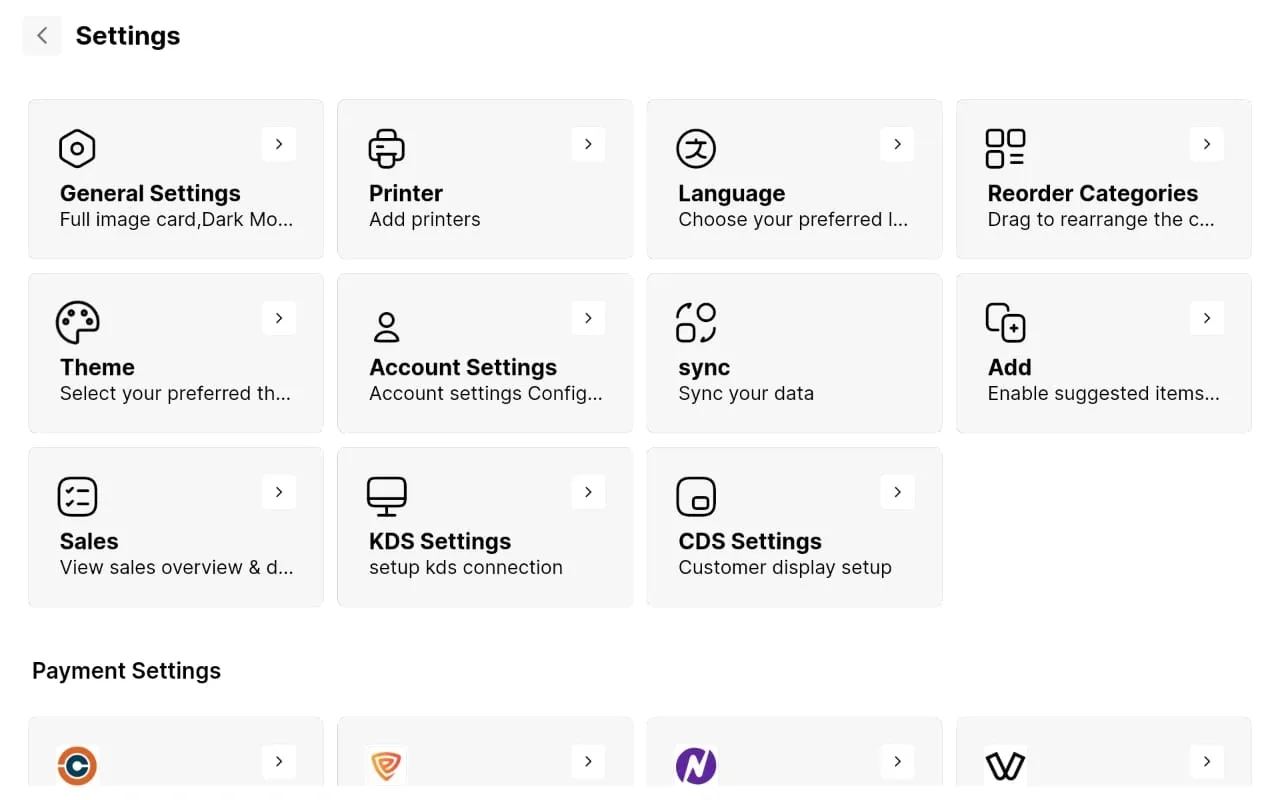
To view all the sales details → Draw X → Enter Device Code —> Sales
To Preview the Sales Bill
To Preview the Previously Completed Bill
Sales → Select the wanted Bill → Click on the Bill
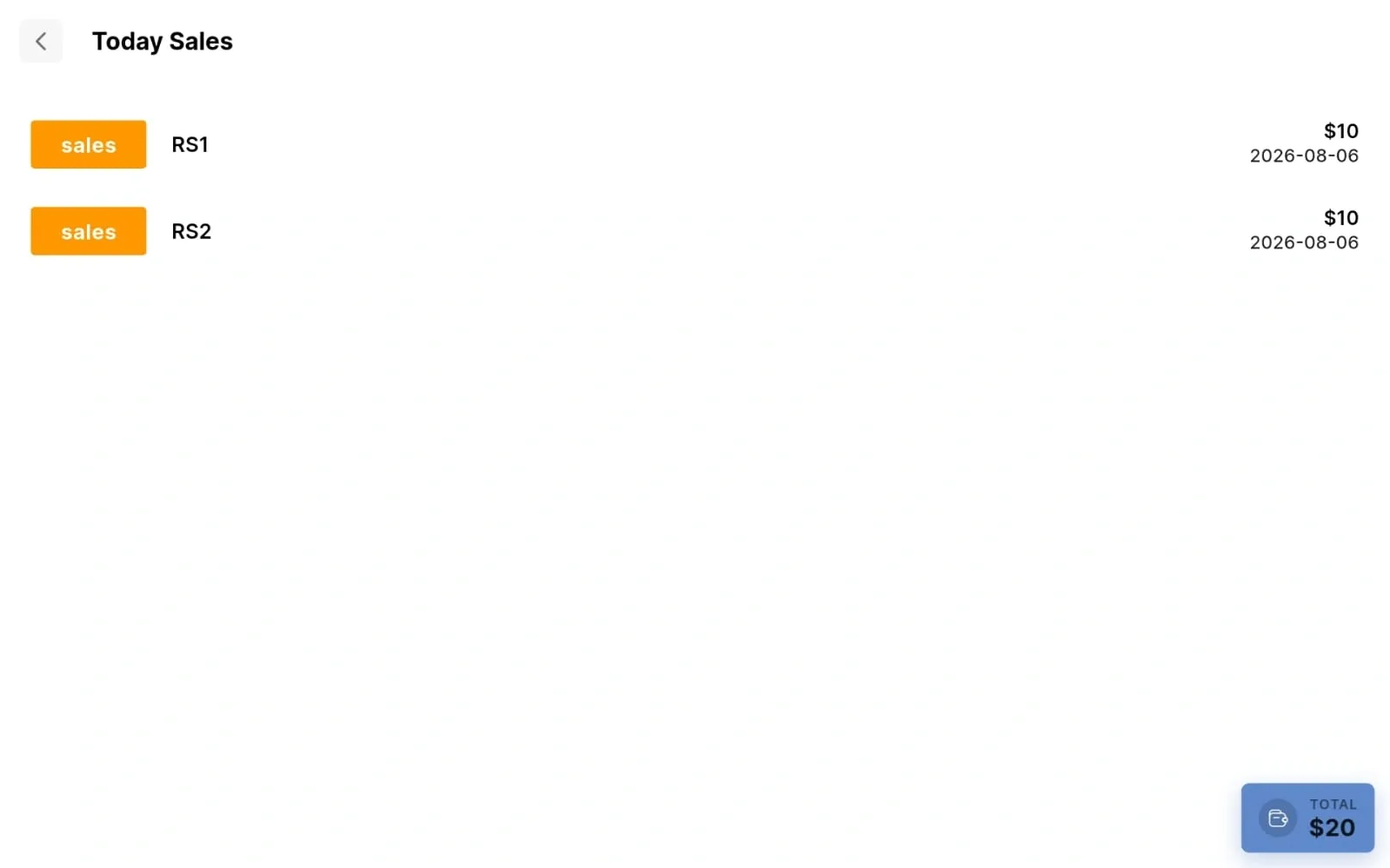
Connecting Kitchen Display.
Draw X → Enter The Device code → Click On KDS Settings → Enter Ip Address → Enter Display Name → Enable the wanted Kitchen
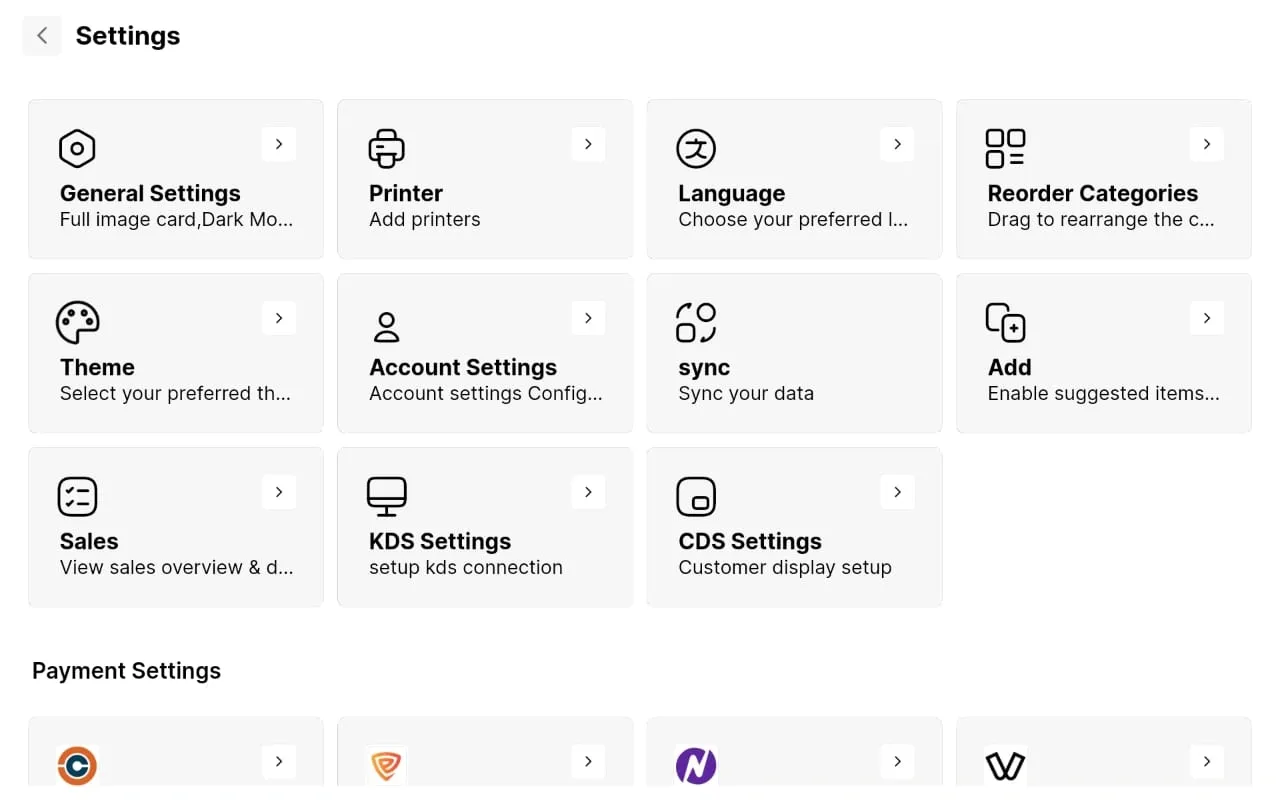
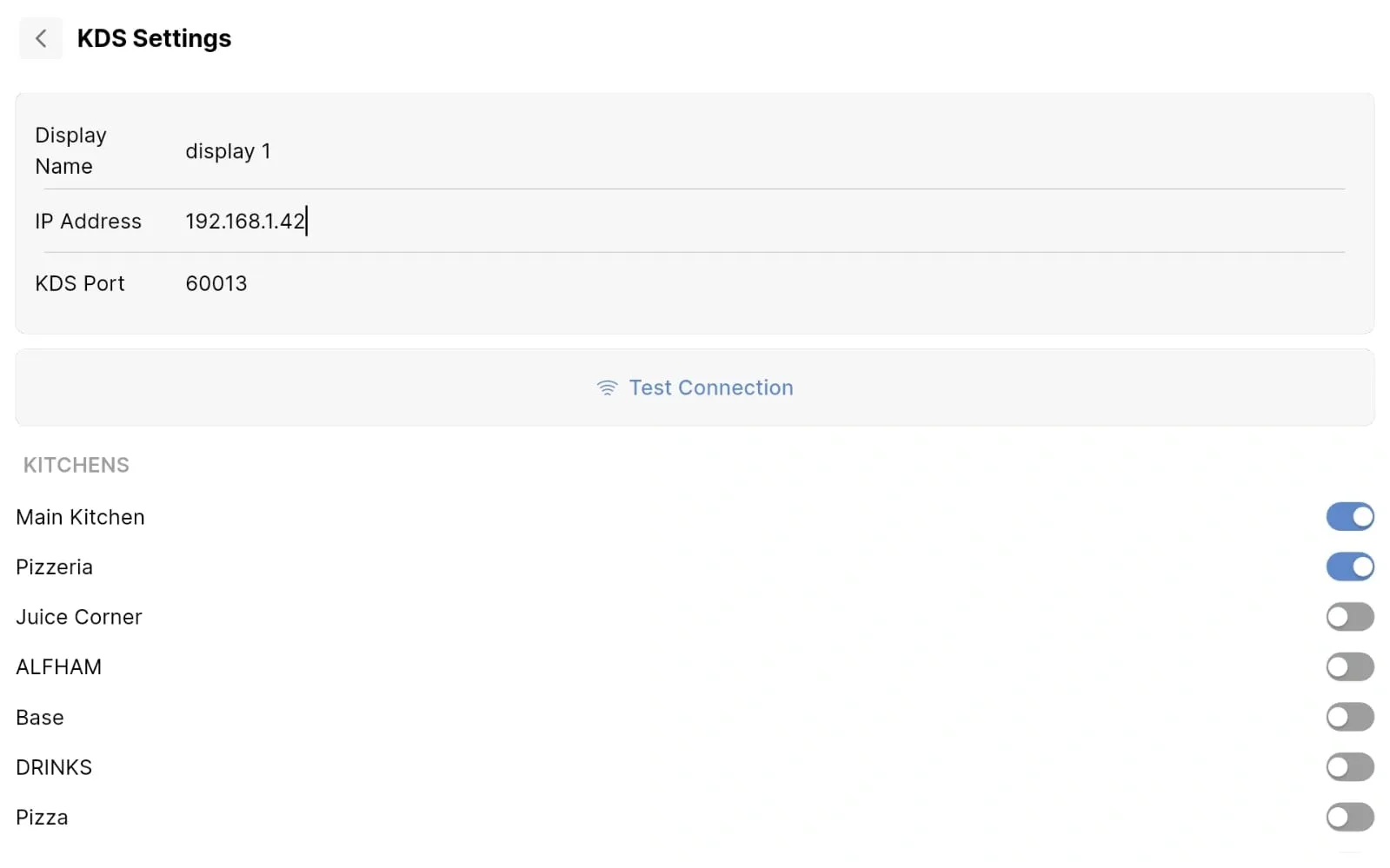
Connecting Customer Display.
Draw X → Enter The Device code → Click On CDS Settings → Enter Ip Address → Click Enter
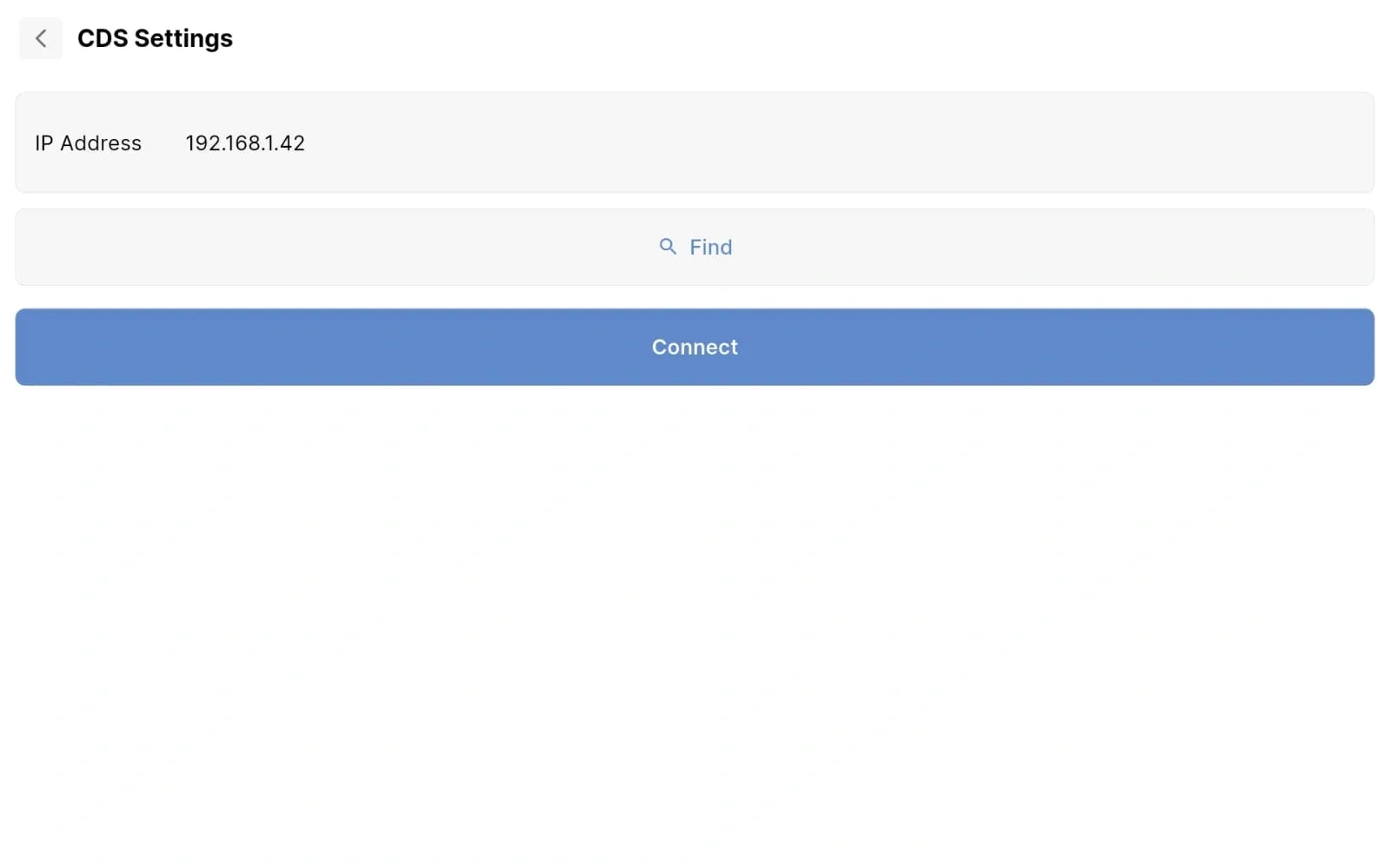
Connect with us to know more
To learn more about it feel free to book a meeting with our team
Was this article helpful?