
Xero store management
Manage the stores connected to Xero. Read the connection statuses, use the store overview, check or reconnect a store's Xero sign-in, disconnect a store, and uninstall or reinstall Xero.
Every store connected to Xero is managed from Integrations > Xero. The Connections tab lists the stores, and each store opens into its own Overview, Mapping and History.
The connections list
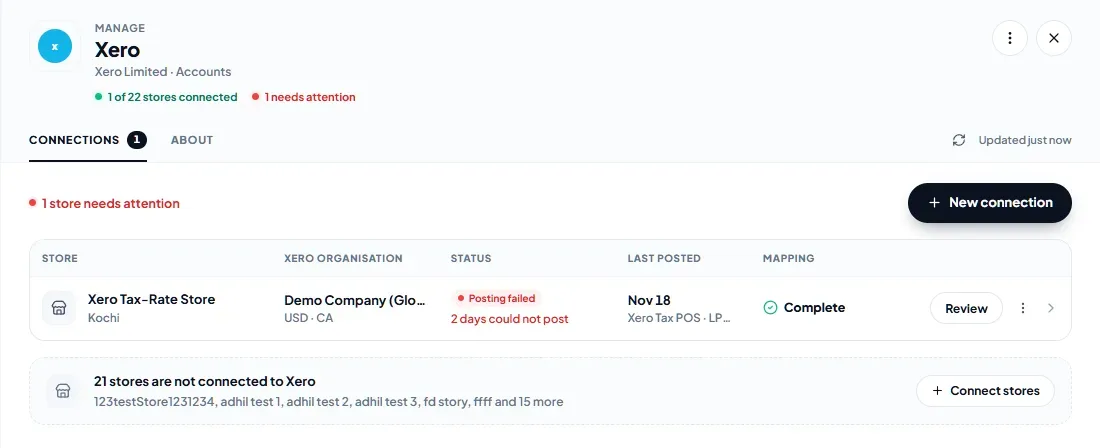
Each connected store shows its Xero organisation, its status and the last day it posted. Fix, Review or Reconnect on the row goes straight to what the store needs, and the ⋮ menu has the store's other actions. Stores that are not connected yet are listed at the bottom with Connect stores.
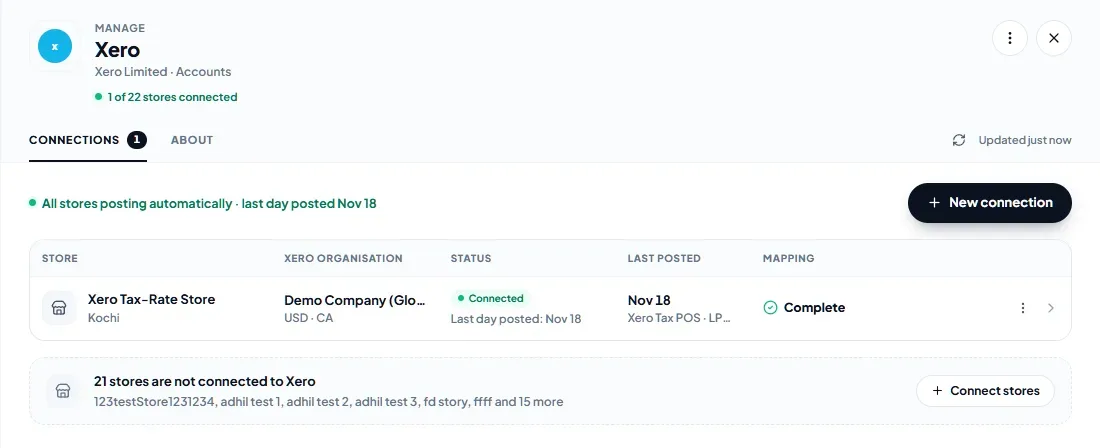
The statuses:
- Connected — posting automatically every 30 minutes.
- Mapping needed — a required mapping is missing; days that need it wait and post once it is saved.
- Posting failed — one or more days need attention. See the store's History.
- Reconnect required — Xero stopped accepting the store's sign-in. Nothing posts until it is reconnected.
The store overview
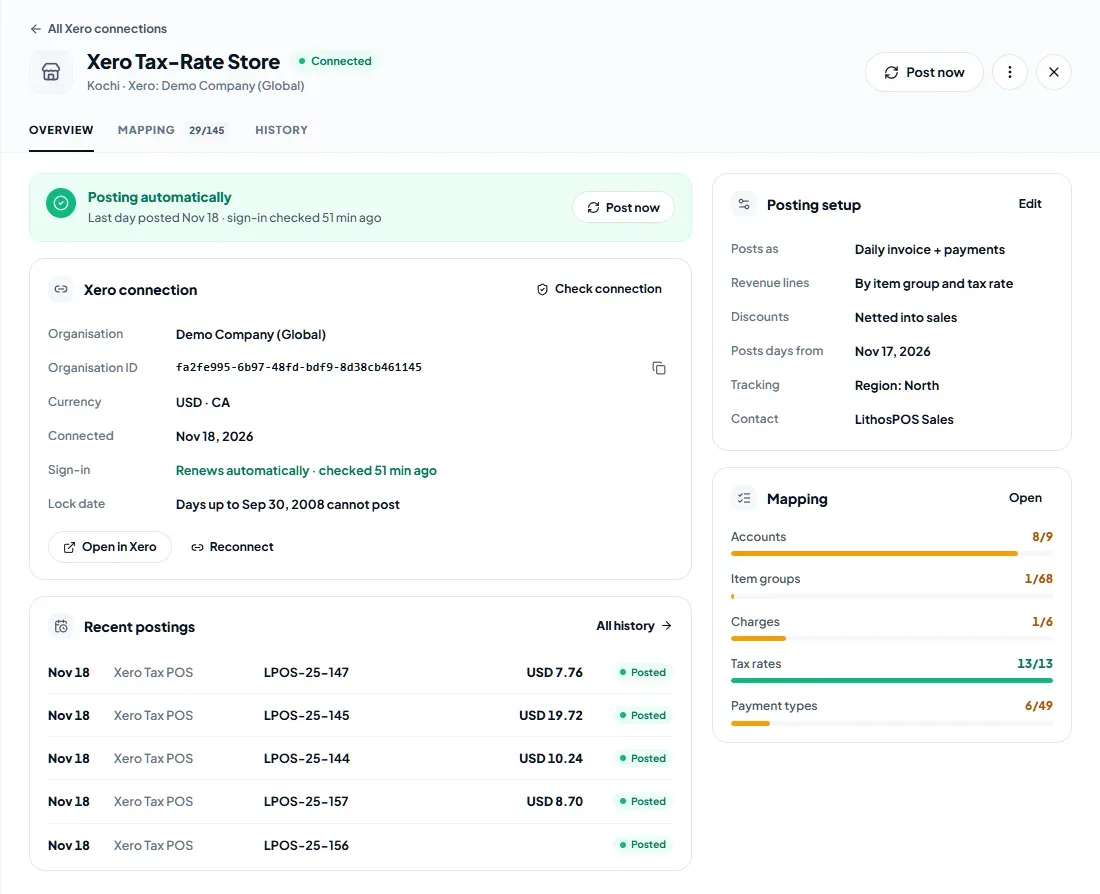
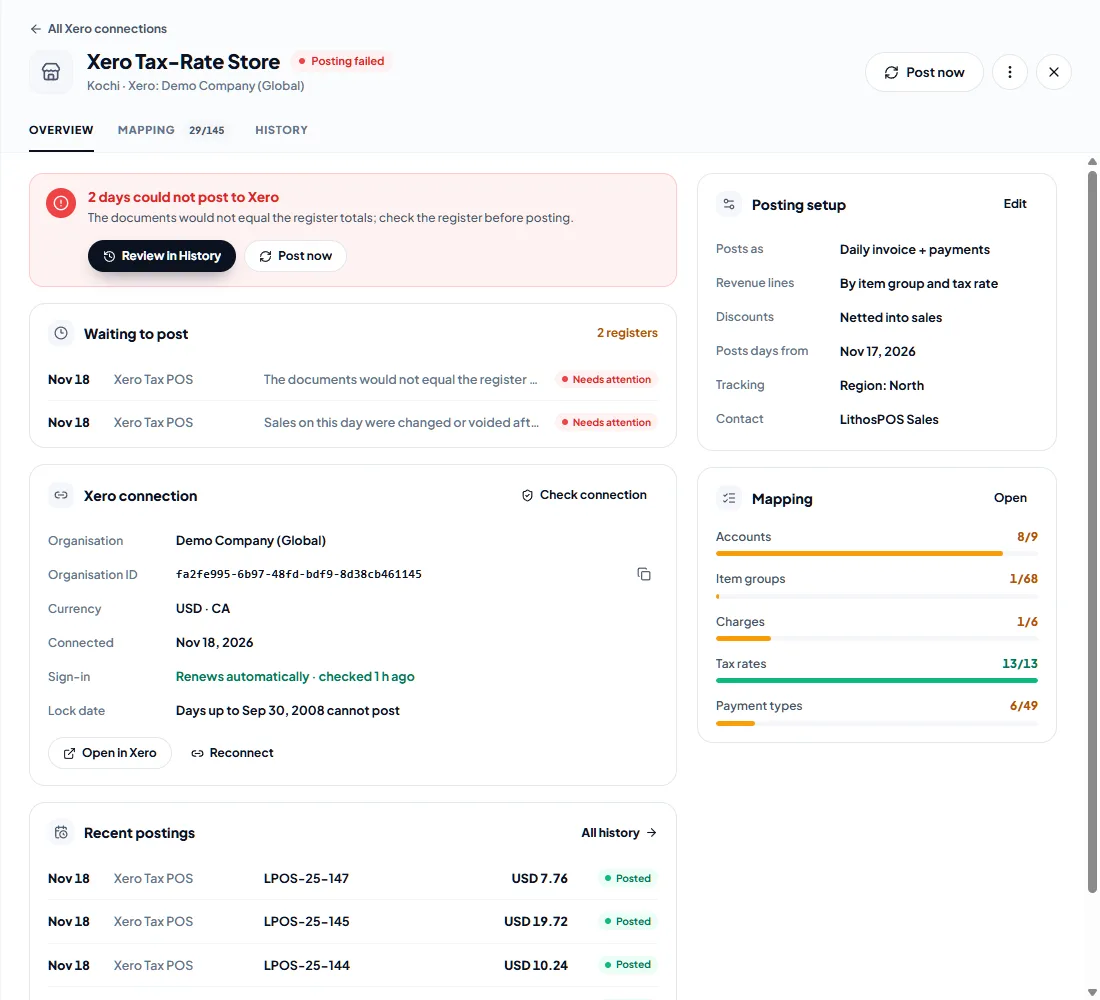
Open a store to see its Overview:
- what the store needs, if anything (missing mapping, days Xero rejected or an expired sign-in), with the button that fixes it;
- Waiting to post — closed registers that have not posted yet, and why;
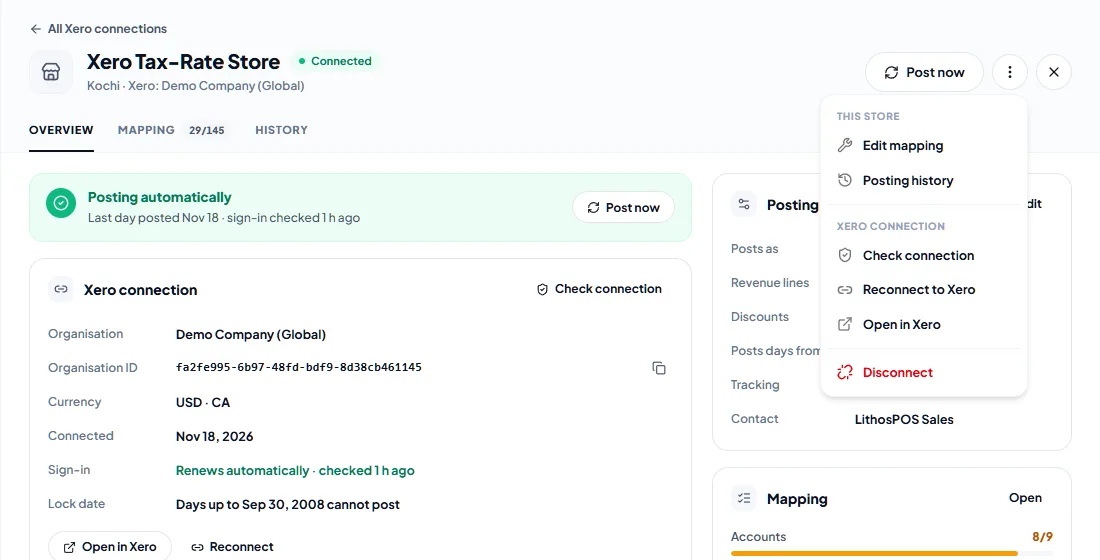
- Xero connection — the organisation, its ID, its currency, its lock date and whether the sign-in renews automatically;
- Recent postings, with All history;
- the store's Posting setup (revenue lines, discounts, start date and tracking) and mapping progress.
The ⋮ menu at the top of the store has Edit mapping, Posting history, Check connection, Reconnect to Xero, Open in Xero and Disconnect; Post now is the button next to it. The same menu on a row of the connections list also has Open store and Post now. The arrows at the top move to the previous or next store.
Check and reconnect the connection
- Check connection asks Xero whether the store's sign-in still works and reads the organisation again, including its lock date.
- LithosPOS renews the sign-in automatically. If LithosPOS is removed from Connected apps in Xero, the store shows Reconnect required. Click Reconnect, sign in to Xero and click Allow access. The mapping is kept, and days closed in the meantime post on the next run.
- Lock date — days up to the organisation's lock date cannot post to Xero. A day inside it is held until your adviser moves the lock date; then click Retry on it in History.
Several stores on one organisation
Stores can share a Xero organisation. Each store keeps its own mapping, and its invoices carry the store in their number (LPOS-<store>-<register>) and their reference. To connect another store to an organisation that is already connected, sign in with the same Xero user and choose the same organisation.
Disconnect a store
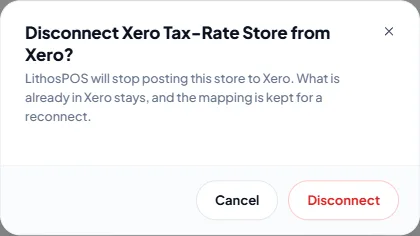
Disconnect (in the store's ⋮ menu) stops LithosPOS posting the store to Xero. Everything already in Xero stays, and the store's mapping is kept, so connecting it again picks up where it left off. Other stores on the same organisation keep posting. When the last store on an organisation is disconnected, LithosPOS also removes itself from the organisation's Connected apps in Xero.
Uninstall Xero
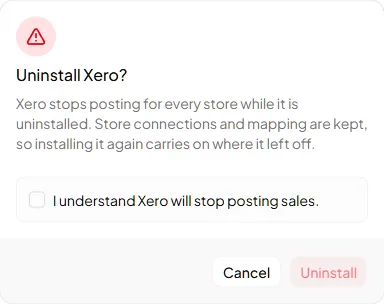
To stop Xero for every store, choose Uninstall Xero from the ⋮ menu at the top of Integrations > Xero. Nothing posts while it is uninstalled. Store connections and mapping are kept, so installing it again from Integrations carries on where it left off: the days closed in the meantime post on the next run, without reconnecting.
Was this article helpful?