
Managing Brands
Manage and assign brands to inventory items to organize products and generate brand-specific sales and inventory reports.
Updated
In LithosPOS, associating items with their respective brands is essential for organizing your inventory and generating brand-specific sales and inventory reports. This helps in analyzing the performance of different brands and making informed decisions for inventory management and marketing.
Adding a Brand While Adding an Item
During Item Addition
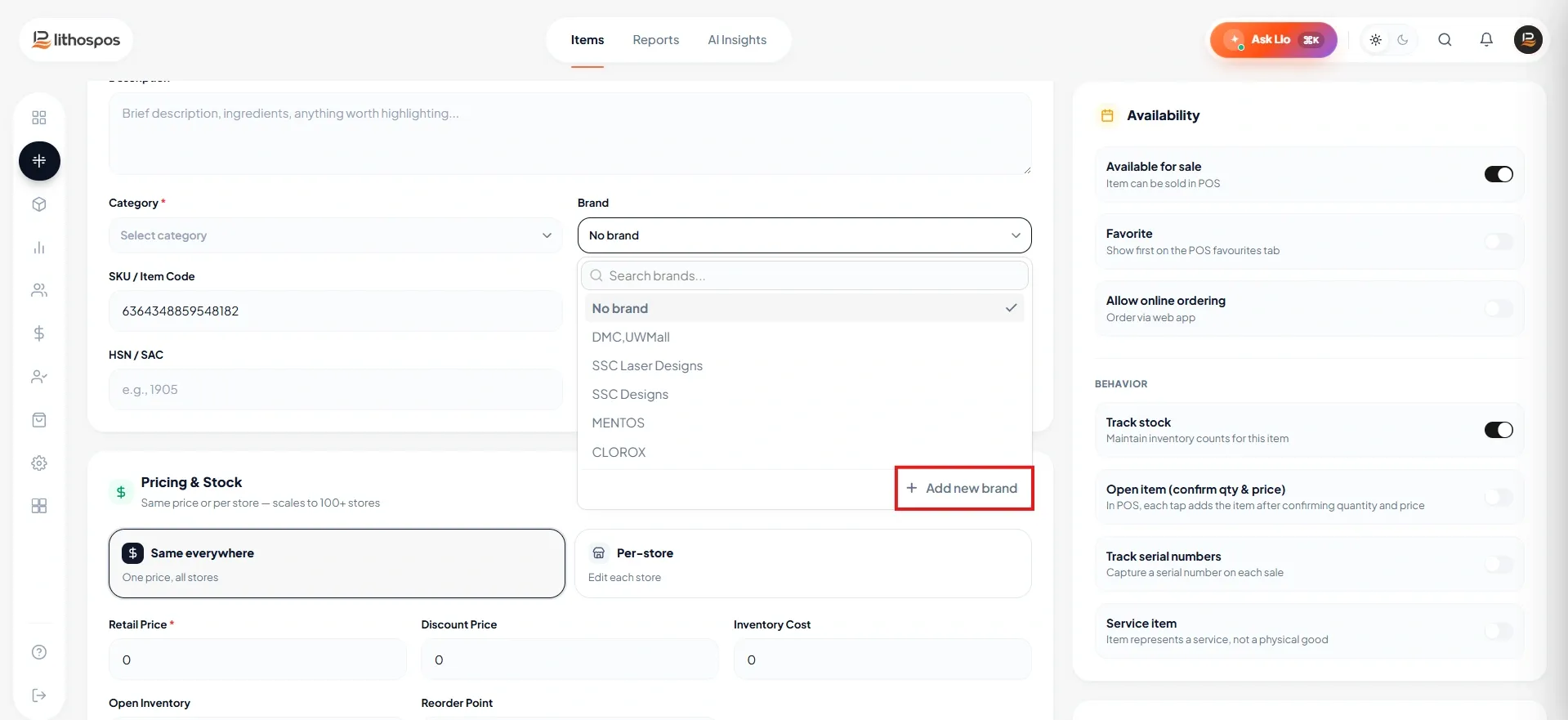
- When you are adding a new item in the item addition window, you can select the brand for the product.
- If the brand you need is not listed, click on the “+Add Brand” below the brand drop down list.
-
Enter the brand name in the provided field and click ‘Submit’ to save it. The brand will now be
available for selection and can be associated with the item.
Adding a Brand from items settings
-
Navigate to Items:
Log in to the LithosPOS back office and go to the ‘Items’ section.
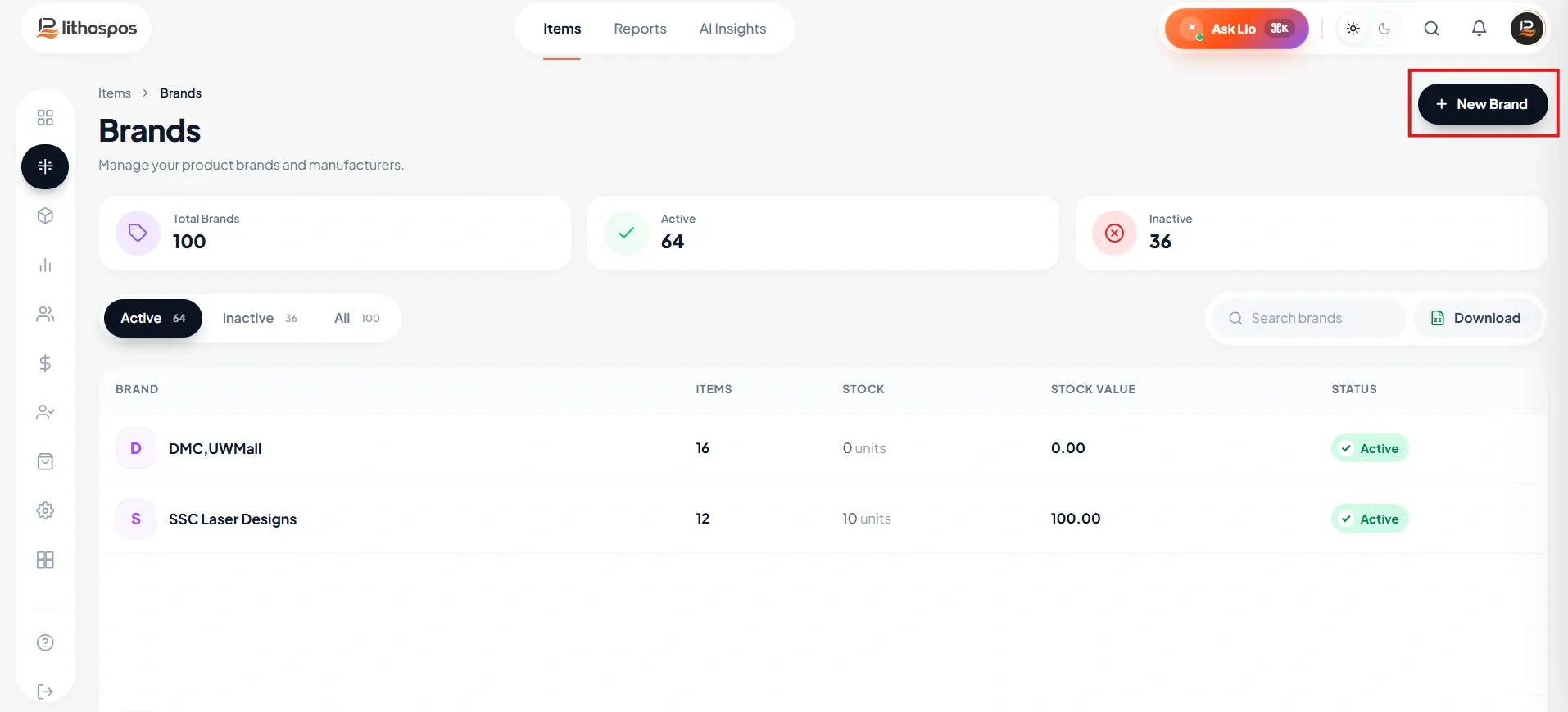
- Access Brands: Click on ‘Brand’ to manage your brands. Then click on +Add brands
-
Add a New Brand:
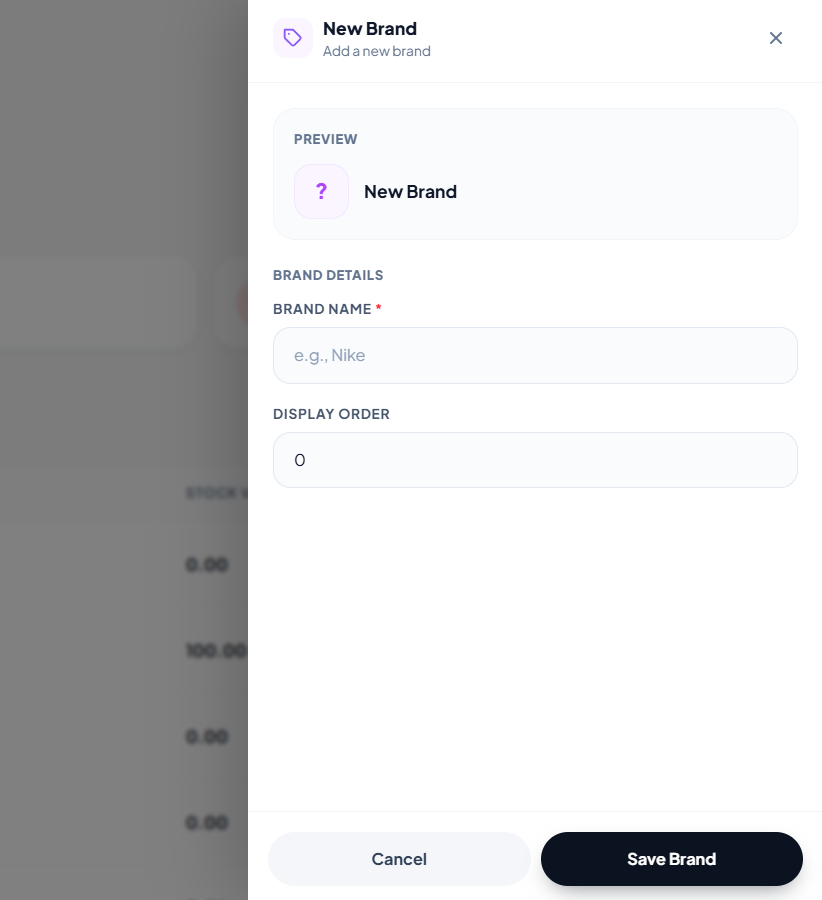
- A side window will open on the right side. Enter the brand name in the designated field.
- Click ‘Submit’ to save the brand.
Once saved, the brand will be available in the system and can be assigned to items in your inventory.
Connect with us to know more
To learn more about it feel free to book a meeting with our team
Was this article helpful?