
Bank of Maldives (BML) Payment Integration in LithosPOS
Take online-order payments through Bank of Maldives. Customers pay on the BML payment page in MVR, and the order reaches LithosPOS once BML confirms the payment. Available to businesses in the Maldives.
Bank of Maldives (BML) lets customers pay for online orders on the BML payment page. LithosPOS sends the order total to BML, the customer pays by card on the BML page, and the order is sent to your POS as soon as BML confirms the payment.
The setup takes four steps:
Get your BML API secret → Add the payment type → Register the webhook URL → Turn BML on for your online store
Before you start
- Bank of Maldives is available only to businesses in the Maldives. The Back Office offers it as a payment method when your business country is Maldives, and customers are always charged in MVR.
- You need a Bank of Maldives merchant account with access to the BML Merchant Dashboard.
- Set up your online store first (see QK-Order Online Ordering Platform).
Get your API secret from Bank of Maldives
- Log in to the BML Merchant Dashboard.
- Go to Connect → Application.
- Copy the API key (secret). Keep the dashboard open — you come back to it to add the webhook URL.
Add the Bank of Maldives payment type
- Log in to the Back Office at my.lithospos.com.
- Go to Settings → Payment Types and click + Add Payment Type.

- Enter a Name (for example, Bank of Maldives) and a Receipt name, the text printed on receipts.
- Under Payment method, choose Bank Of Maldives.
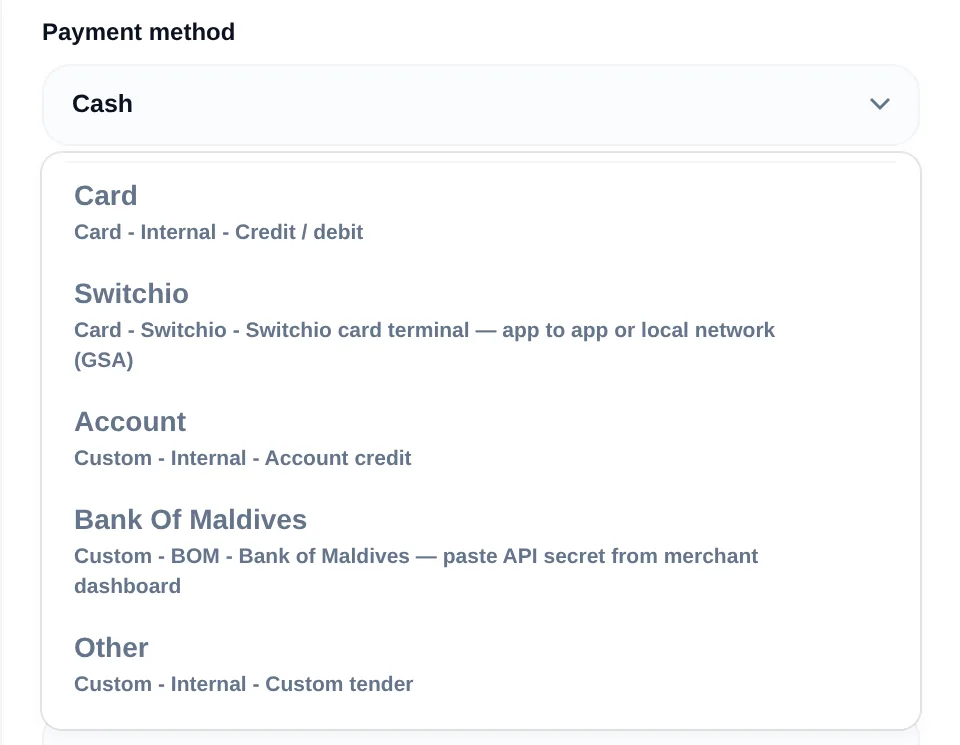
- In Auth key (API secret), paste the API secret you copied from Connect → Application.
- Under Stores enabled, keep Enabled in all stores on, or pick the stores that take BML payments.
- Keep Active on and click Save Payment Type.
Register the webhook URL in Bank of Maldives
The webhook lets Bank of Maldives tell LithosPOS when a payment is confirmed. The URL is unique to your business and is shown under the API secret.
- In the Add Payment Type panel (or when you open the Bank of Maldives payment type again), find Webhook URL and click Copy.
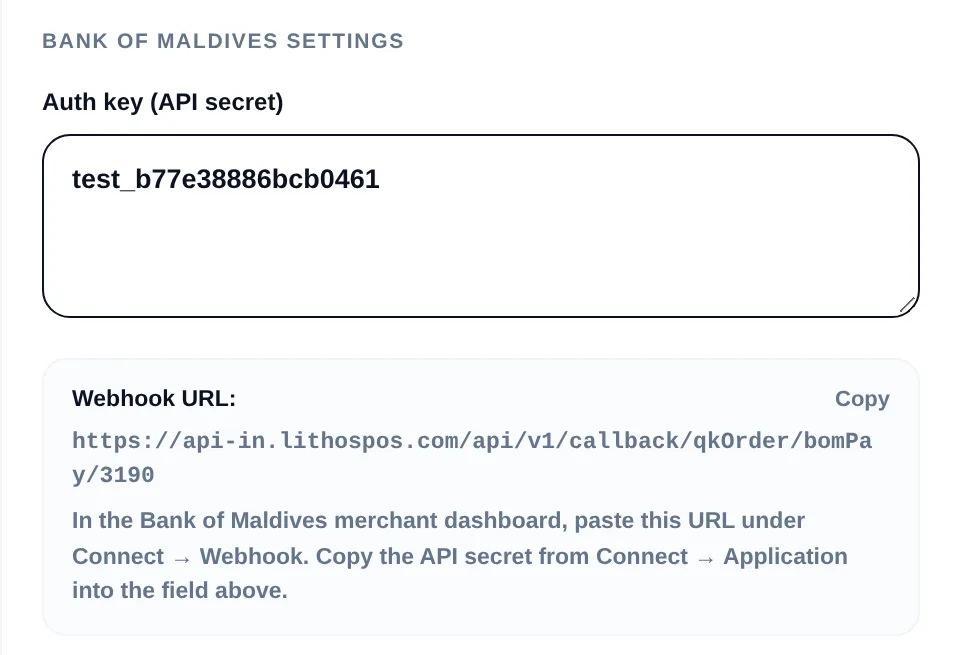
- In the BML Merchant Dashboard, go to Connect → Webhook.
- Paste the URL and save it.
Turn on Bank of Maldives for your online store
Bank of Maldives is switched on per store, so customers see it only on the stores you choose.
- In the Back Office, go to Online Orders → Settings.
- Under Editing Online Ordering For, choose the store.
- Open the Quiqqy tab, then the Payments tab.
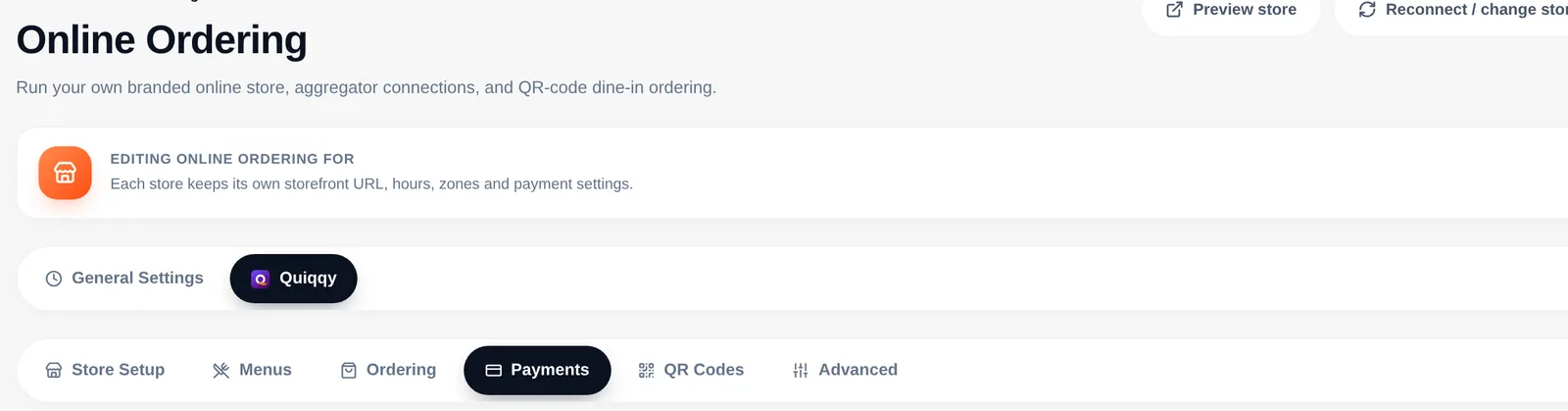
- Find Bank of Maldives under Payment methods and switch it on. The row shows Connected when an active Bank of Maldives payment type with an API secret exists.

- Repeat for every store that takes BML payments.
If the row shows Not connected, click Config to go to Settings → Payment Types and add or fix the Bank of Maldives payment type.
How customers pay
- The customer places an order on your online store and chooses Bank of Maldives at checkout.
- LithosPOS sends the order total to Bank of Maldives in MVR, and the customer is taken to the BML payment page.
- The customer pays on the BML page and is returned to your online store.
- LithosPOS checks the payment with Bank of Maldives. When BML confirms it, the order is created, appears in Online Orders and on your POS, and is recorded under your Bank of Maldives payment type.
If the payment is cancelled or not completed, no order is created. The customer is told the payment was not completed and can pay again or choose another payment method.
Reports and reconciliation
Bank of Maldives payments are recorded under the Bank of Maldives payment type in your sales and payment reports. Compare these reports with the transactions in the BML Merchant Dashboard when you reconcile.
Troubleshooting
- Bank Of Maldives is not in the Payment method list. Your business country is not Maldives. Bank of Maldives is only offered to businesses in the Maldives.
- The Payments tab shows Not connected. No active Bank of Maldives payment type with an API secret exists. Add one under Settings → Payment Types, or open the existing one and paste the API secret again.
- Switching Bank of Maldives on shows "Select a store first." The store has no online ordering settings yet. Complete and save the store's Store Setup tab, then try again.
- Checkout fails when a customer chooses Bank of Maldives. Bank of Maldives rejected the request, usually because the API secret is wrong or has been regenerated. Copy it again from Connect → Application and update the payment type.
- A customer paid but no order arrived. The order is created when the customer returns from the BML page. If they closed the page before returning, find the transaction in the BML Merchant Dashboard and contact LithosPOS support with the transaction ID.
Connect with us to know more
To learn more, book a meeting with our team.
Was this article helpful?