
LithosPOS and Viva Wallet Integration Documentation
LithosPOS integrates with Viva Wallet to enable secure, real-time payments. Businesses can accept payments easily in-store and online through peer-to-peer, app-to-app, or cloud-based transactions.
LTLithosPOS TeamUpdated
Introduction
- LithosPOS integrates seamlessly with Viva Wallet to provide flexible, secure, and real-time payment solutions. Whether through peer-to-peer, app-to-app, or cloud-based transactions, businesses can accept payments efficiently in-store and online.
Benefits of Integration
- Multiple payment modes: Peer-to-Peer, App-to-App, and Cloud.
- Secure transactions: PCI DSS compliance and end-to-end encryption.
- Faster checkout: Smooth integration with POS for quick billing.
- Accurate reporting: All payments synced between LithosPOS and Viva Wallet.
- Global acceptance: Works with major card networks and digital wallets.
- Seamless synchronization: Automatic data flow between back office and POS.
Supported Payment Modes
- Peer-to-Peer Payments: Direct payment between POS and Viva Wallet terminal. Best for in-person transactions.
- App-to-App Payments: Customers are redirected to the Viva Wallet app to complete payment. Best for mobile-first businesses and self-checkout flows.
- Online/Cloud Payments: Payments processed via Viva Wallet’s online gateway. Best for e-commerce and delivery integrations.
Prerequisites
Before configuring Viva Wallet:
- Active Viva Wallet merchant account.
- LithosPOS subscription with Payment module enabled.
- Payment terminal (for peer-to-peer mode).
- Internet connection (Wi-Fi or 4G).
Back Office Configuration
- Log in to LithosPOS Back Office.
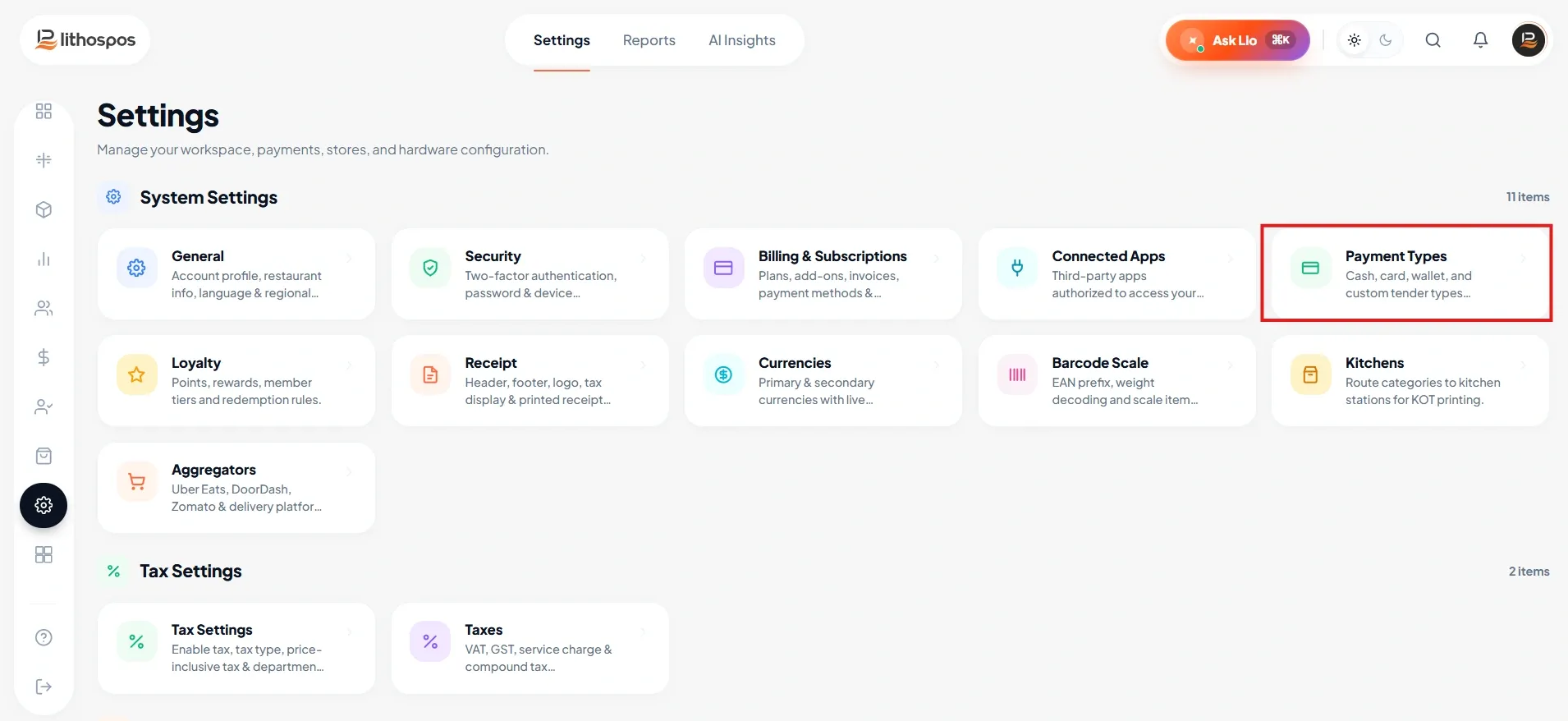
- Navigate to Settings → Payment Types.
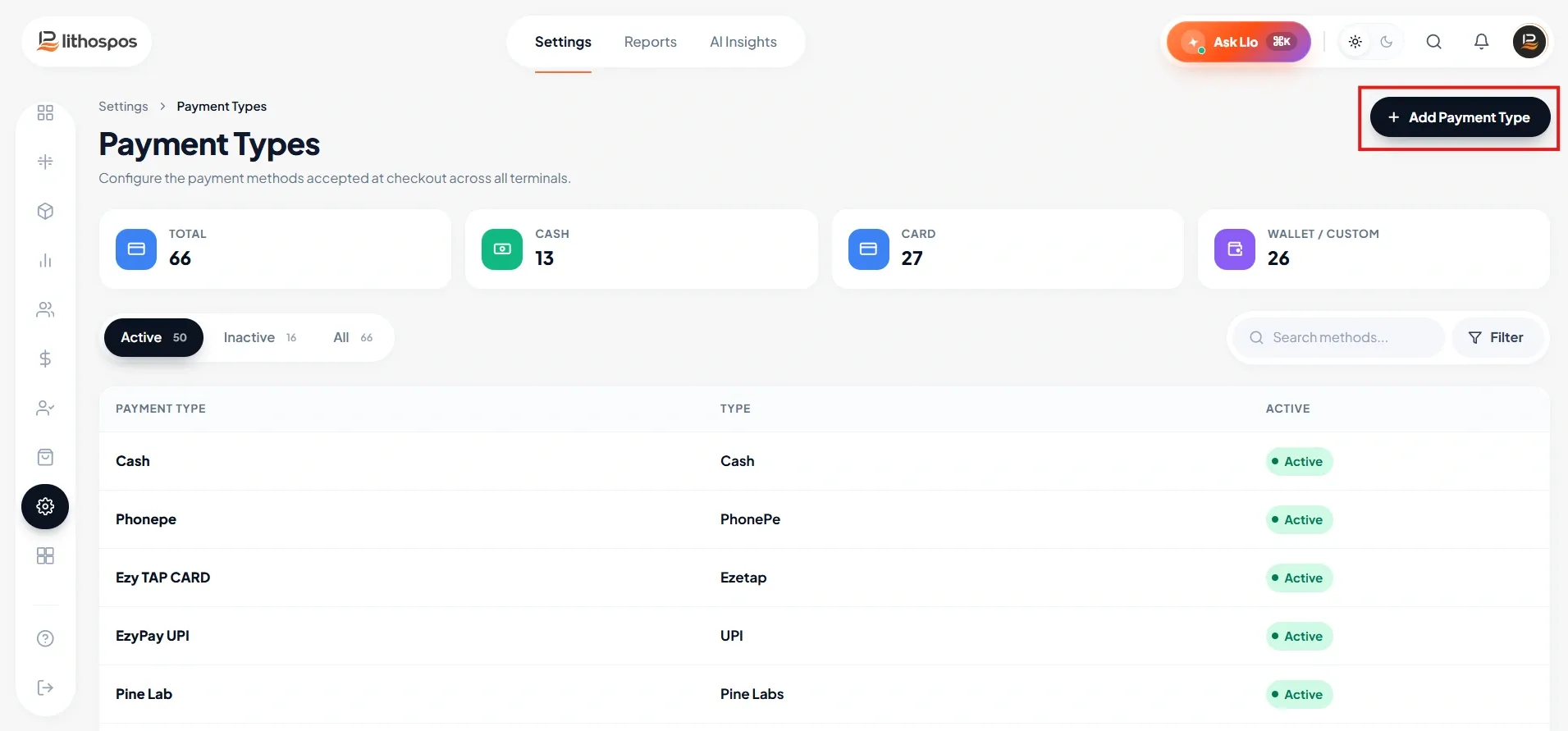
- Click + Add Payment Type.
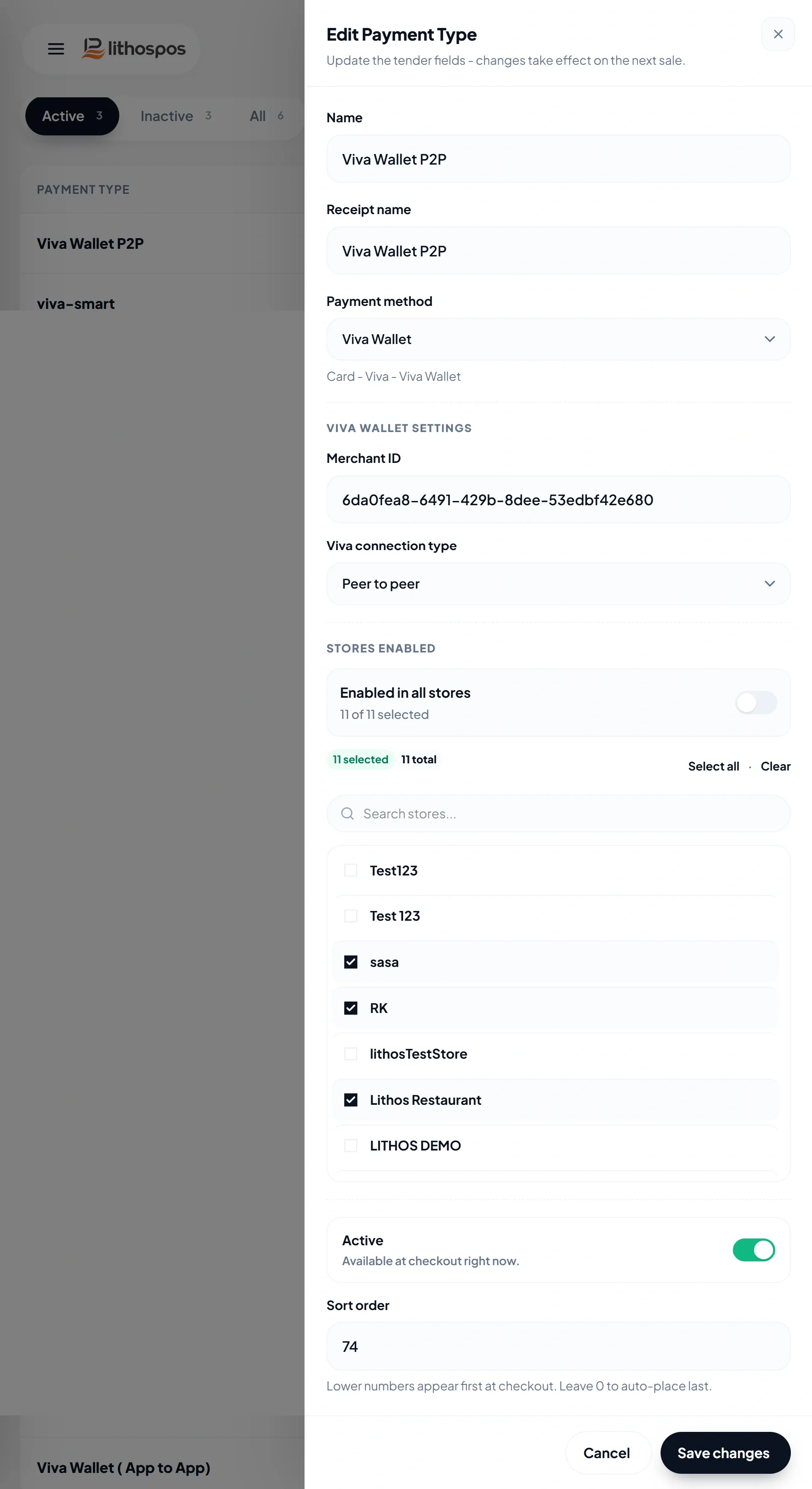
Enter the required details:
- Payment Name
- Receipt Name (This name will be printed on the receipt)
- Enter Merchant ID (on ISV Sales Client ID and Secret Key Will be Fetched Automatically)
- Select the stores from the store list.
- Click Submit to save the settings.
Connecting Viva Wallet Terminal with POS
Peer-to-Peer Connection
- Open the Viva Wallet app on your payment device
- Go to Settings
- Under App Settings, select Integrations
- Tap on Viva Peer to Peer
- Enable Peer to Peer
- Select Use device as PIN pad
- Set a security PIN to unlock the settings
- The app will display server information with the Device IP address and Port
- Enter the displayed IP Address and Port in POS settings [Viva wallet P2P setting]
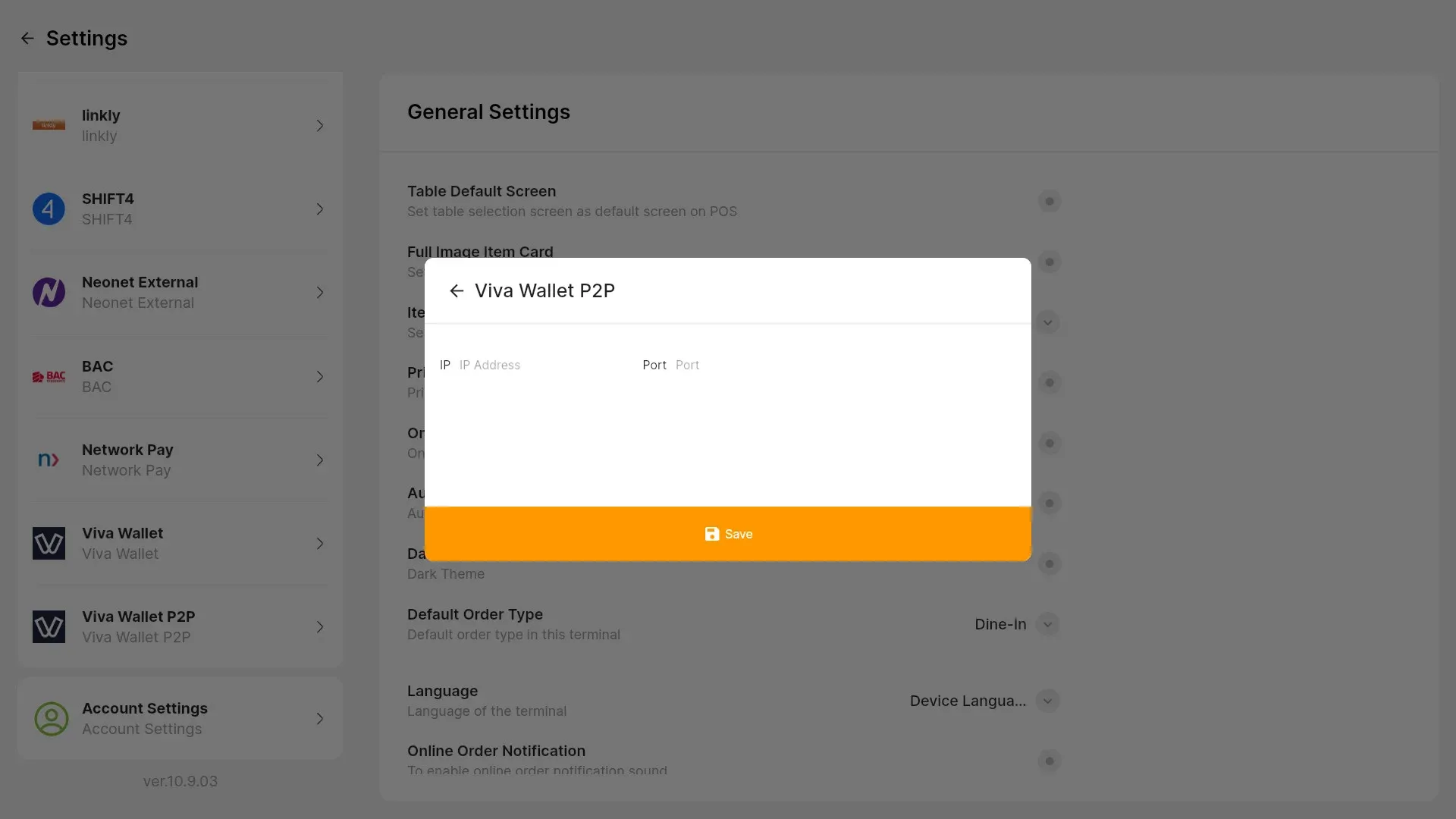
- Click Save to connect.
Viva Wallet Cloud Connection
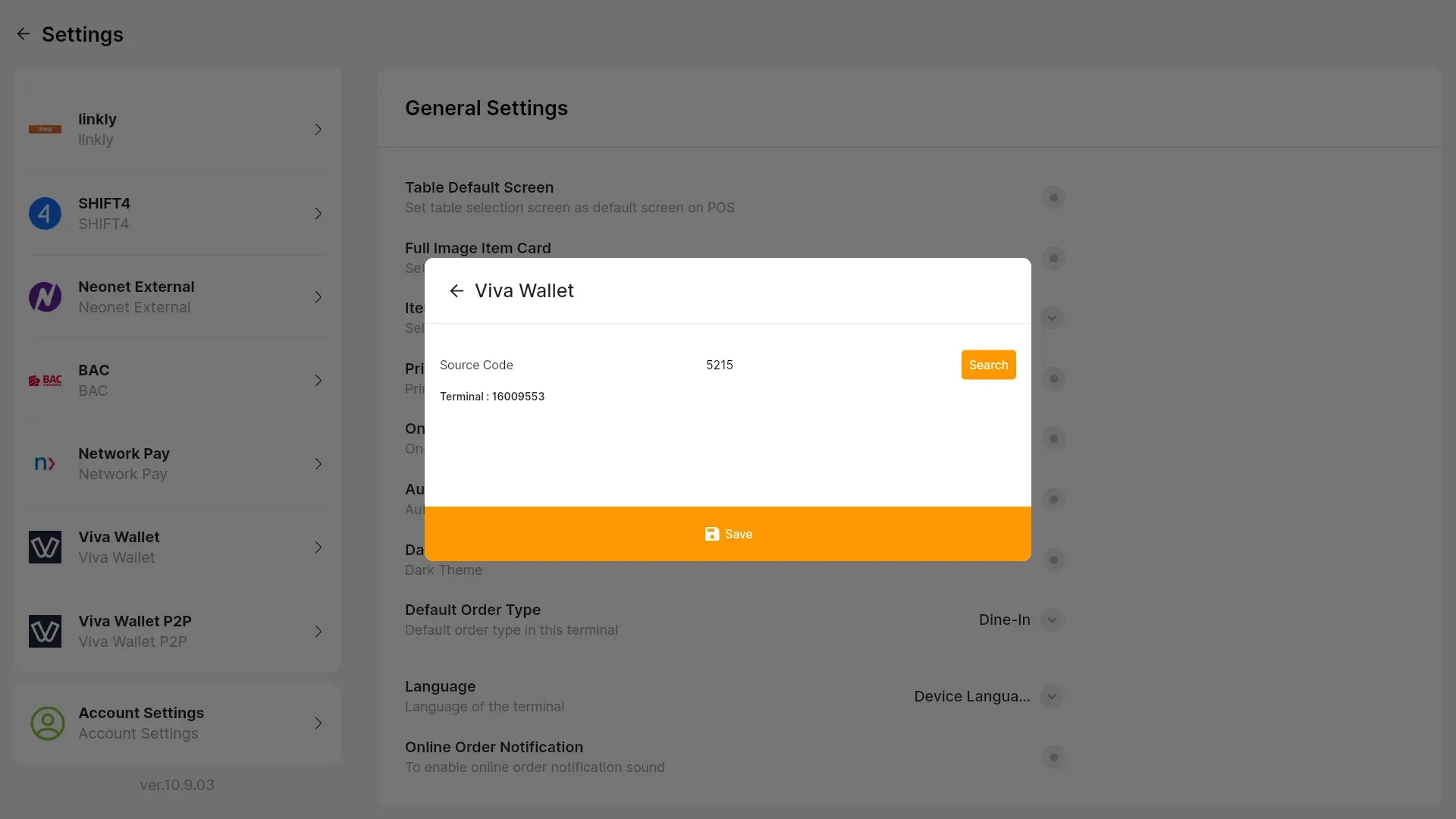
- Go to POS Settings and select Viva Wallet
- Enter the Source Code and search for available terminals
- Select a terminal from the list
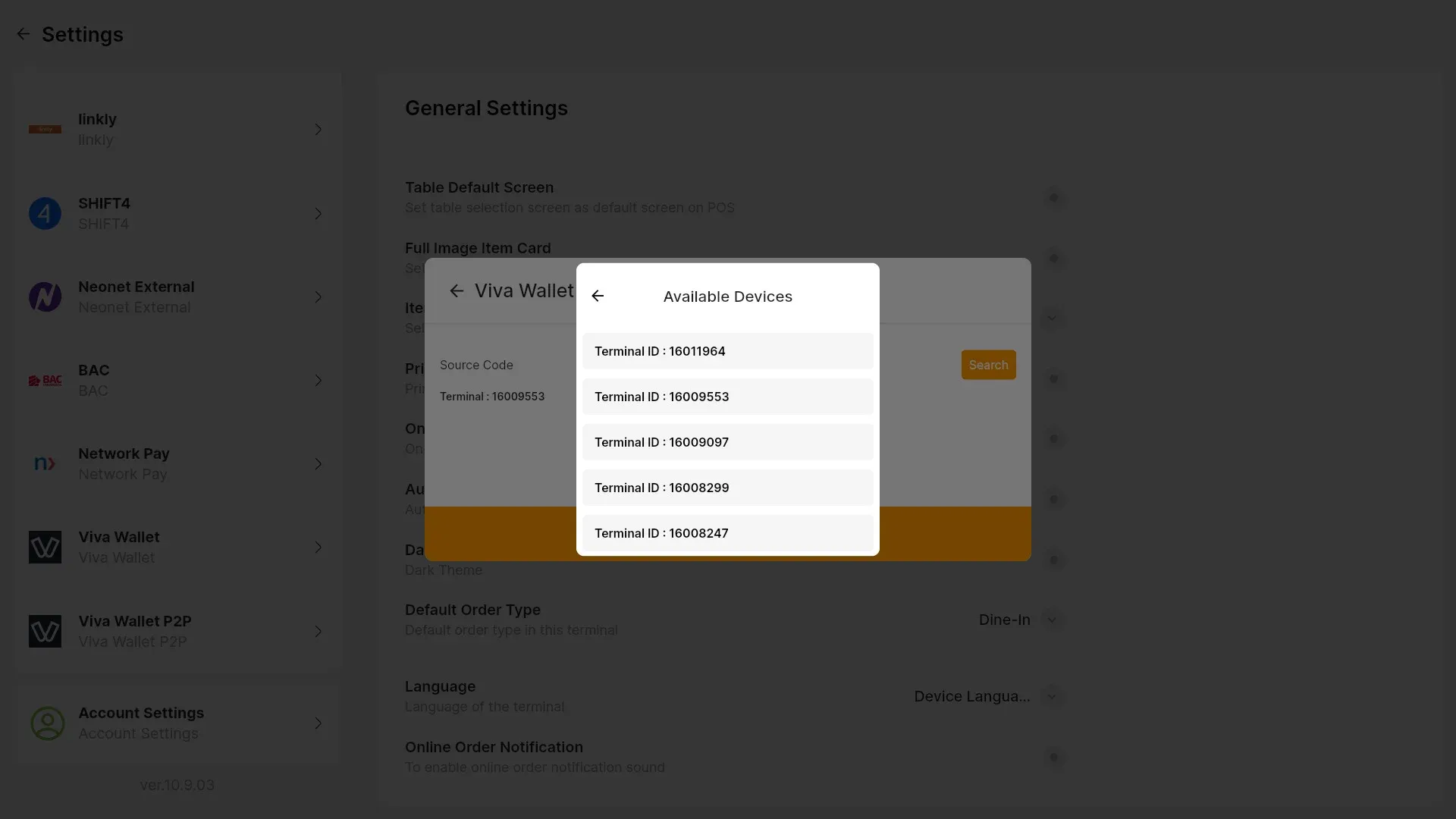
- Click Save to connect.
App to App Configuration
- In Back Office, go to Payment Types.
- Click + Add New Payment.
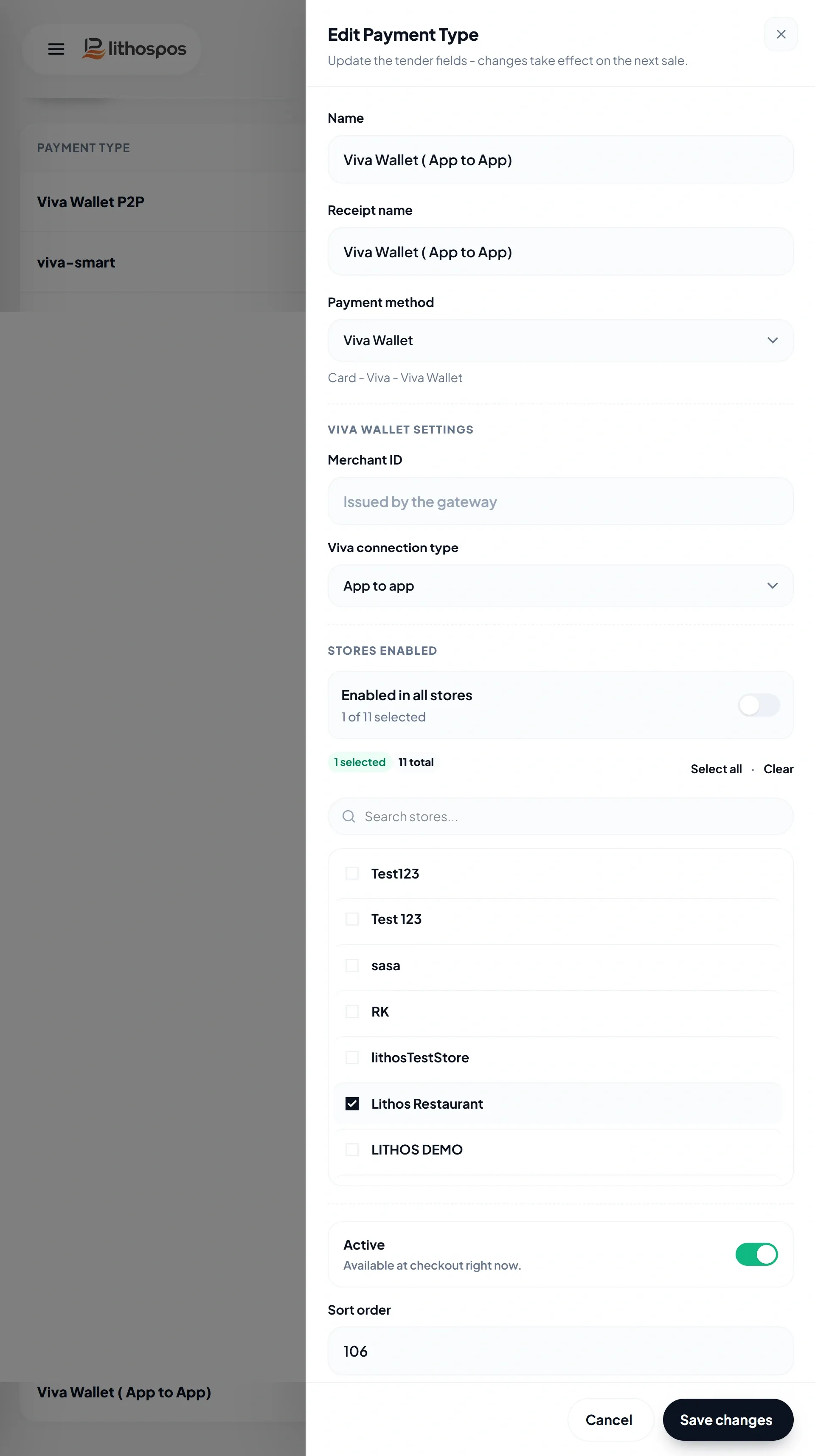
- Enter: Payment Name, and Receipt Name
- Select Payment Type: App to App.
- Choose the store and click Save.
- Now, when you make a payment in the POS app using Viva App to App, the Viva Wallet App will automatically open.
- Once the payment is confirmed, tap Continue – you’ll be redirected back to the POS app with a payment confirmation notification.
Making Payments in LithosPOS
Peer-to-Peer Flow
- Add items to cart in LithosPOS.
- Select Viva Wallet (P2P) at checkout.
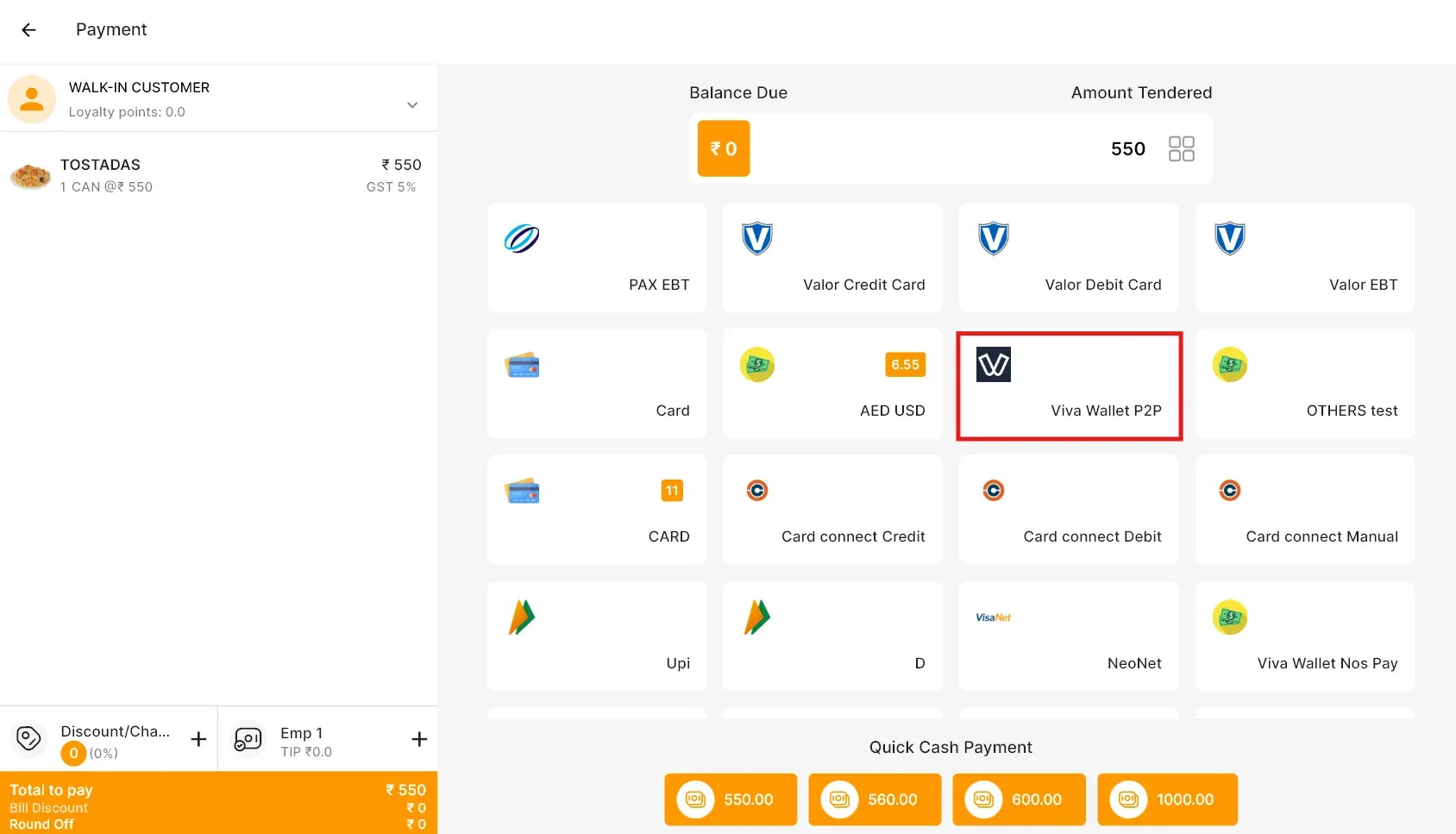
- Amount auto-sent to payment terminal.
- Customer taps/inserts card.
-
POS receives confirmation & prints receipt.
App-to-App Flow
- Add items to cart.
- Select Viva Wallet (App) at checkout.
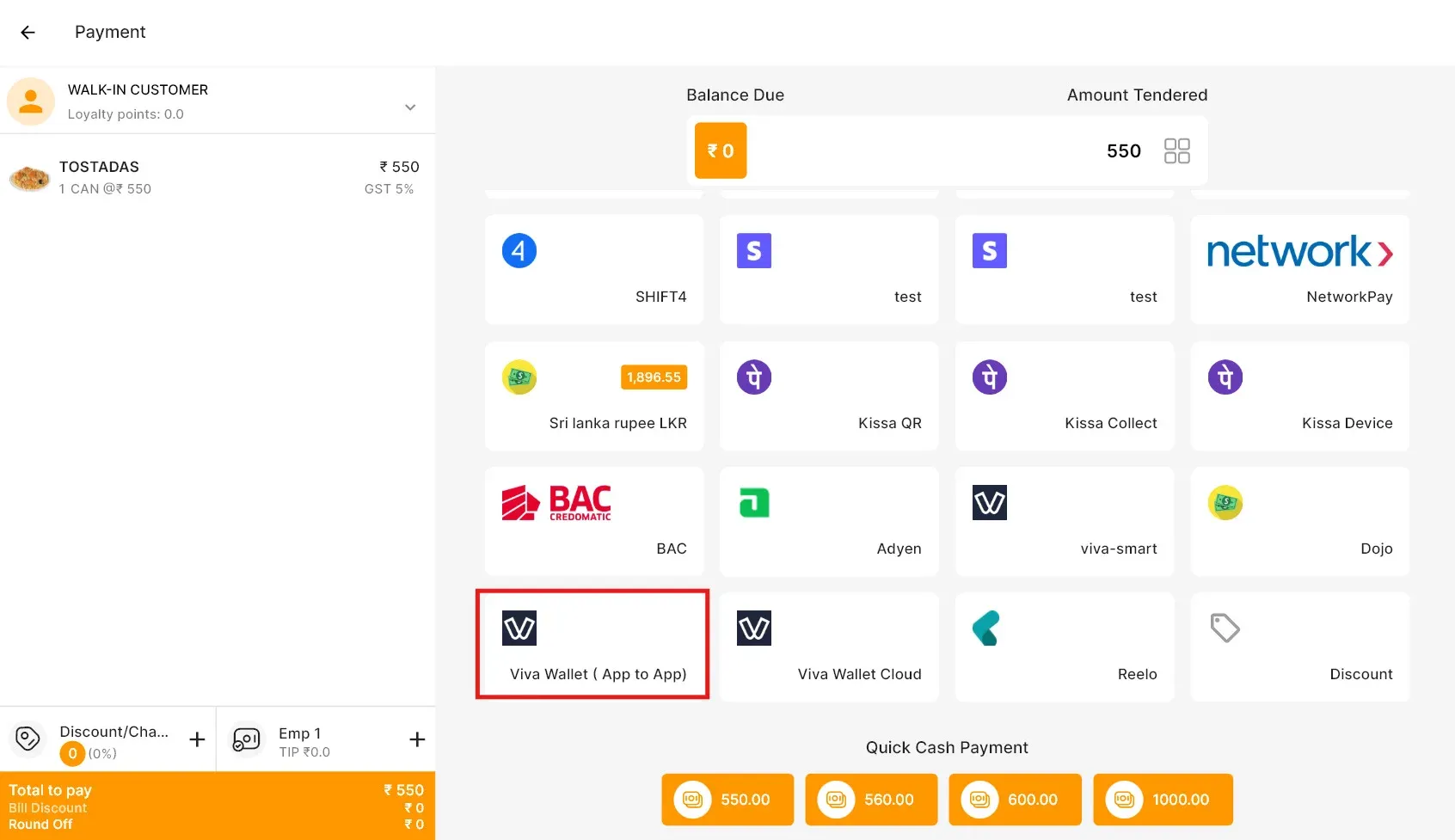
- Customer is redirected to Viva Wallet mobile app.
- After payment, status auto-updates in LithosPOS.
Online/Cloud Flow
- Add items to the cart.
- Go to the payment screen.
- Select Viva Wallet (Cloud) as the payment option.
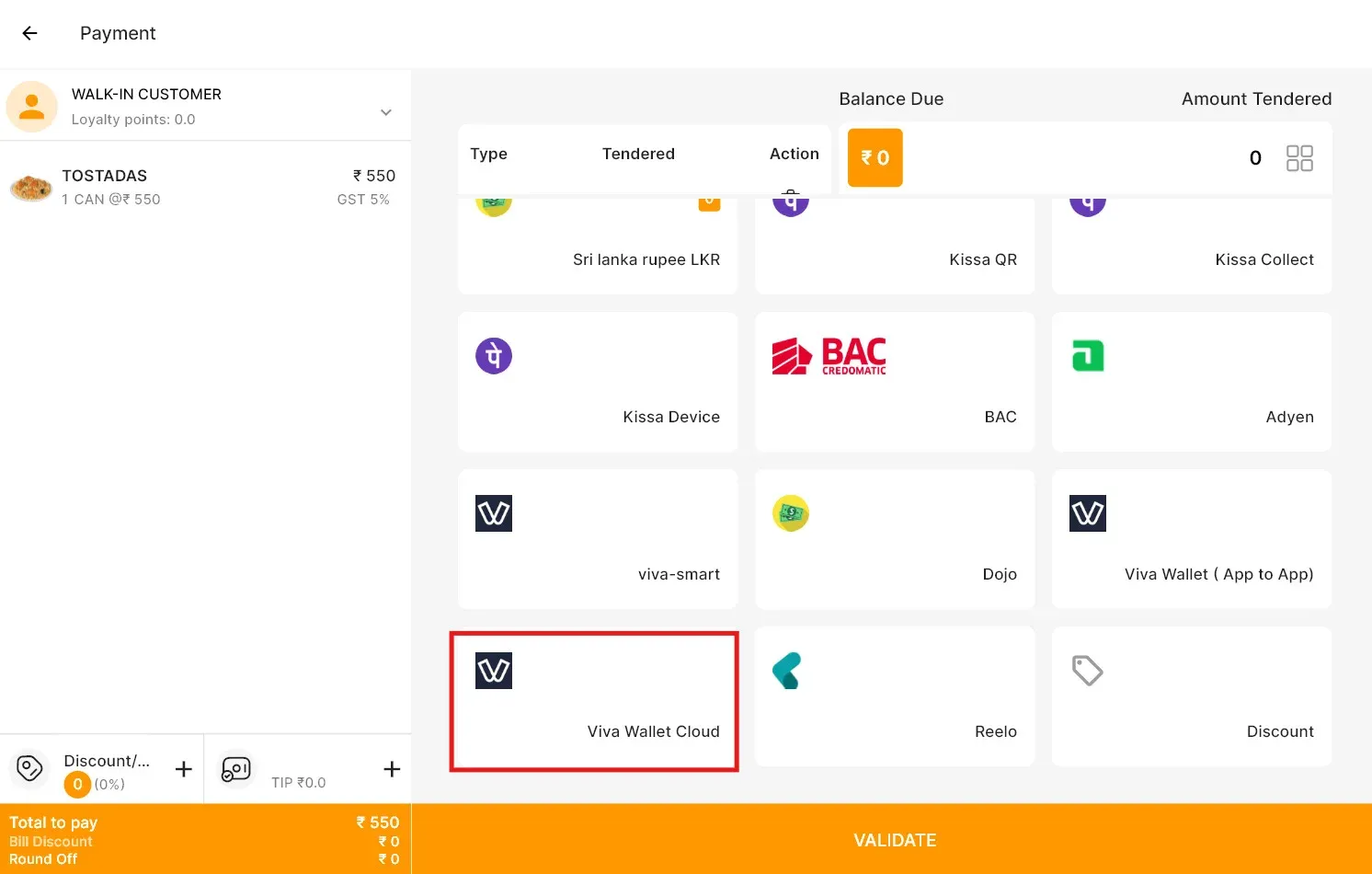
- The payment request is sent via the cloud to the selected terminal.
- The customer completes the payment on the terminal.
- Once the terminal sends a response, the POS system updates and displays a success message.
Reports & Reconciliation
- All Viva Wallet payments are logged in LithosPOS reports.
- Reports can be filtered by:
- Store
- Employee
- Payment Type
- Date Range
- Export to Excel for reconciliation with Viva Wallet merchant statements.
Troubleshooting & help
- Terminal not connecting? Verify Terminal ID and ensure POS is paired.
- App-to-App not redirecting? Confirm Viva Wallet app is installed on the device.
- Online payment not updating? Recheck callback/return URL in settings.
- For any queries or concerns, please contact our 24/7 support team for assistance.
Connect with us to know more
To learn more about it feel free to book a meeting with our team
Was this article helpful?