
LithosPOS KIOSK App
Learn how the LithosPOS Kiosk enables customers to browse menus, place orders, make payments, and manage queues independently across restaurants, retail stores, and exhibitions.
The LithosPOS Kiosk App is a self-service application that allows customers to browse products, place orders, make payments, and complete transactions independently. By connecting with the LithosPOS system, the Kiosk App provides a convenient and efficient self-service experience.
The Kiosk App is suitable for restaurants, retail businesses, and exhibitions, helping businesses streamline the ordering and checkout process, reduce waiting times, and improve customer convenience.
This documentation provides an overview of the Kiosk App's features and functionalities and guides users through the setup, configuration, and self-service process.
Key Features and Benefits
- Self-Ordering Convenience:
Customers can easily browse the menu or product catalog, customize their selections, and place orders directly from the kiosk. - Visual Menu Exploration:
Images and detailed descriptions help customers make informed selections. - Personalized Ordering:
Customers can customize their orders according to their preferences. - Dynamic Promotional Content:
The Kiosk App can display promotional images to encourage upselling and increase customer engagement. - Secure Self-Payment:
Customers can pay for their orders using the available payment methods, reducing waiting times and streamlining the checkout process. - Efficient Queue Management:
The Kiosk App can provide real-time updates on wait times and queue status, helping customers manage their time effectively. - Improved Customer Experience:
The Kiosk App provides a convenient and efficient self-service experience for customers while helping businesses streamline their operations.
How to Install KIOSK App
LithosPOS Kiosk App Setup
Device Requirements
The LithosPOS Kiosk App is supported on the following platforms:
- Android: Android 7.0 or later
- Windows: Windows 10 Pro or later
App Installation
Android
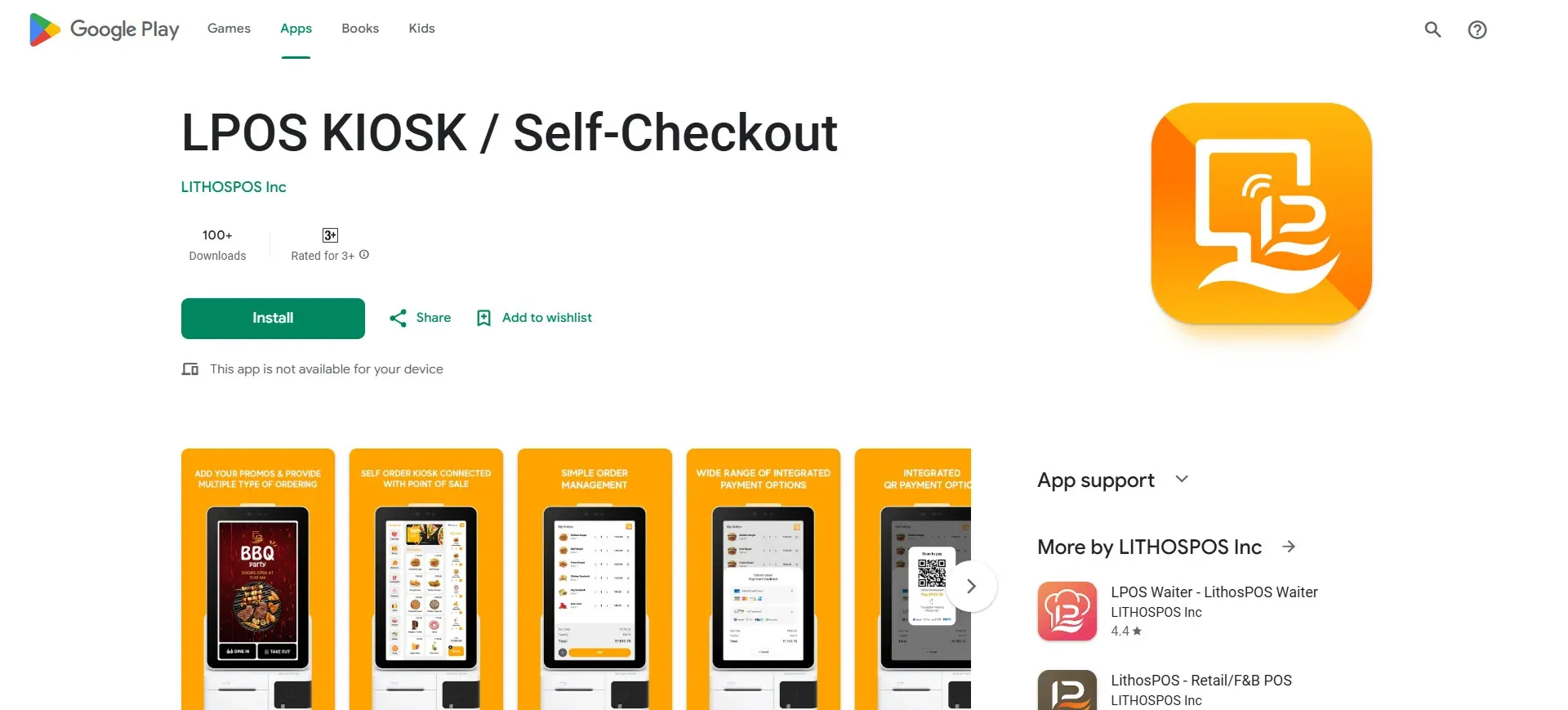
- Open the Google Play Store on your Android device and search for "LPOS Kiosk / Self-checkout".
- Select the LithosPOS Kiosk App and tap Install.
- Once the installation is complete, tap Open to launch the application.
Windows
- Open the Microsoft Store on your Windows device.
- Search for "LPOS Kiosk / Self-checkout".
- Select the LithosPOS Kiosk App and click Get or Install.
- Once the installation is complete, launch the application from the Start menu or Microsoft Store.
Login
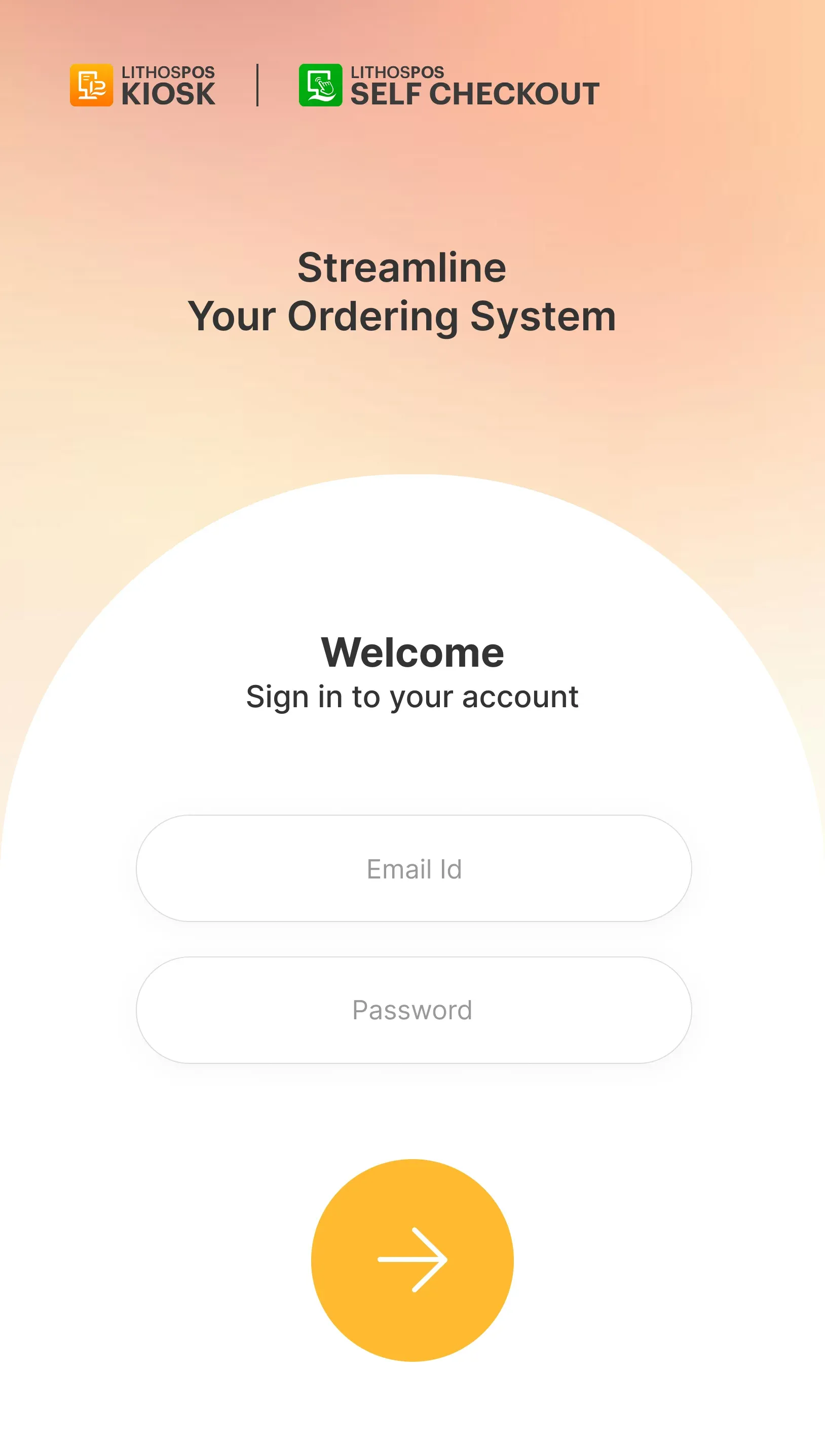
- After launching the app, log in using the credentials associated with your LithosPOS account.
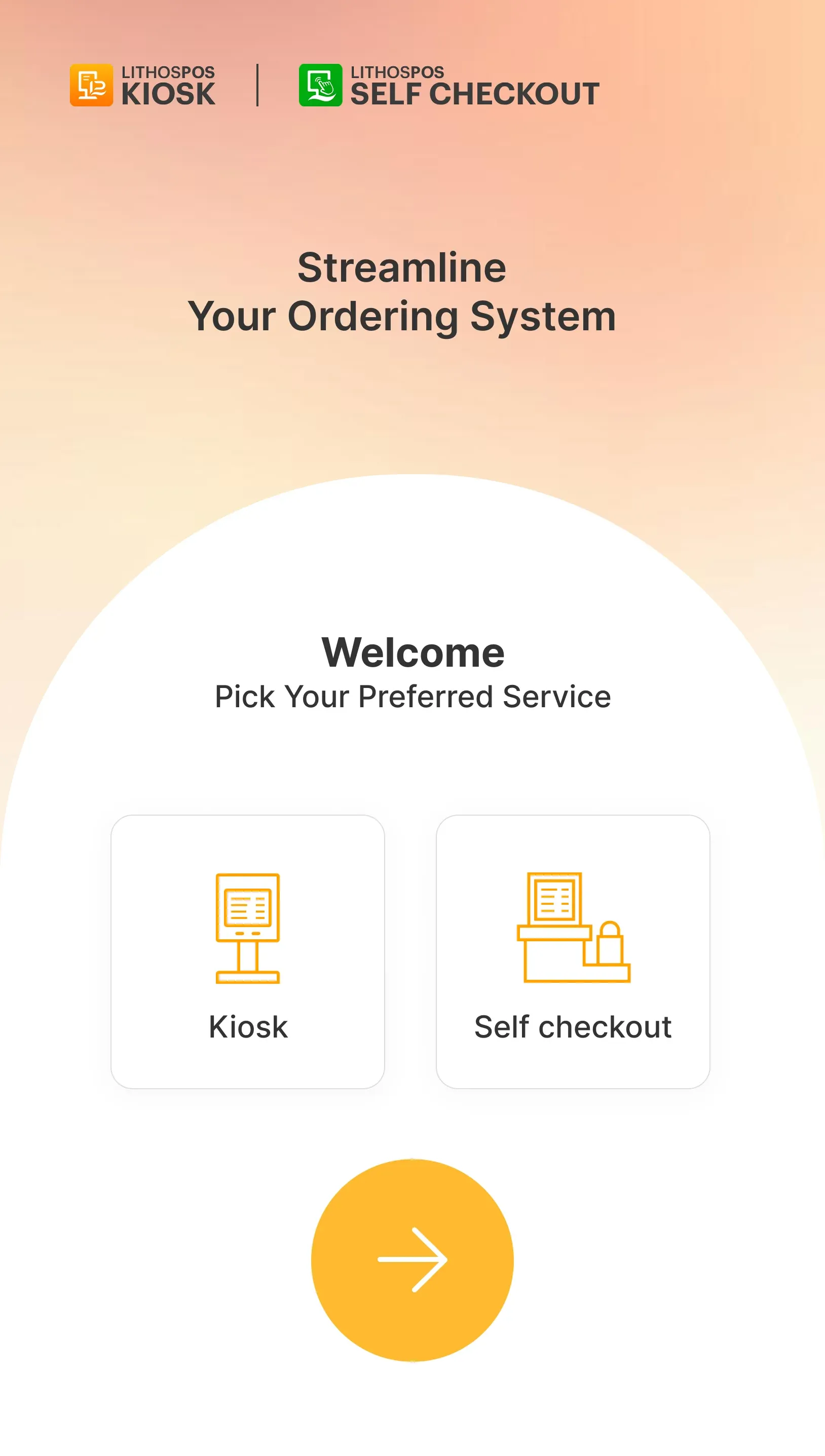
- After logging in, select the layout for your store.
- You can choose between Kiosk and Self-Checkout mode.
- Follow the on-screen instructions to configure the selected layout according to your store's requirements.
LithosPOS Kiosk App Settings
Accessing Admin Settings
- On the welcome screen, draw an "X" to open the Settings page.
From the Settings page, you can:
- Add and configure printers.
- Configure general application settings.
- Manage user accounts.
- Deactivate the currently logged-in terminal.
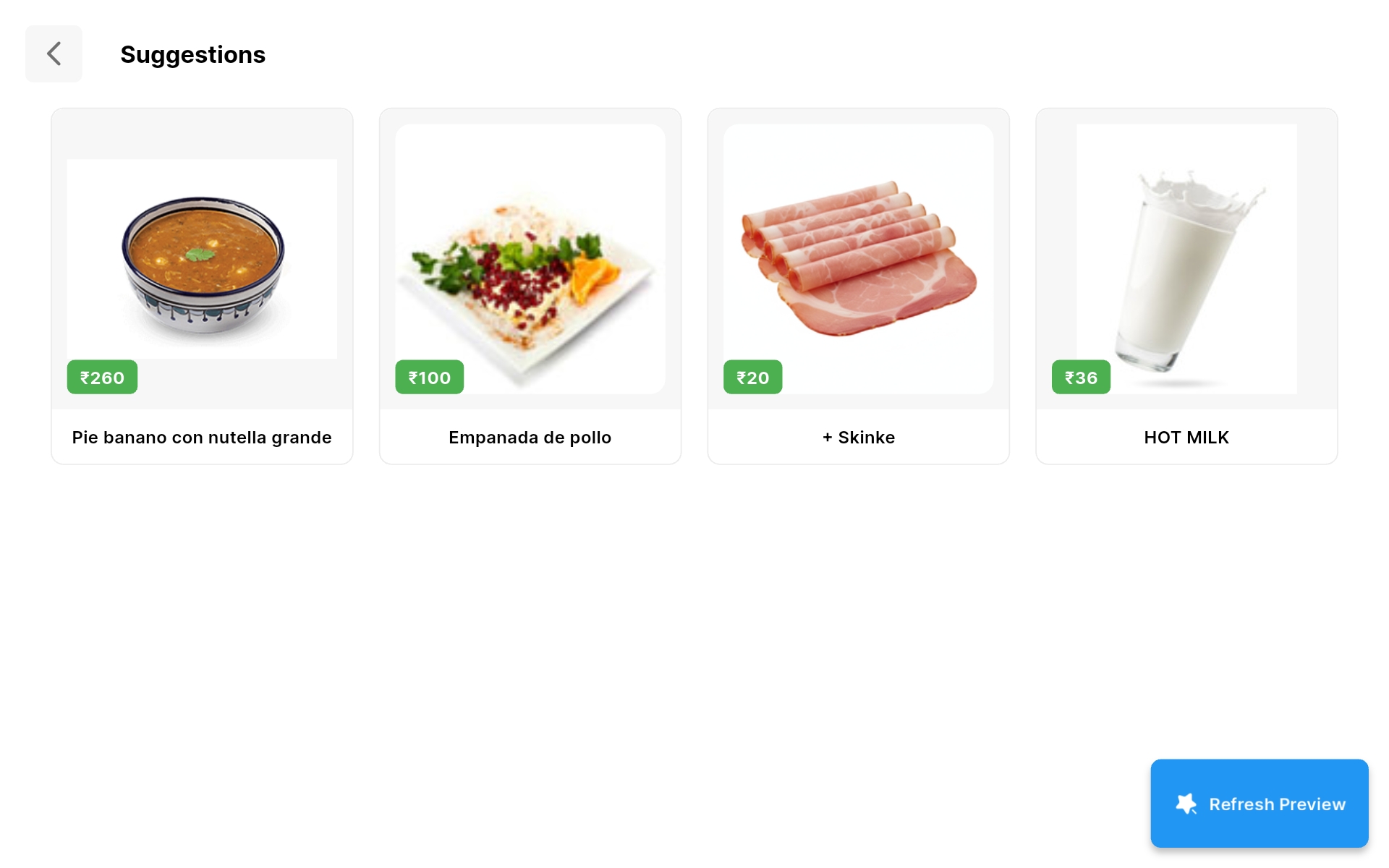
Recommendations: Add recommended items to display them in the recommendation window when customers proceed with their order.
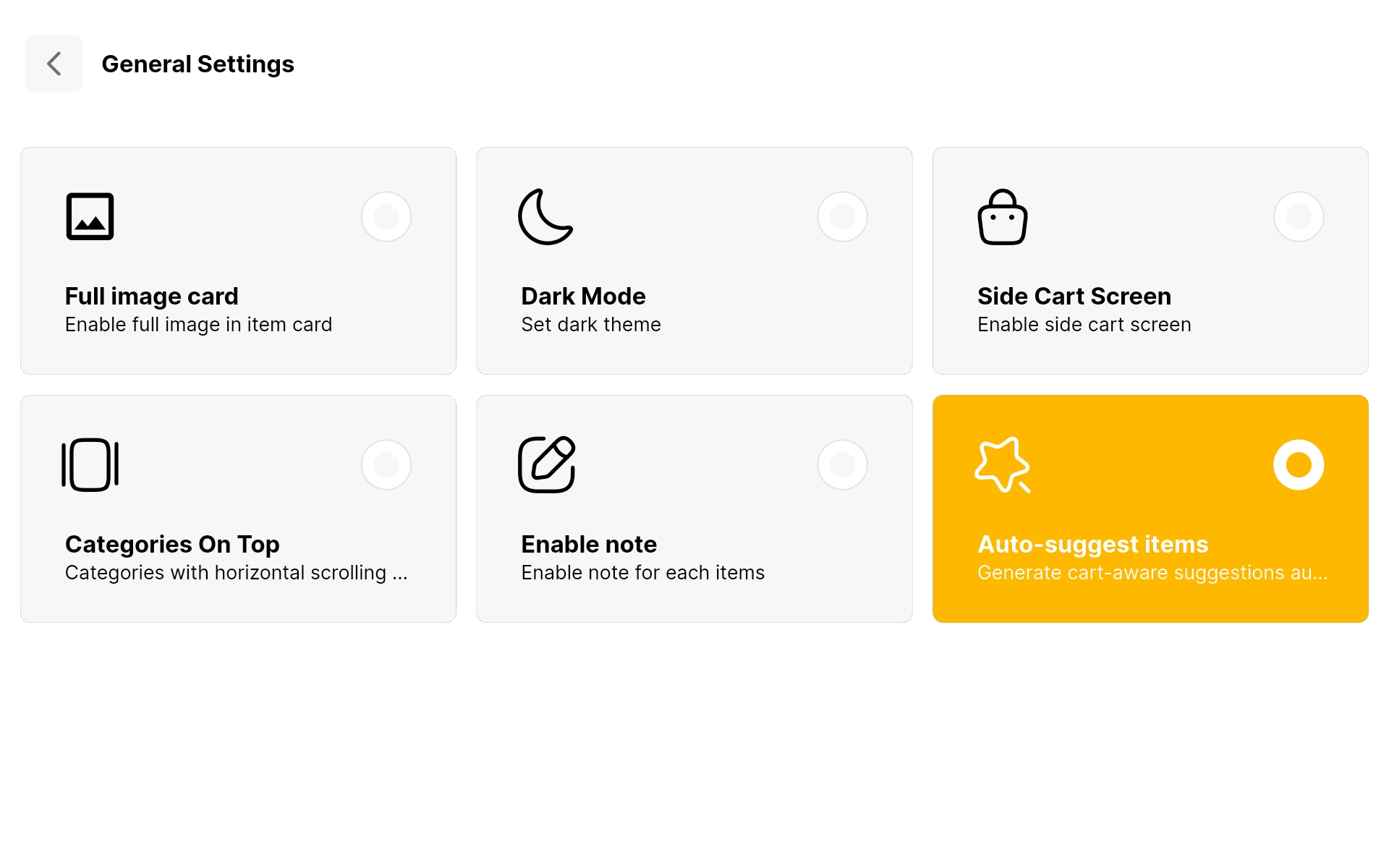
Auto-Suggest Items
- Enable Auto-Suggest Items to display cart-aware item suggestions based on the items added to the customer's cart.
Self-Checkout Process
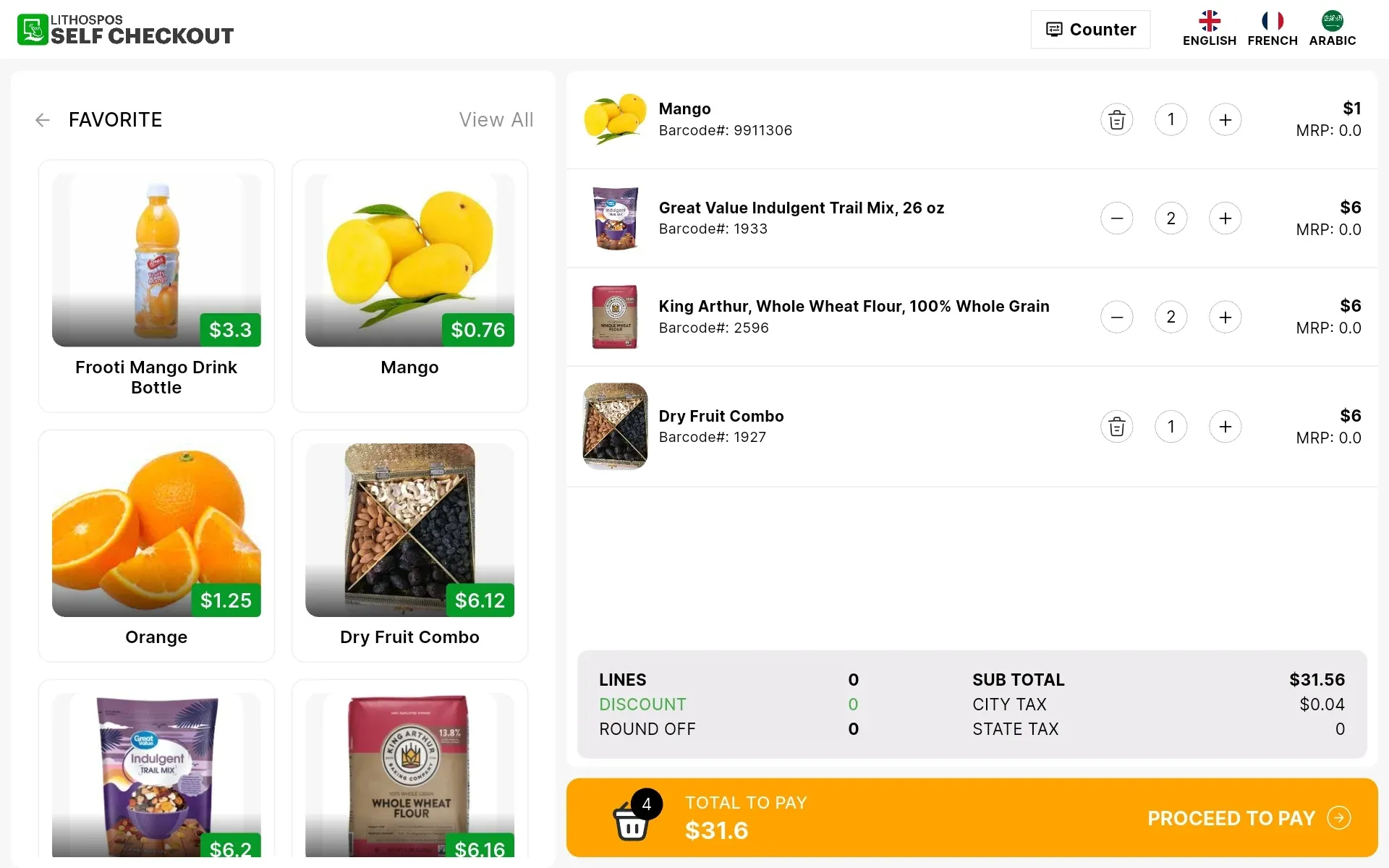
- Customers can add items to their cart by scanning the barcodes of products or selecting items from the available categories.
- Customers can review and modify their cart before proceeding to checkout.
Dining Option
- Customers can select their preferred dining option from the pop-up window:
- Dine-In
- Takeaway
Payment
- After selecting the items and dining option, customers can proceed to the payment screen.
- Existing customers can enter their name and phone number to access their customer profile.
- Customers can also choose to continue as a guest.
- Select the available payment method and tap Continue to complete the transaction.
Back-Office Configuration
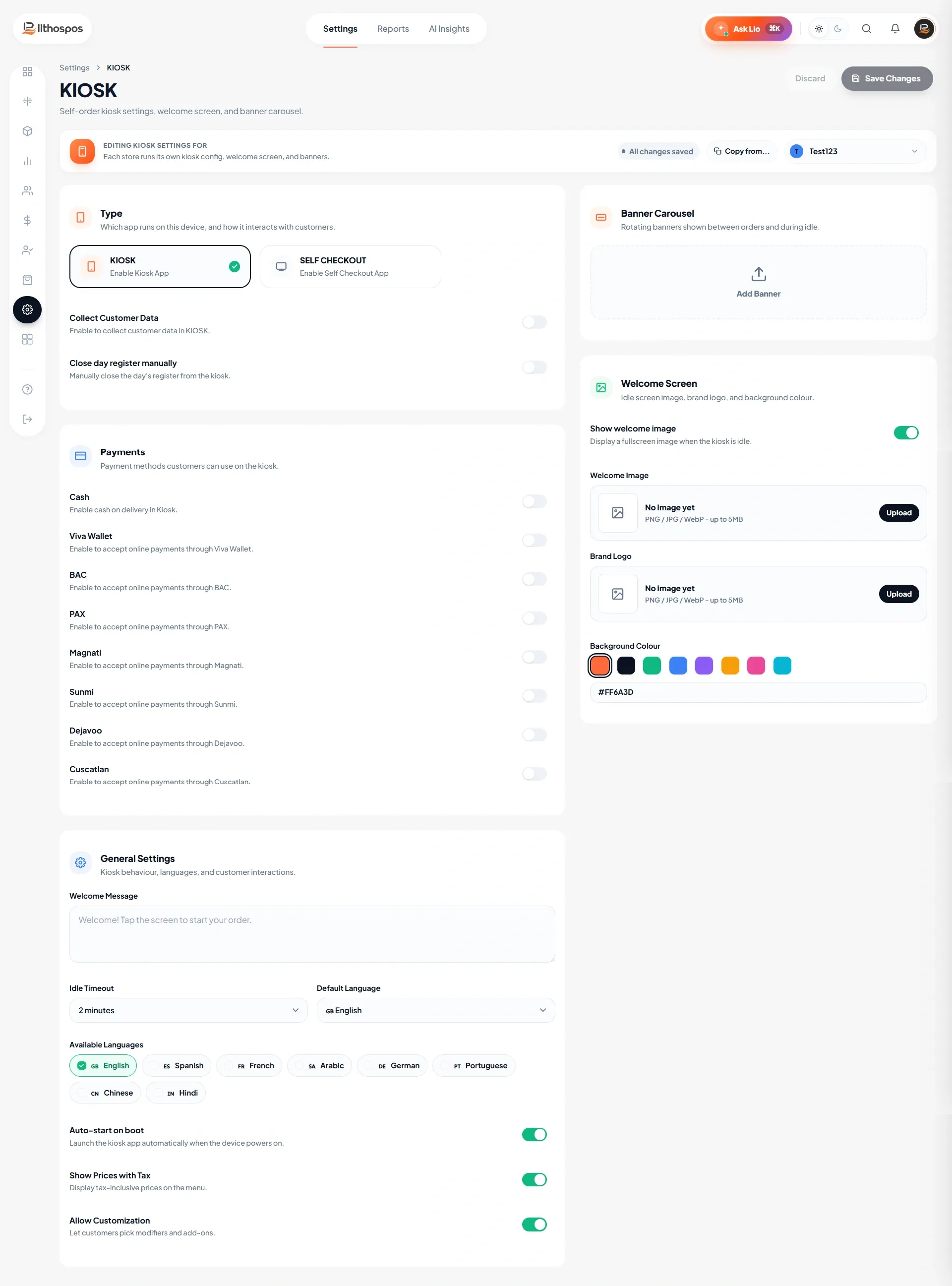
- Log in to the LithosPOS Back Office.
- From the side panel, select Settings.
- Navigate to Terminal Settings.
- Select Kiosk from the terminal type options.
- Configure the required settings according to your business requirements.
- Click Submit to save the changes.
Connect with us to know more
To learn more about the LithosPOS Kiosk App, feel free to book a meeting with our team.
Was this article helpful?