
Features
The "Features" section of the settings includes various options that can be enabled or disabled using toggle buttons.
Login to Back office and click on settings on the side menu and click General settings
and navigate to Features then configure the toggle buttons. This allows you to enable and disable
different features based on your requirements.
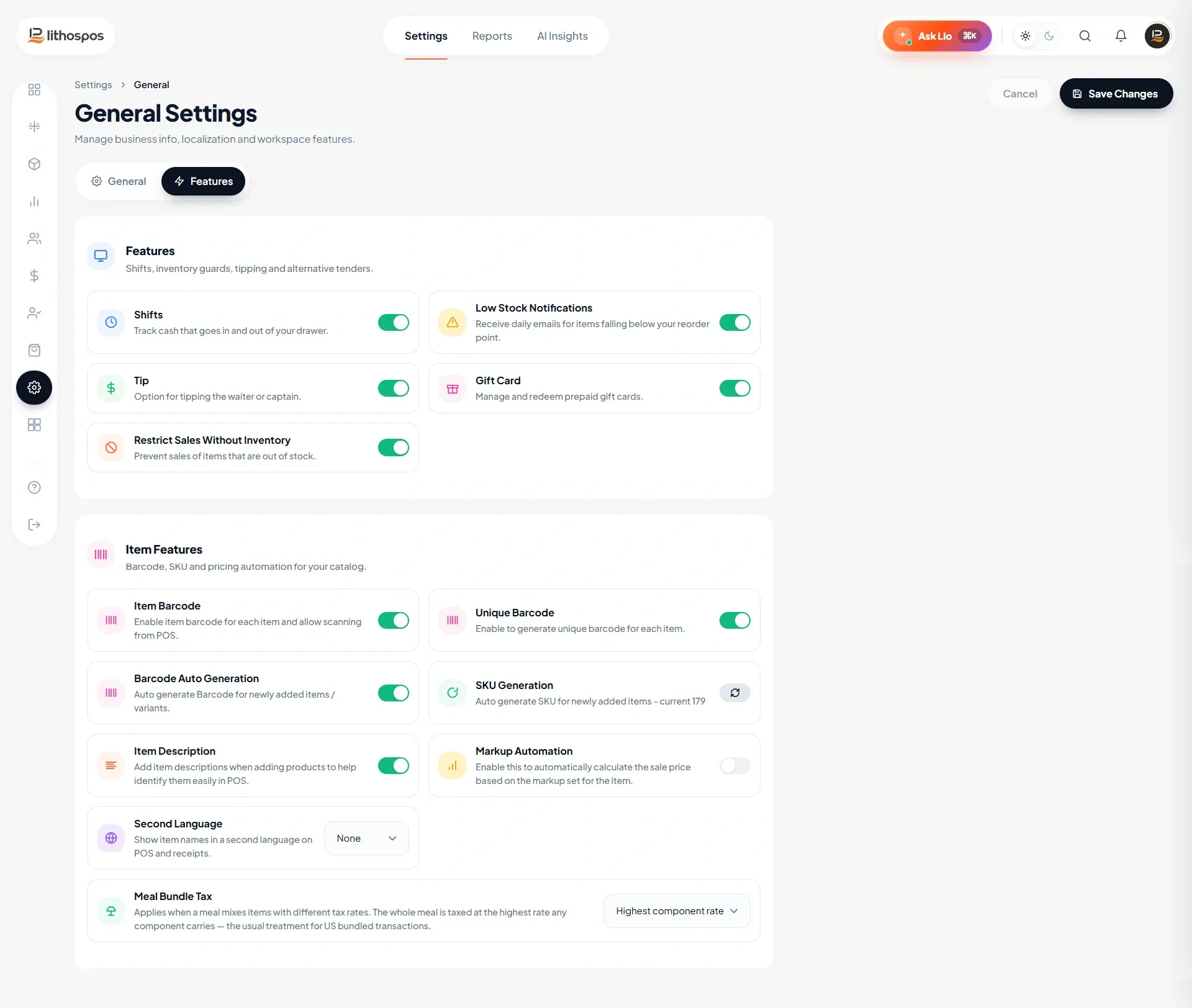
Shifts
Enabling this option helps you monitor your employees' shifts and track cash flow going in and out of your drawer during each shift. This feature provides detailed insights into when employees clock in and out, as well as the amount of cash handled during their shifts. By utilizing this option, you can ensure better accountability and transparency,
Customer Loyalty
Activate this option to enable loyalty settings. The loyalty program allows you to credit a percentage of the purchase amount into the customer's loyalty account.
you can credit a certain percentage of each purchase amount to the customer's loyalty account. This incentivizes repeat business and rewards customers. The loyalty points accumulated can later be redeemed.
Weighing scale
Enable this section only if you use a weighing scale. You can use barcode scale or integrated weighing scale or bluetooth scale.
Low Stock Notifications
Receive daily emails on items that are below your reorder point. Once enabled, you can set a reorder point for each item. When an item hits the reorder threshold, the system will send an alert and notification email to generate a purchase order.
Tip
Activate this option to allow tipping the waiter or captain. Once enabled, the tip option will appear in the payment section of the POS, allowing the employee or guest to add a tip to the bill/cheque.
Gift Card
Manage and redeem prepaid gift cards. Once enabled, cashiers can sell gift cards to customers, who can later use them to make purchases.
EBT
Activate this option to enable Electronic Benefits Transfer (EBT) eligible items. This is applicable in the US. Once enabled, customers can use their EBT card to purchase eligible food items.
Item Features
Item Barcode: Enable this option to display the Barcode field while adding or editing an item. which can be used for quick item identification and billing.
Unique Barcode: Enable this option to generate a unique barcode for each item, helping to identify and manage individual items accurately
Barcode Auto Generation: Enable this option to automatically generate a barcode for newly added items and variants, eliminating the need to enter barcodes manually.
SKU Generation: Enter a starting value to automatically generate SKUs for newly added items. The SKU numbering will begin from the value entered here
Item Description: Enable this option to add a description to items when creating products. The description helps provide additional details and makes items easier to identify in the POS.
Markup Automation: Enable this option to automatically calculate the selling price of items based on the markup percentage set for the item or category
Second Language: Select a language to display item names in a second language on the POS and receipts. Choose LTR for left-to-right languages or RTL for right-to-left languages.
Connect with us to know more
To learn more about it feel free to book a meeting with our team
Was this article helpful?