
Importing Variant Items
Importing variant items in LithosPOS allows you to efficiently manage products with different variations, such as size, color, or style, under a single item name.
Updated
This feature is essential for businesses that sell products with multiple attributes, enabling them to maintain a well-organized inventory. By following a systematic approach, you can easily import variant items in bulk using a CSV file.
How to Import Variant Items
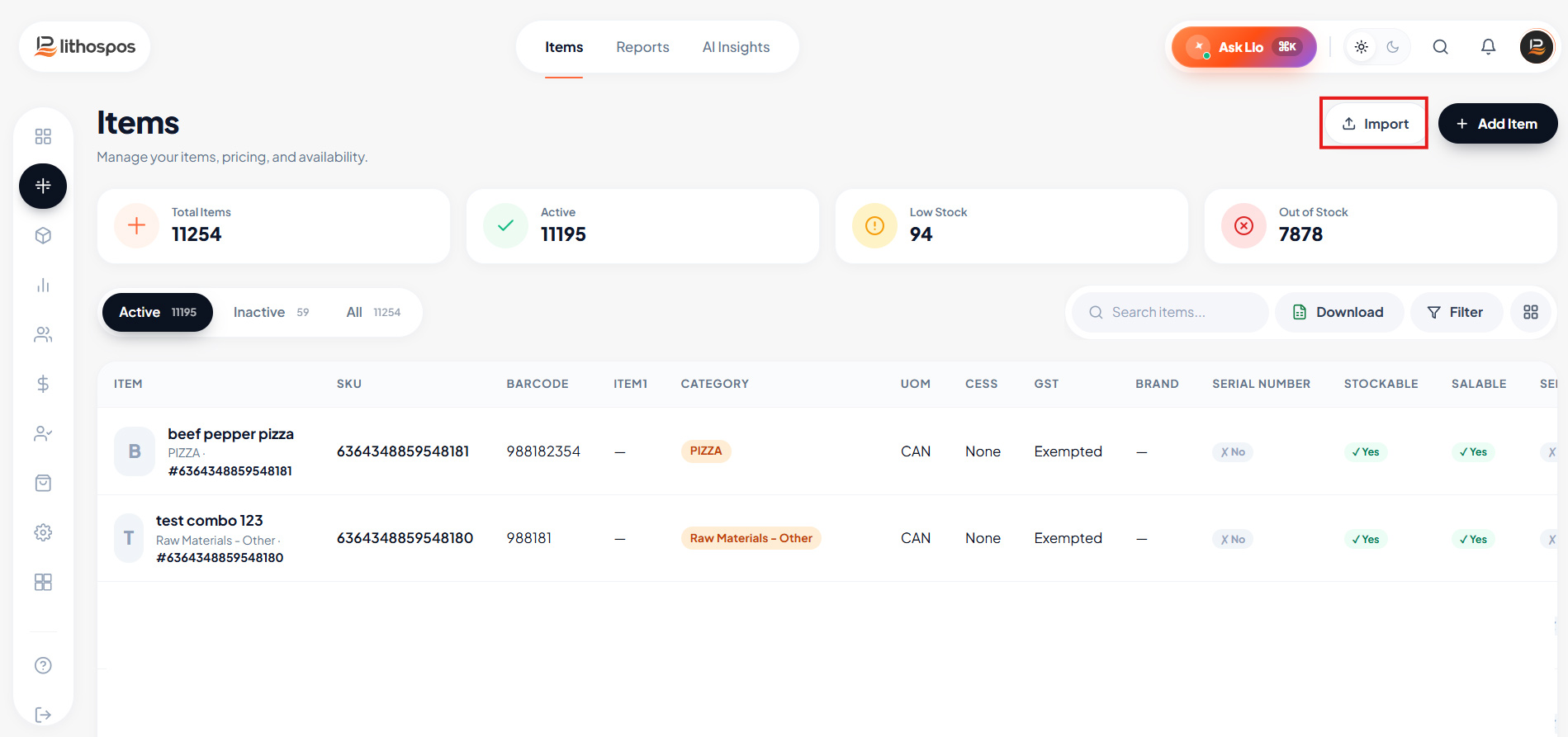
Navigate to the Items Section
- Begin by navigating to the Item section in the LithosPOS side menu.
- Click on Items to access your item list.
Access the Import Option
- Once you're in the item list, locate and click on the ‘Import’ button near the ‘+Add Item’ button at the top right side of the screen.
- A pop-up window will appear, giving you various item import options.
Download the Standard Item Import Option
-
In the pop-up window, click on Item With Variants
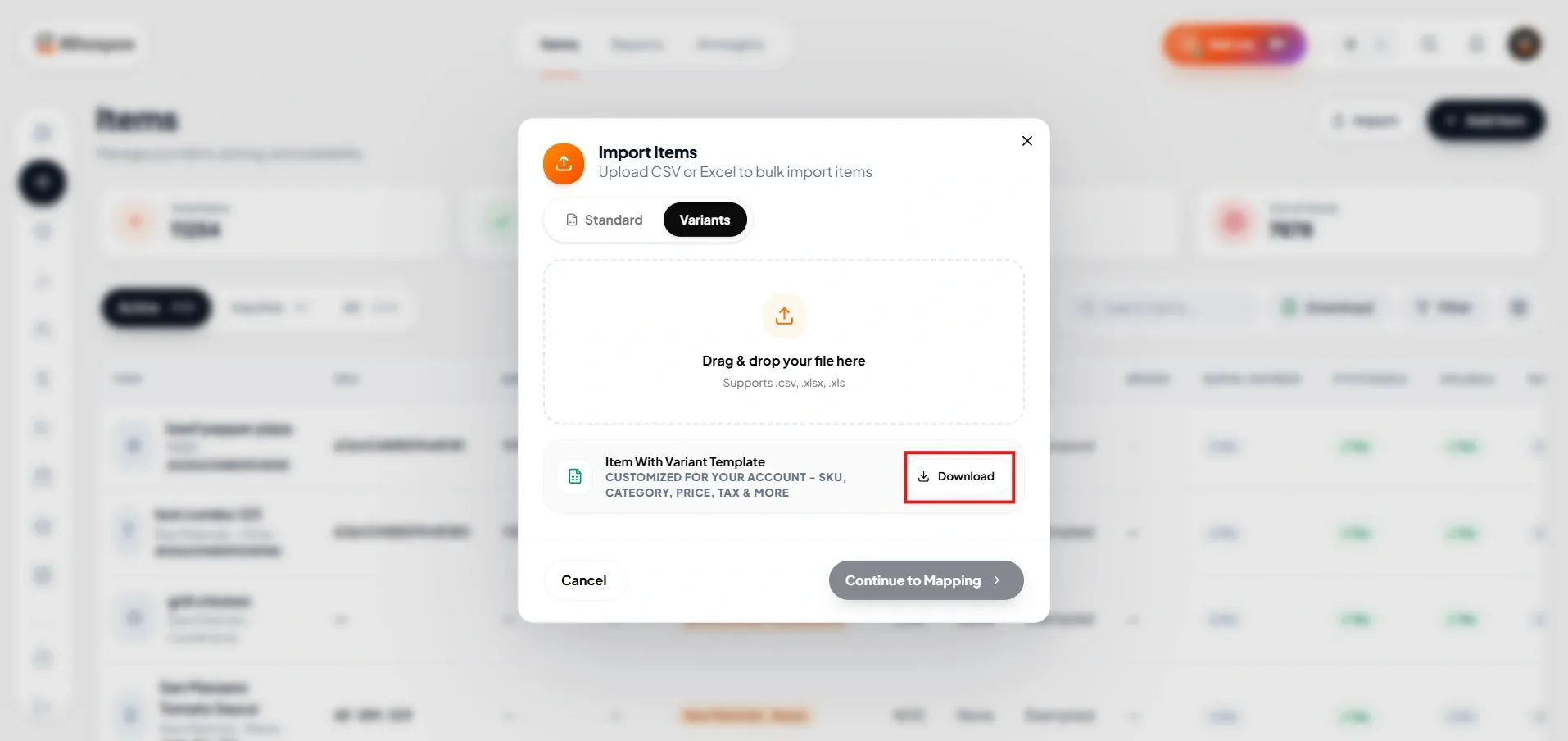
- Click on the Item With Variant Download button, a CSV file template will be downloaded with sample data. Find out the file in downloads and open it
Prepare the CSV File
- Open the downloaded file, which contains a template with sample data specifically for variant items.
- Clear the existing data, except for the first row, which contains the column headers.
- Start entering your data into the template
-
Item Name: Enter the base name of the item that all variants will share
(mandatory).
Group Name: Specify the group or category to which the item belongs (mandatory).
Variant Name: Define the name of each variant (e.g., "Red," "Large") to distinguish them from other variants of the same item.
Barcode: Enter the barcode for each variant. If you don’t enter a barcode, the system will automatically generate one if the automatic barcode generation is enabled in your account.
UoM: Define the unit of measurement for the variant (mandatory).
Sale Rate: Enter the sale price of the variant.
Brand: Mention the brand of the item (optional).
Stockable: If you want to track the stock of the variant, enter YES in this column.
Salable: Indicate whether the variant is salable or not.
Supply Price: Enter the cost price of the variant.
Tax: Mention the applicable tax if required.
Save and Close the CSV File
- Once you’ve entered all the necessary data, save the file in CSV format and close it
Upload the CSV File
- Return to the item list in LithosPOS
- Click on the Import button again, and select Variant Item
- Drag the CSV file into the box or click on the box to upload your saved it from the device.
- Check the box below the dotted box to replace the existing item with the same barcode in your CSV file.
- Finally, click the Import button to complete the importing process.
Verify the Import
- If any variants fail to import, an Excel sheet with reasons for skipped items will be automatically downloaded.
- Review the errors, correct the data, and re-upload the skipped items if necessary.
Connect with us to know more
To learn more about it feel free to book a meeting with our team
Was this article helpful?