
Menu Management in LithosPOS
Menu Management allows you to create and manage multiple menus, add items easily, and assign different menus to different stores, terminals, kiosks, and online or offline channels. This helps you customize what customers see on each platform based on your business needs.
Updated
Add Menu to DoorDash
Step-by-step Instructions
-
Login to the Back Office: Go to my.lithospos.com and log in to the Back Office (BO).
- Please ensure the menu is created before syncing. If it has not been created yet, refer to the link below to create the menu.
Click Here - Start by navigating to Online Orders → Settings, then click on DoorDash.
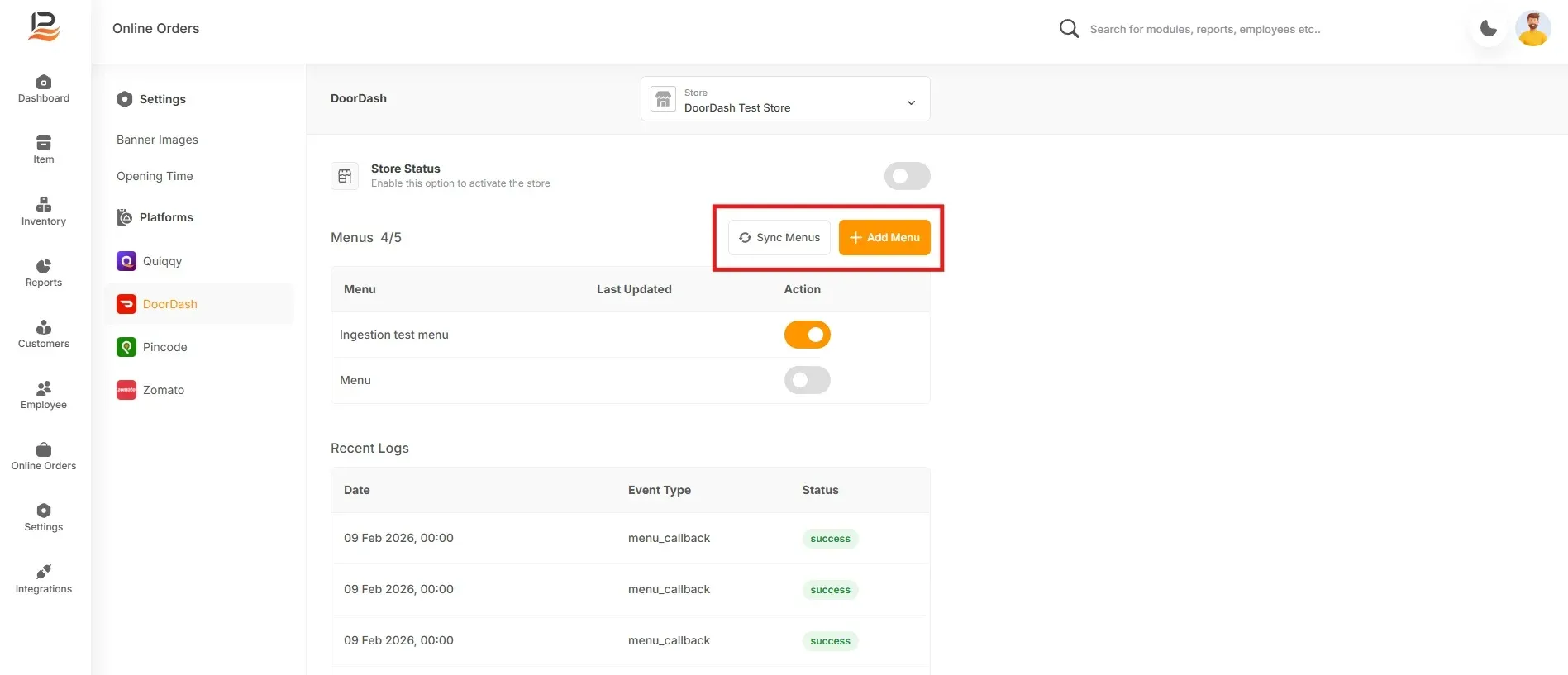
- Select the desired store and click the “+ Add Menu” button.
- The created menus will appear in the right-side window. Select the required menus and click Submit.
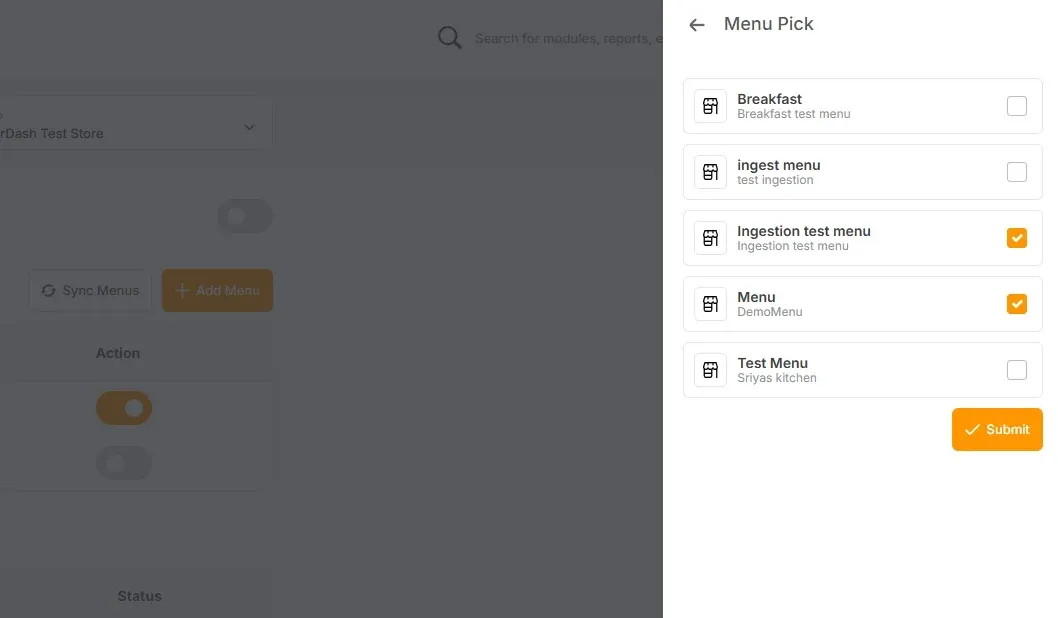
- After submitting, click “Sync Menus” to synchronize them with your DoorDash store.
- You can then activate or deactivate each menu online using the toggle buttons next to each menu.
Connect with us to know more
To learn more about it feel free to book a meeting with our team
Was this article helpful?