
Shopify Integration
Connect your Shopify store with LithosPOS to manage it from one screen.
Connect your Shopify store with LithosPOS to automatically synchronize products, customers, inventory, and orders between both platforms.
Overview
The Shopify integration allows you to:
- Sync products from Shopify to LithosPOS
- Sync products from LithosPOS to Shopify
- Sync customers between both systems
- Receive online orders from Shopify
- Send inventory updates to Shopify
- Manage multiple Shopify stores and locations
- Map LithosPOS taxes to Shopify collections
- Automatically synchronize data based on configured settings
Prerequisites
Before connecting Shopify, ensure that:
- You have administrator access to your Shopify store.
- Your Shopify store is active and accessible.
- The Shopify integration has been enabled for your LithosPOS account.
- Required Shopify locations and sales channels are already configured.
Installation
Step 1: Open Shopify Integration
Navigate to:
Integrations → E-Commerce → Shopify
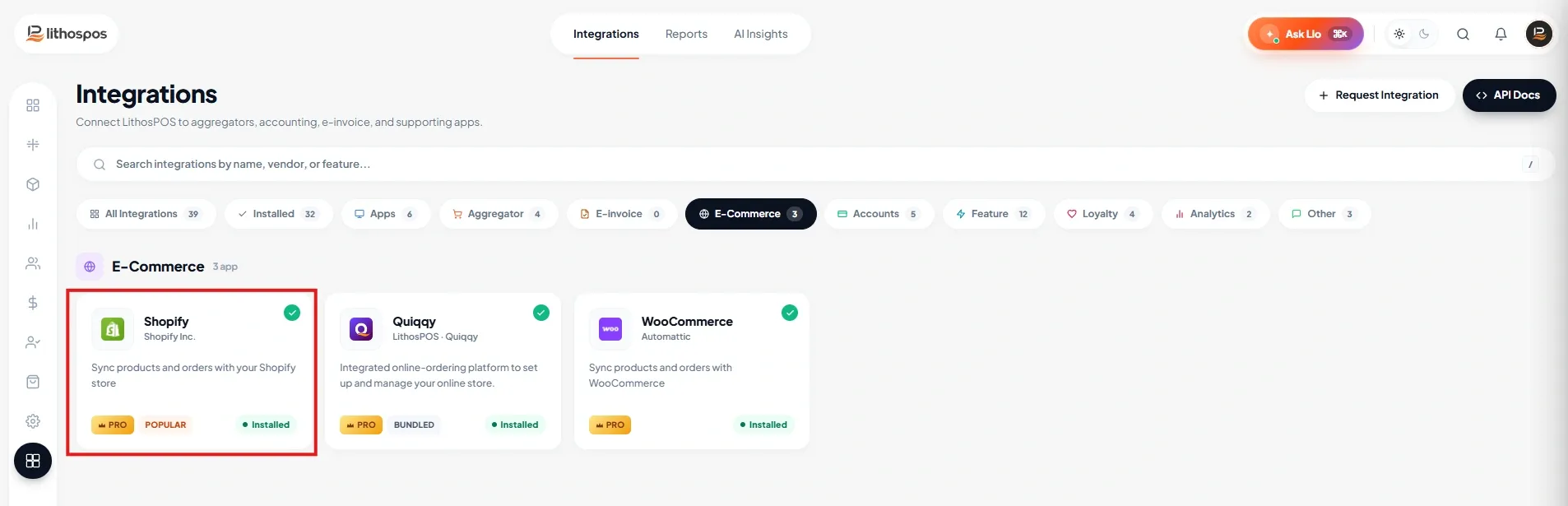
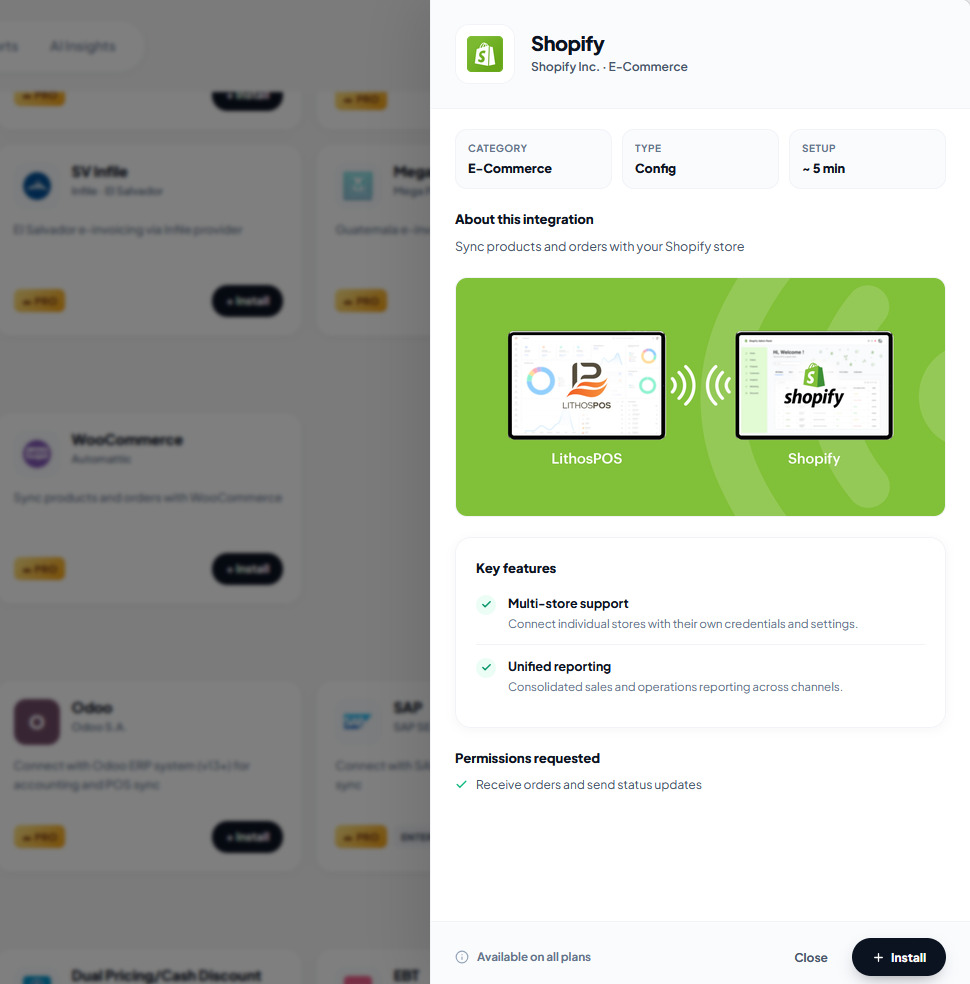
Click Install on the Shopify integration Side sheet.
Step 2: Request Shopify Integration
Before you can connect your Shopify store, the Shopify integration must be enabled for your LithosPOS account.
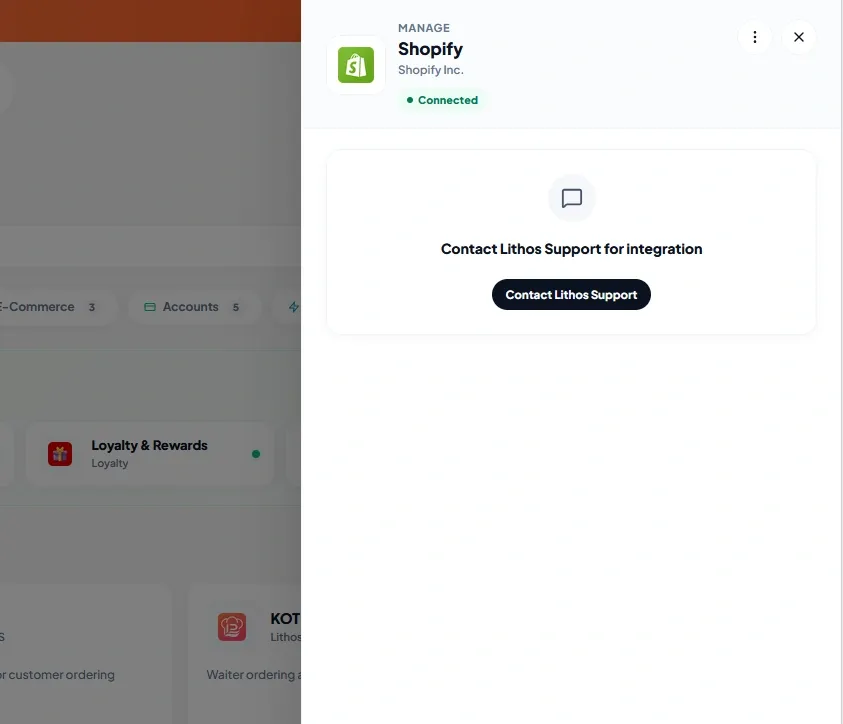
Please contact the LithosPOS Support Team and provide the following information:
- Registered LithosPOS email address
- Shopify store URL (for example: your-store.myshopify.com)
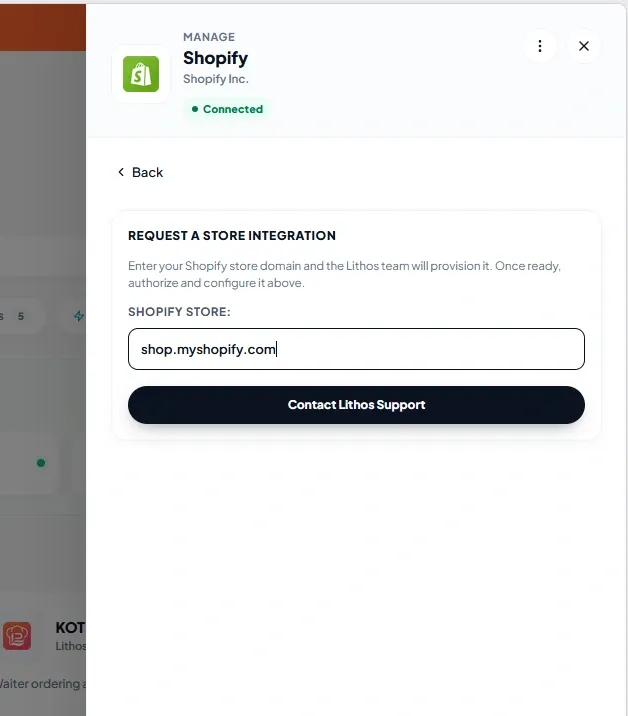
- Once our team has enabled the integration for your account, you can proceed with the installation and authorization steps described below.
Authorization
Step 3: Authorize Shopify Store
After your integration is configured by our support team, a connection entry is created with a Pending status.
Click Authorize.
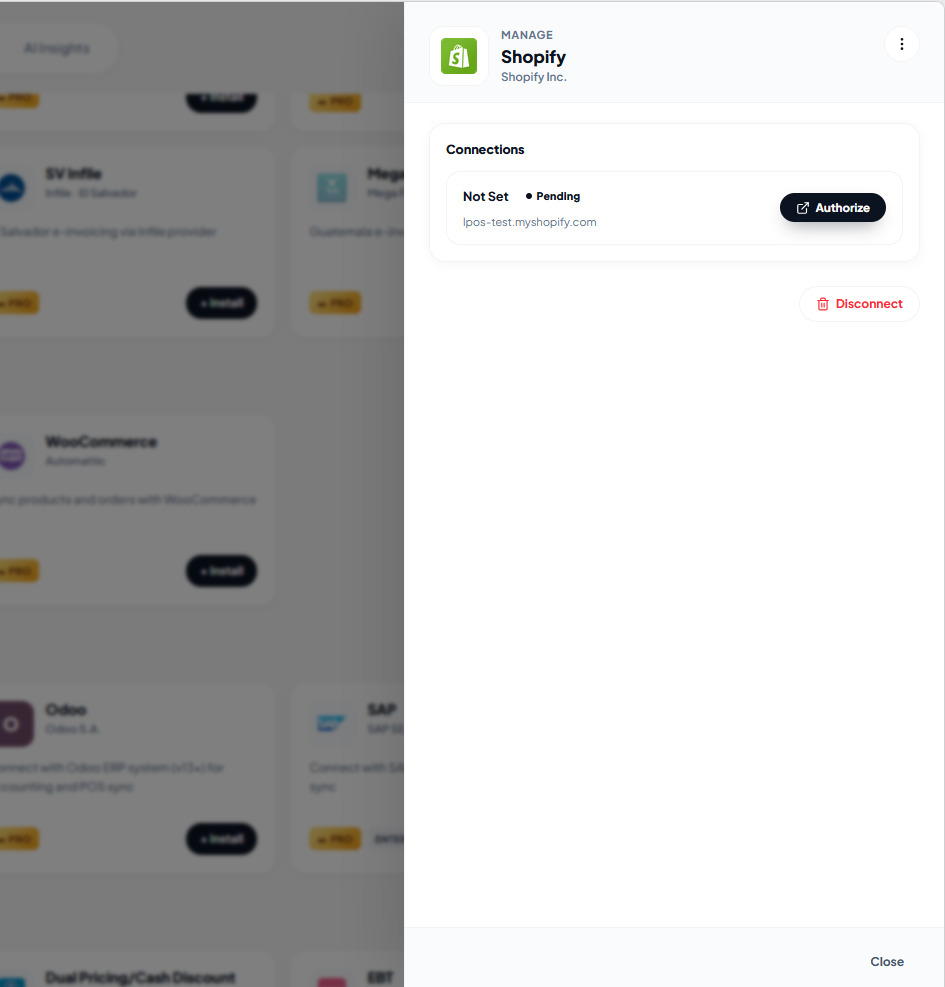
Step 4: Install the App in Shopify
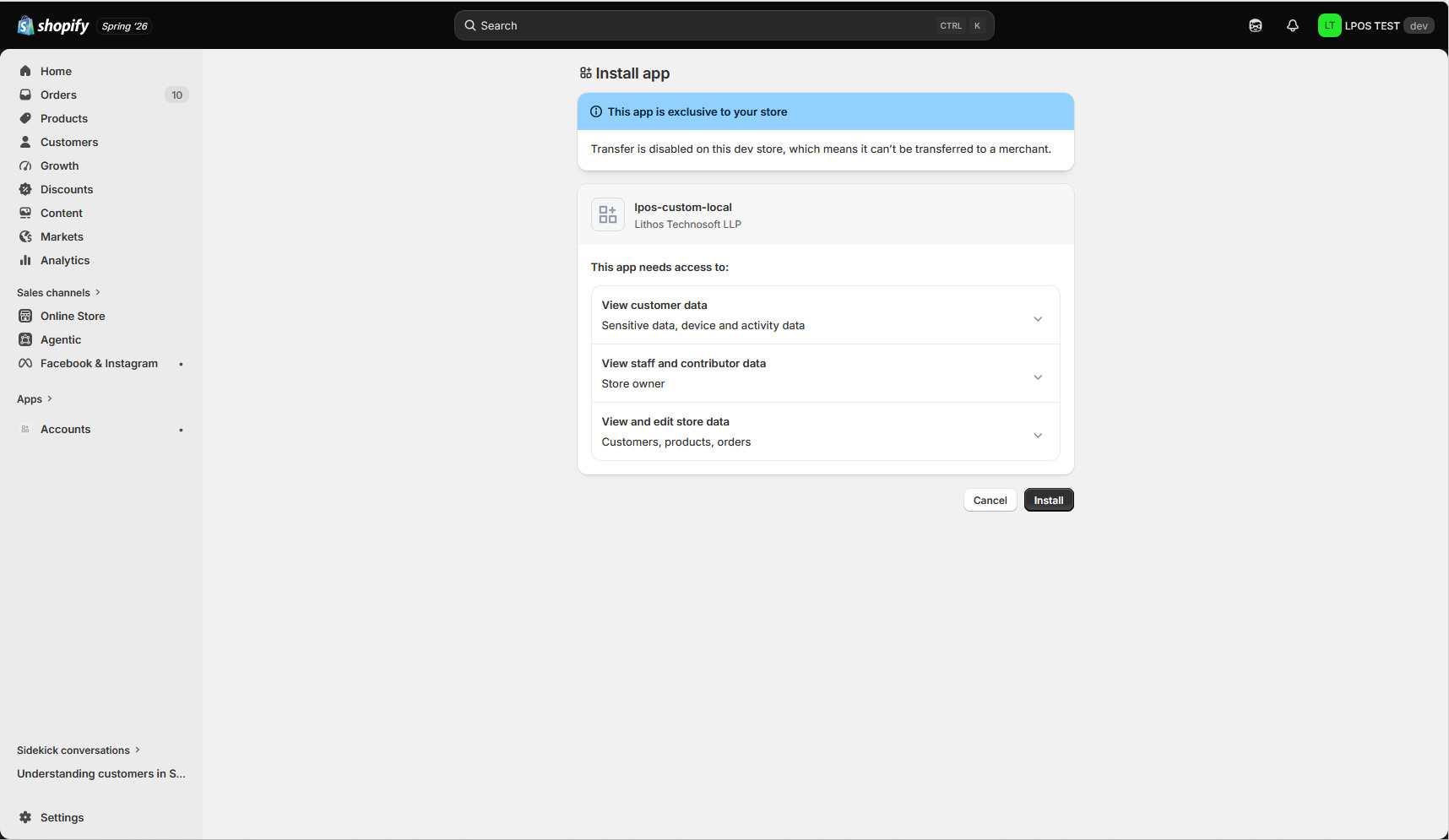
You will be redirected to Shopify's authorization page.
- Review the requested permissions and click Install to grant access to the LithosPOS Shopify App.
Configuration
After successful authorization, you will be redirected back to LithosPOS to complete the integration setup.
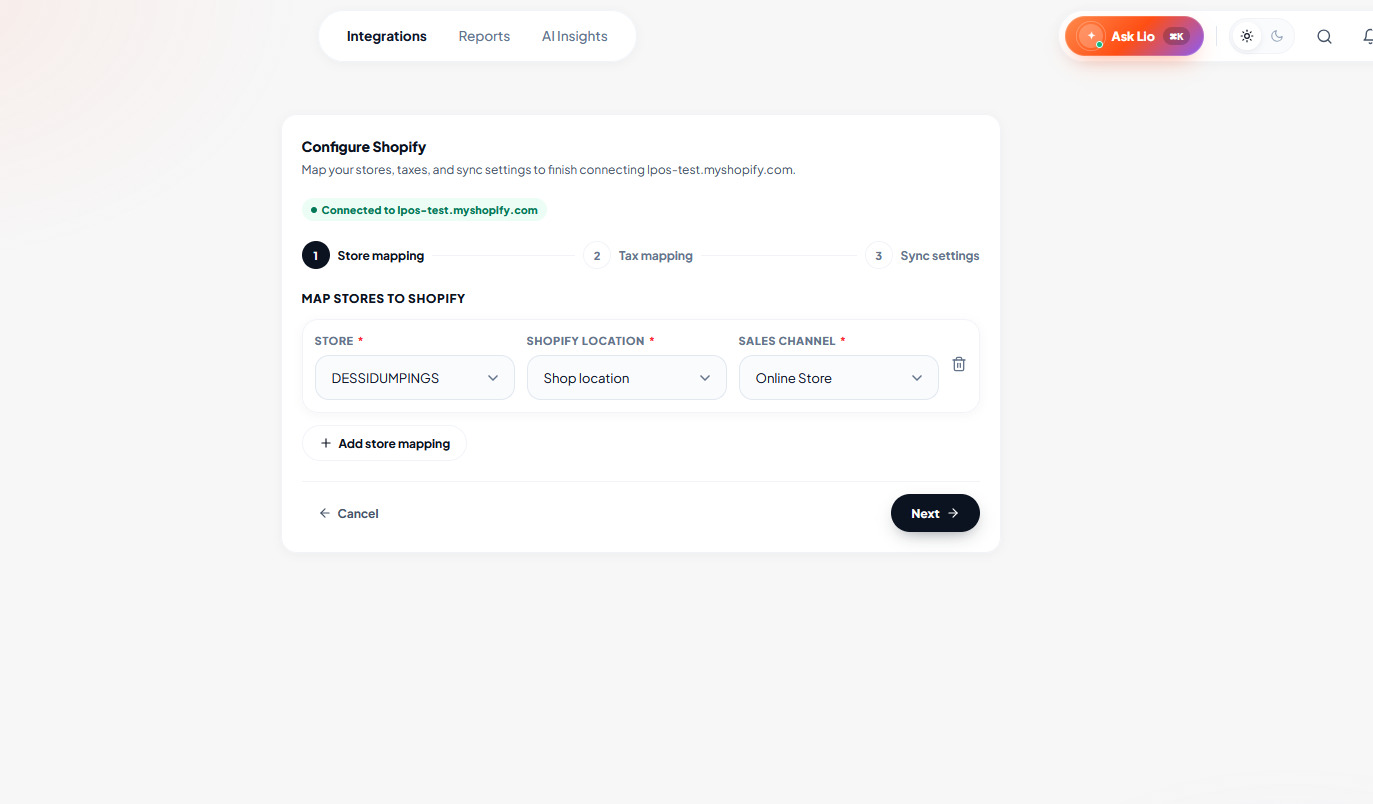
Step 5: Map LithosPOS Stores to Shopify
Configure how your LithosPOS stores connect to Shopify.
For each store:
Store
Select the LithosPOS store.
Shopify Location
Select the Shopify inventory location that will receive stock updates.
Sales Channel
Select the Shopify sales channel associated with the store.
You can add multiple mappings if required.
Click Next when finished.
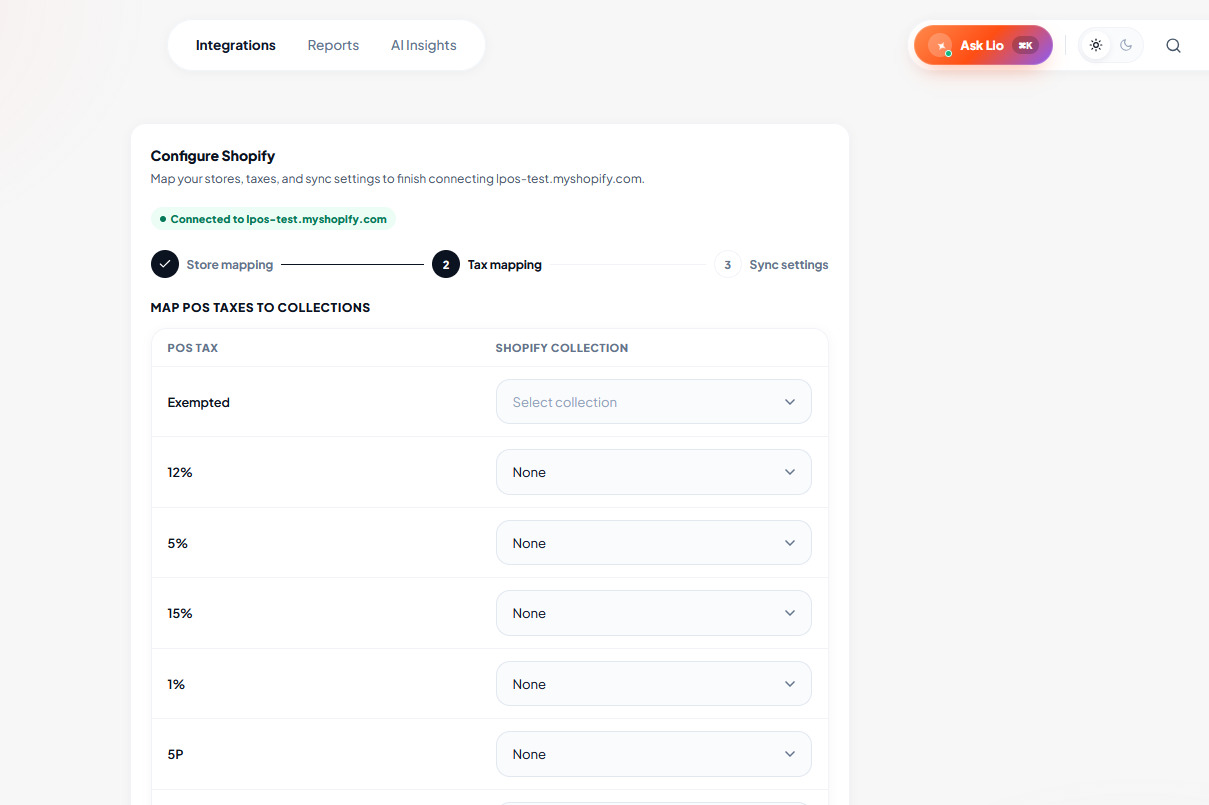
Step 6: Map Taxes
Map LithosPOS tax rates to Shopify collections.
This mapping ensures products are assigned correctly when synced between systems.
For each tax rate:
- Select the corresponding Shopify collection.
- Leave as None if no mapping is required.
Click Next after completing the mappings.
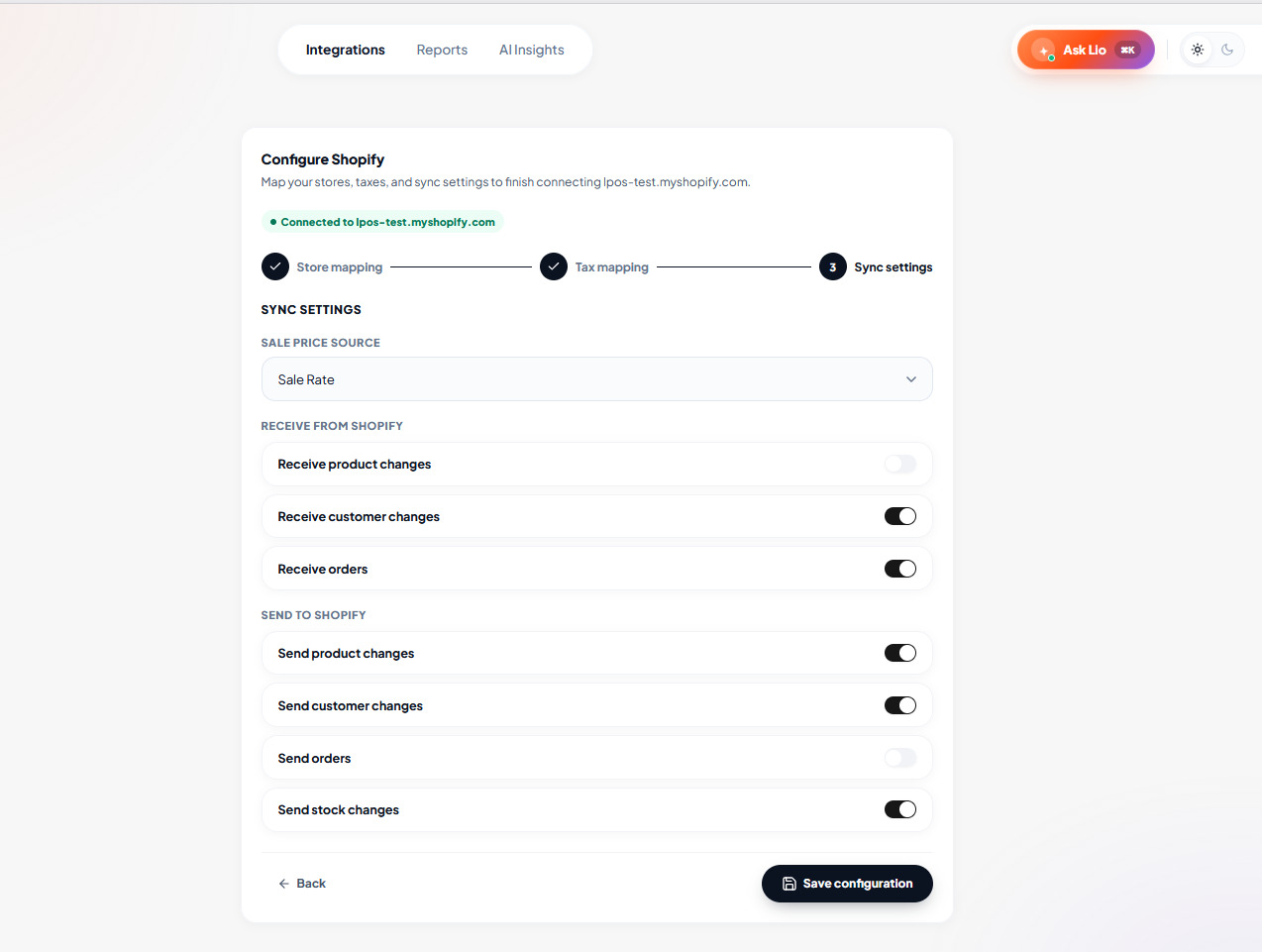
Step 7: Configure Sync Settings
Choose how data should be synchronized between Shopify and LithosPOS.
Sale Price Source
Select the product price field to use when syncing products.
Examples:
- Sale Rate
- Wholesale Rate
- Online Price
Receive from Shopify
Enable any of the following:
- Receive product changes
- Receive customer changes
- Receive orders
Send to Shopify
Enable any of the following:
- Send product changes
- Send customer changes
- Send orders
- Send stock changes
After configuring the desired options, click Save Configuration.
Integration Complete
Step 8: Shopify Connected
Your Shopify store is now connected to LithosPOS.
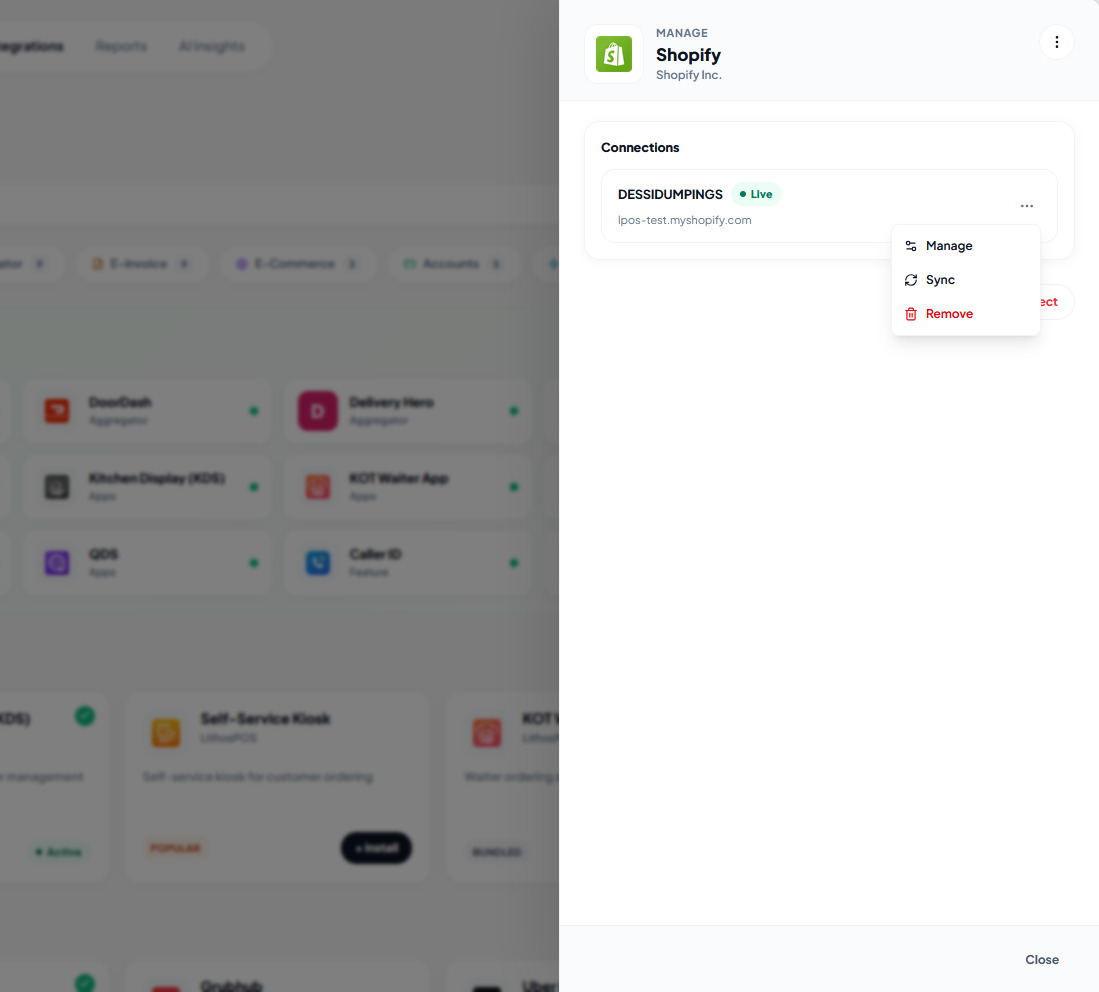
The connection status will display as Live.
From the Manage menu you can:
Manage
Edit store mappings, tax mappings, and sync settings.
Sync
Trigger a manual synchronization.
Remove
Disconnect the Shopify integration from the selected store.
Automatic Synchronization
Once the Shopify store is successfully connected and configured, LithosPOS automatically synchronizes data according to the sync settings selected during setup.
Depending on your configuration, the following data can be synchronized automatically:
Receive from Shopify
- Product changes
- Customer changes
- Orders
Send to Shopify
- Product changes
- Customer changes
- Orders
- Stock changes
No manual intervention is required after setup. Synchronization runs automatically in the background.
Inventory Synchronization
When Send Stock Changes is enabled:
- Inventory levels in Shopify are automatically updated when stock changes occur in LithosPOS.
- Stock quantities are synchronized to the Shopify Location mapped for each store.
- Inventory updates are processed periodically according to the configured synchronization schedule.
- Shopify inventory remains aligned with your LithosPOS stock levels.
Sync Options Explained
- Receive Product Changes : Import product updates from Shopify into LithosPOS
- Receive Customer Changes : Import customer updates from Shopify into LithosPOS
- Receive Orders : Create sales/orders in LithosPOS from Shopify orders
- Send Product Changes : Publish product updates from LithosPOS to Shopify
- Send Customer Changes : Publish customer updates from LithosPOS to Shopify
- Send Orders : Publish orders from LithosPOS to Shopify
- Send Stock Changes : Update Shopify inventory whenever stock changes in LithosPOS
Managing the Integration
To manage an existing Shopify connection:
- Open Integrations → Shopify
- Open the installed Shopify integration
- Click the ⋮ menu beside the connection
- Choose one of the following options:
Manage
Update:
- Store mappings
- Tax mappings
- Sync settings
Sync
Run a manual synchronization immediately.
This is useful when:
- Testing a new connection
- Verifying recent changes
- Synchronizing data without waiting for the next scheduled sync cycle
Remove
Disconnect the Shopify store from LithosPOS.
No further data will be synchronized until the store is connected again.
Connection Status
The connection status indicates the current state of the integration.
- Pending : Shopify authorization has not been completed
- Live : Shopify is connected and synchronization is active
- Disconnected : The connection has been removed or is no longer authorized
When the status shows Live, automatic synchronization will continue according to the configured settings.
Troubleshooting
Authorization Failed
- Verify that you are logged into the correct Shopify store.
- Ensure your Shopify user account has permission to install apps.
- Retry the authorization process.
Products Not Syncing
- Verify store mappings.
- Check sync settings.
- Ensure the Shopify Location is mapped correctly.
- Run a manual sync.
Orders Not Appearing in LithosPOS
- Confirm Receive Orders is enabled.
- Verify the Shopify store is connected.
- Run a manual sync.
Inventory Not Updating
- Confirm Send Stock Changes is enabled.
- Verify the correct Shopify Location is mapped to the LithosPOS store.
- Wait for the next scheduled inventory synchronization cycle.
- Run a manual sync if immediate synchronization is required.
Notes
- Shopify authorization is required before data can be exchanged between Shopify and LithosPOS.
- Multiple LithosPOS stores can be mapped to different Shopify Locations.
- Tax mappings should be reviewed whenever new tax rates or collections are added.
- Sync settings can be updated at any time from the Manage screen.
- Stock synchronization occurs automatically at scheduled intervals when Send Stock Changes is enabled.
- Manual synchronization is available at any time through the Sync option.
Connect with us to know more
To learn more about it feel free to book a meeting with our team
Was this article helpful?