
Neonet Online Payment Integration in LithosPOS
LithosPOS supports integrated online payments through Neonet, allowing you to process customer payments quickly and securely.
LTLithosPOS TeamUpdated
Configuring Neonet Online Payment in LithosPOS Back Office
Follow these steps to add and configure Neonet Online as a payment option in LithosPOS:
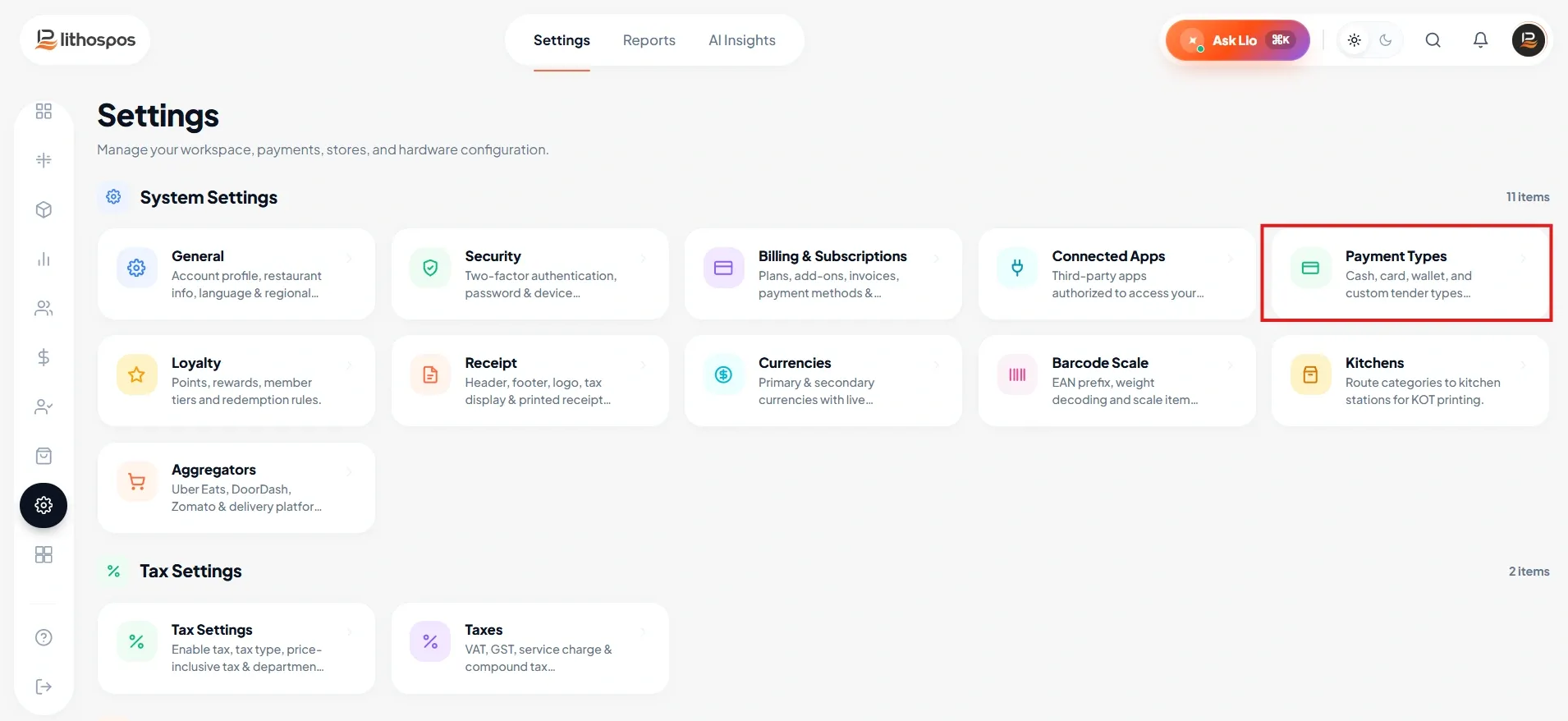
- Log in to the Back Office and select 'Settings' from the side menu.
- Navigate to ‘Payment Types’.
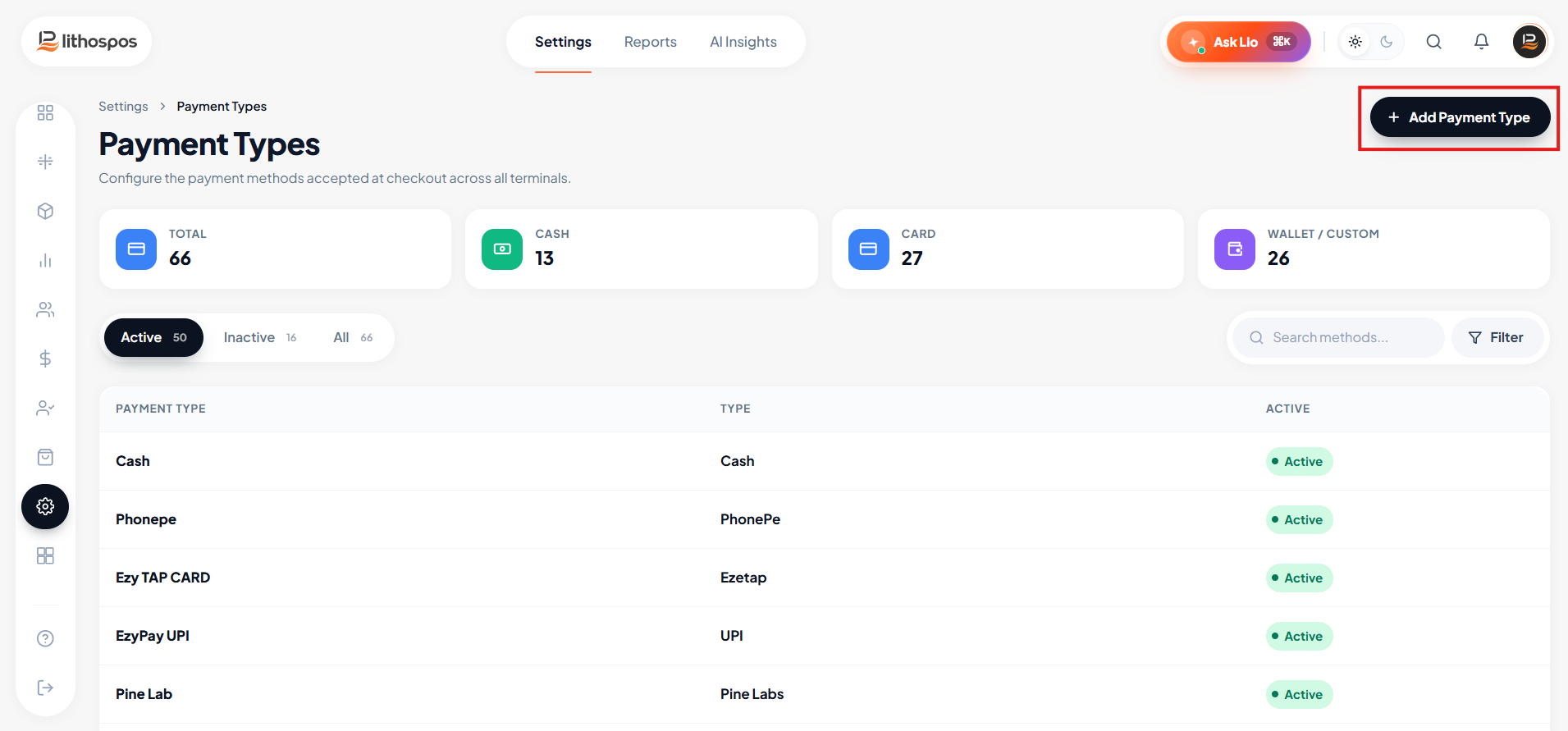
- Click on ‘+ Add Payment Type’ at the top-right corner.
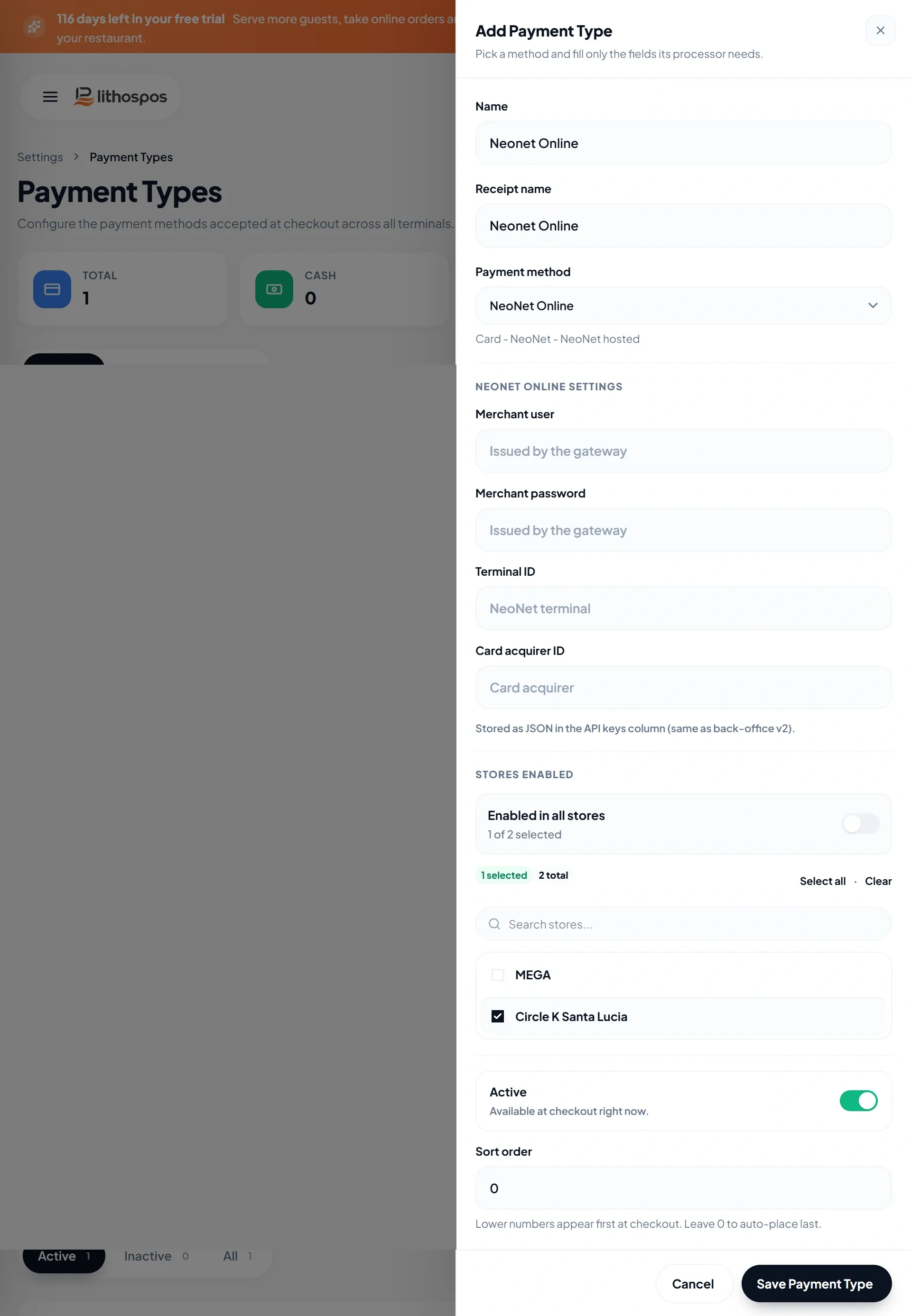
- In the Name field, enter 'Neonet Online'—this name will appear on the POS payment screen.
- In the Receipt Name field, type 'Neonet Online' to define how it should display on customer receipts.
- Sort Order: Set the display order of the payment type at checkout. Lower numbers appear first, while higher numbers appear later. Leave the field as 0 to automatically place the payment type last.
- From the Payment Method dropdown, select Neonet Online.
Enter the following details:
- Merchant Username
- Password
- Terminal ID
- Card Acquirer ID (ACQ ID)
- Toggle the Activate/Deactivate button to enable or disable this payment method.
- Under the Stores section, select the stores where you want Neonet available, or select Enabled in all stores to make Neonet available across all stores.
- Click Save Payment Type to save your settings.
- After saving, sync your POS system to make the Neonet Online Payment option available during transactions.
Connect with us to know more
To learn more about it feel free to book a meeting with our team
Was this article helpful?