
How to Set Store Hours for DoorDash Orders
Set your weekly operating hours in Online Orders → Settings and click Save changes. LithosPOS sends them to DoorDash with the store's menu, so customers can only order on DoorDash during those hours.
LTLithosPOS TeamUpdated
Your DoorDash store follows the operating hours you set in LithosPOS. LithosPOS sends them to DoorDash as the opening hours of the store's DoorDash menu, so customers can only order during those hours.
Set the operating hours
- Log in to the Back Office at my.lithospos.com.
- Go to Online Orders → Settings.
- Choose the DoorDash-connected store at the top right (Editing online ordering for).
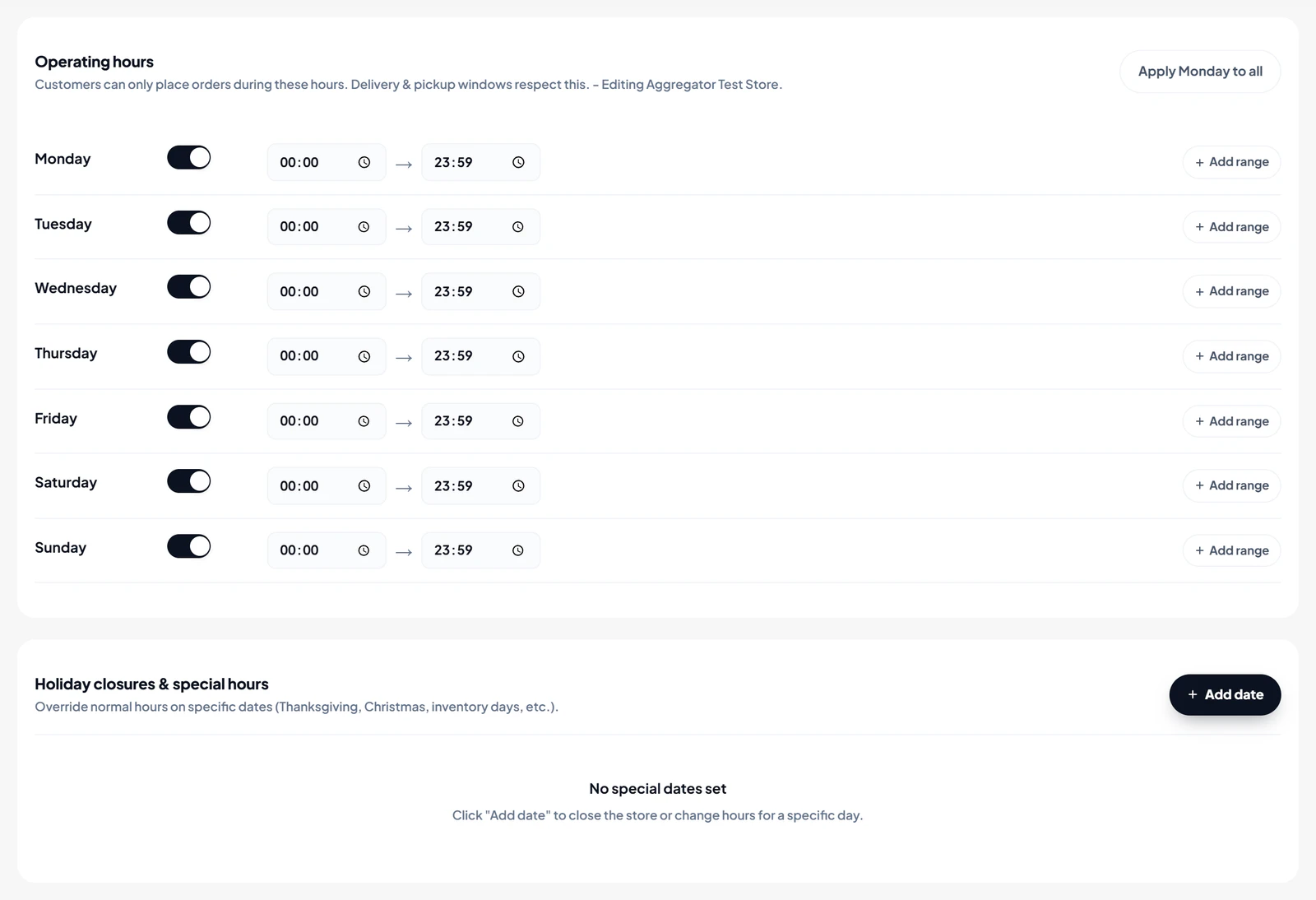
- On General Settings, find Operating hours:
- Turn each day on or off. A day that is off is closed on DoorDash.
- Set the opening and closing time. Use Add range for a split shift (for example, lunch and dinner).
- Use Apply Monday to all to copy Monday's hours to every day.
- Click Save changes.
The new hours are sent to DoorDash with the menu shortly after you save. You do not need to change them on DoorDash. To send them at once, click Push menu now in the DoorDash store console — see Menu management for DoorDash.
Why the hours matter
- DoorDash needs opening hours to import a menu. If the store has none, the setup stops with "The menu import failed because store hours are missing." Set the hours, save and click Retry menu.
- DoorDash only accepts orders inside the hours it has. Keep them accurate so customers do not order while you are closed.
Connect with us to know more
To learn more about it feel free to book a meeting with our team
Was this article helpful?