
DoorDash Orders and Cancellation
DoorDash orders arrive in LithosPOS Online Orders already accepted and go straight to the kitchen. Mark them ready and complete them as usual and LithosPOS updates DoorDash; cancel an order from its ⋮ menu with a DoorDash reason.
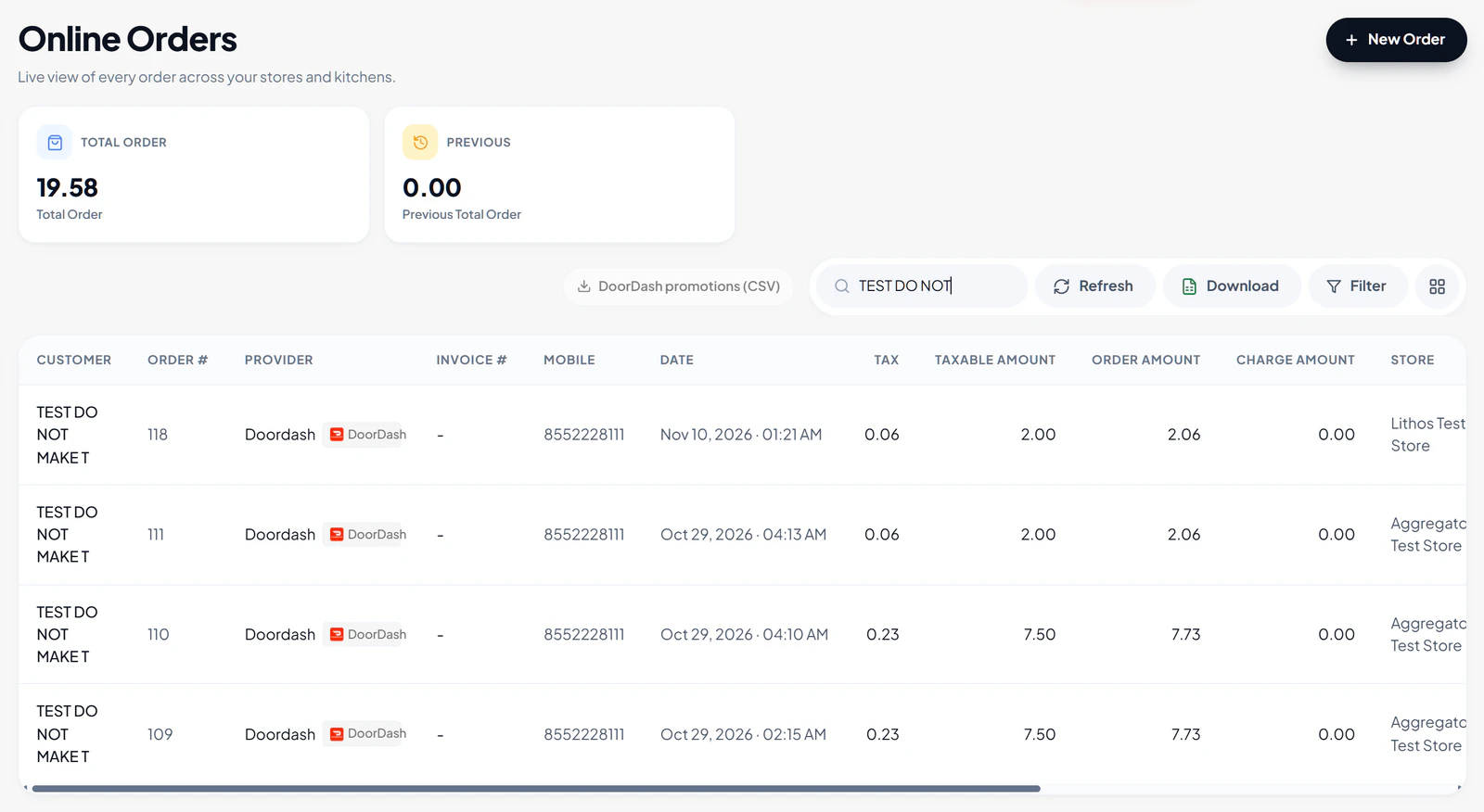
Once a store is live on DoorDash, its DoorDash orders appear in Online Orders together with your other online orders. LithosPOS keeps DoorDash up to date as you work on each order.
How DoorDash orders arrive
- Every DoorDash order is created in LithosPOS and accepted automatically — DoorDash does not allow manual accept. LithosPOS confirms it to DoorDash and sends it to the kitchen straight away, so there is no Accept button on DoorDash orders.
- The order shows DoorDash as the provider, with the customer, items, notes and totals sent by DoorDash. Pickup and delivery orders both arrive this way.
- If LithosPOS cannot create an order — for example it contains an item that is not on the store's LithosPOS menu — it tells DoorDash the order failed, with the reason, instead of creating a wrong order. Keep the menus in step — see Menu management for DoorDash.
Update the order status
- Log in to the Back Office at my.lithospos.com and go to Online Orders.
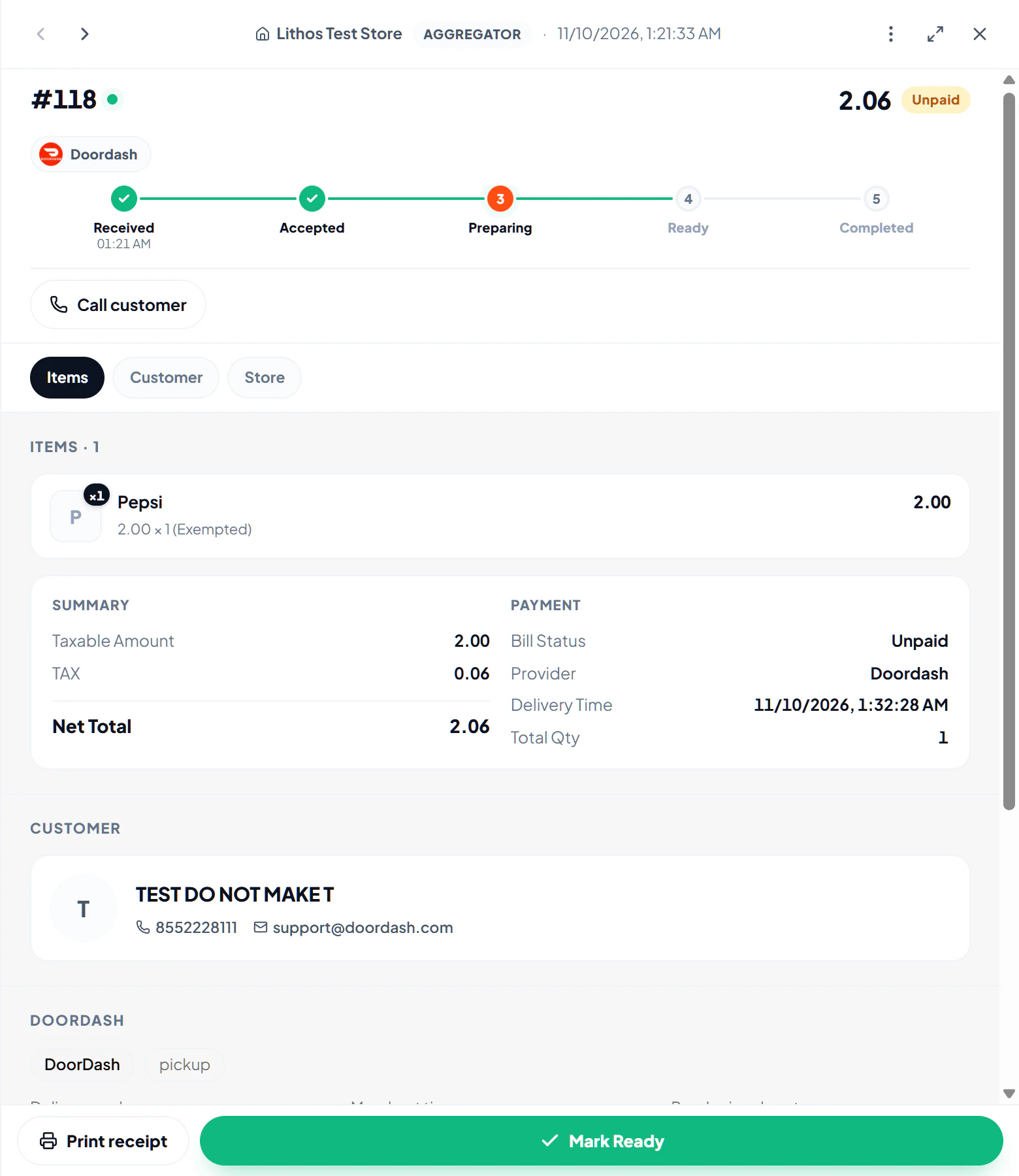
- Click a DoorDash order to open it.
- Work through the order as usual. A new DoorDash order is already Received and Accepted and shows Preparing. When the food is ready, click Mark Ready — LithosPOS sends DoorDash the ready signal so the Dasher or customer knows the order can be picked up.
- Complete (or bill) the order as you do for other online orders.
DoorDash details on an order
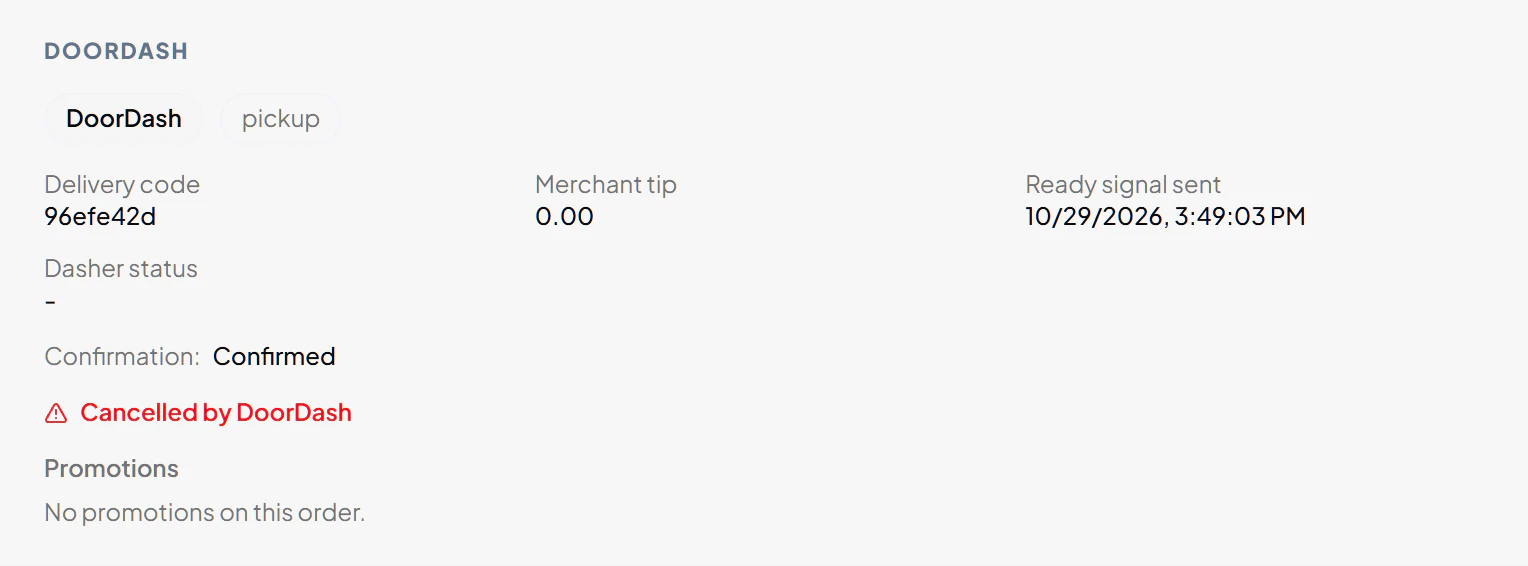
Open a DoorDash order and scroll to the DoorDash section:
- the DoorDash experience the order came from (DoorDash, Caviar or Storefront) and the fulfilment type, for example pickup or delivery,
- Delivery code, Merchant tip, Ready signal sent (when the ready signal reached DoorDash) and Dasher status,
- Confirmation — whether DoorDash confirmed the order. Failed, Timed out or Confirmation failed is shown in red with the reason,
- cancellation messages such as Cancelled by DoorDash or Cancellation not confirmed by DoorDash,
- Promotions on the order, with the merchant-funded and DoorDash-funded amounts.
Cancel a DoorDash order
- Open the order in Online Orders.
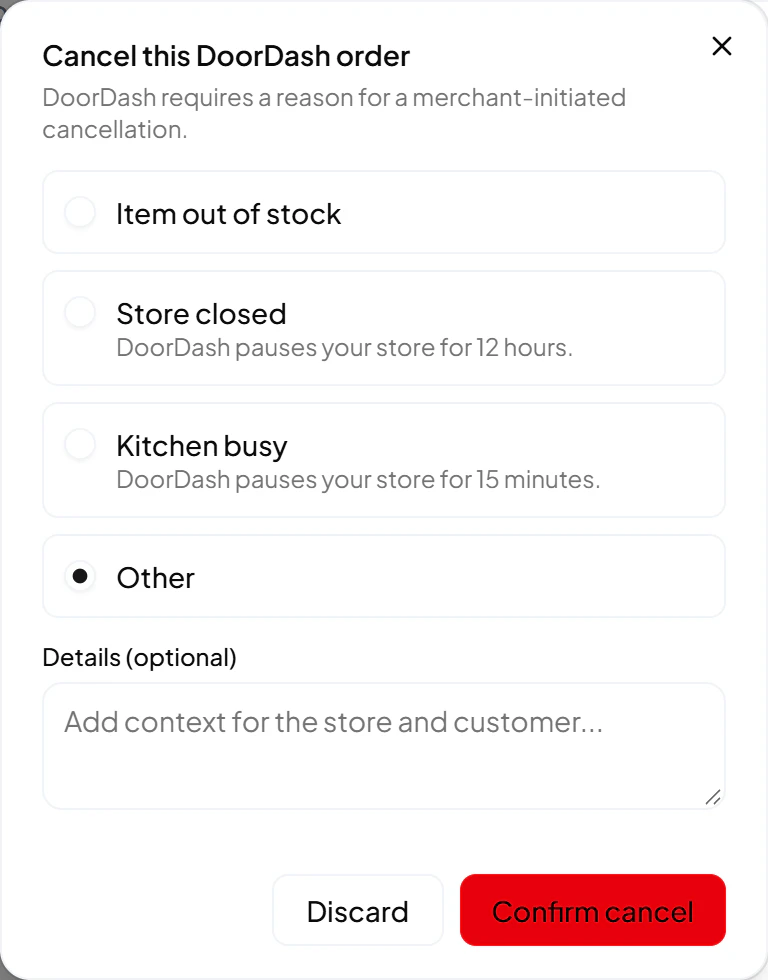
- Click the ⋮ menu at the top of the order and choose Cancel order. The Cancel this DoorDash order dialog opens — DoorDash requires a reason when you cancel.

- Choose a reason:
- Item out of stock
- Store closed — DoorDash pauses your store for 12 hours.
- Kitchen busy — DoorDash pauses your store for 15 minutes.
- Other
- If you like, add Details (optional) for the store and customer.
- Click Confirm cancel. Click Discard to keep the order.
The order is cancelled in LithosPOS and DoorDash is notified. If DoorDash does not confirm the cancellation, the order's DoorDash section shows Cancellation not confirmed by DoorDash — check the order in the DoorDash Merchant Portal.
When DoorDash or the customer cancels
If an order is cancelled on DoorDash, LithosPOS cancels it automatically and the order's DoorDash section shows Cancelled by DoorDash.
If the order was already completed in LithosPOS, it shows Cancelled by DoorDash after completion and the sale is kept. Refund or void it manually if needed.
Connect with us to know more
To learn more about it feel free to book a meeting with our team
Was this article helpful?