
Grubhub Integration with LithosPOS
Connect a LithosPOS store to your Grubhub location from the Back Office. Pick the store and menus, sign in to Grubhub, link the location, send the menu, then activate to receive Grubhub orders in LithosPOS.
Connect a LithosPOS store to your Grubhub location and Grubhub orders arrive straight in LithosPOS. Your LithosPOS menu, store hours and item availability are kept in sync with Grubhub.
The setup takes five steps:
Menu Pick → Connect → Sync Location → Menu to Grubhub → Activate Grubhub
Before you start
- You need a Grubhub account for the restaurant location you want to connect.
- Create the menu you want to sell on Grubhub in LithosPOS first (see Menu creation).
- Your company needs an aggregator with the Grubhub platform type. It sets the price list for the Grubhub menu and the provider Grubhub orders are recorded under. If you have none, the wizard shows a link to Settings → Aggregators (see Aggregators settings).
- Set the location's opening hours on Grubhub. Grubhub does not let a location without hours connect.
Install Grubhub and add a connection
- Log in to the Back Office at my.lithospos.com.
- Go to Integrations. If Grubhub is not under Installed Apps yet, find it under Aggregator, click it and click Install Now.
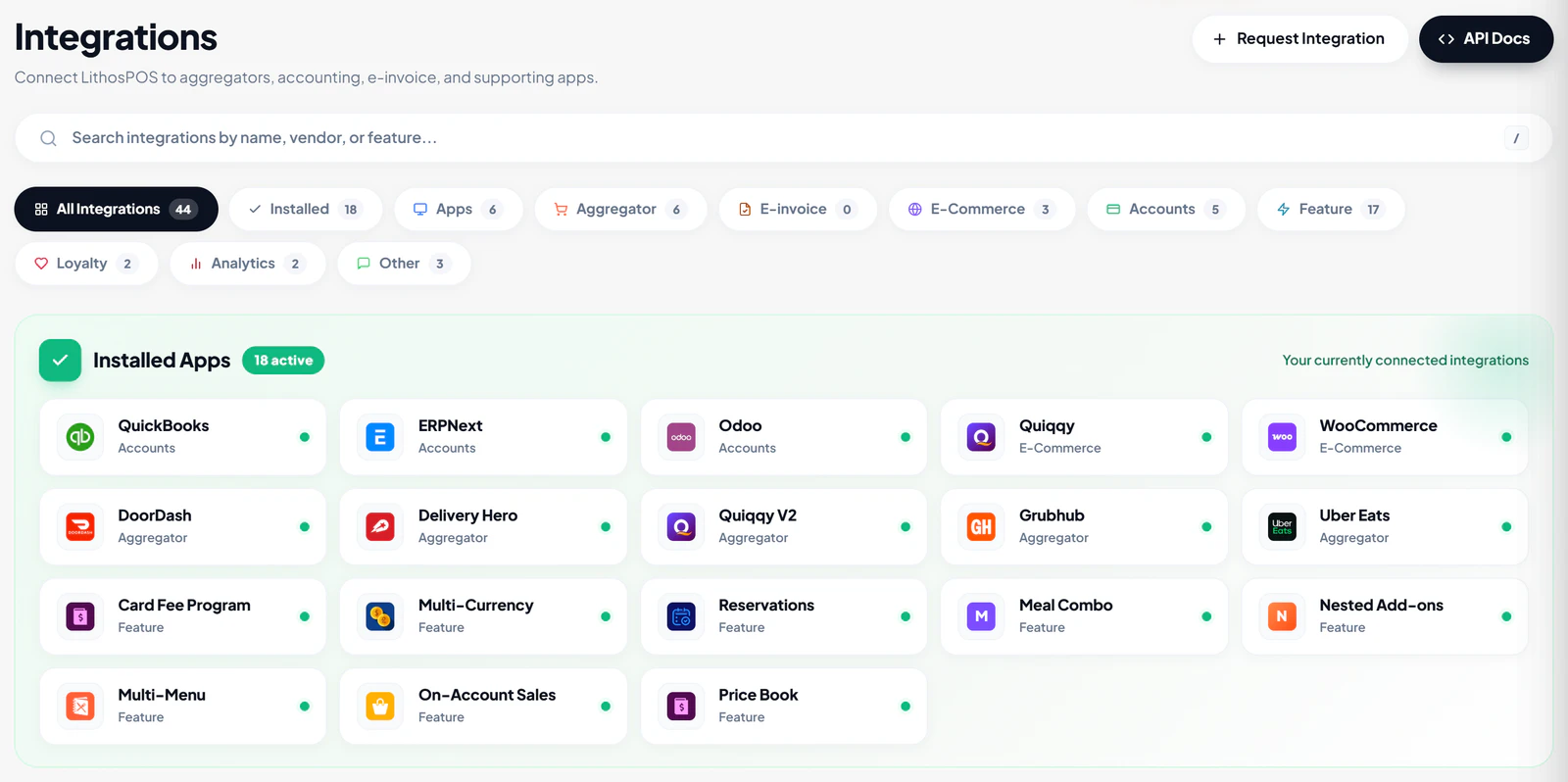
- Click the Grubhub tile. The Grubhub panel opens.
- Click + New Connection.
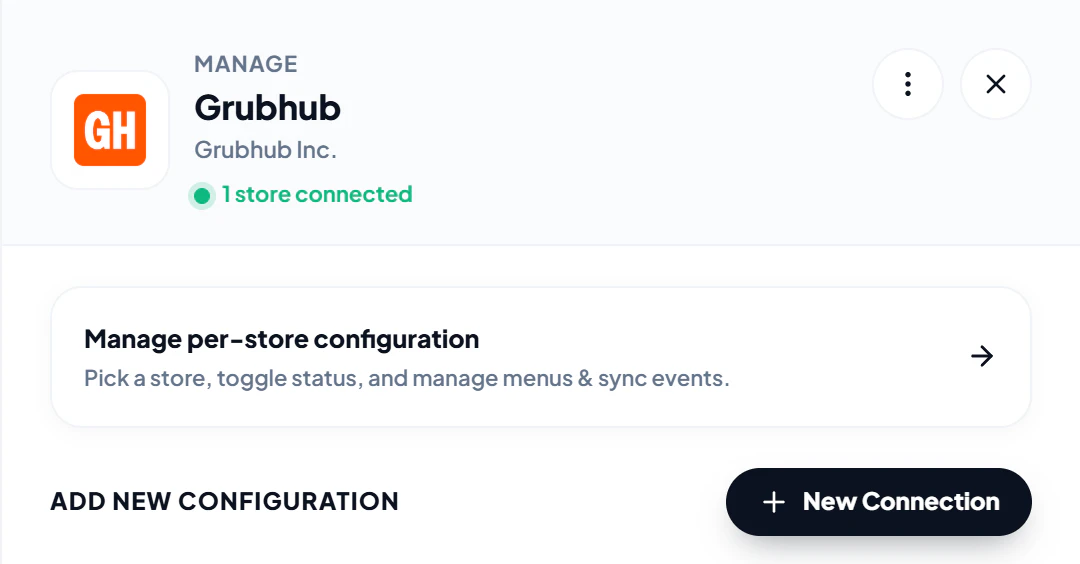
Step 1 — Menu Pick
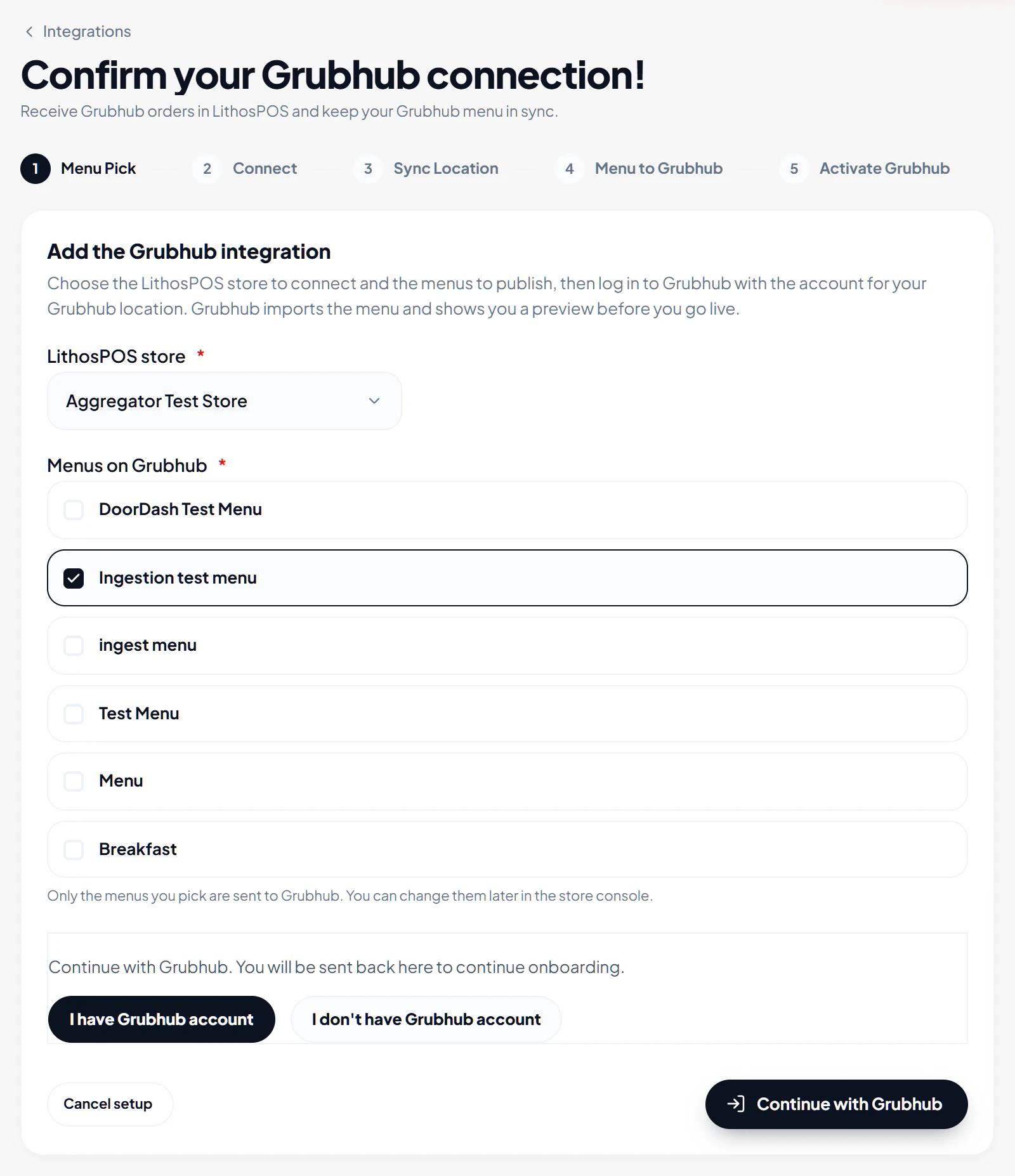
- Under LithosPOS store, choose the store to connect. Stores that are already connected to Grubhub are not listed.
- Under Menus on Grubhub, tick the menus to publish. Only the menus you pick are sent to Grubhub; you can change them later.
- If your company has more than one Grubhub aggregator, choose one under Grubhub aggregator. With a single aggregator this field is hidden and that aggregator is used.
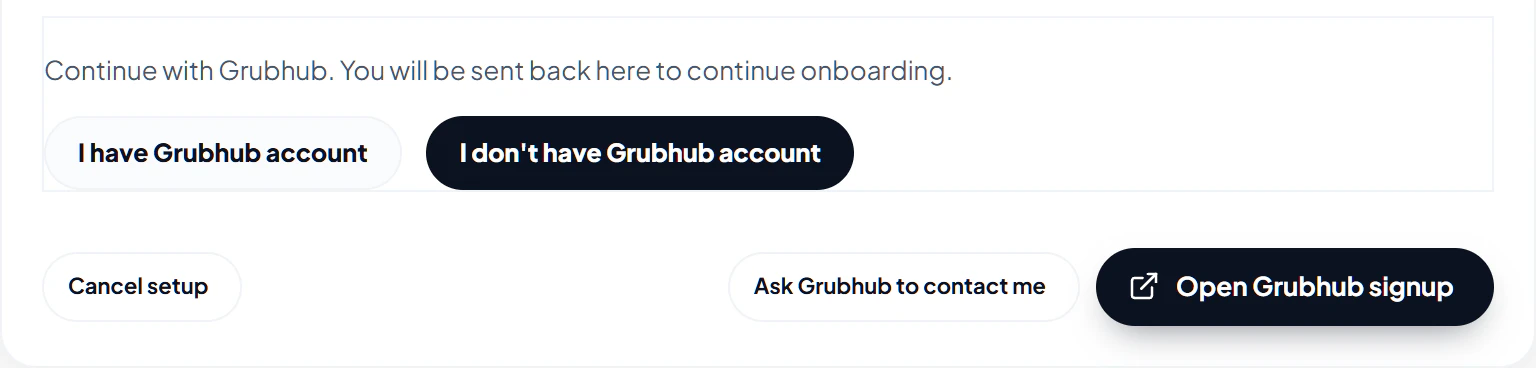
- Keep I have Grubhub account selected and click Continue with Grubhub.
Step 2 — Connect
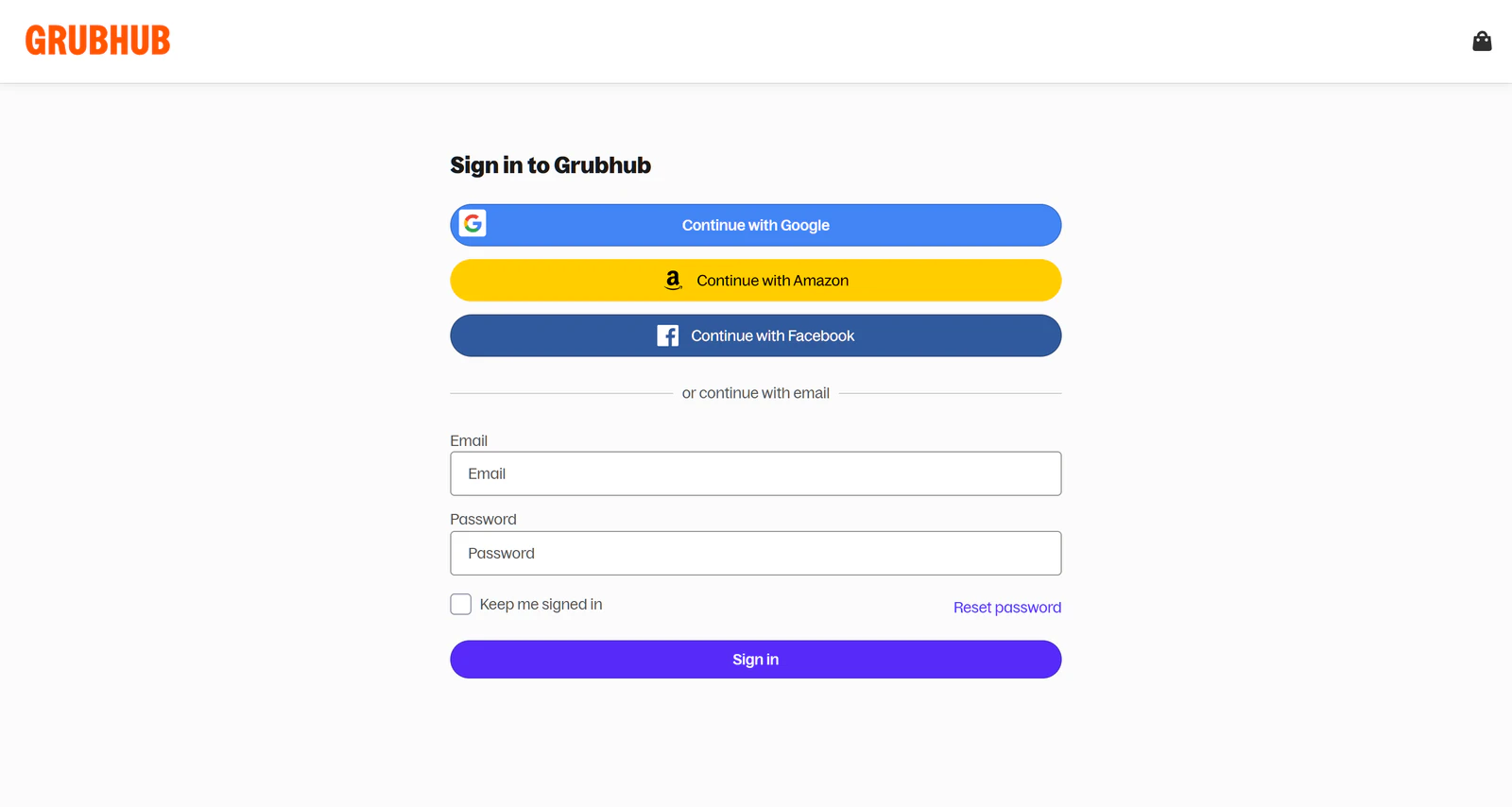
You are taken to the Grubhub sign-in page. Sign in with the Grubhub account that manages your restaurant. Grubhub then sends you back to LithosPOS automatically, and the wizard shows Finishing your Grubhub login... for a moment.
Step 3 — Sync Location
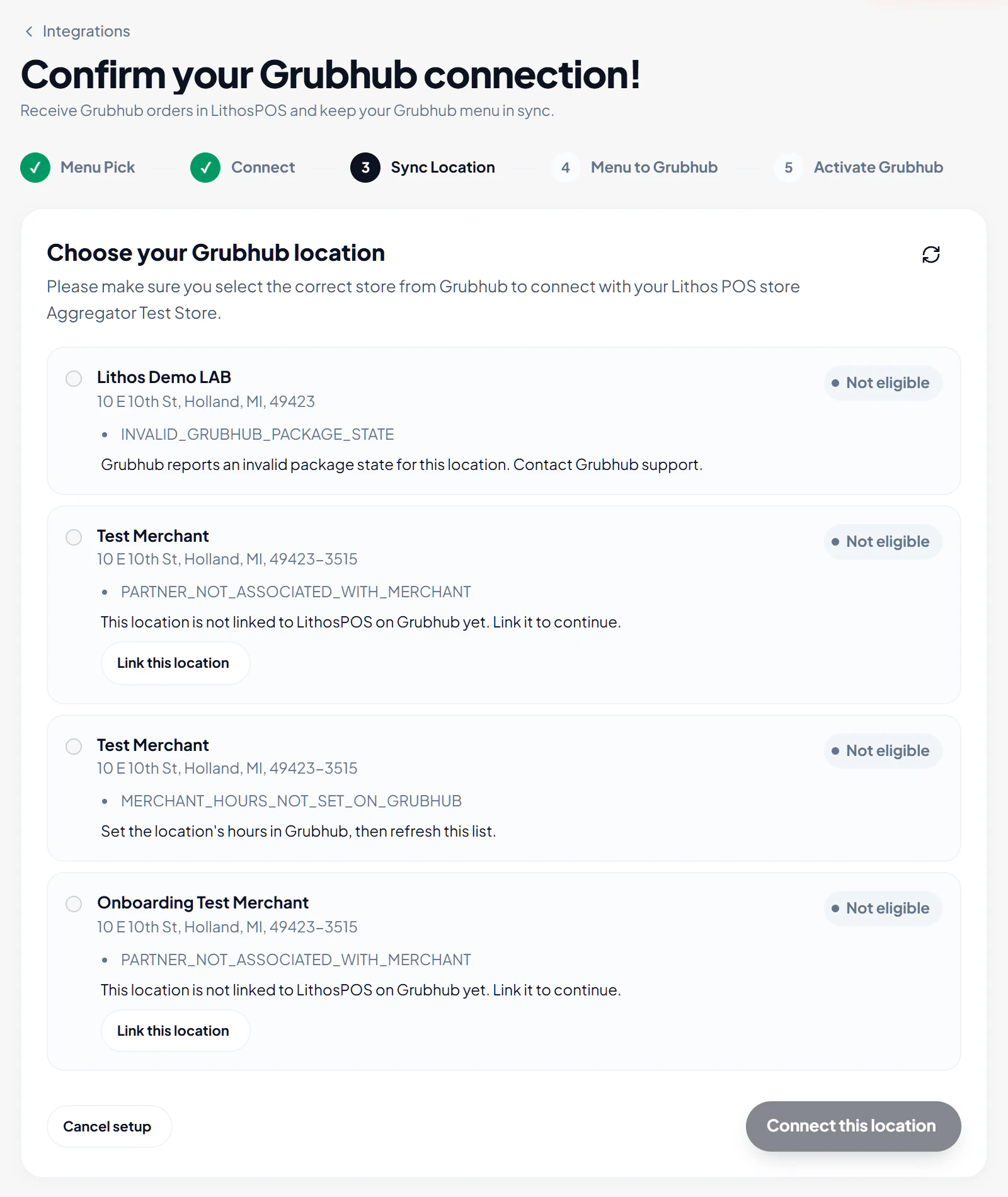
LithosPOS lists every Grubhub location your Grubhub login manages.
- Select the location that matches your LithosPOS store.
- Click Connect this location.
Locations that cannot be connected show Not eligible with Grubhub's reason and what to do:
- Link this location — the location is not linked to LithosPOS on Grubhub yet. Click it to link the location and continue.
- Link and continue to menu — the location is already enabled for LithosPOS on Grubhub. Click it to link it and go straight to the menu step.
- Hours not set on Grubhub — set the location's hours in Grubhub, then click the refresh icon to reload the list.
- Invalid package state — the location is paused or not set up for integrations on Grubhub. Contact Grubhub support.
For any other reason, click Ask Grubhub for help to have Grubhub support look at the location.
Step 4 — Menu to Grubhub
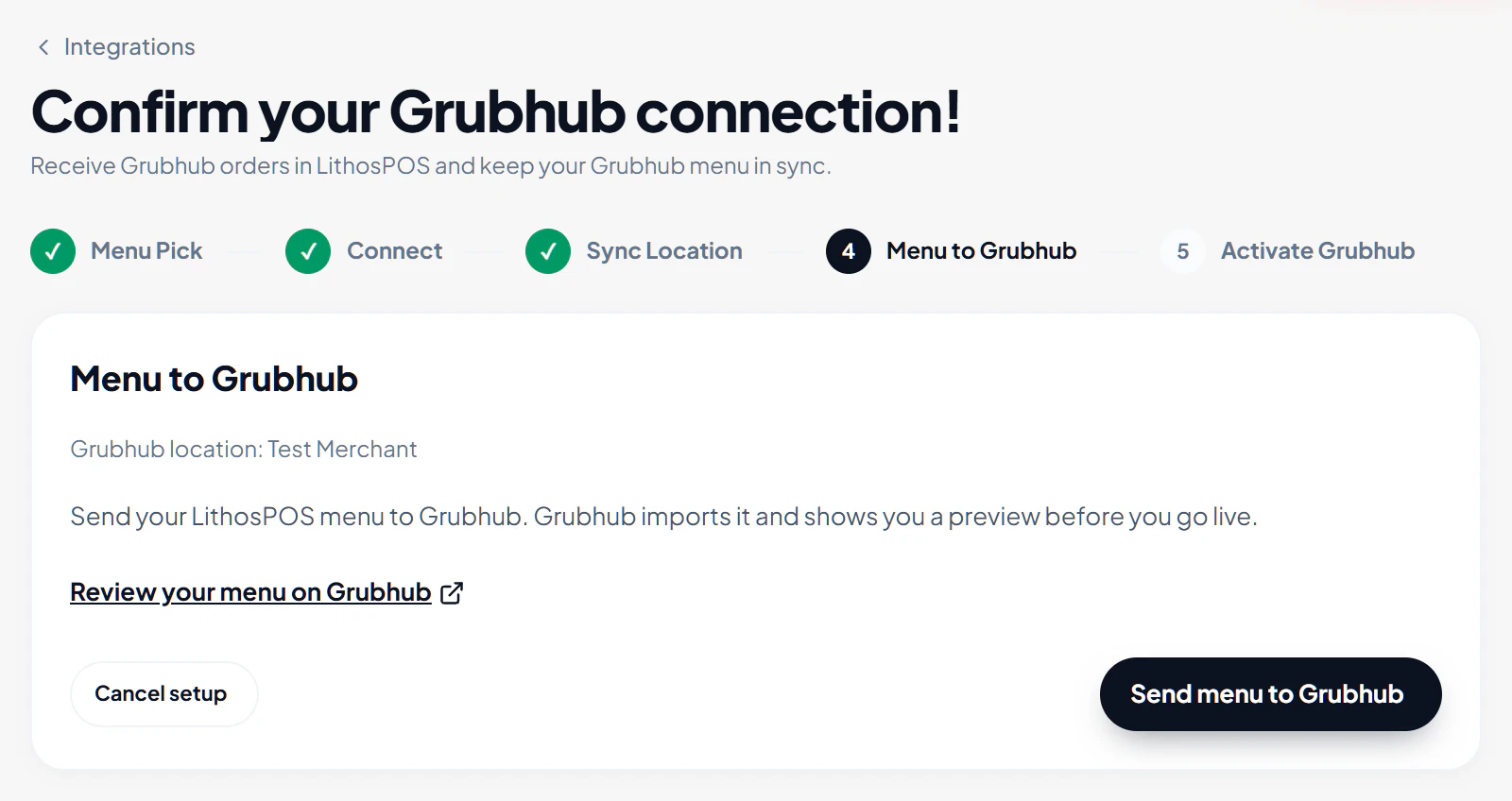
- Check that Grubhub location shows the right location.
- Click Send menu to Grubhub.
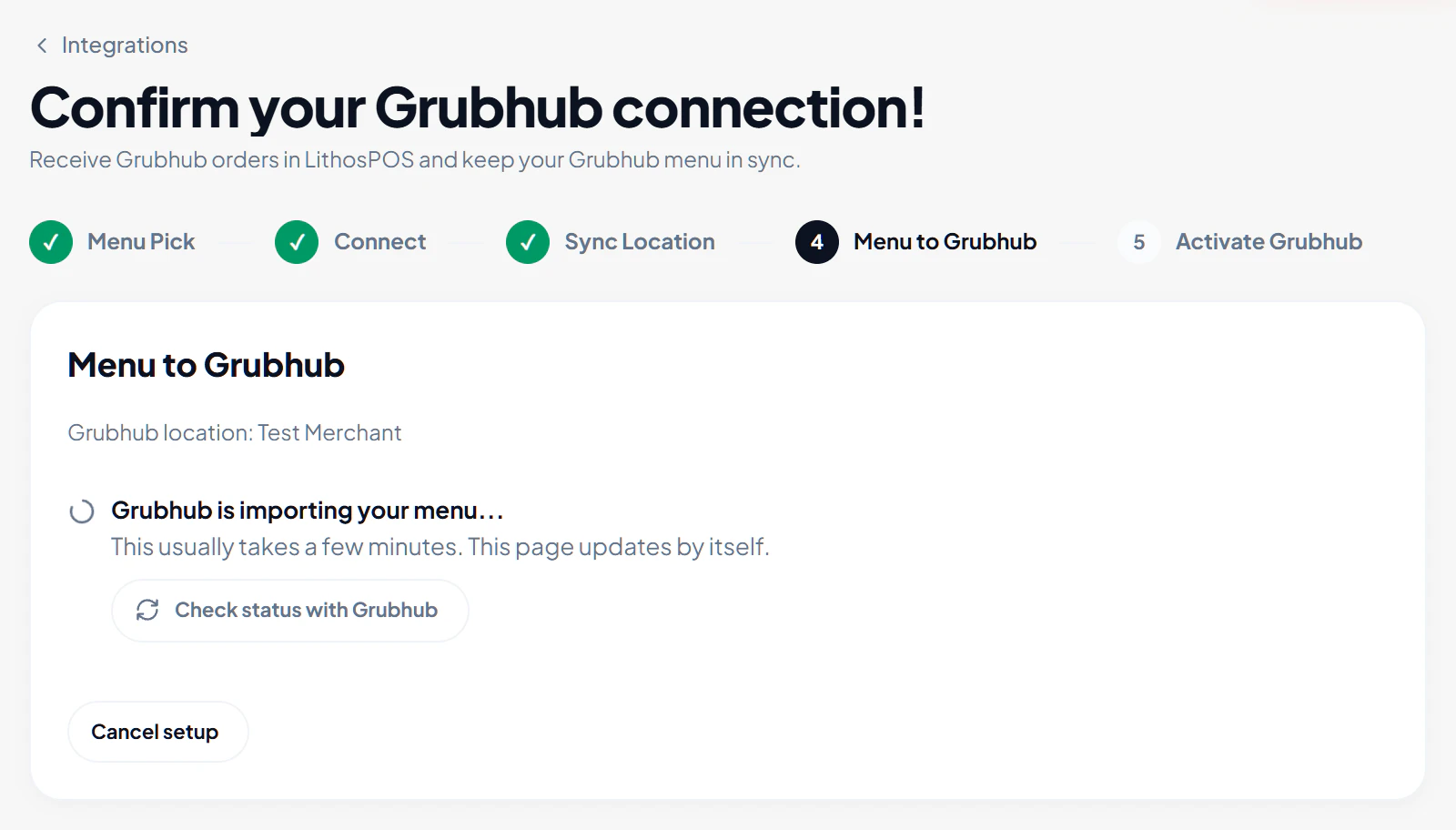
- Grubhub imports the menu. This usually takes a few minutes and the page updates by itself. Click Check status with Grubhub if you do not want to wait for the update.
If Grubhub cannot import the menu, the page shows Grubhub could not import the menu with the problems Grubhub reported. Fix them in LithosPOS and click Retry.
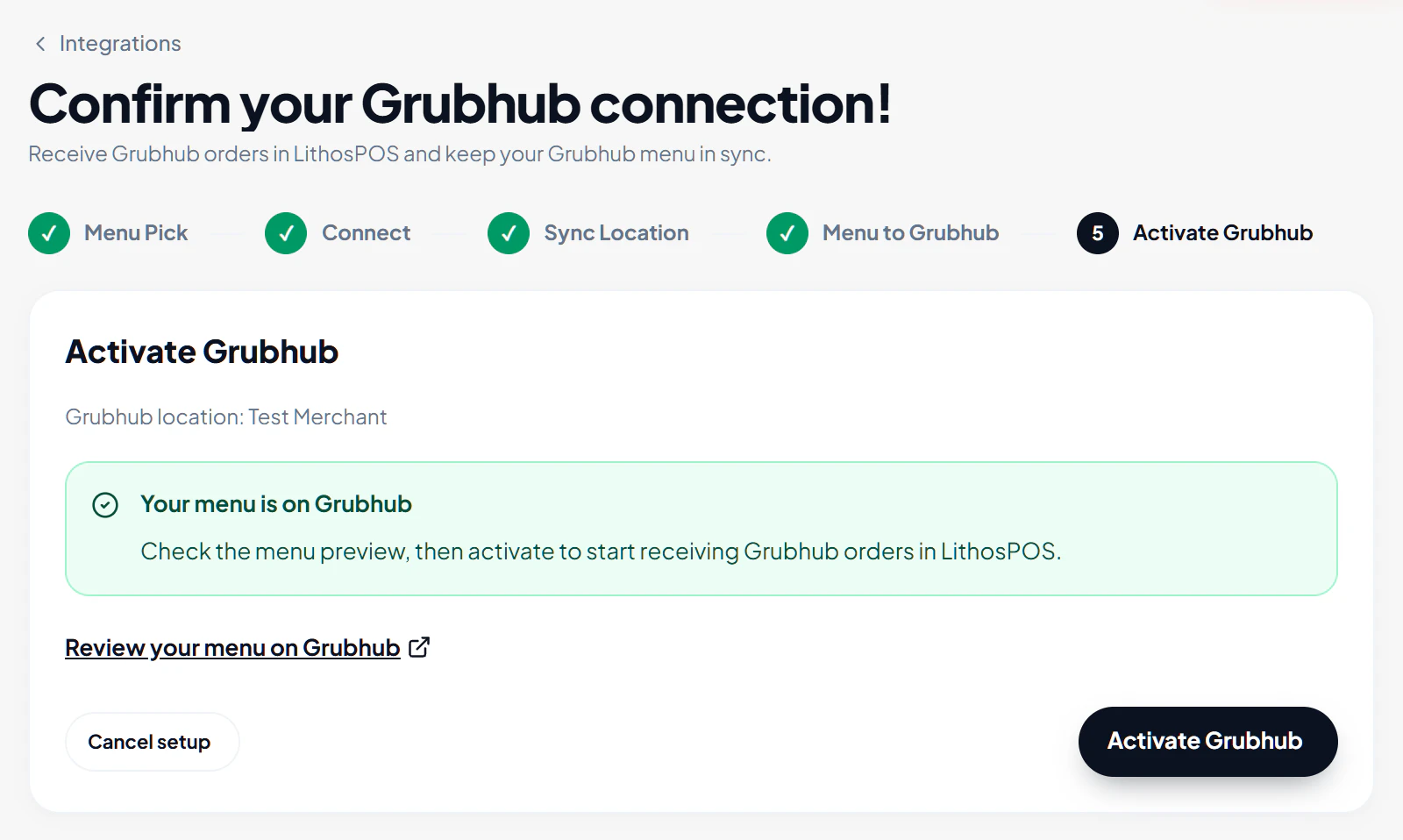
Step 5 — Activate Grubhub
- When you see Your menu is on Grubhub, click Review your menu on Grubhub to check the menu preview on Grubhub.
- Click Activate Grubhub.
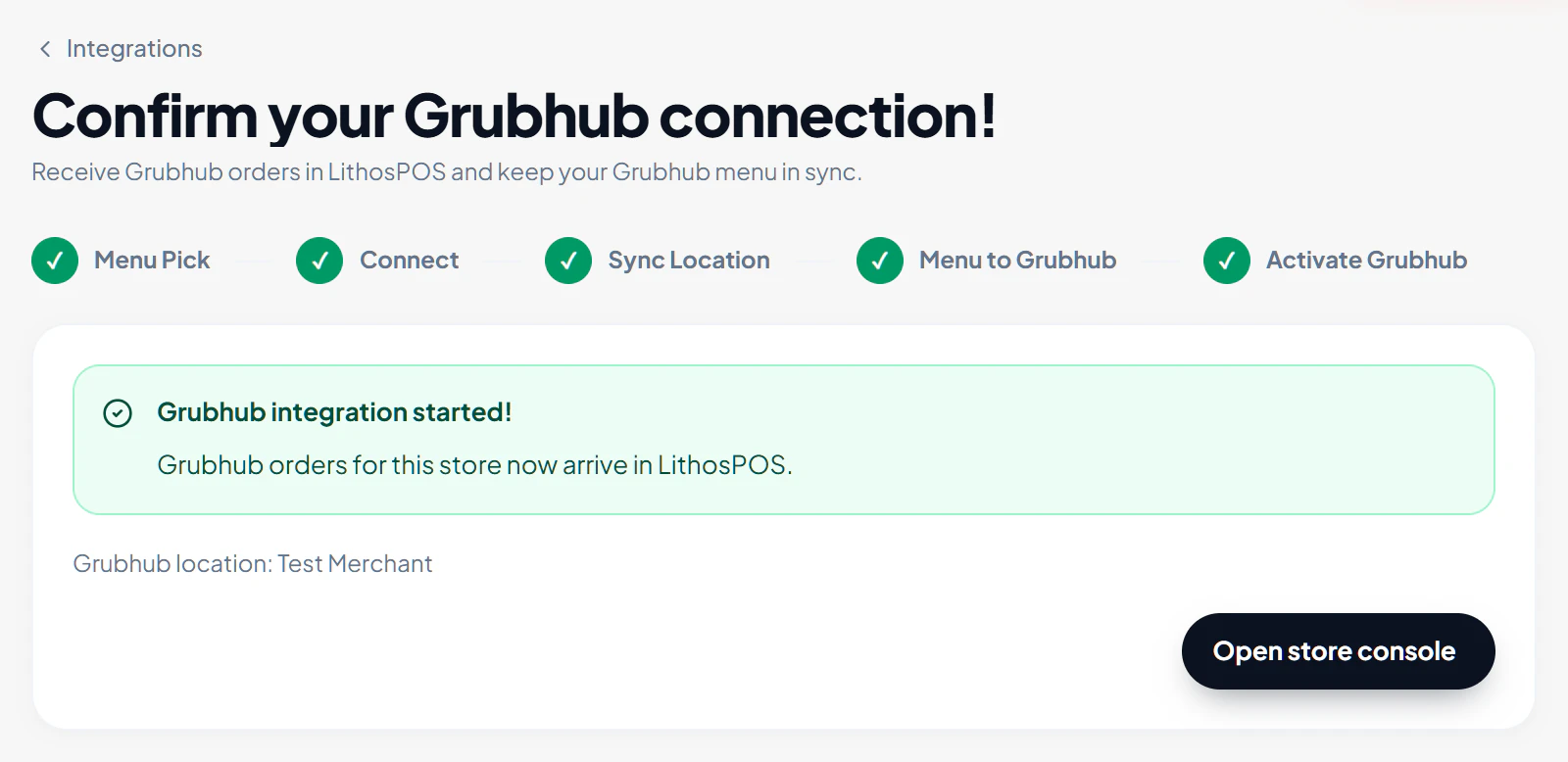
- When Grubhub integration started! appears, Grubhub orders for this store arrive in LithosPOS. Click Open store console to manage the store.
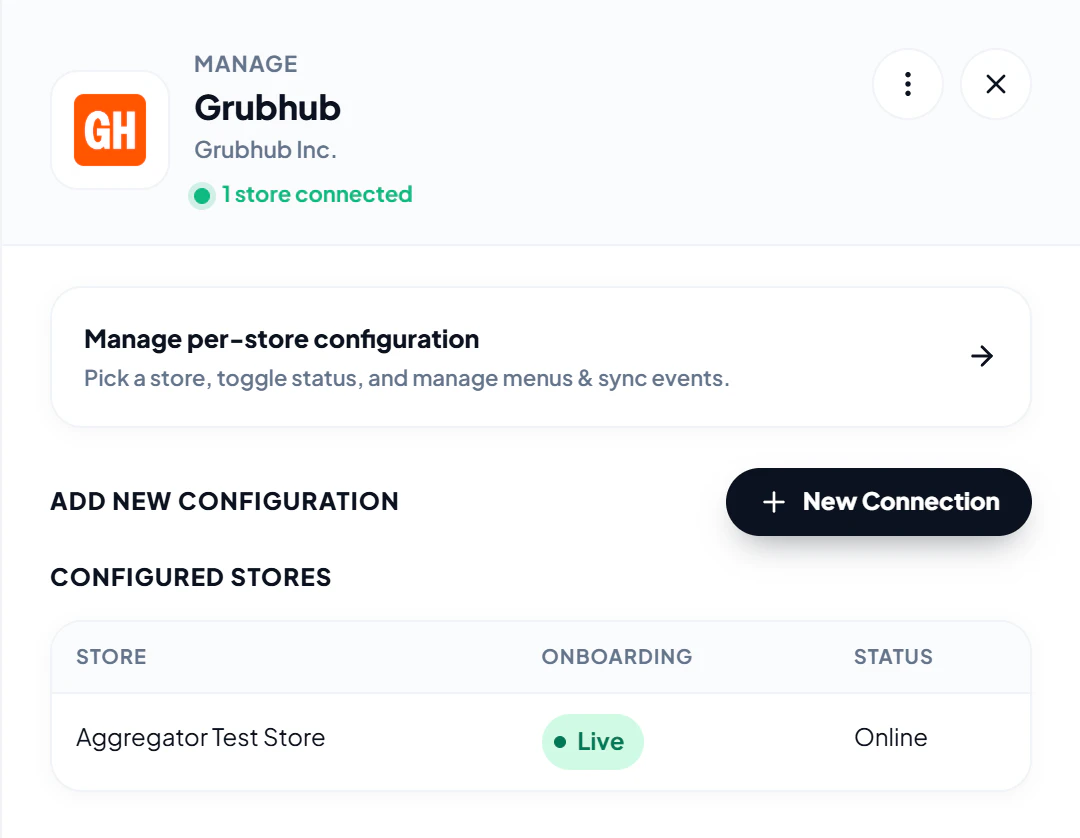
Back in Integrations → Grubhub, the store is listed under Configured stores with its onboarding status and whether it is online on Grubhub.
Cancel or resume the setup
You can leave the wizard at any step. To continue later, open Integrations → Grubhub → Manage per-store configuration, pick the store and click Resume onboarding.
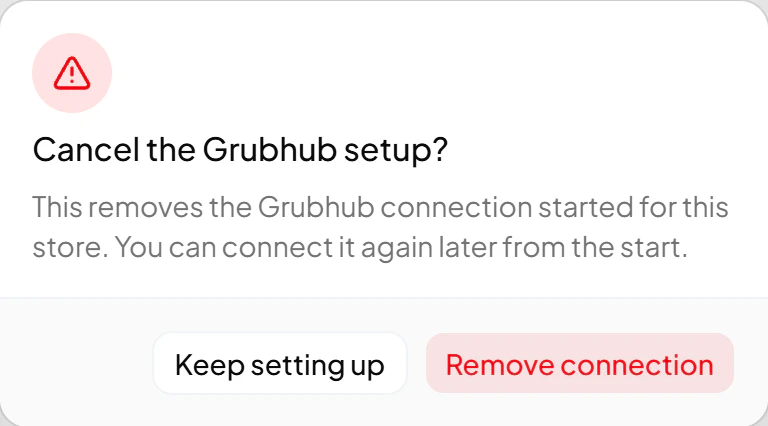
To stop the setup, click Cancel setup and then Remove connection. This removes the Grubhub connection started for the store; you can connect it again later from the start.
Next steps
- Store availability management — take the store online or offline, and disconnect it.
- Menu management for Grubhub — change menus and hide items on Grubhub.
- Store hours for Grubhub — send your opening hours to Grubhub.
- Grubhub orders and cancellation — handle Grubhub orders in LithosPOS.
Connect with us to know more
To learn more about it feel free to book a meeting with our team
Was this article helpful?