
QuickBooks store management
Manage the stores connected to QuickBooks Online. Read the connection statuses, use the store overview and configuration, pause and resume posting, reconnect or change company, copy a setup to other stores, and remove a store.
Every store connected to QuickBooks is managed from Integrations > QuickBooks. The Connections tab lists the stores, the Activity tab lists the postings of all stores (see QuickBooks posting history and fixes), and each store opens into its own Overview, Configuration, Mapping and History.
The connections list
Each connected store shows its QuickBooks company, how much of its mapping is done, its status and its last sync. Fix, Resume, Reconnect or Finish on the row goes straight to what the store needs. The ⋮ menu has the store's other actions. Stores that are not connected yet are listed at the bottom with Connect stores.
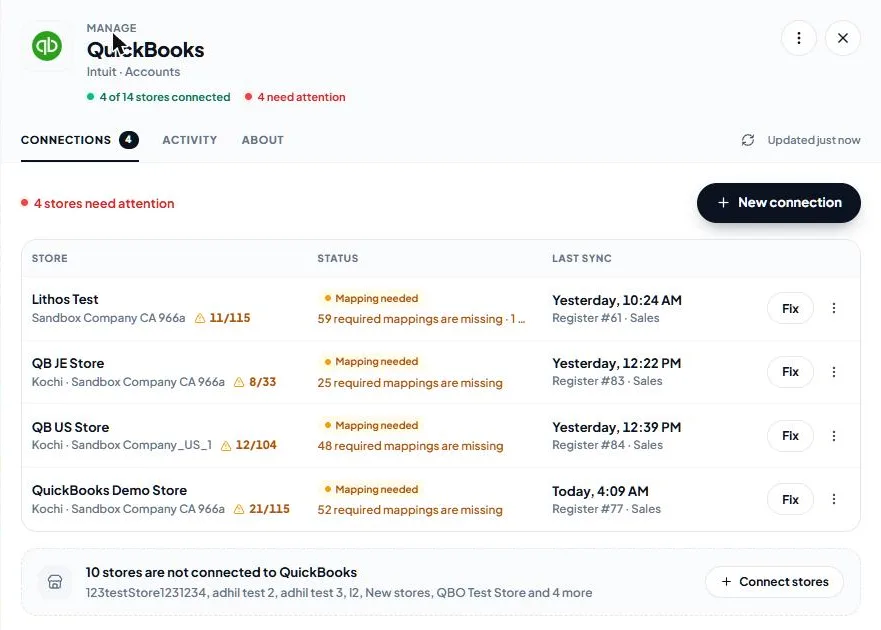
The statuses:
- Connected — posting automatically after each register close.
- Syncing — registers are being posted now.
- Mapping needed — required mapping is missing; registers that need it wait and post once it is saved.
- Setup incomplete — signed in to QuickBooks, but the connection was not finished. Nothing posts until you click Finish.
- Rejected — QuickBooks did not accept one or more registers. See the store's History.
- Reconnect required — QuickBooks stopped accepting the store's sign-in.
- Paused — posting is paused; registers are held and post when you resume.
With six or more connected stores, the list adds status tiles, Attention / Healthy / Paused filters, a search box, a company filter, Group by status or company, and check boxes for bulk actions: Sync now, Pause sync, Copy setup from… and Remove. Sync all now posts every store that is ready.
The store overview
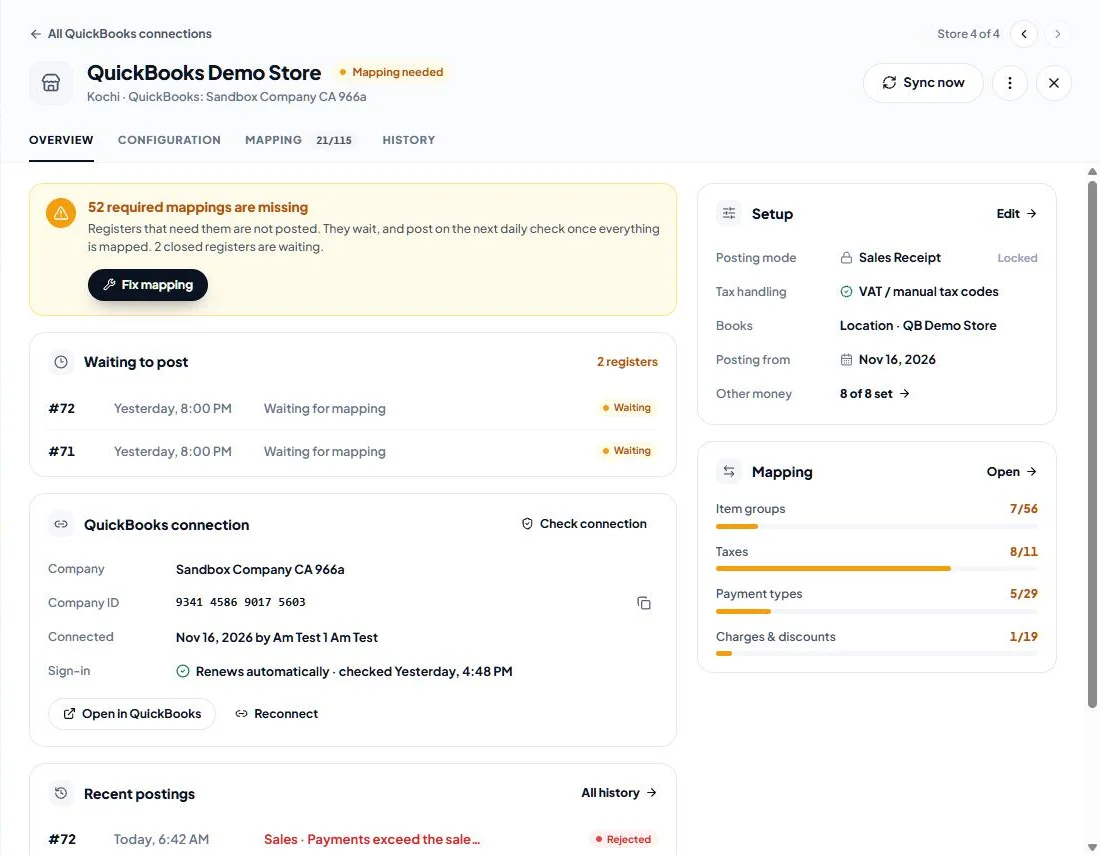
Open a store to see its Overview:
- what the store needs, if anything (missing mapping, rejected registers, a paused sync or an expired sign-in), with the button that fixes it;
- Waiting to post — closed registers that have not posted yet, and why (waiting for mapping, setup, reconnect, a retry, or held while paused);
- QuickBooks connection — the company, its company ID, who connected it and when, and whether the sign-in renews automatically. Check connection tests the sign-in, Open in QuickBooks opens the company and Reconnect signs in again;
- Recent postings, with All history;
- the store's setup and mapping progress.
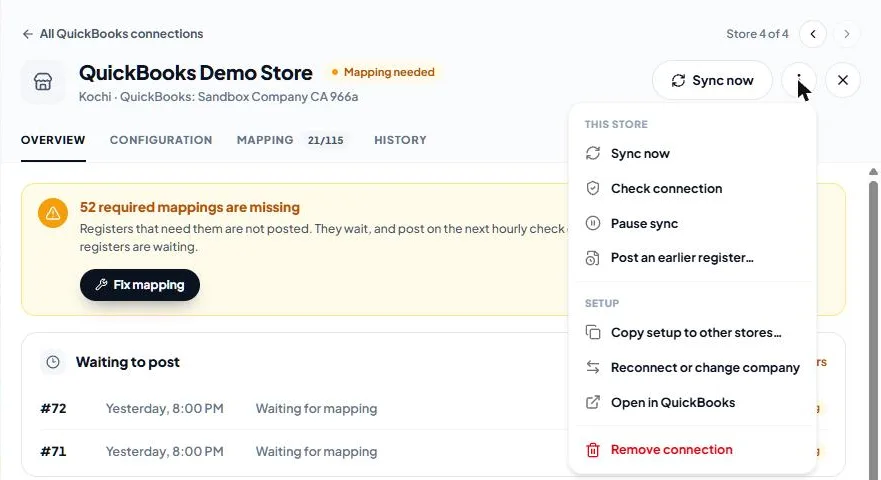
The ⋮ menu at the top of the store has Sync now, Check connection, Pause sync or Resume sync, Post an earlier register…, Copy setup to other stores…, Reconnect or change company, Open in QuickBooks and Remove connection. The arrows at the top move to the previous or next store.
Change the configuration
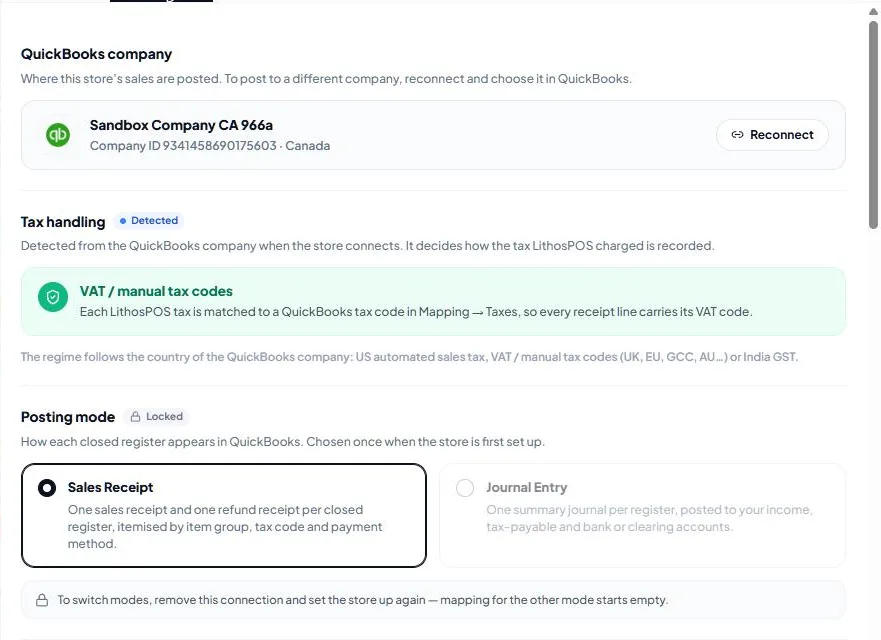
The Configuration tab holds the store's settings:
- QuickBooks company — the company the store posts to, with Reconnect.
- Tax handling — detected from the company: US automated sales tax, VAT / manual tax codes, or India GST.
- Posting mode — locked after setup. To switch modes, remove the connection and set the store up again; mapping for the other mode starts empty.
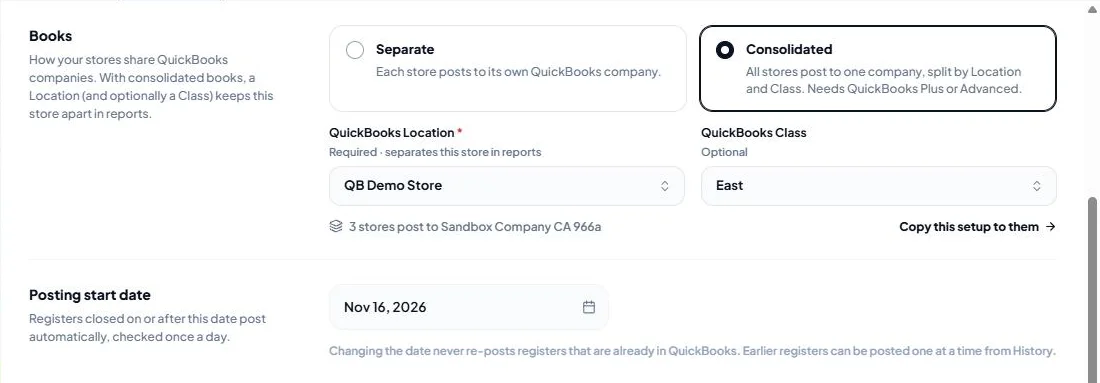
- Books — Separate or Consolidated. With consolidated books choose the store's QuickBooks Location (required) and QuickBooks Class (optional). Copy this setup to them copies the setup to the other stores on the same company.
- Posting start date — registers closed on or after this date post automatically. Changing the date never re-posts registers that are already in QuickBooks.
- Other money on a register — Sales Receipt mode only; see Sales Receipt mode.
Click Save changes in the bar at the bottom.
Pause and resume posting
Pause sync (in the store's ⋮ menu, on the overview or at the bottom of Configuration) stops the store posting without changing its setup. Registers closed while paused are held and post when you click Resume sync. Nothing is lost. While the store is paused, Sync now, Post an earlier register and Retry are turned down too.
Reconnect or change company
QuickBooks renews the store's sign-in automatically. If access is not renewed for 100 days, or is revoked in QuickBooks, the store shows Reconnect required: click Reconnect and sign in again. Registers closed in the meantime post as soon as you reconnect, and a paused store resumes.
Reconnect or change company signs in again and lets you choose the company:
- The same company — everything is kept.
- A different company — the mapping and every account and item setting are cleared, because they point at records in the old company, and the posting mode is unlocked. The store goes back through setup and posts nothing until you finish it.
Copy a setup to other stores
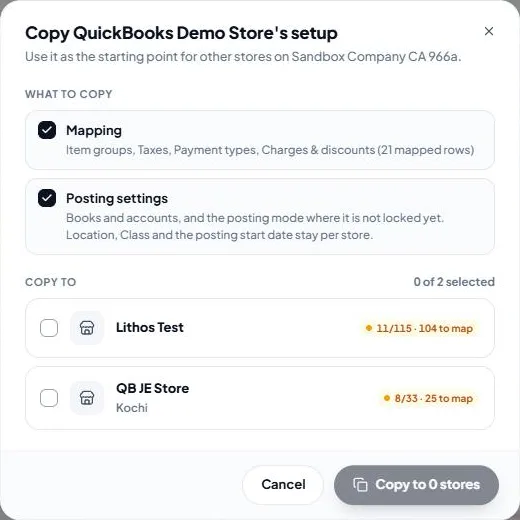
Stores on the same QuickBooks company often sell the same menu. Copy setup to other stores… copies this store's setup:
- Mapping — item groups, taxes, payment types, charges and discounts;
- Posting settings — books and accounts, and the posting mode where it is not locked yet.
The Location, Class and posting start date stay per store. Consolidated books need each store's own Location, so a store without one keeps its books until you choose its Location under Configuration. Choose the stores to copy to and click Copy to … stores. To do it the other way round, use Copy from a store in a store's Mapping tab.
Remove a store
Remove connection stops the store posting and deletes its QuickBooks setup and mapping in LithosPOS. Everything already posted stays in QuickBooks, and other stores on the same company keep posting. You can connect the store again later and set it up from scratch. If you only need a break, choose Pause instead.
To stop QuickBooks for every store, uninstall the app from the ⋮ menu at the top of Integrations > QuickBooks. Store connections, settings and mapping are kept, so installing it again carries on where it left off.
Was this article helpful?