
Variant Items
Create and manage item variants such as size, color, or type to offer different options for the same product.
Items with variants are those that come in different options, such as size, color, or type. When adding a variant item in LithosPOS, you can easily manage all the different variations of the product under a single item listing. This allows you to track inventory, pricing, and sales for each variant separately, while keeping them organized together.
For example, consider a T-Shirt item that comes in various sizes such as S, M, L, and XL, and is available in different colors like Red, Blue, and Yellow. With LithosPOS, you can easily set up these variants, keeping all variations organized under one product listing.
Another example is a Grilled Chicken item, which might be offered in different portion sizes like Quarter, Half, and Full. Additionally, the chicken can be available in different flavors or styles, such as Spicy, Mild, and BBQ. By adding these variants, LithosPOS helps you streamline your menu, ensuring that all options are presented clearly to customers while maintaining accurate inventory and sales data for each variant.
Adding Variant Items
To add an item with a variant
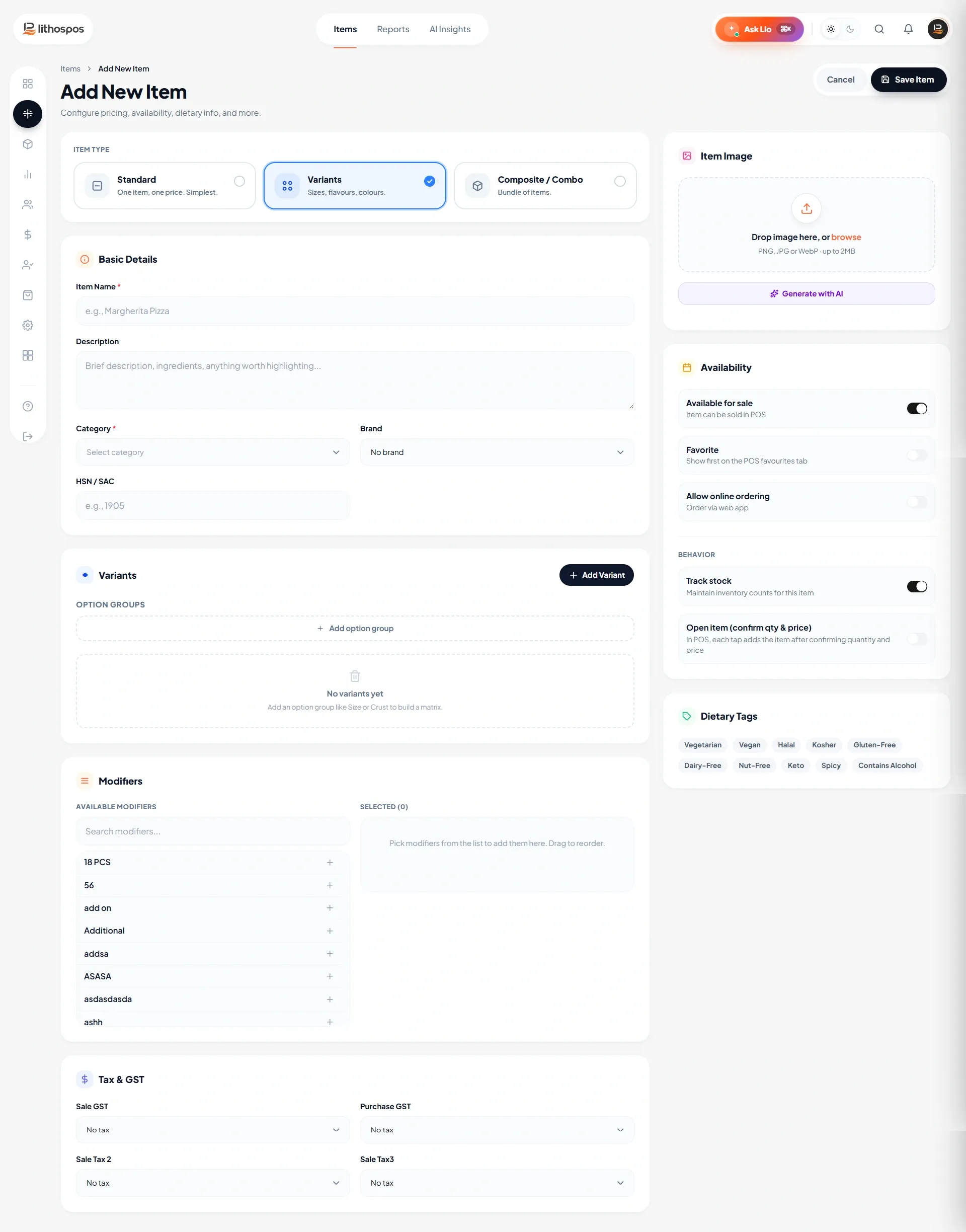
- Login to the back office and click on the ‘Item’ in the side menu
- Click on the ‘+Add Items’ button in the top right corner, then click ‘Item With Variants’
- Item: Enter the name of the item.
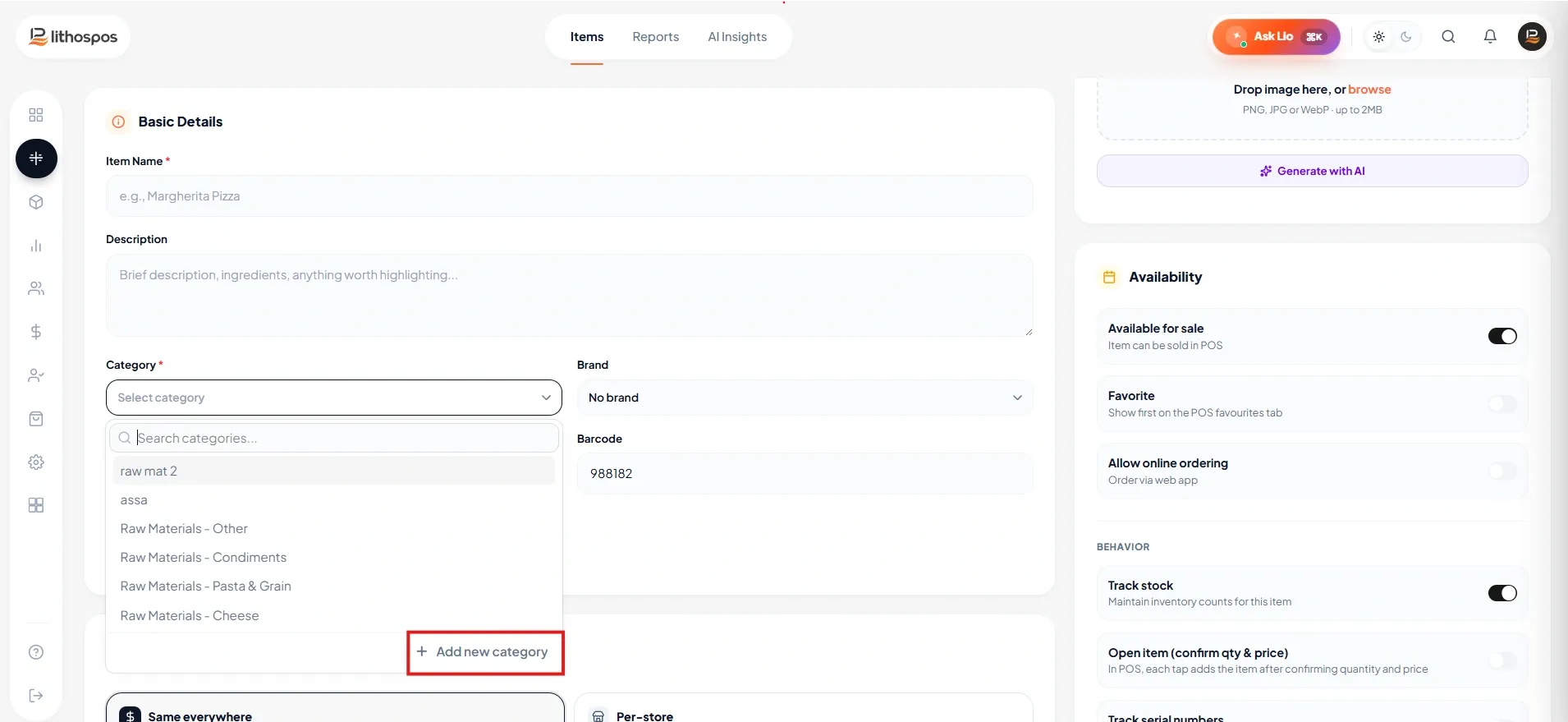
- Category: Then, select a category from our current list of categories Or add a new one if necessary. These categories will make it easier to identify and organize items in the POS and item library.
- Unit: Select a Unit Of measurement for the product in the ‘Unit’ column. You can add a new UOM If required by clicking on ‘+Add Unit’ in the drop-down list, In LithosPOS, you can sell items in various units of measurement (UOMs) such as kilograms, numbers, liters, gallons, pieces, and more.
- Item second Language: In this column you can add item name in second language to display multiple name in the POS.
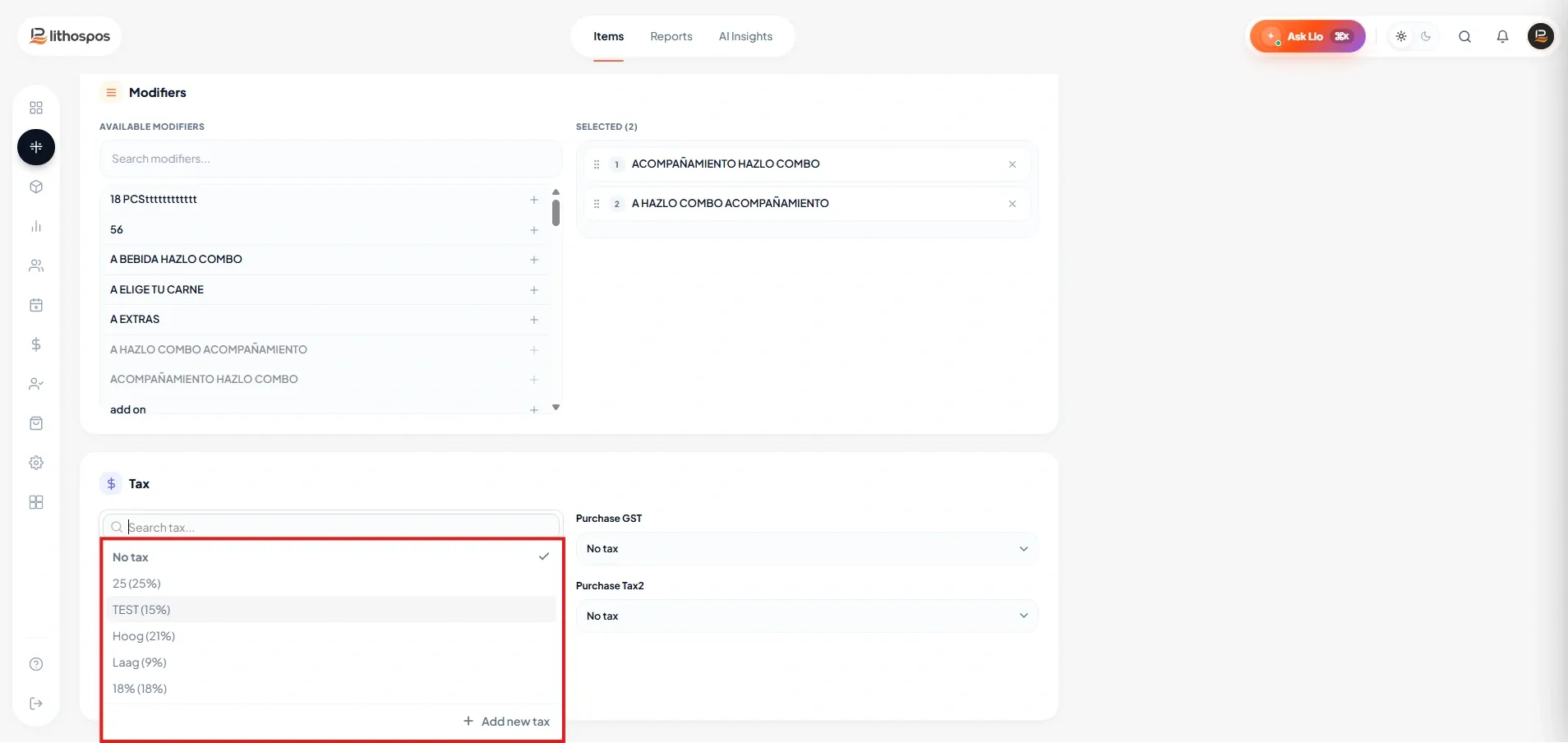
- Tax: Select appropriate sales taxes/purchase taxes for the product or add new Tax. You can add a new tax if required. You can add multiple taxes for an item in LithosPOS.
- Enter the Description
- Enter the HSN
- Brand: Select the brand for the product to get brand-based inventory and sales reports. You can add a new brand by clicking “+Add Brand” then enter a brand name and submit.
- Modifiers: If you want to assign modifiers to this item select the already added modifiers from the list.
Define the variants
Now, it's time to define the variants. You can add a new variant by clicking on the variant column and clicking ‘+Add new Variant’. You can add variants, such as size, type, or color.
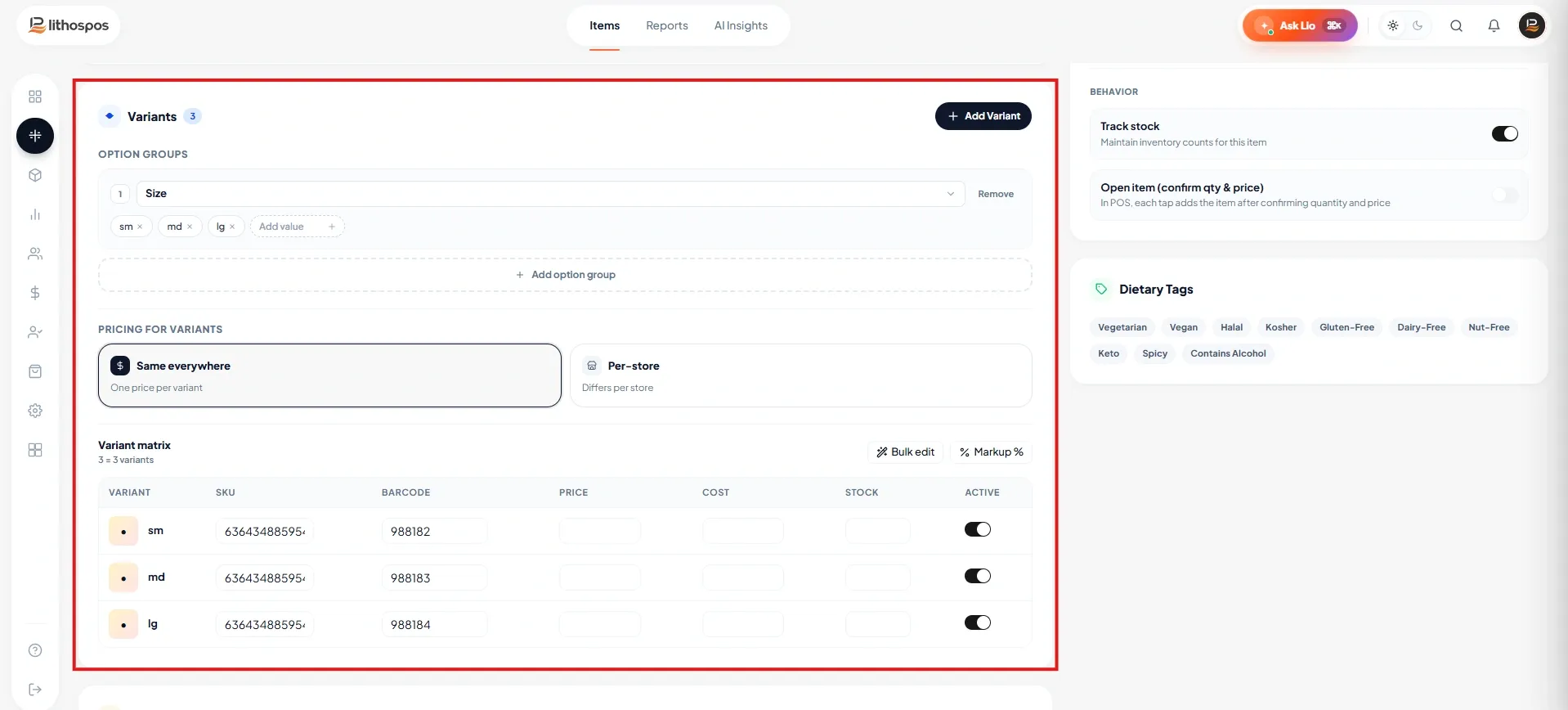
For example, select the first variant: size, then enter its variant tags, 'Small,' 'Medium,' and 'Large'. Put a space between each variant tag. Click enter to save each variant tag.
Then click on ‘+Add another attribute’ to add the next variant. For example, add the next variant color, then type its variant tags 'Red' green, and Blue. Click enter after adding each variant tag.
The added item and its different variants will be listed below against your stores.
- SKU: LithosPOS automatically generates an SKU Code, but it is editable. Here the markup represents the margin percentage.
- Price: The item price details and various inventory details for each store are listed below.
- Retail price & markup: Enter the cost of the item, then enter either the markup or the retail price the subsequent column will be auto-calculated. Here the automatic markup calculation can be disabled in settings, to do that go to settings > general setting > navigate to features then toggle off the “Markup Automation” button, and click save. In the markup and retail price column, fill in either one, the other column will be auto-filled but ensure that you have already filled the inventory cost. I will fill in the inventory cost of 100 and a markup of 30% here, the retail price of 130 has been auto-filled.
- Minimum Retail Price: Input a minimum retail price to prevent underselling. The system will block any attempt to sell an item below this price.
- Reorder point: Then, set a reorder point to receive low stock alerts and generate purchase orders for low inventory. If the item reaches this threshold it will notify you via email and generate an alert on the dashboard.
- Activate: The toggle buttons against each store can be used to activate or deactivate an item in that particular store. You can disable one item by turning this status button. You can configure each variant like this by clicking the down arrow against each variant.
- Adding Image: Next, add an image to your product so employees and online customers have a visual reference for the item. The image size must be within the specified limit. [256x256, 64 KB]
- Customization: Next, customize your item using these toggle buttons.
- Track stock: Enable this option to mark the item as stockable and maintain its inventory quantity. A stockable item is an item whose available quantity is tracked in inventory.
- Salable: The 'Salable' button determines if the item can be sold. You can add non-salable items, such as ingredients used in combo dishes, to your inventory.
- Weighing scale: If this item requires a weighing scale toggle on the weighing scale button.
- Weight Item: If it is a weight item, turn on the Weight Item button. Doing this will open a pop-up keyboard in the POS to enter the weight when adding this item to the sales cart.
- Favorites: Designate items as 'favorites' for quick access on the POS screen. Adding frequently sold items as favorites allows for faster and easier access during transactions.
- Veg: If it is a vegetable item toggle on the ‘Is Veg’ button.
- Online sale: Enable 'Online sale' to allow the item to sell online [Note: You have to install QK-order from integrations to show this ’Online Sale’ button.]
- Service: Activate the 'Service' button to mark the item as a service.
- EBT: Then, turn on the EBT option if the item can be sold under EBT, which is only applicable in the US.
- Save: finally save the item.
Connect with us to know more
To learn more about it feel free to book a meeting with our team
Was this article helpful?