
Xero posting history and fixes
Check every closed register LithosPOS posted to Xero, preview what a day posts, post now or retry, see sales that arrived after a day was posted, and fix a day that was held.
Every closed register, and what happened to it in Xero, is listed in the store's History. Open the store from Integrations > Xero and go to History.
Read the history
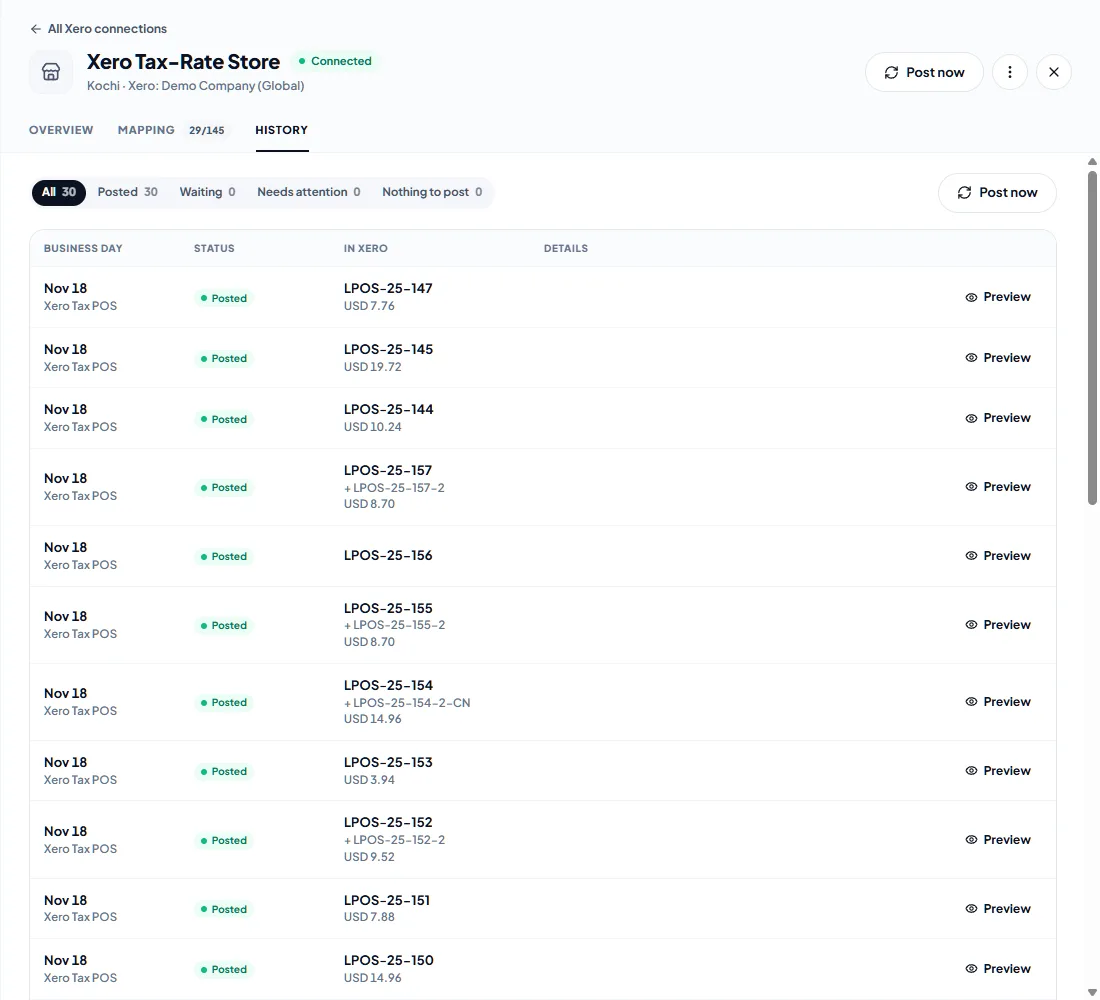
Each row is one closed register:
- Business day and terminal,
- Status, with the reason when a day was not posted,
- In Xero — the invoice and credit note numbers (each a link to the document in Xero) and the amount posted. Sales added after the day was posted are listed under it, such as + LPOS-25-157-2.
The statuses:
- Posted — Xero has the invoice, its payments and any credit note.
- Waiting — closed and waiting for the next automatic run, within 30 minutes.
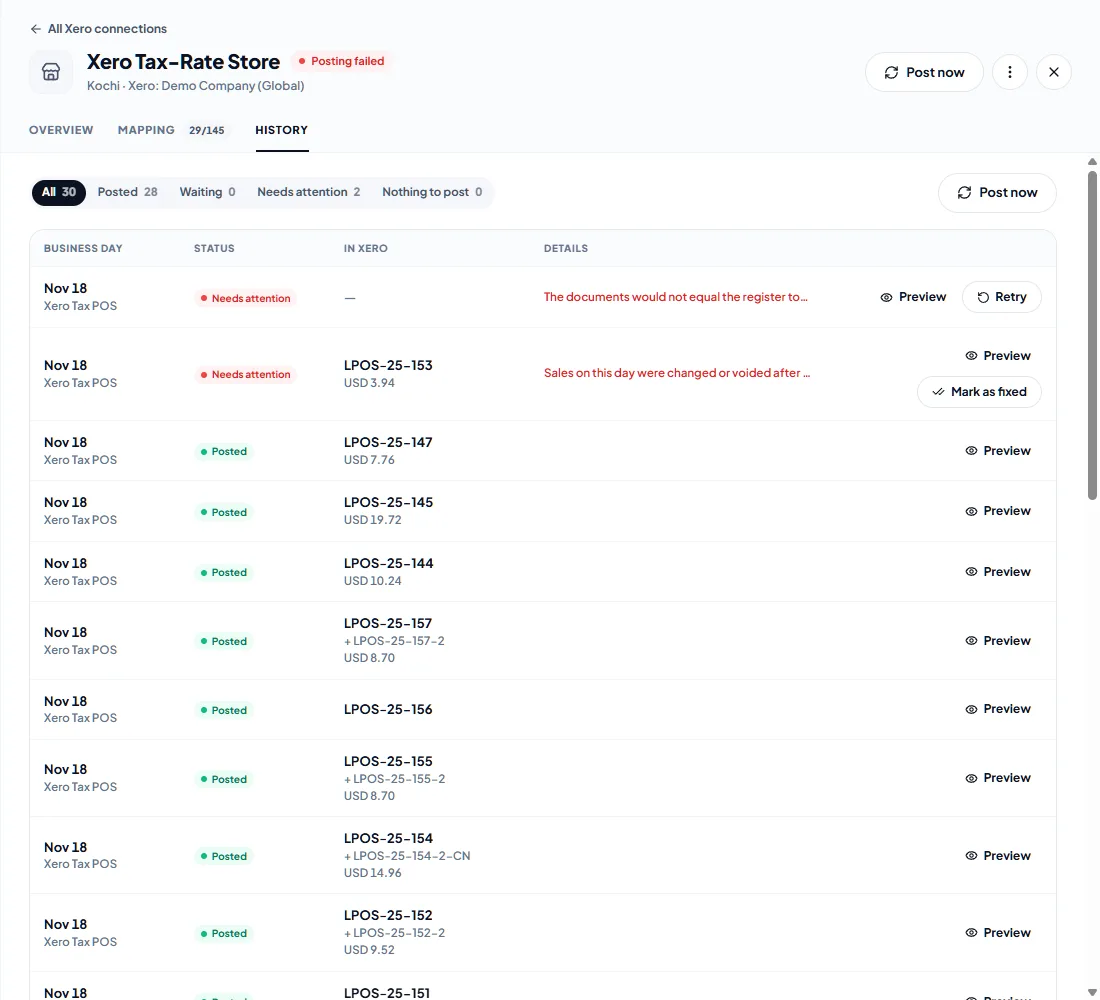
- Needs attention — the day was not posted. The row says why, and offers Retry or Mark as fixed.
- Nothing to post — the register had no sales, returns or payments.
- Before start date — the business day is before Post days from; it is never posted.
Filter the list with All, Posted, Waiting, Needs attention and Nothing to post. Days that need attention are always listed first.
Preview a day
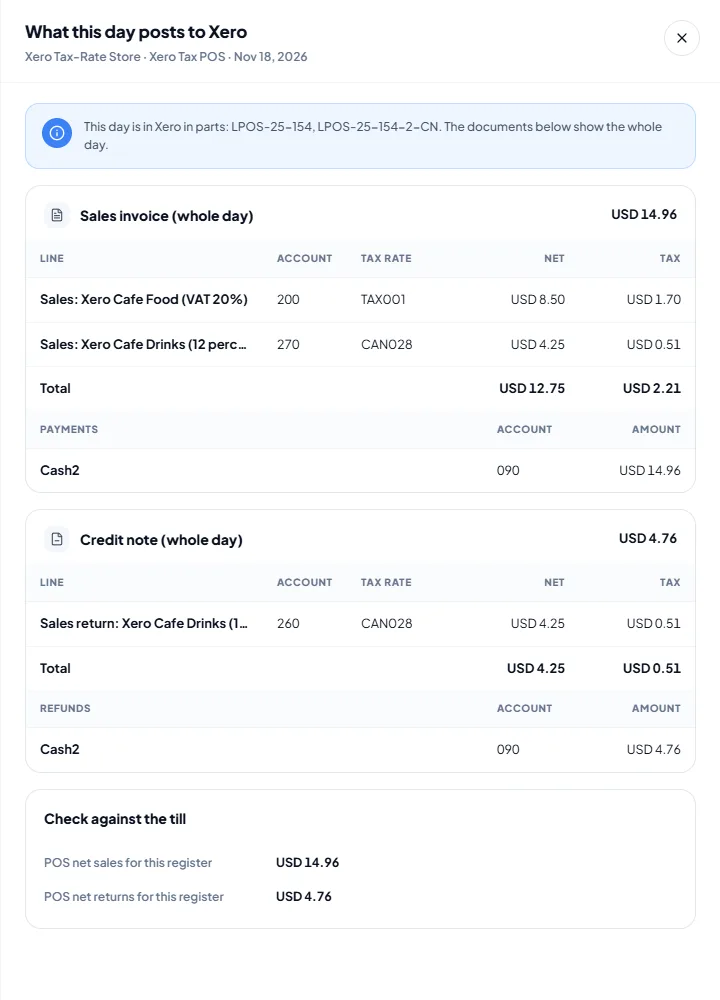
Preview shows exactly what the day posts, or would post, to Xero: the invoice lines with their accounts and tax rates, the payments and the account each is paid into, and the credit note and refunds. Compare it with the register close report before you post or retry.
- A day posted in parts (see Sales added after a day was posted) lists every number it has in Xero and shows the whole day.
- A day waiting to post sales added after posting shows only those sales, under the number they will post as.
Post now and retry
- Post now (at the top of the store, or in History) posts every waiting day without waiting for the next run.
- Retry on a day that needs attention posts it again at once. You do not have to: LithosPOS tries again by itself, after 30 minutes and then less often (up to once a day).
Both are safe to repeat. Every register posts under a fixed invoice number, so a register that is already in Xero is never posted twice.
Sales added after a day was posted
A bill or return can reach LithosPOS after its day was posted, for example when a terminal was offline. LithosPOS checks the days posted in the last two weeks on every run:
- Bills or returns were added — LithosPOS posts only the difference, as an extra invoice
LPOS-<store>-<register>-2with its payments, or a credit noteLPOS-<store>-<register>-2-CNwith its refunds. A later addition becomes-3, and so on. The invoice already in Xero is not changed: it is paid and may be reconciled. - A bill was voided or changed after the day was posted — this cannot be posted as an extra invoice. The day shows Needs attention with the POS and posted totals. Correct the day in Xero, for example with a credit note, then click Mark as fixed: LithosPOS takes the day's current figures as posted and sends nothing to Xero.
Fix a day that needs attention
LithosPOS's own reasons are shown in your Back Office language. Messages from Xero are shown as Xero wrote them, in English.
- Waiting for: … — a mapping the day needs is missing, such as a tax rate or a payment type it used. Map it in Mapping and save; the day posts on the next run.
- The documents would not equal the register totals — the register's lines and its total disagree by more than a few cents. Check the register in LithosPOS before you retry.
- More was taken than was sold on this register — more was paid by card or another non-cash payment type than was sold. Cash handed over above the bill is change and does not cause this.
- More was refunded than was returned on this register — a refund was paid out for more than the returns.
- A tender nets below zero for this day — a payment type's total for the day is below zero.
- The business day is inside the Xero lock date, or Xero's The document date cannot be before the … lock date — days inside a lock date are never retried automatically. Ask your adviser to move the lock date in Xero, then click Retry.
- Sales on this day were changed or voided after it was posted — see Sales added after a day was posted.
- Xero's Account code … has been archived, or has been deleted — restore the account in Xero, or pick another one in Mapping, then click Retry.
- Any other Xero message — Xero refused the document. Read the message, fix it in Xero or in the mapping, then click Retry.
Was this article helpful?