
QuickBooks Sales Receipt mode
How a store in Sales Receipt mode posts to QuickBooks Online. Map item groups, taxes, payment types, delivery partners and charges, set up other money on a register, and see how sales, payments, refunds and tax appear in QuickBooks.
In Sales Receipt mode, each closed register posts as one QuickBooks sales receipt for its sales and one refund receipt for its returns. The receipts are itemised by item group, tax code and payment method, and every other kind of money the register took (tips, gift vouchers, card surcharges, rounding, on-account sales) has a line or account of its own, so each receipt equals what the register took.
This page assumes the store is already connected. See QuickBooks Integration to connect a store.
What a register posts
- Sales receipt
LP<register>-S— when the register has sales. - Refund receipt
LP<register>-R— when the register has active returns. - Settlement journal entry
LP<register>-ST— when the sales were paid with more than one payment type, or partly on account. - Refund settlement journal entry
LP<register>-RT— when the refunds were paid out with more than one payment type.
On the receipts:
- One line per item group and tax code, on the QuickBooks service item mapped to the group, net of every item, promotion and bill discount. There is no separate discount line.
- Charges (delivery, service and other charges) post on their own service items.
- Tips, gift vouchers sold, card surcharges and the till's cash rounding post on the items set under Other money on a register.
- Voided bills and inactive returns are left out. Cash handed over above the bill is treated as change and is not posted.
- The memo names the store, terminal and register, and the transaction date is the register's business date.
Map the store
Open the store from Integrations > QuickBooks and go to Mapping. Each section lists the LithosPOS records on the left and the QuickBooks record they post to on the right. Pick a value and click Save mapping in the bar at the bottom.
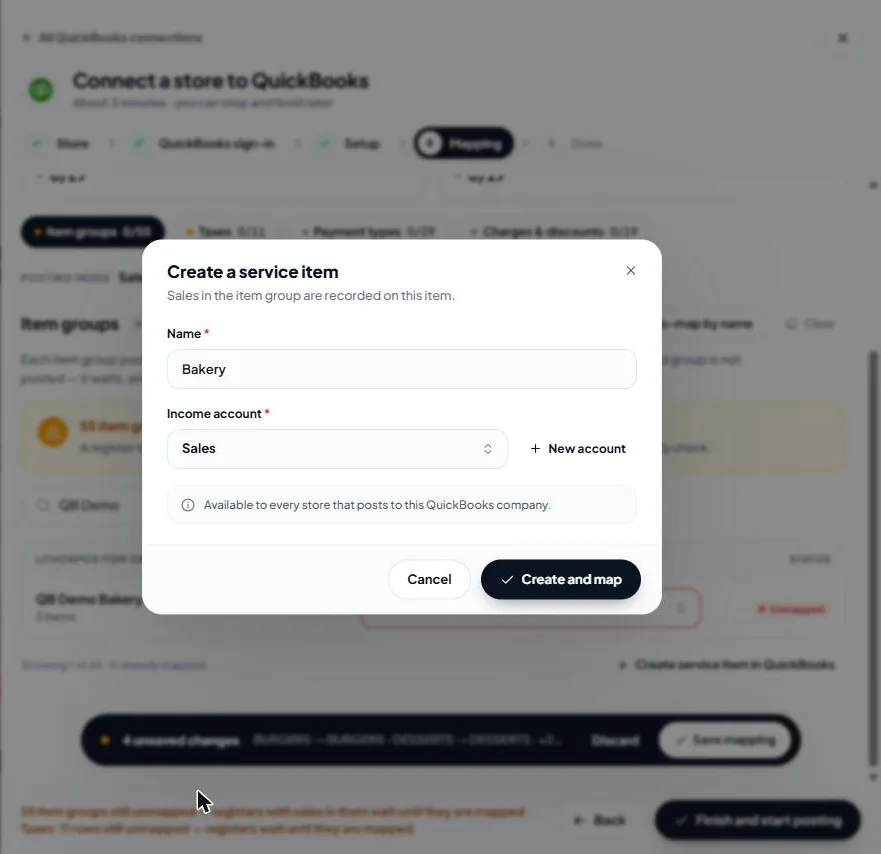
- Item groups (required to post) — the QuickBooks service item each item group's sales are recorded on. A register with sales in an unmapped group waits, and posts on the next daily check once the group is mapped. QuickBooks categories are not offered: QuickBooks does not accept a category on a receipt line.
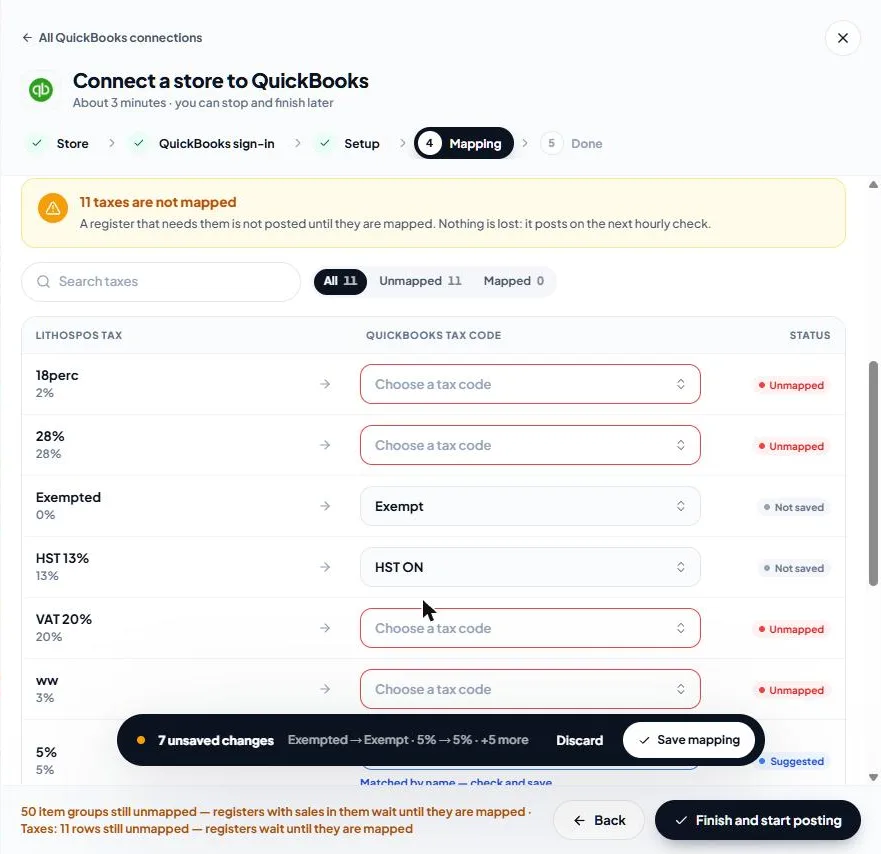
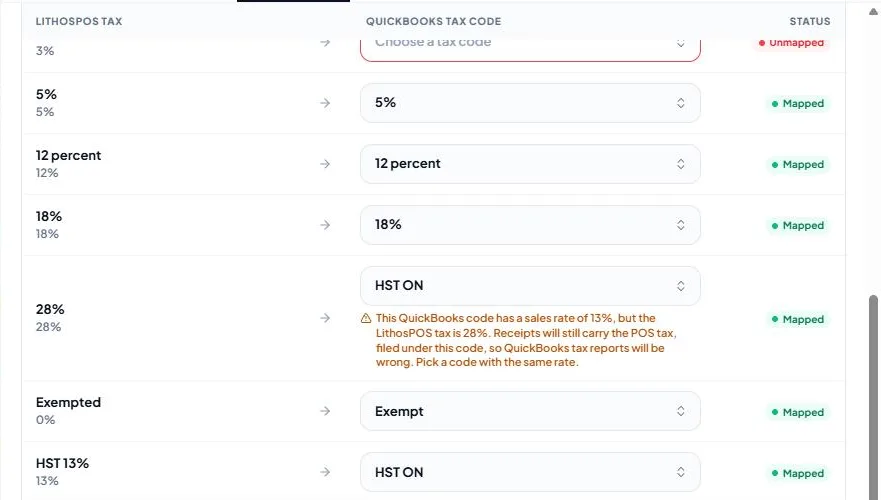
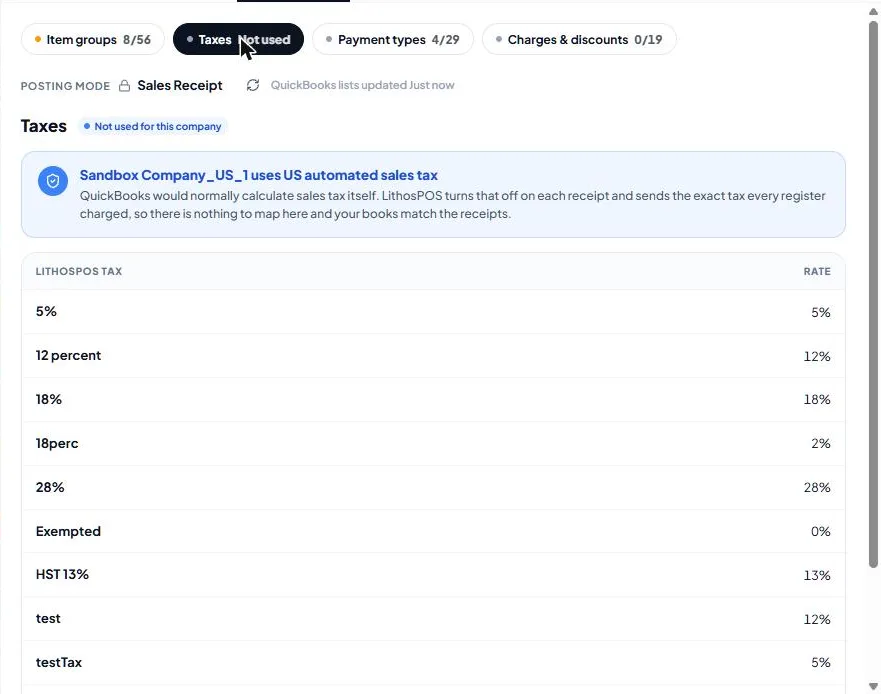
- Taxes (required outside the US) — the QuickBooks tax code for each LithosPOS tax. Each code shows its sales rate; pick one with the same rate. If the rates differ, a warning appears under the row, because the receipt would still carry the POS tax but file it under the wrong rate.
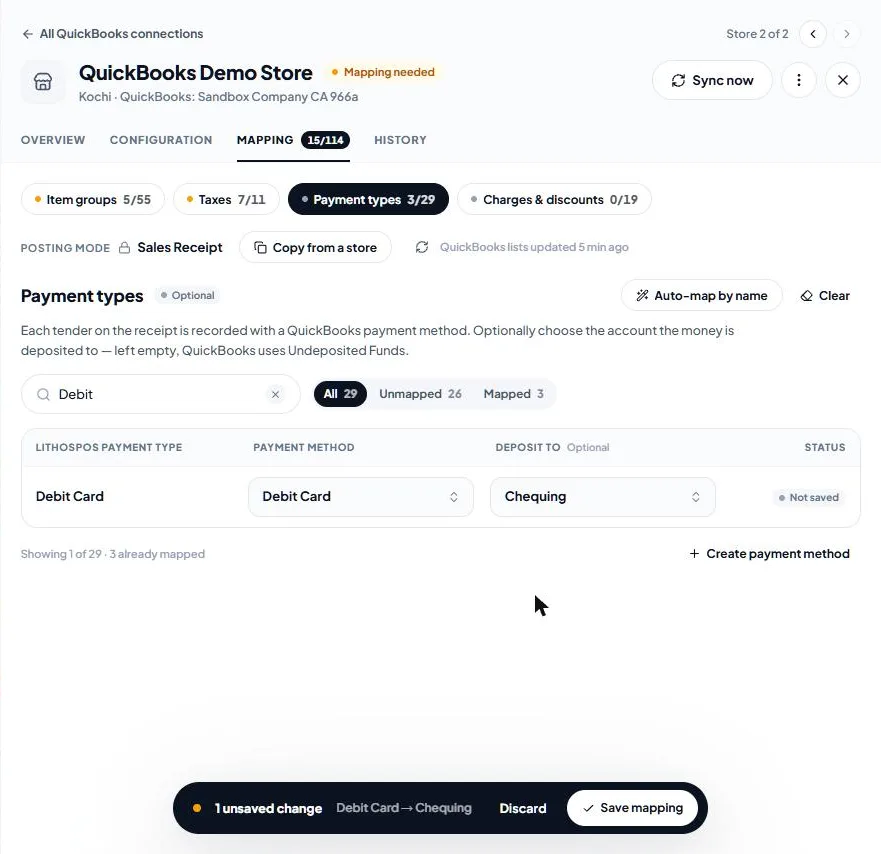
- Payment types — the QuickBooks payment method recorded on the receipt and, optionally, the Deposit to account. Left empty, the money goes to Undeposited Funds.
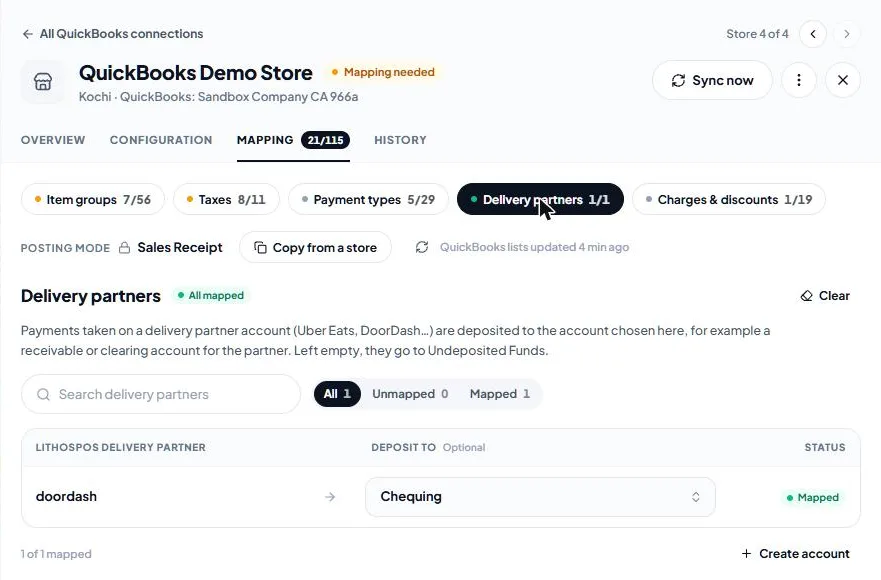
- Delivery partners — shown when a delivery partner account such as Uber Eats or DoorDash has taken a payment at the store. Choose the account those payments are deposited to, for example a receivable or clearing account for the partner. Left empty, they go to Undeposited Funds.
- Charges & discounts (optional) — the service item each charge posts on. An unmapped charge posts on the Other charges item; without that item the register waits.
Mapping tools
- Auto-map by name fills the empty rows of a section with QuickBooks records of the same name. The rows show Suggested until you save them.
- Clear empties the rows in view; saving removes their mapping.
- The search box and the All / Unmapped / Mapped filter find a row.
- Create "…" in QuickBooks at the bottom of every picker creates the record in your QuickBooks company and selects it in that row. The Create service item in QuickBooks button under a section creates an item and maps it to the unmapped rows named like it; if none is, pick it in a row.
- Copy from a store copies another store's mapping on the same QuickBooks company, so you only review what is different.
- A row added in LithosPOS since the mapping was last saved shows New in POS, and the section says how many registers are held until it is mapped.
- A row mapped to a QuickBooks record that is no longer in the list (a category, or a record made inactive or deleted) shows a warning under it: pick another record.
Tax by country
The tax handling is detected from the QuickBooks company (see Configuration > Tax handling):
- VAT / manual tax codes and India GST — every receipt line carries the tax code you mapped, and the receipt carries the exact tax the till charged for each rate.
- US automated sales tax — the Taxes section shows Not used. Each line is marked taxable or non-taxable from the POS tax, and QuickBooks is told to keep the POS tax total instead of calculating its own.
Set up other money on a register
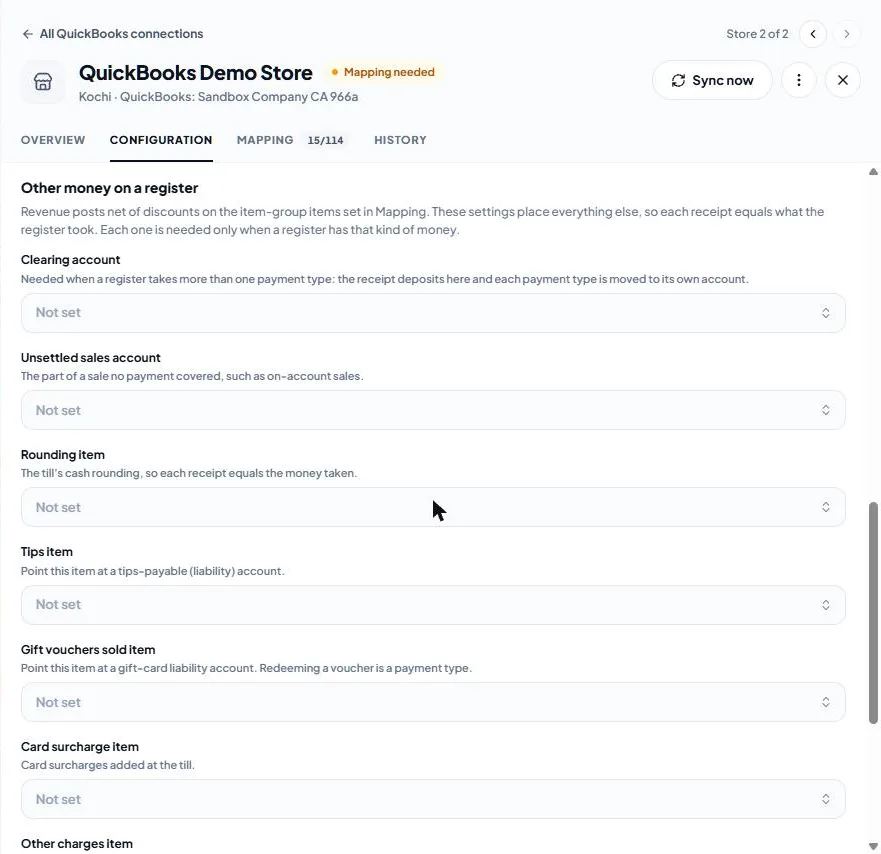
Revenue posts net of discounts on the item-group items. The settings under Configuration > Other money on a register place everything else. Each one is needed only when a register has that kind of money; a register that needs a missing setting waits, and the history names the setting.
- Clearing account — needed when a register takes more than one payment type. The receipt is deposited here and each payment type is moved to its own account (Undeposited Funds when it has none).
- Unsettled sales account — the part of a sale no payment covered, such as on-account sales.
- Rounding item — the till's cash rounding, and differences of a few cents between the lines and the POS total.
- Tips item — point this item at a tips-payable (liability) account. Create in QuickBooks offers liability accounts first.
- Gift vouchers sold item — point this item at a gift-card liability account. Redeeming a voucher is a payment type. Create in QuickBooks offers liability accounts only.
- Card surcharge item — card surcharges added at the till. A taxed surcharge carries the tax code of the matching rate.
- Other charges item — charges with no item of their own in Mapping > Charges & discounts.
- No-tax code — the QuickBooks tax code for lines that carry no tax (rounding, tips, vouchers), for example "Out of Scope" or "No VAT". Not needed for US companies.
Click Save changes.
How payments are posted
- Paid with one payment type — the sales receipt carries its payment method and is deposited straight to its Deposit to account (Undeposited Funds when it has none).
- Paid with several payment types — the sales receipt is deposited to the Clearing account. The settlement journal entry
LP<register>-STmoves each payment type's share to its Deposit to account, or to Undeposited Funds. - Partly on account — the settlement journal entry also moves the unpaid part to the Unsettled sales account.
- Entirely on account — the sales receipt is deposited straight to the Unsettled sales account.
- Through a delivery partner — the partner's share goes to the account chosen under Mapping > Delivery partners, or to Undeposited Funds.
Money left in Undeposited Funds waits there until you record the bank deposit in QuickBooks. Choose a Deposit to account for card and delivery partner payments that settle straight into a bank or clearing account, so they do not pile up in Undeposited Funds.
How returns are posted
The register's active returns post as one refund receipt, with the same lines as a sale: one per item group and tax code, plus return rounding. The refund comes out of the refund payment type's Deposit to account, or Undeposited Funds. When the refunds were paid out with several payment types, the refund receipt comes out of the clearing account and the settlement journal entry LP<register>-RT reverses each payment type's share.
What it looks like in QuickBooks
The example below is one register that sold bakery items and drinks at two tax rates, charged delivery and another charge, took a tip and a card surcharge, sold a gift voucher, had cash rounding, and was paid with four payment types.
The sales receipt LP64-S has one line per item group and tax code, then one line each for the charges, the tip, the gift voucher sold, the card surcharge and the rounding. Because several payment types were used, it is deposited to the clearing account (here Uncategorized Asset).
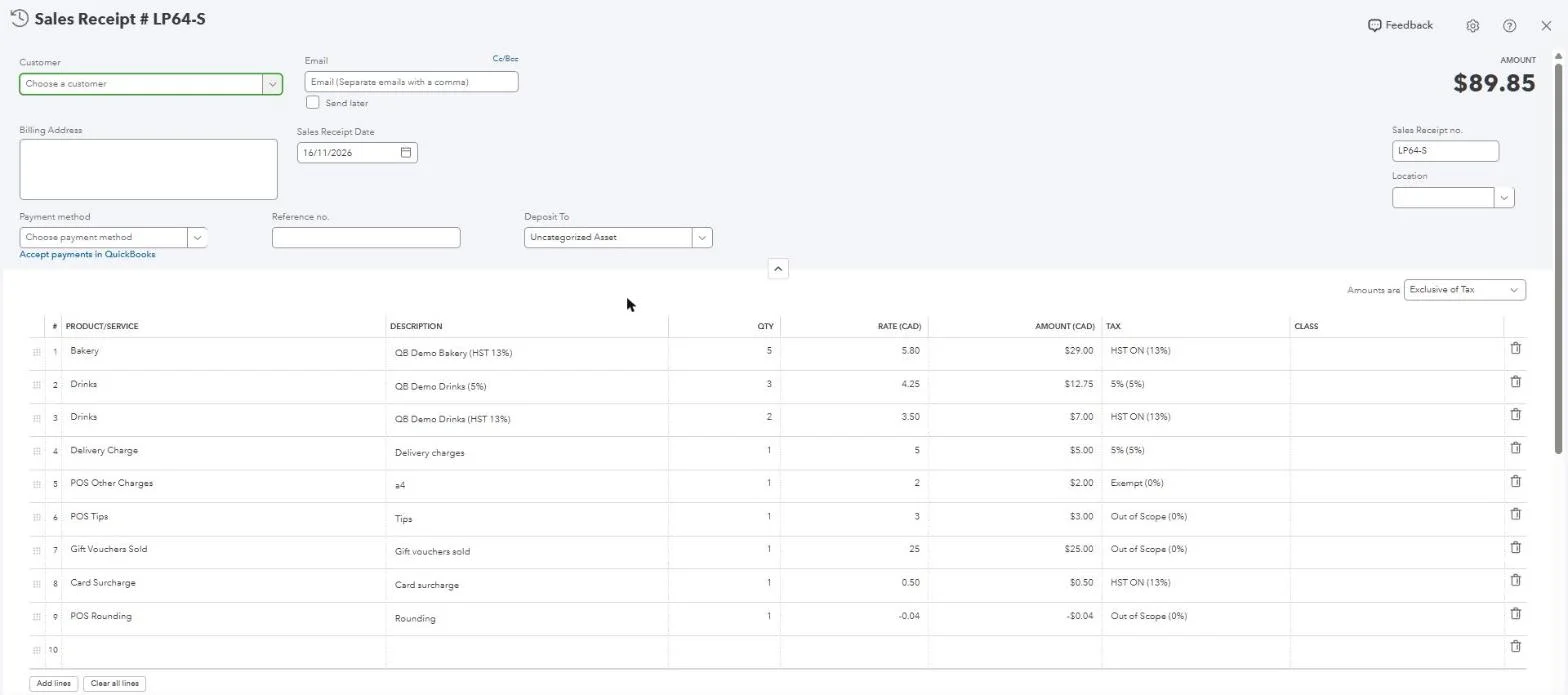
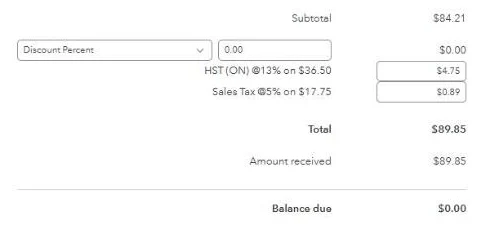
Under the lines, QuickBooks shows the tax per rate exactly as the till charged it, and the total equals what the register took. The message on the statement (the memo) names the store, terminal and register.
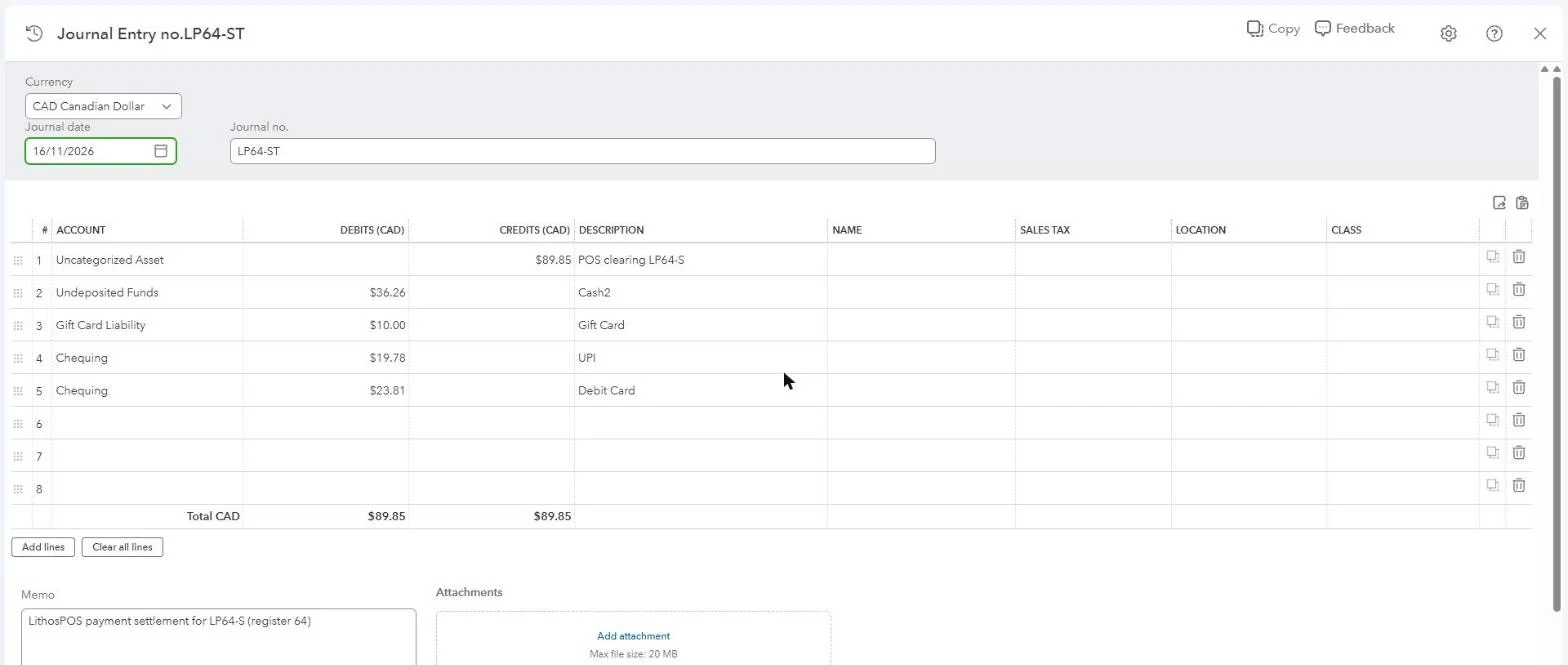
The settlement journal entry LP64-ST moves the money out of the clearing account to each payment type's deposit account: cash to Undeposited Funds, the gift card redemption to the gift-card liability, and UPI and debit card to Chequing.
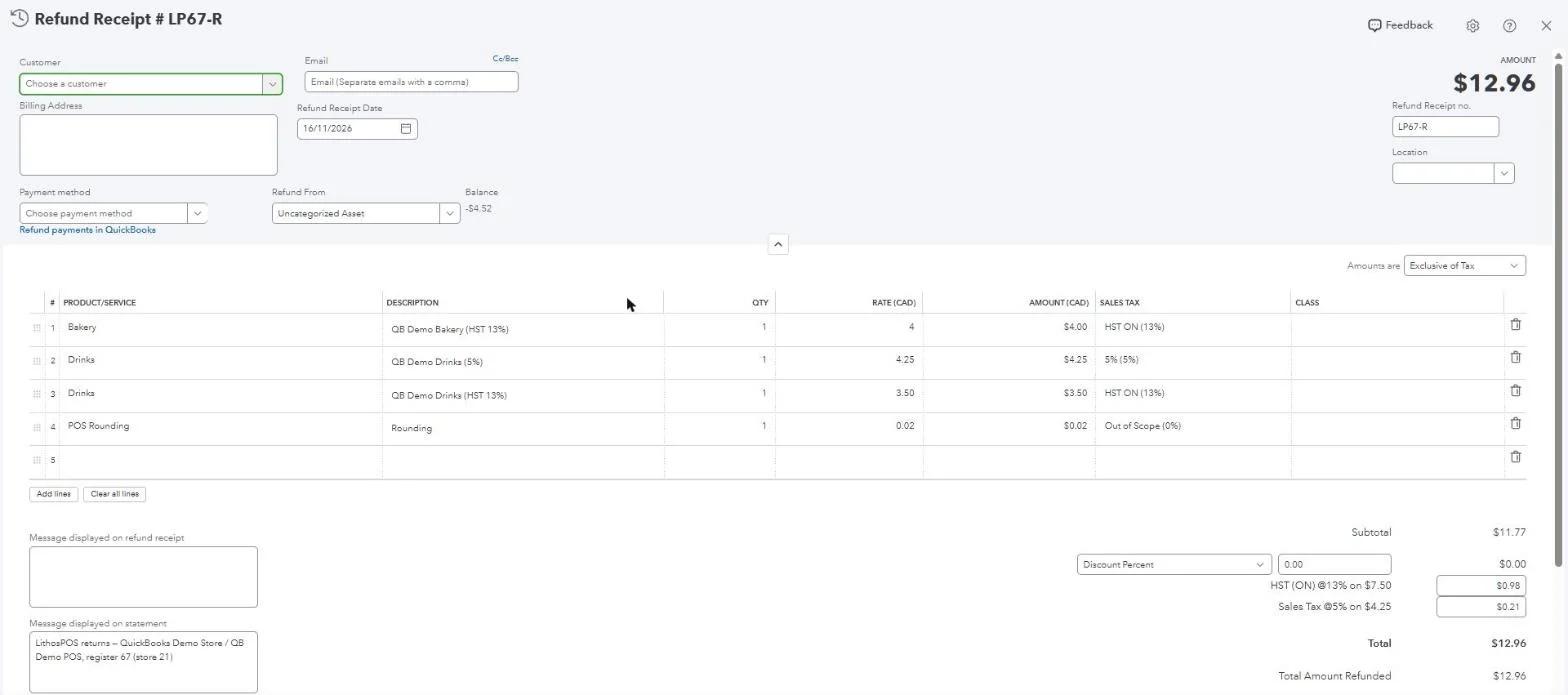
A register's returns post as a refund receipt such as LP67-R, with the same item group and tax code lines, the return rounding and the tax per rate. These refunds were paid out with two payment types, so the refund comes out of the clearing account and LP67-RT reverses each payment type's share.
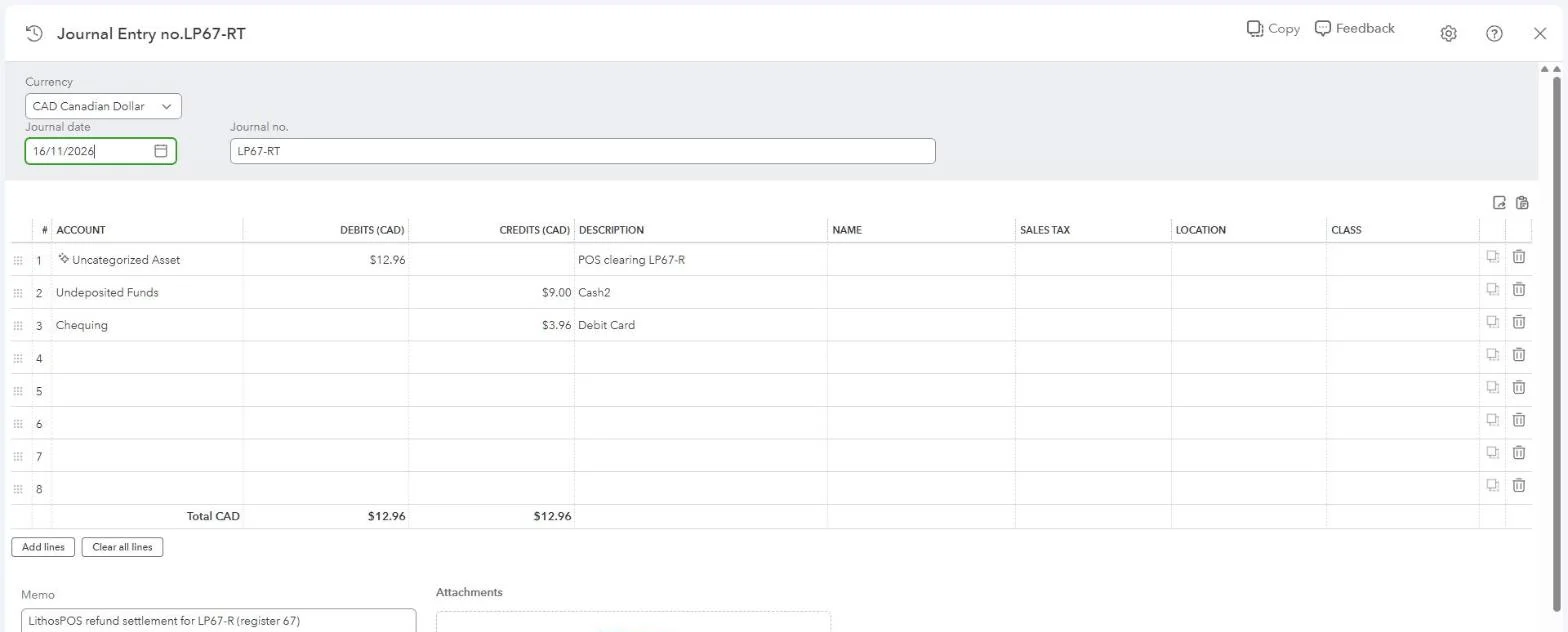
The refund settlement journal entry LP67-RT is the sales settlement the other way round: it puts the $12.96 back into the clearing account and takes each payment type's refund out of its own account, here $9.00 of cash from Undeposited Funds and $3.96 on the debit card from Chequing. The clearing account ends at zero for the register.
With consolidated books, the receipts and both settlement journal entries also carry the store's Location and Class.
When a register waits
A register is held, not posted, when:
- it sold an item group, or charged a tax, that is not mapped;
- it needs a setting under Other money on a register that is not set, for example a clearing account for a split payment;
- its lines and its total disagree with the POS by more than a few cents, or a card payment is larger than the bill.
Each held register is listed in History with the reason and a Fix it link. See QuickBooks posting history and fixes.
Was this article helpful?