
Grubtech Integration with LithosPOS
Connect a LithosPOS store to your Grubtech location from the Back Office. Enter the Grubtech Store ID and Service ID, pick the menus, and orders from the delivery apps you run through Grubtech arrive in LithosPOS.
Grubtech brings orders from delivery apps such as Talabat, Deliveroo and Careem into one place. Connect a LithosPOS store to your Grubtech location and those orders arrive straight in LithosPOS, while LithosPOS sends your menu and prices to Grubtech.
The setup takes three steps:
Add the Grubtech aggregator → Connect the store in Integrations → Ask LithosPOS support to switch on orders
Before you start
- The Grubtech integration is available to businesses in the United Arab Emirates, Saudi Arabia, Qatar and Bahrain.
- You need a Grubtech account with your location connected in Grubcenter. Grubtech gives you a Store ID and a Service ID for the location.
- Create the menu you want to sell through Grubtech in LithosPOS (see Menu creation). Items must be allowed for online ordering and active in the store.
- Set the store's opening hours in LithosPOS. The menu cannot be sent to Grubtech without them.
Add the Grubtech aggregator
The aggregator sets the price list, tax and payment account for Grubtech orders.
- Log in to the Back Office at my.lithospos.com.
- Go to Settings → Aggregators and click Add Aggregator.
- Under Platform, choose Grubtech. Display Name is filled in as Grubtech.
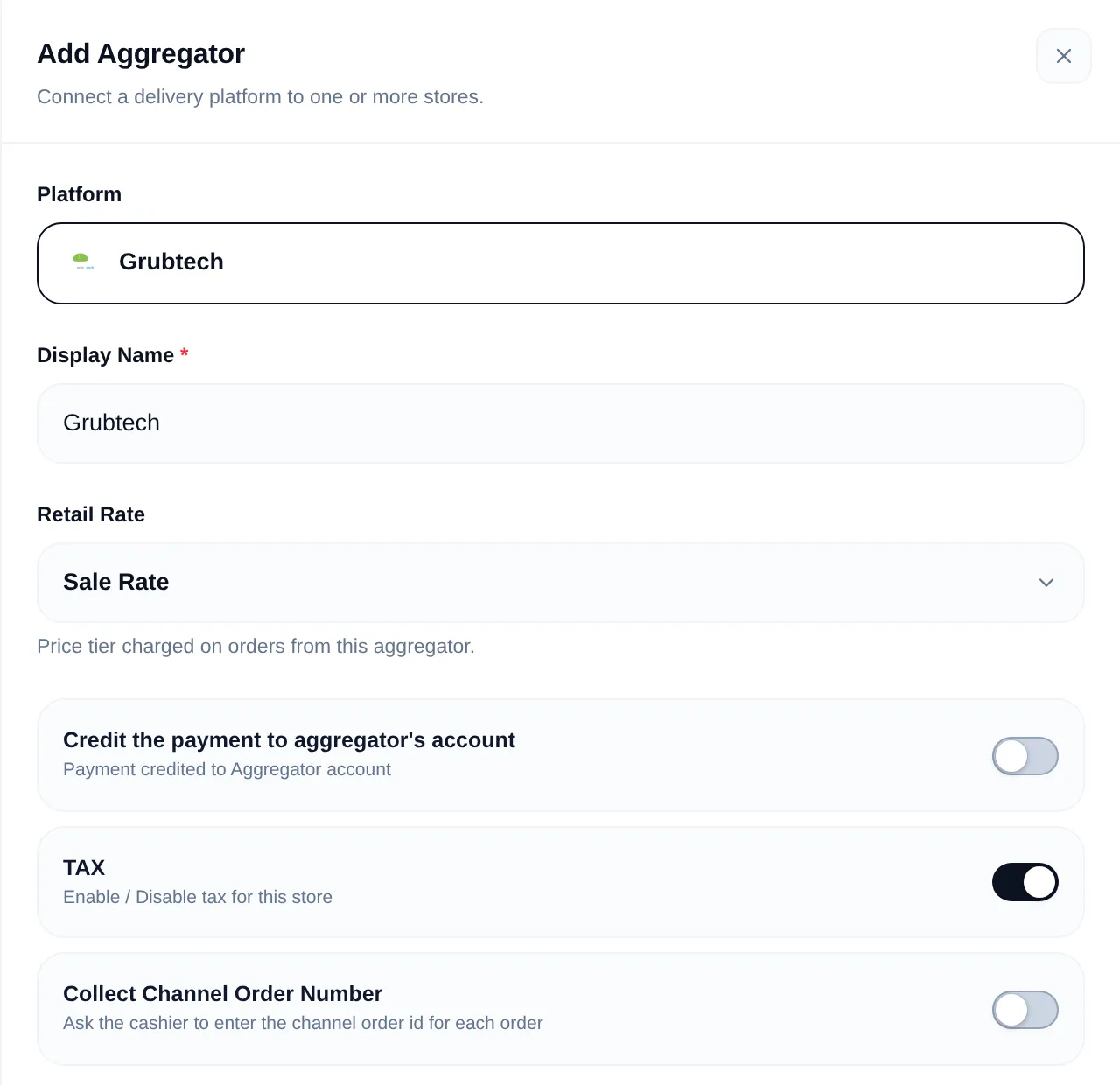
- Choose the Retail Rate (the price list used for Grubtech), and set TAX, Credit the payment to aggregator's account and Collect Channel Order Number as you need.
- Under Stores, pick the stores that sell through Grubtech, and click Save Aggregator.
For all aggregator options, see Aggregators settings.
Install Grubtech and connect a store
- Go to Integrations and find Grubtech under Aggregator.
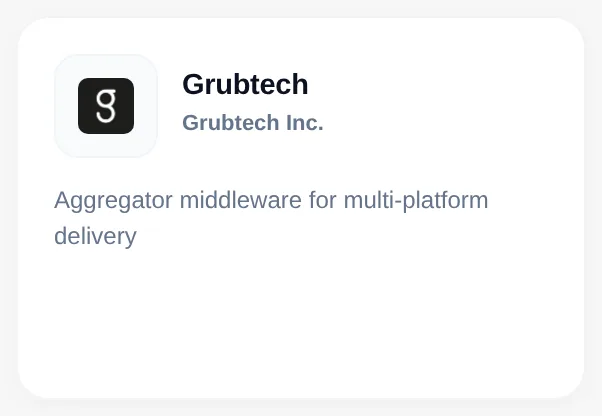
- Click the tile and click Install. Then click Manage to open the Grubtech panel.
- Click + New Connection and fill in the form:
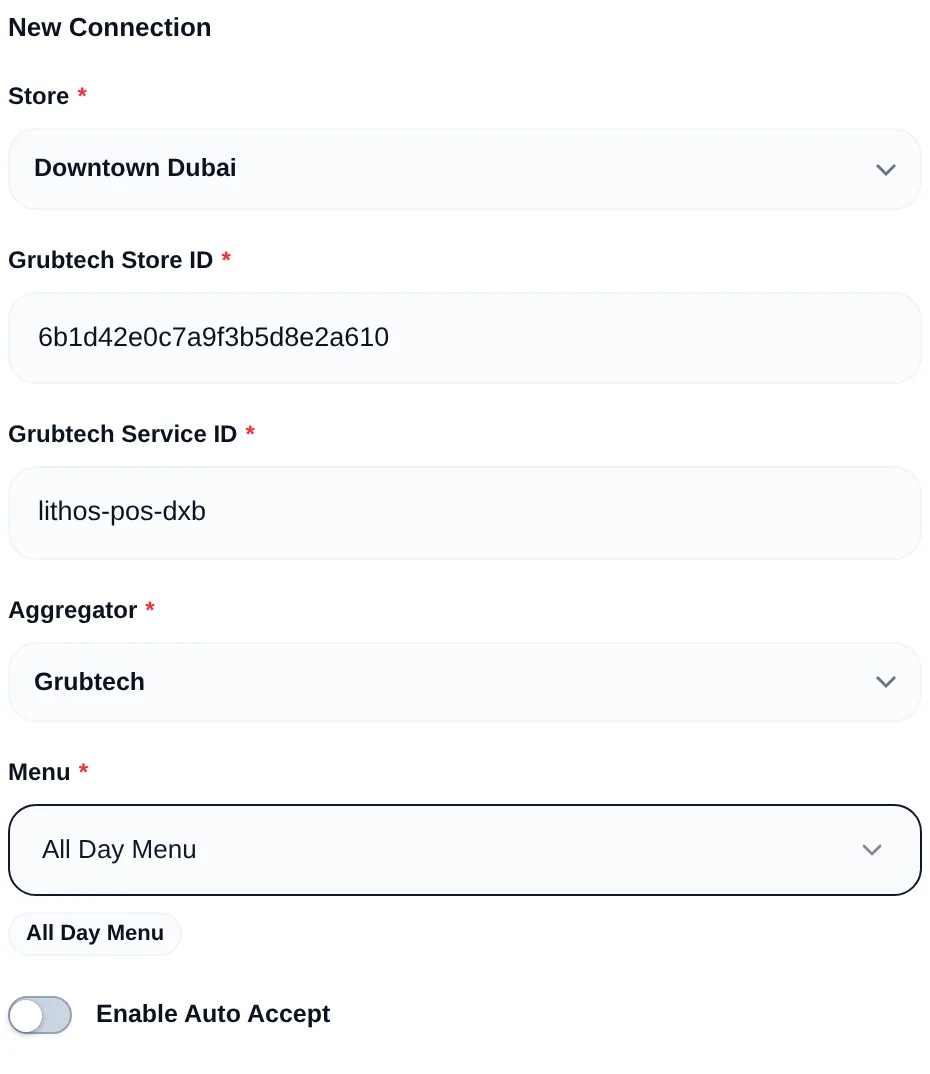
- Store — the LithosPOS store to connect.
- Grubtech Store ID and Grubtech Service ID — the IDs Grubtech gave you for this location.
- Aggregator — choose Grubtech.
- Menu — click Select menus, tick the menus to send to Grubtech and click Save.
- Enable Auto Accept — turn on to accept Grubtech orders automatically.
- Click Save configuration. LithosPOS saves the configuration and sends the menu to Grubtech.
The store now appears under Configured stores with its Grubtech Store ID and Service ID.
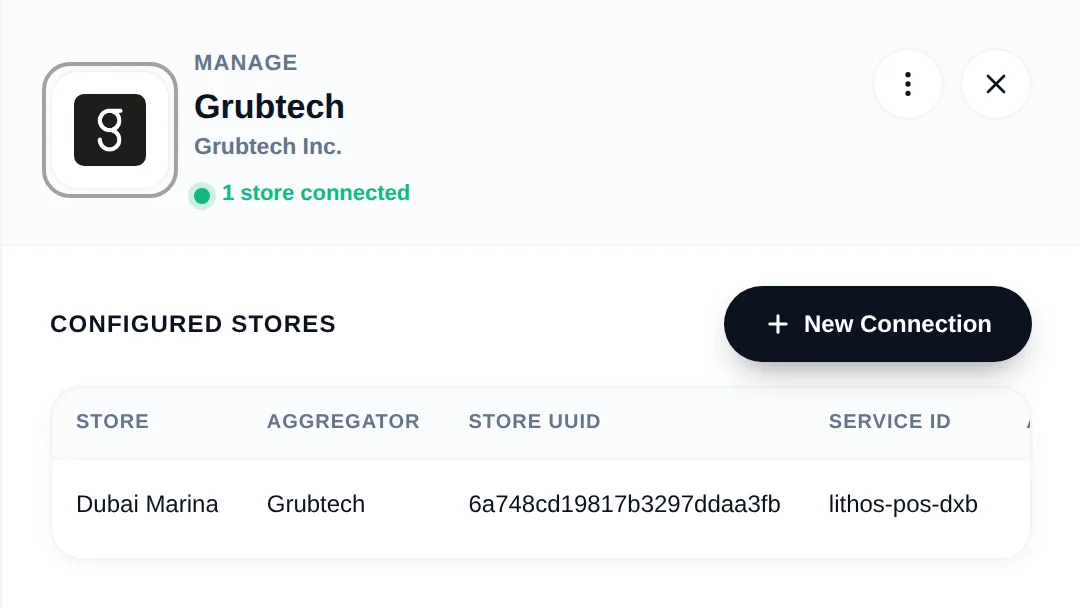
If the menu could not be sent, a message tells you why. The most common ones:
- Please set store time slots. — set the store's opening hours, then sync the menu.
- The selected menu has no online-sellable items for this store. — allow the items for online ordering and make them active in the store.
- Grubtech rejected the menu — Grubtech refused the menu; the message includes Grubtech's reason.
Switch on Grubtech orders
Contact LithosPOS support with your Grubtech Store ID. Support connects your Grubtech location to LithosPOS, so that Grubtech sends its orders to your store. You only need to do this once per location.
Manage a connected store
In the Grubtech panel, click ⋯ on a store's row:
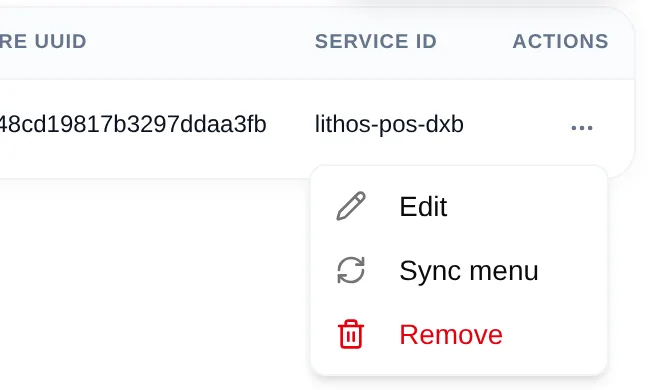
- Edit — change the IDs, aggregator, menus or auto accept, then click Save configuration. The menu is sent again.
- Sync menu — sends the menu to Grubtech again. Sync whenever you change items, prices or menus.
- Remove — deletes the store's Grubtech configuration, which stops its Grubtech orders. It takes effect immediately, with no confirmation.
Grubtech orders
Grubtech orders appear in Online Orders in the Back Office and on your POS. The Provider column shows Grubtech and the delivery app the customer used, for example Ordered via Talabat.
Open an order to work through it:
- Accept — set the preparation time and accept the order.
- Mark Ready — when the food is ready.
- Mark Completed — when the order has been handed over.
- Reject or Cancel order (in the ⋮ menu) — choose a reason and confirm. Cancelling cannot be undone.
LithosPOS sends these status changes to Grubtech. Grubtech orders are recorded under the Grubtech aggregator in your sales reports.
Connect with us to know more
To learn more, book a meeting with our team.
Was this article helpful?