
Dashboard App
Monitor your shop or restaurant’s performance anytime with the Lithos POS Dashboard. Get quick insights into sales, products, payments, stock, customer balances, and reports from one convenient mobile app.
The Lithos POS Dashboard is a companion mobile app that provides a real-time overview of your shop or restaurant’s performance. It lets you monitor sales, trends, top-selling items, payment breakdowns, stock levels, customer balances, and reports from anywhere.
This guide explains each screen and feature, from the Dashboard to Connect Watch, and how to use them effectively.
Getting Started — Signing In
The first screen shown when you open the app. It displays the Lithos logo while the app loads and checks your sign-in status.
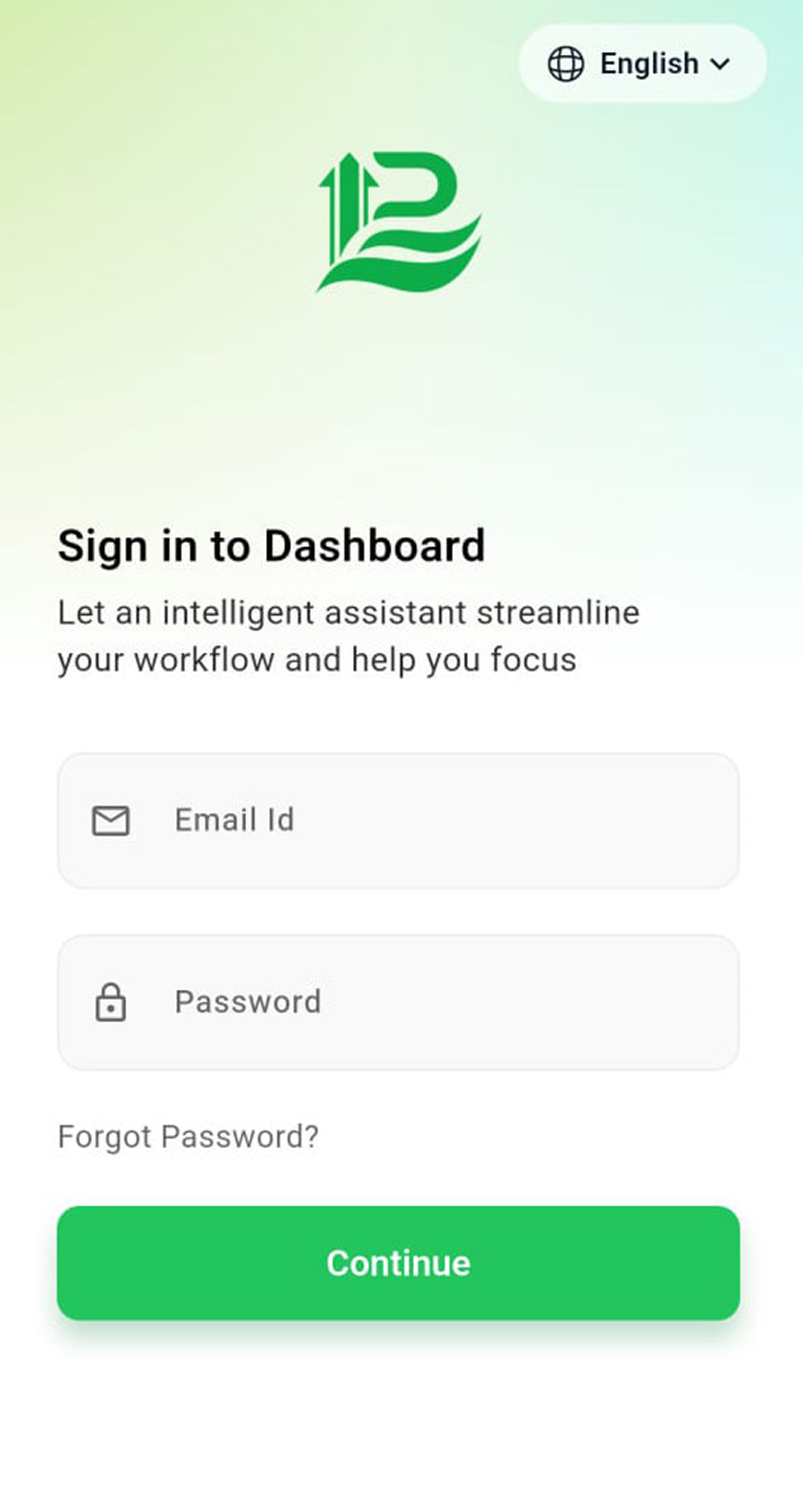
Sign in with your Lithos email and password. Enter your account email and password to open your dashboard. Use it whenever you're signed out, or to add another business account.
- Email Id and Password fields - the app checks the email looks valid and both are filled in.
- Forgot Password? - opens the Lithos website (my.lithospos.com) to reset your password.
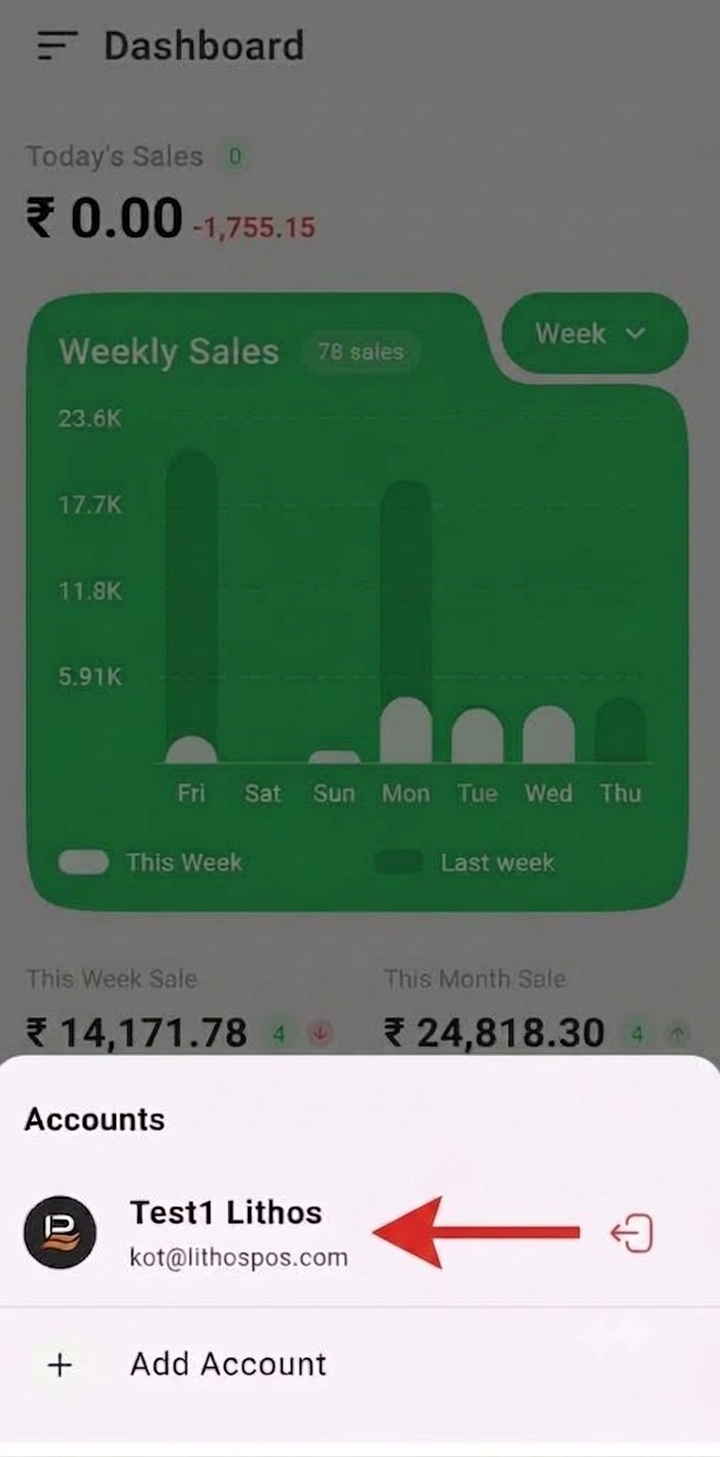
- To log out of your account, click the Account option. A popup will appear from the bottom, displaying the available accounts. Select the account you want to log out of, and a confirmation popup will appear with the option to 'Remove Account'.
.png)
Dashboard & Overview
- The main home screen. It shows today's sales, a weekly sales chart, week/month comparisons, best sellers, a payment-method breakdown and per-store sales. Pull down to refresh at any time; the menu icon (top left) opens the navigation drawer.

Key Features & How to Use:
- Today's Sales: today's total in large text, with the change vs the comparison period (green up / red down).
- Weekly Sales chart: bar chart of this week's daily sales against last week's, with a "X sales" badge. Tap a bar for that day's exact figure.
- Monthly Data View: Select a month to view the corresponding data. The chart supports zoom in and zoom out for a more detailed or broader view of the data. You can also slide horizontally to navigate through the available data points within the selected month.
- Statistics row (swipe sideways) : This Week Sale, This Month Sale and Last Month Sale, each with its up/down change.
- Top Selling Items: your five best sellers with quantity, share and a progress bar. The button top-right switches the period between Today, Week , Month and Last Month.
- Top Transactions: a donut chart of your top four payment methods with amounts and percentages.
- Store Sales: monthly sales per store (shown when you have more than one store).
- Ask Lio: the green button opens the AI assistant to ask questions in plain language.
- The navigation menu (side drawer)
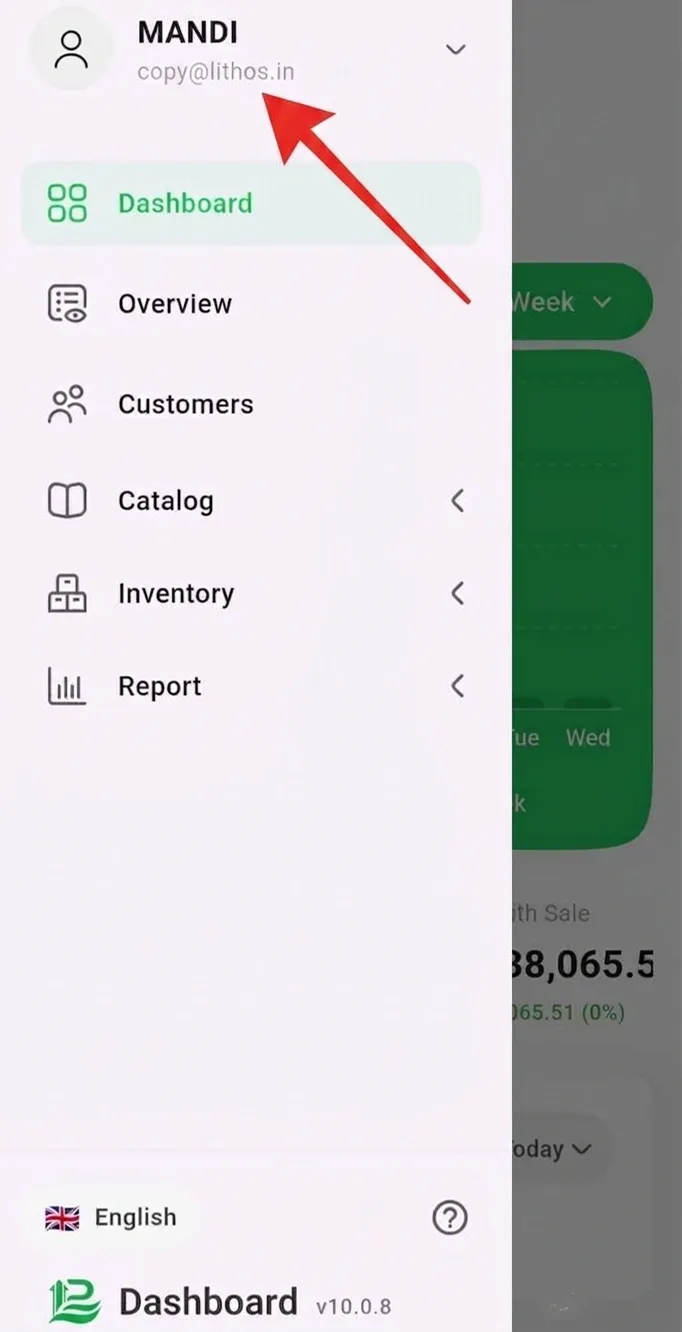
Open the menu icon to access all available sections of the app. The current section is highlighted in green. Some options may vary depending on your account settings. - The account switcher
Tap the account name at the top of the menu to switch between signed-in businesses, remove an account (with confirmation), or Add Account to sign in with another.
Overview
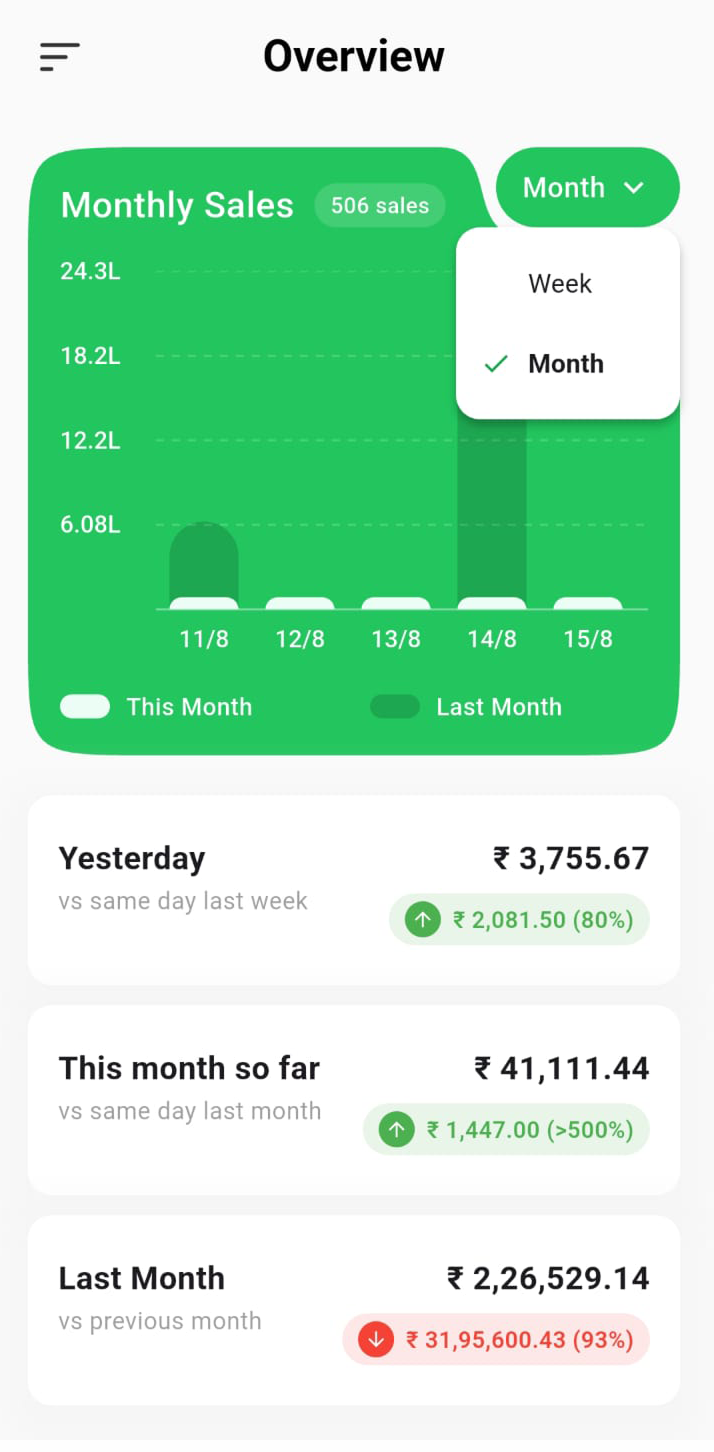
Shows sales trends with a weekly sales chart and three comparisons: Yesterday, This Month, and Last Month, each compared with the corresponding previous period.
Income & Expense
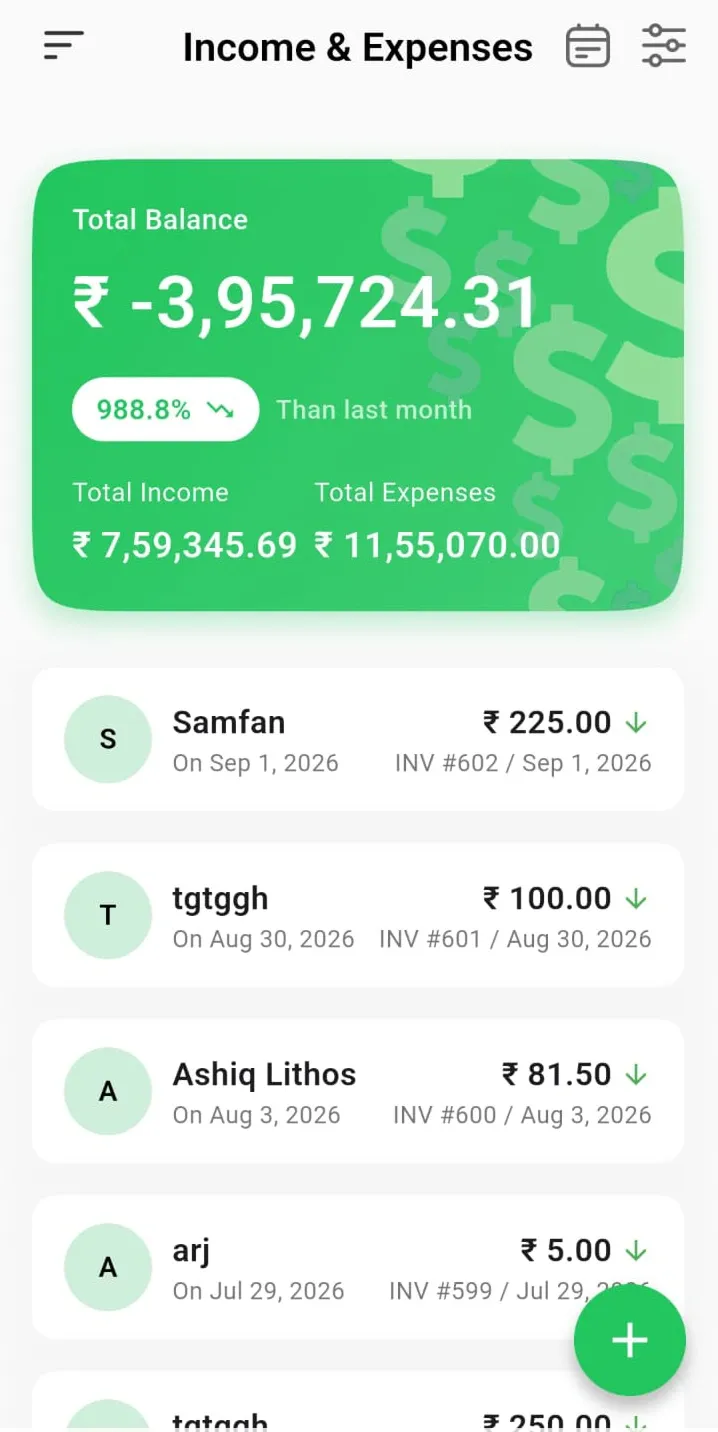
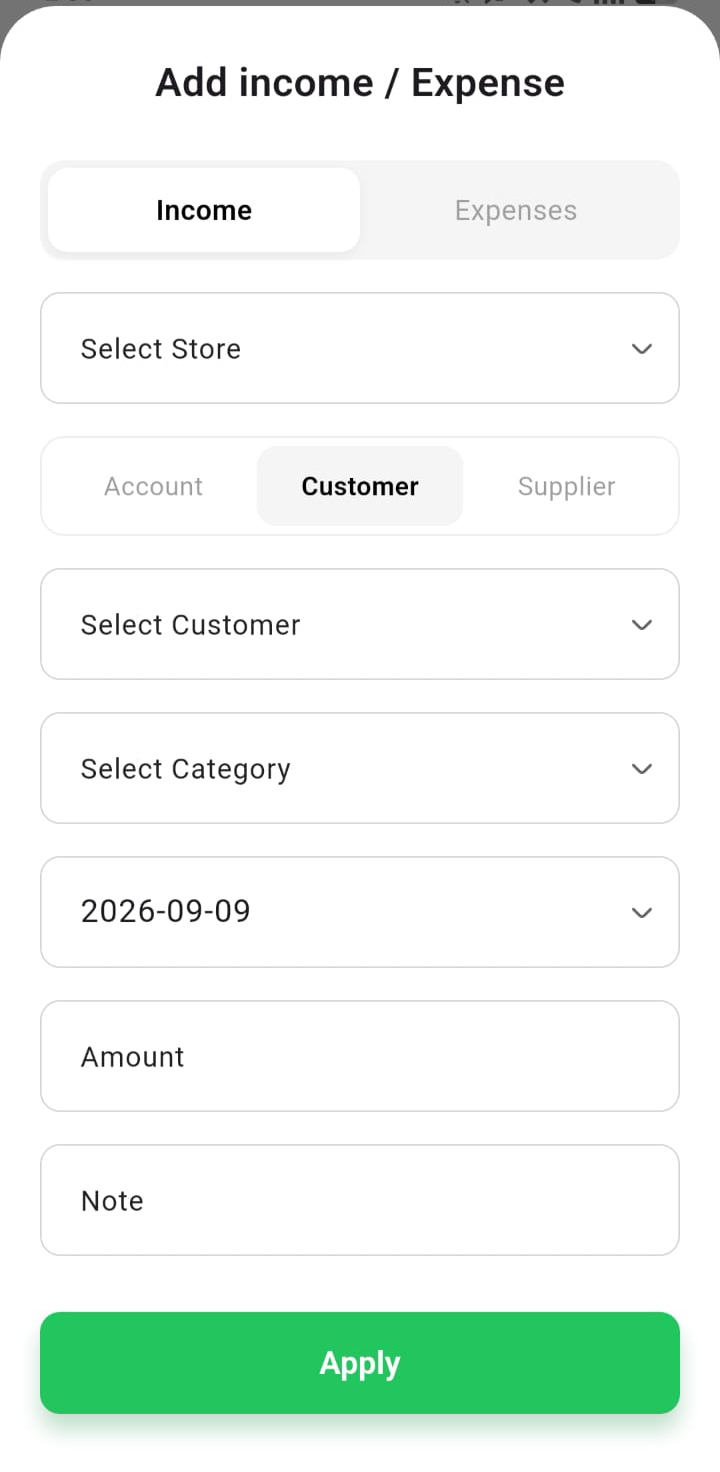
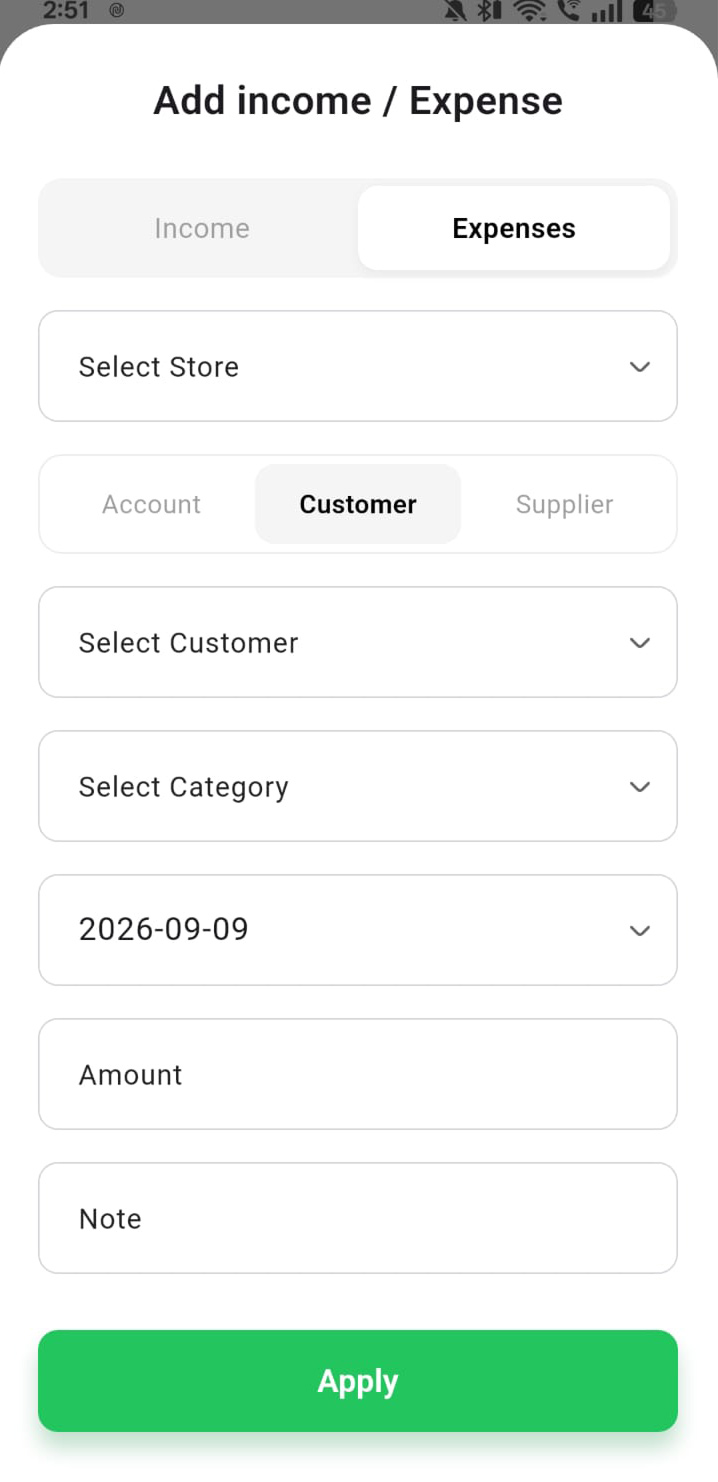
- Shows income and expense entries for the selected period, along with the Total Balance, Total Income, and Total Expenses. Use the + button to add a new entry and the date or filter options to narrow the list.
Customers & Suppliers
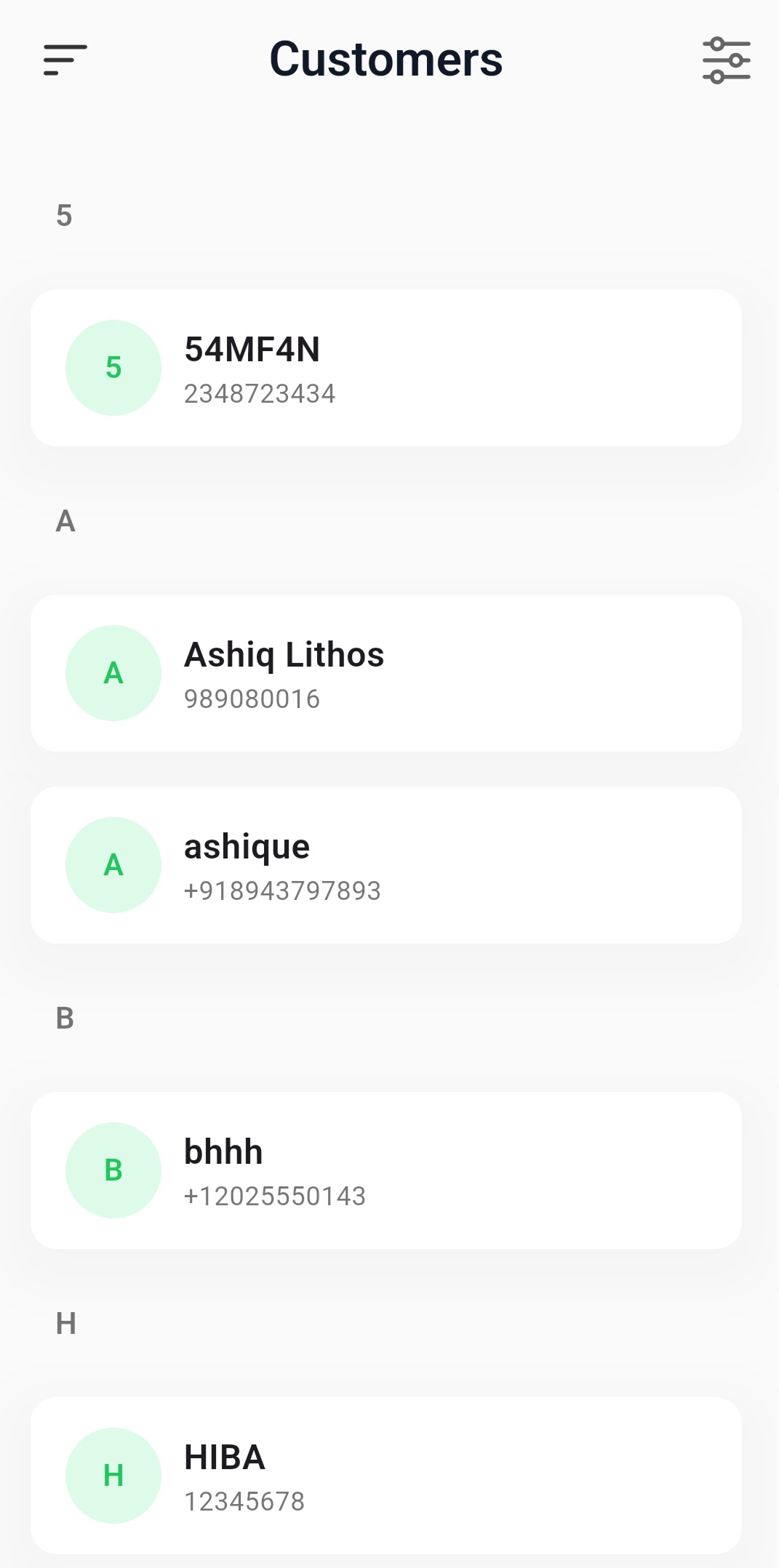
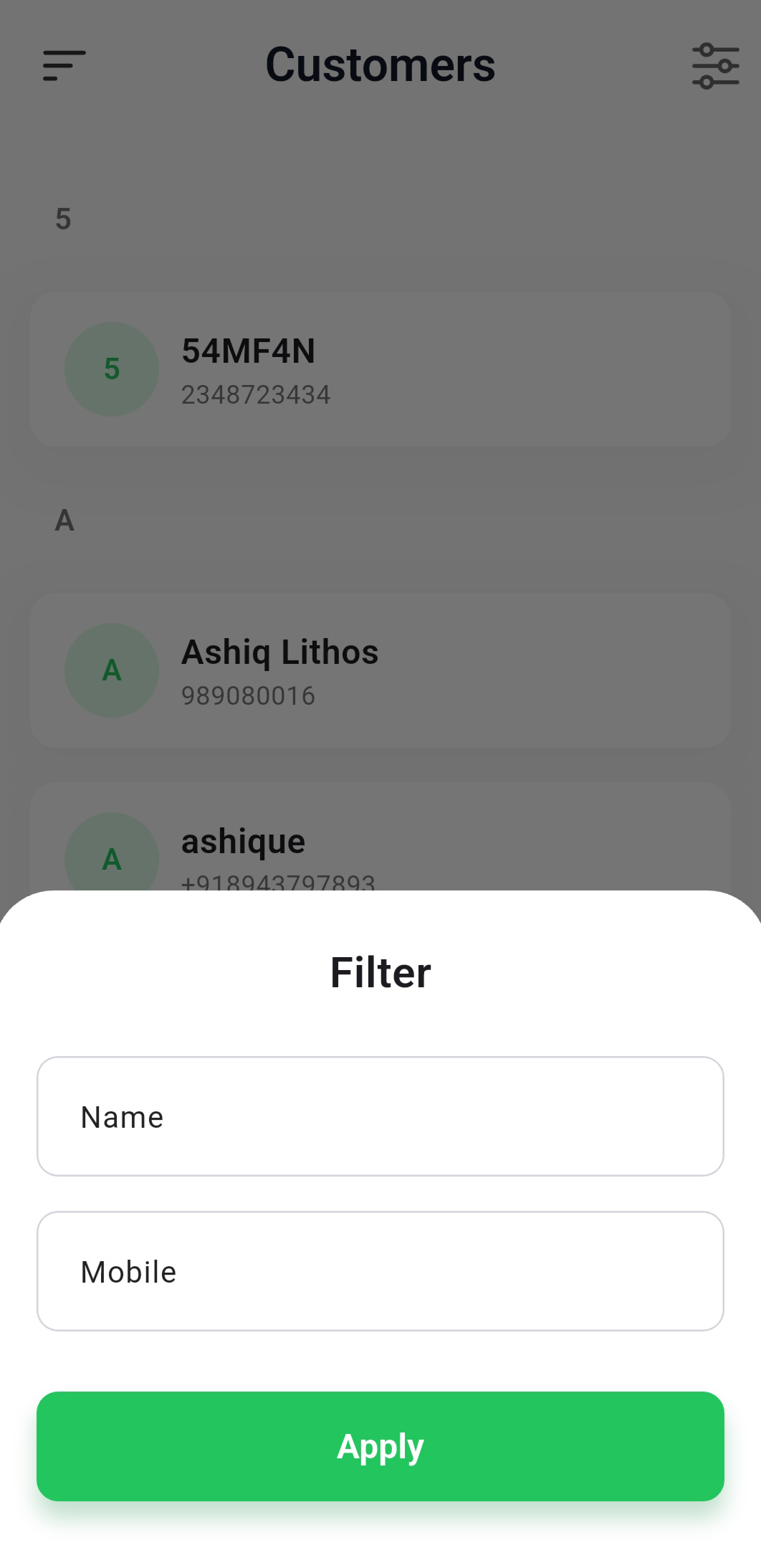
- Shows a list of customers or suppliers with their contact details and balance. Use the search or filter to find a specific entry, and tap a row to view its profile and transaction history
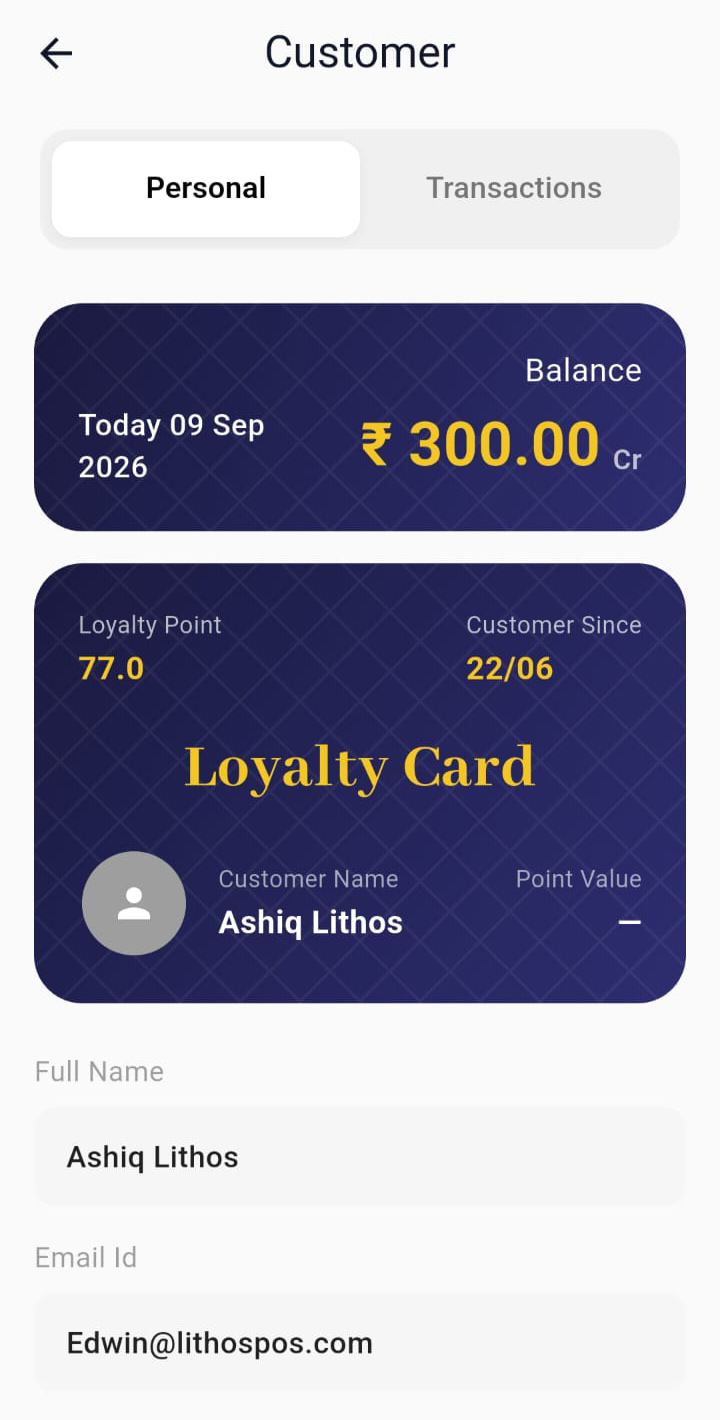
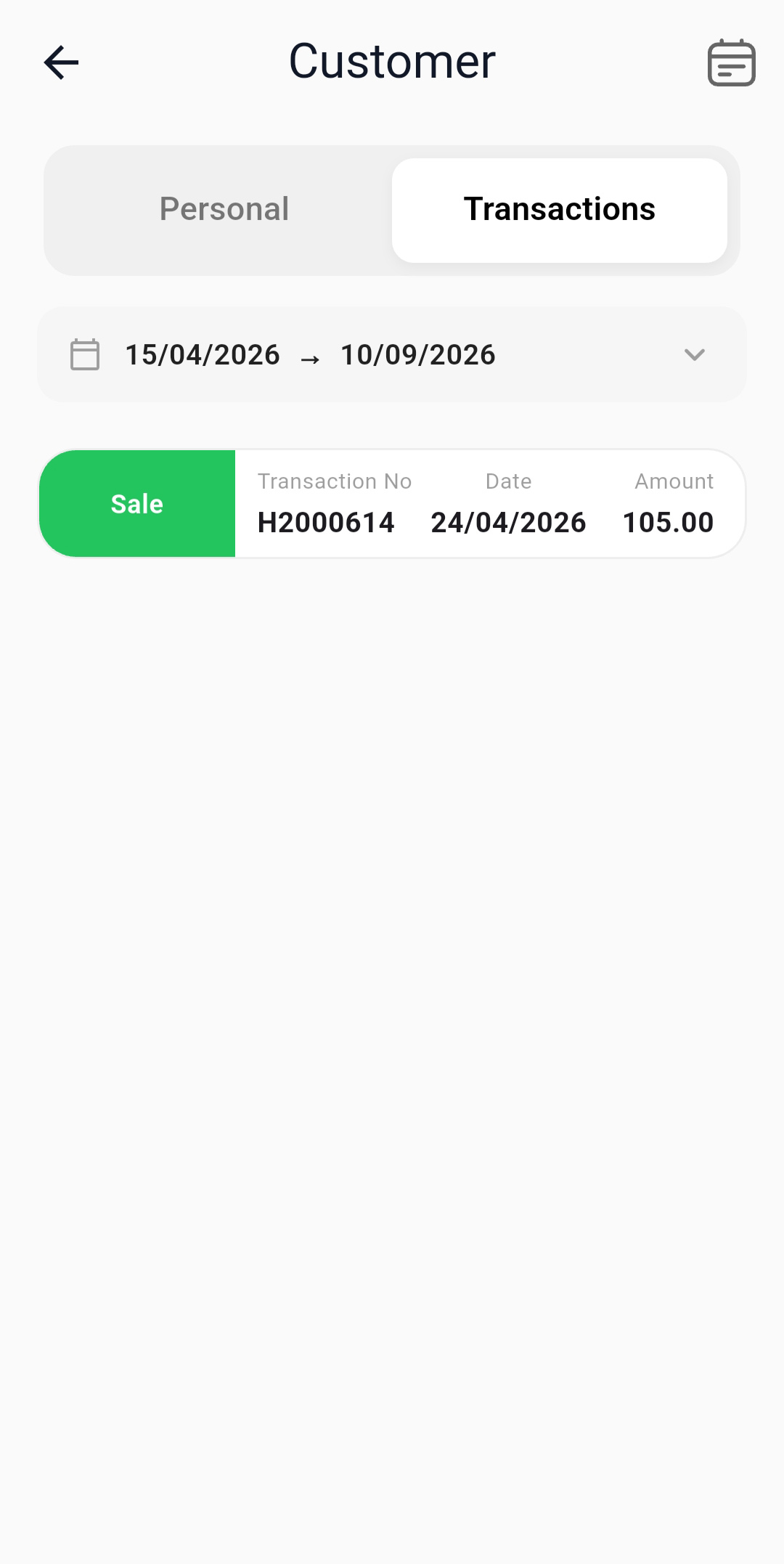
- Shows the selected customer or supplier’s profile and transaction history. Customer profiles include loyalty points, while supplier profiles include GSTIN/TRN and account details.
Items, Groups, Brands, Units & Taxes
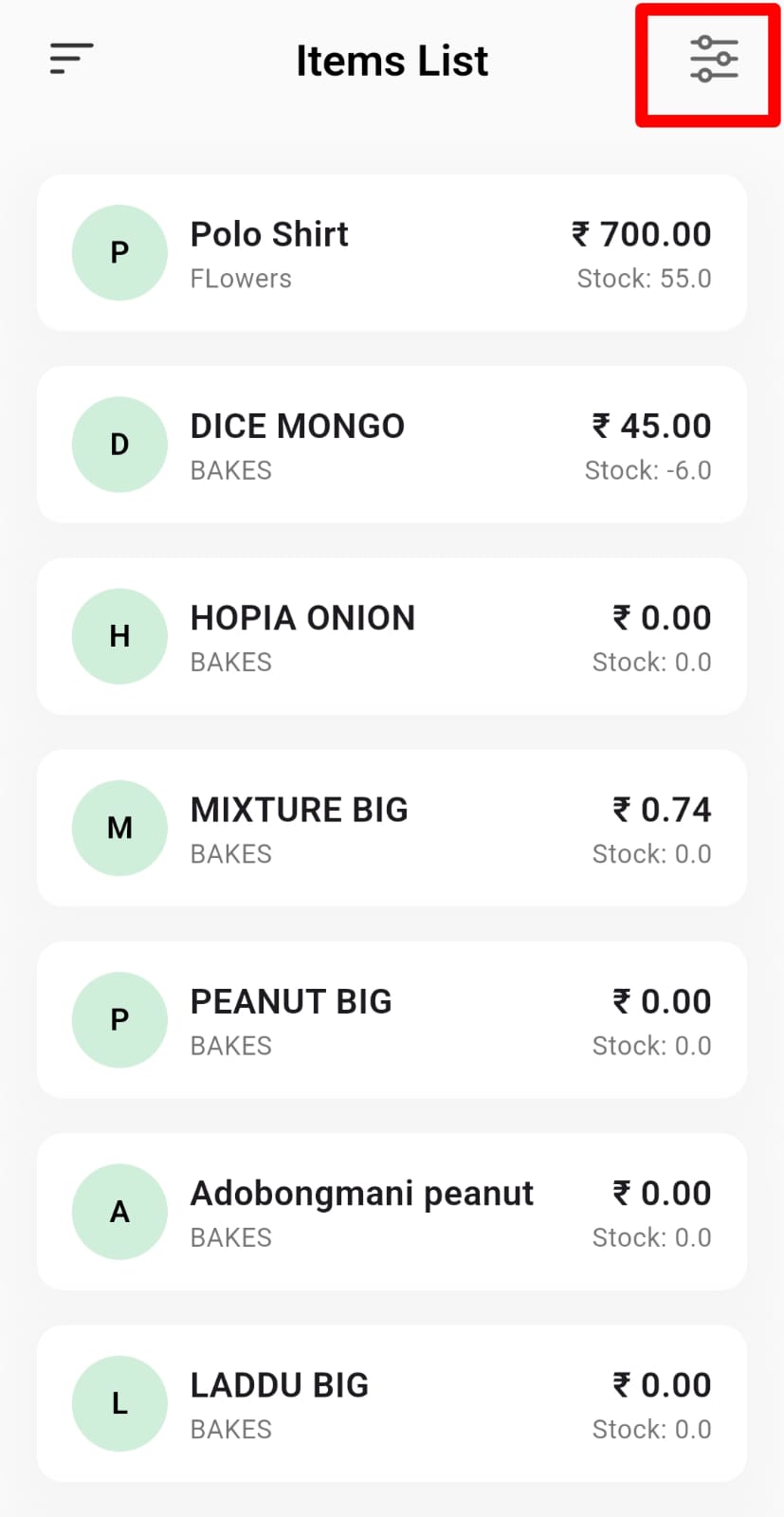
Items List: Shows all products with their selling price and current stock. Use the filter to find items by name, barcode, group, brand, or tax. Tap an item to view its details or update its selling price.
- Groups / Brands / Units / Taxes: Shows searchable, read-only lists of groups, brands, units, or tax rates. Use the search icon to quickly find an entry.
Inventory
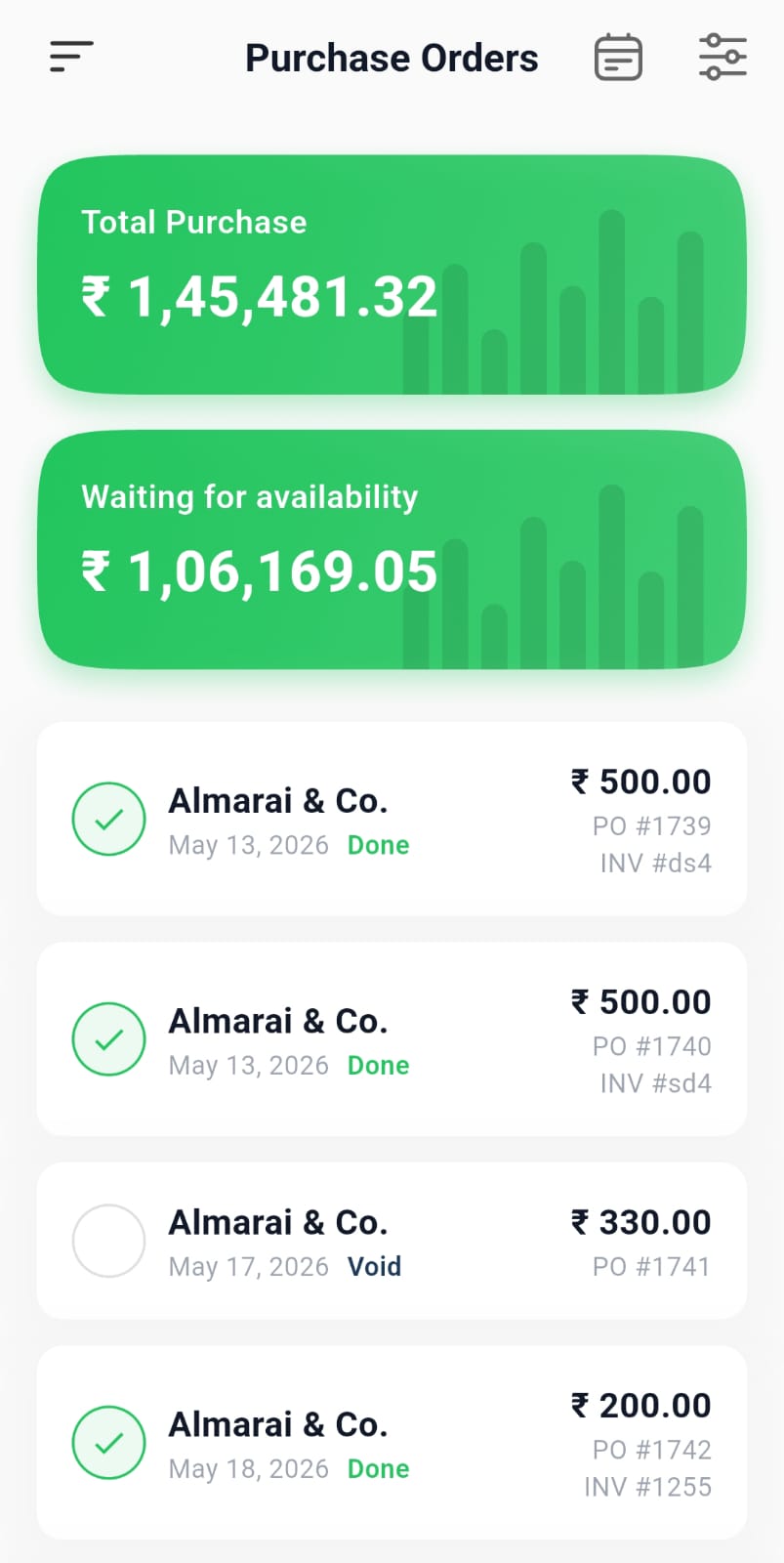
Shows inventory activities such as purchase orders, purchase returns, stock on hand, and stock transfers. Use the calendar and filter options to narrow the results, and tap any entry to view its details.
Purchase Orders
- Shows purchase orders with supplier, date, status, amount, and invoice number. Tap an order to view its details and preview it.
.jpeg)
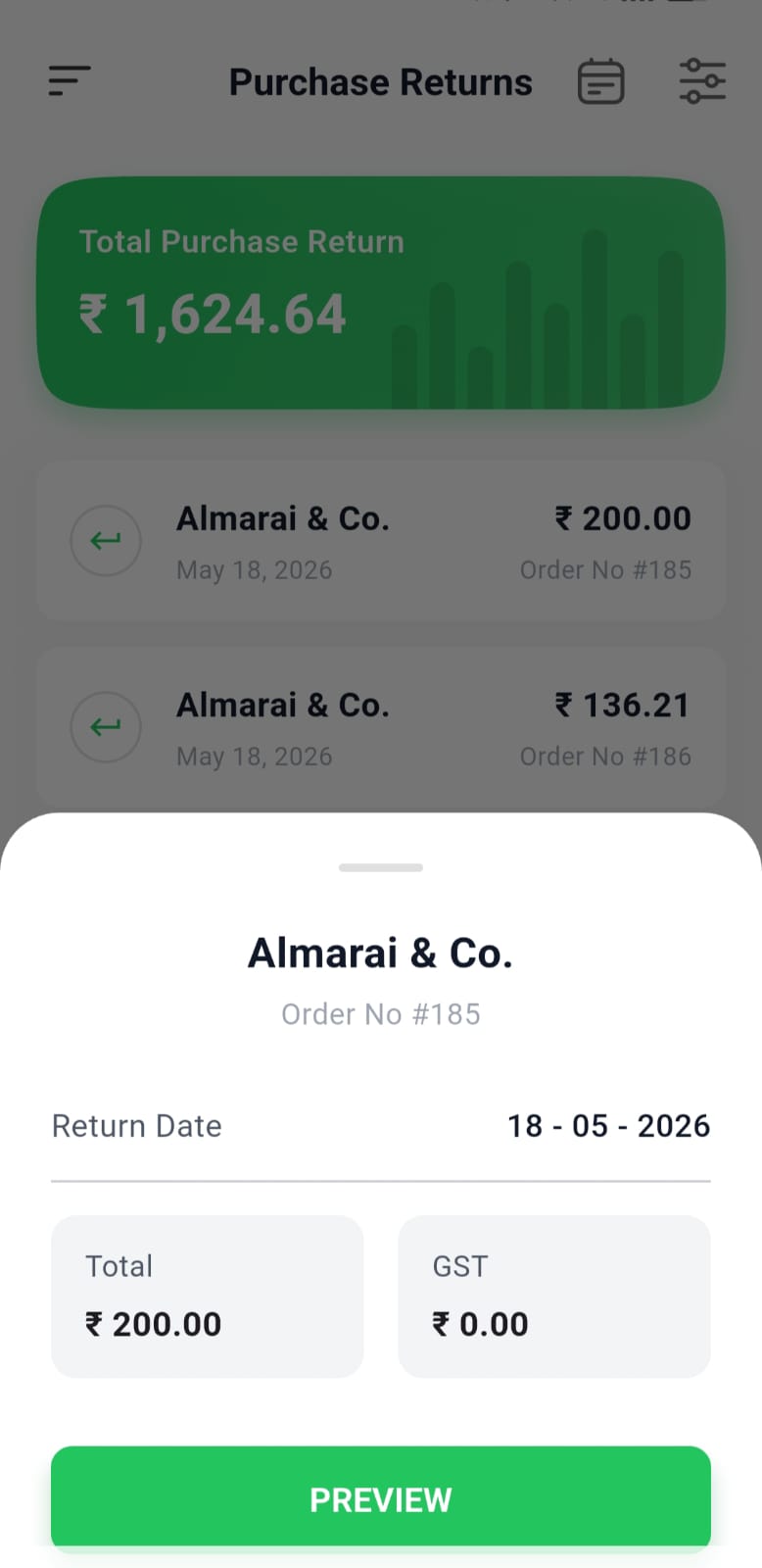
Purchase Returns
- Shows goods returned to suppliers with the supplier, return date, amount, and reference number. Tap a return to view its details and preview it.
.jpeg)
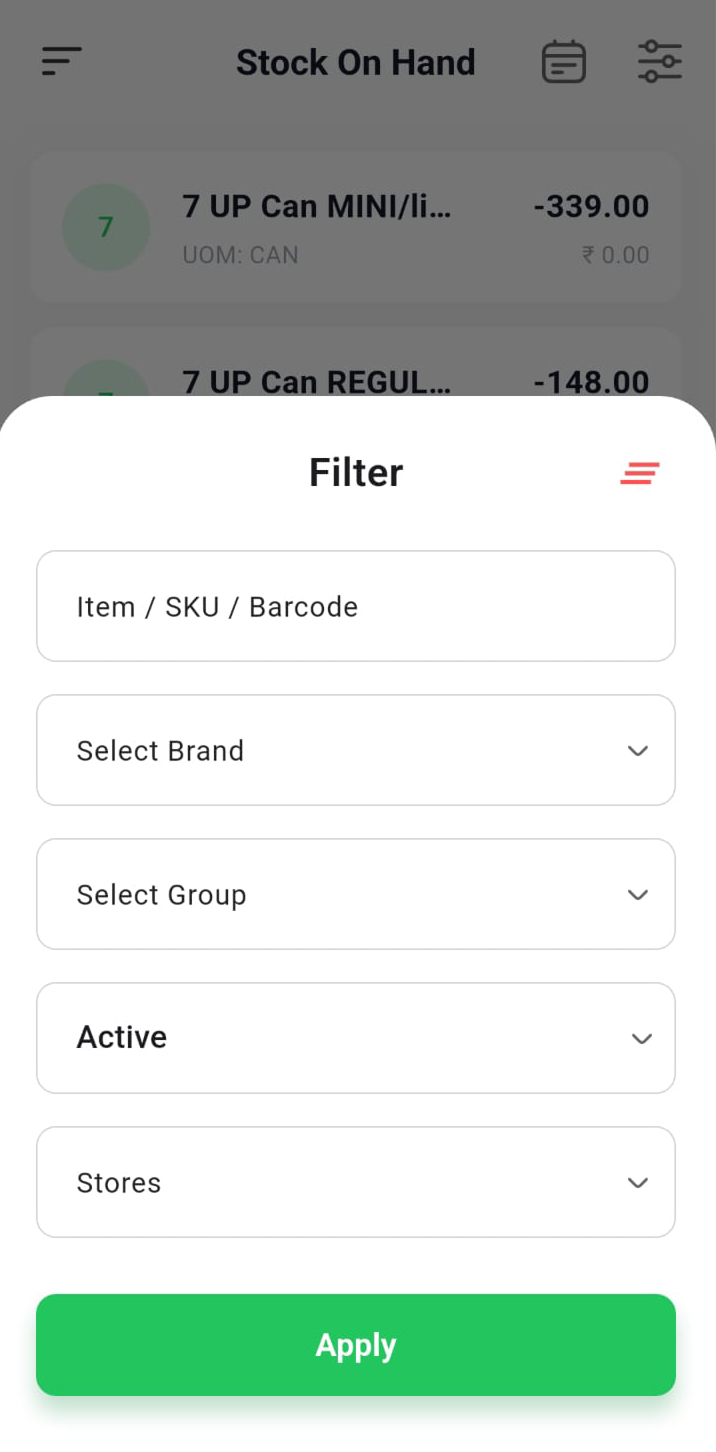
Stock On Hand
- Shows the current quantity and value of each item in stock. Use filters to find items and tap an item to view its stock details.
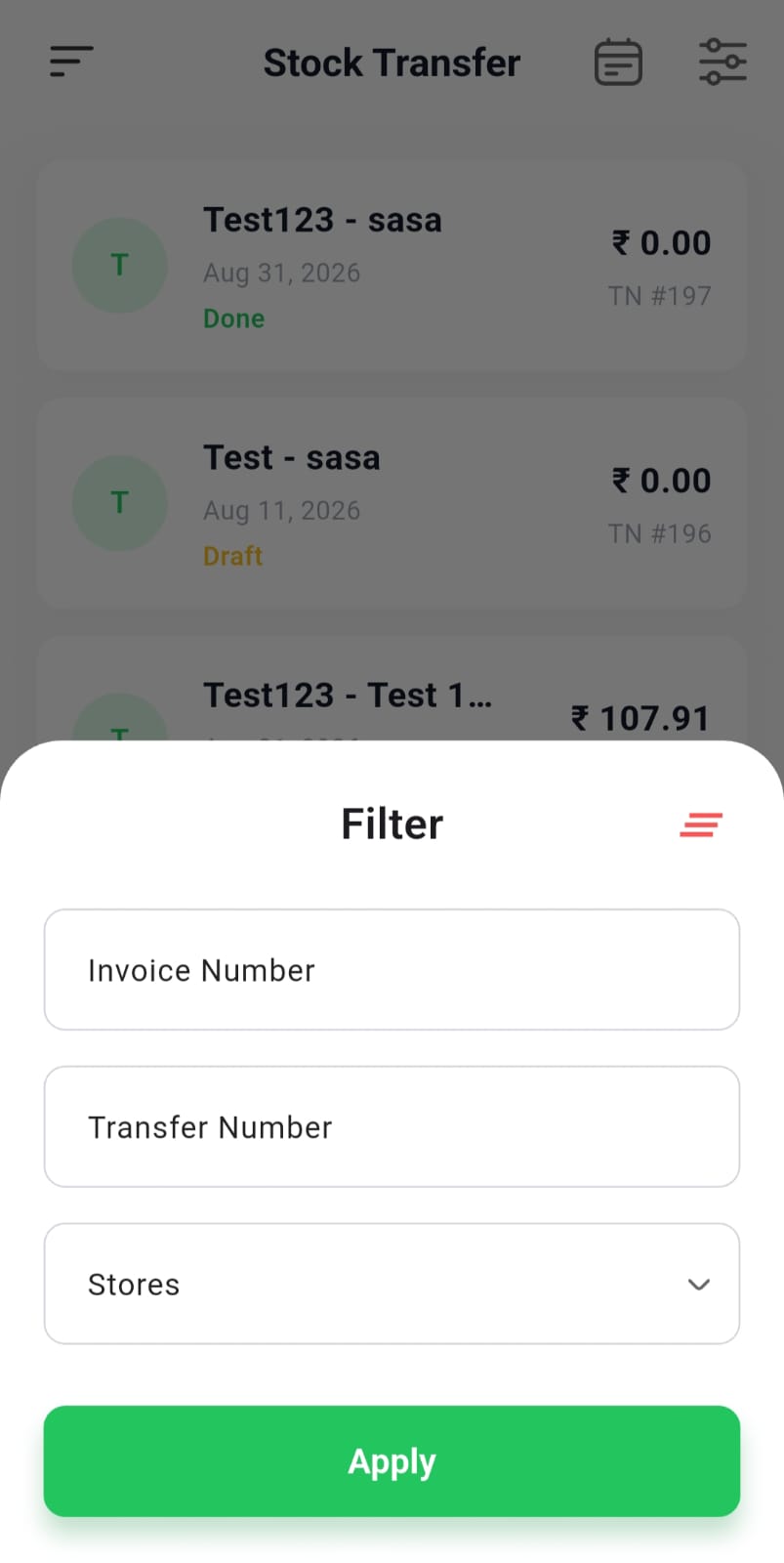
Stock Transfer
- Shows stock transfers between stores, including the source and destination, date, status, value, and transfer number. Use filters to find specific transfers.
Online Orders
Lists online orders with total and previous order counts. Each order shows the customer, date, status, amount, and order type. Tap an order to view its details, including store, total, tax, charges, and CESS when applicable. Use the filter to find orders by order number, customer, or store.
Reports
Reports use the calendar to select a period and the filter to narrow results. Tap a row to view more details where available.
Sales
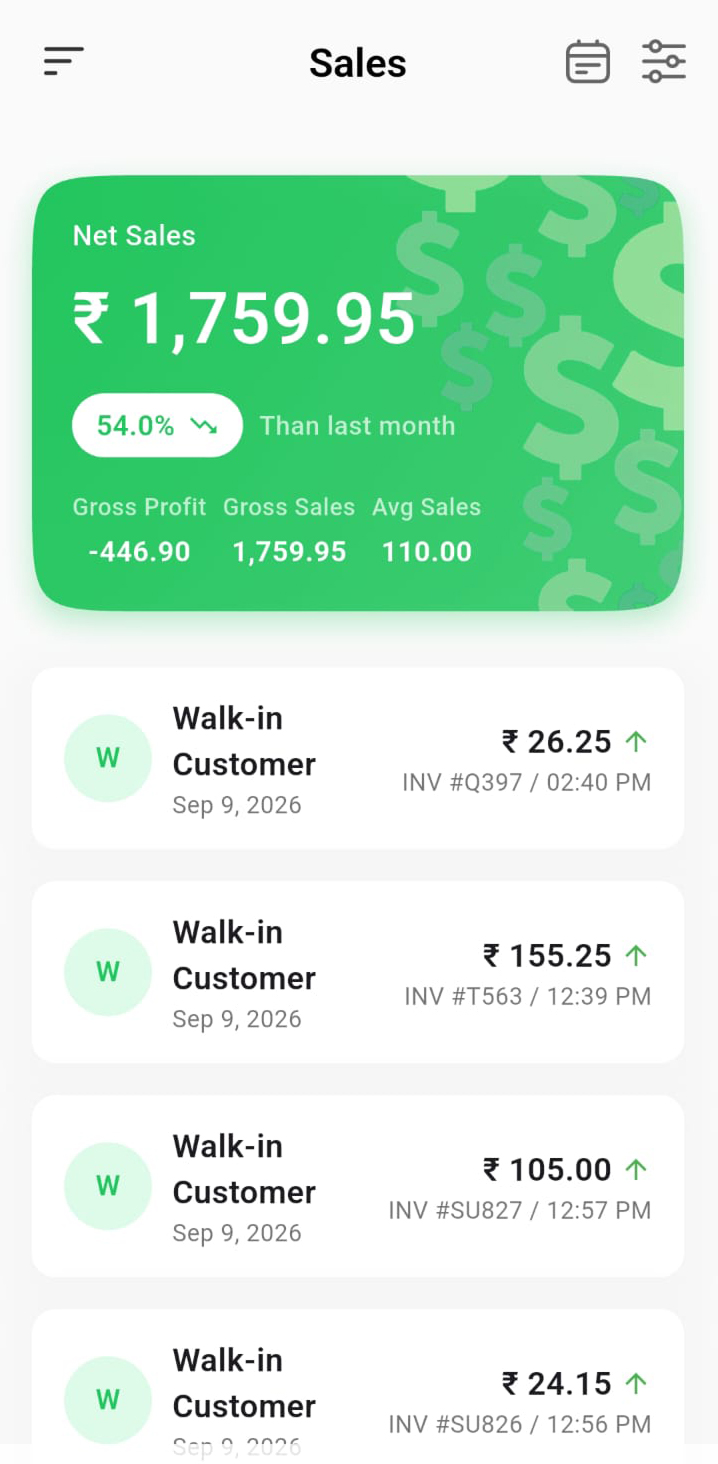
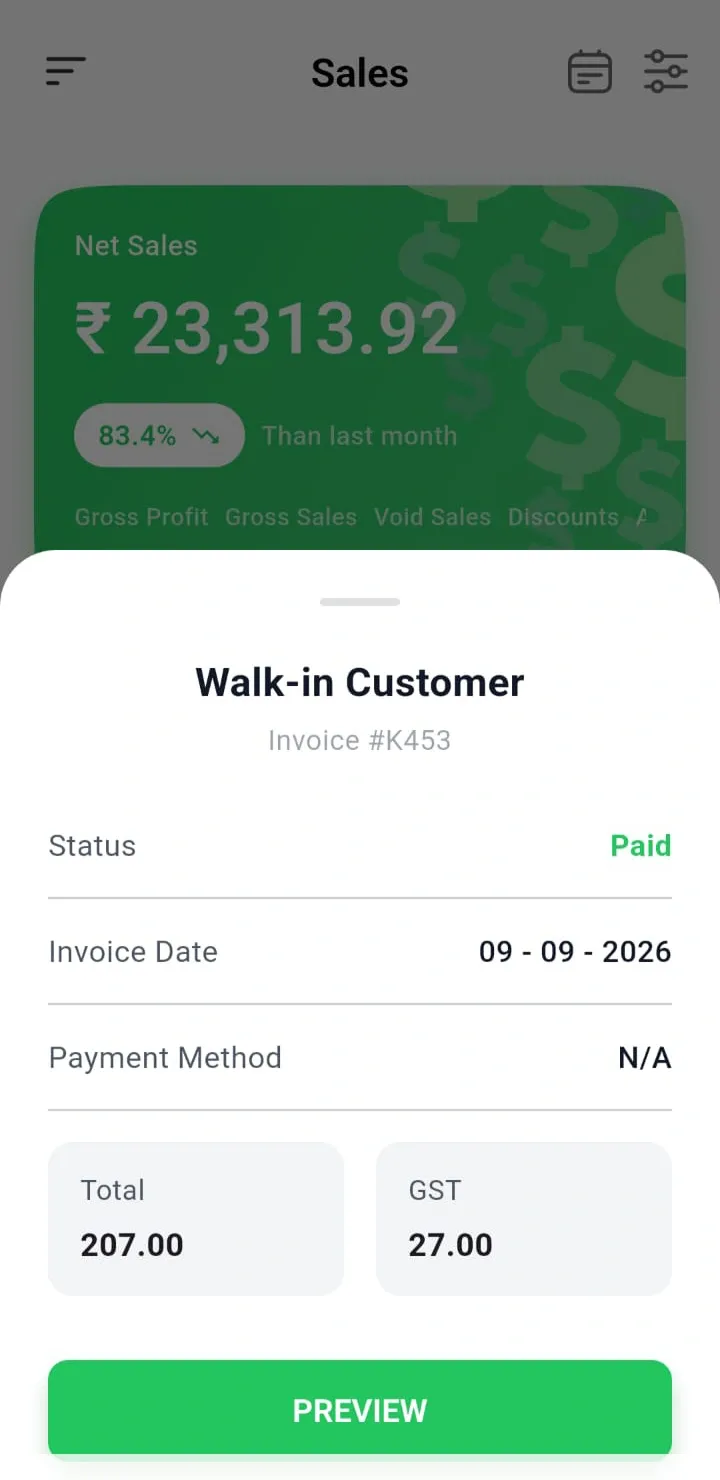
- Lists sales invoices with Gross Sales and other performance metrics. Tap an invoice to view payment, totals, and tax details, then preview the invoice.
Invoice Preview
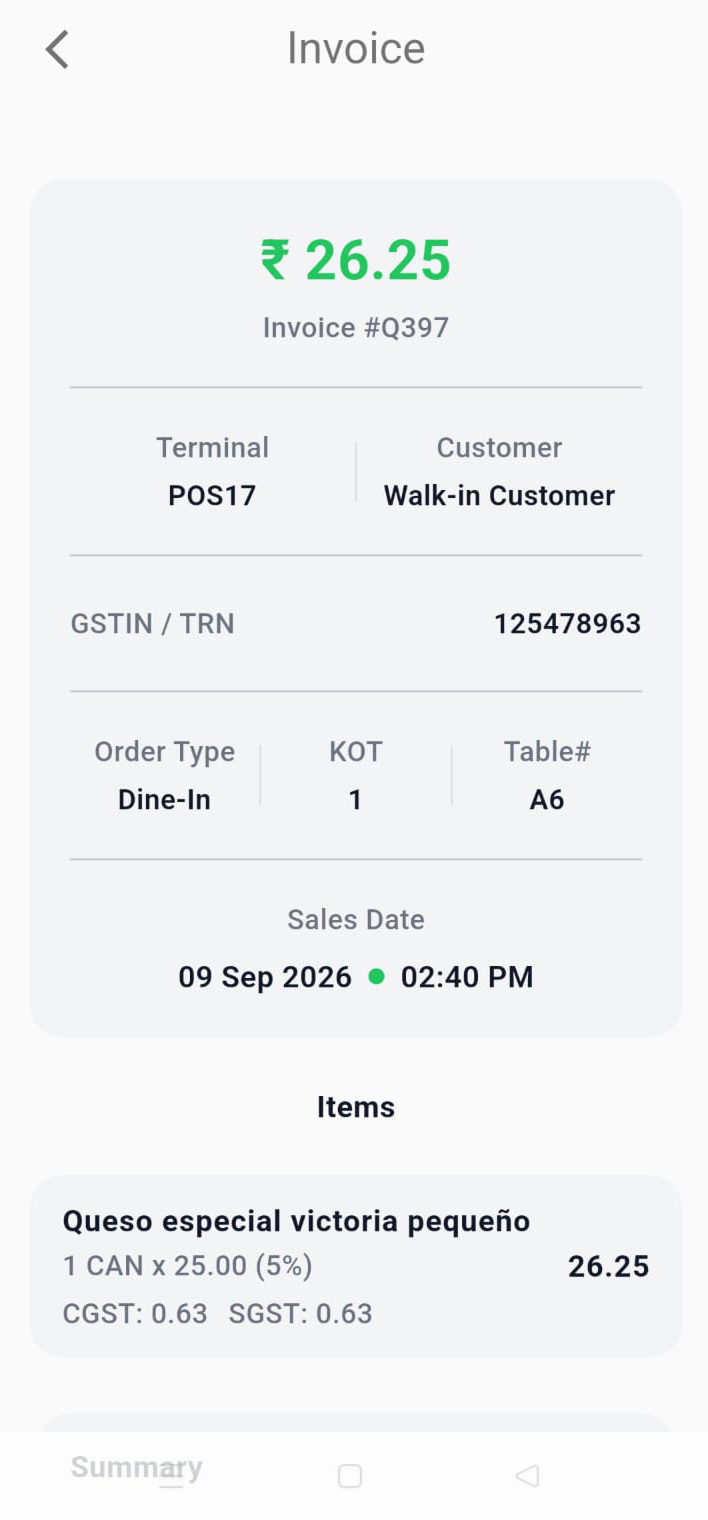
- Shows the complete itemised invoice, including customer, items, quantities, rates, taxes, and totals. Sales invoices can also be emailed to the customer.
Sales Details
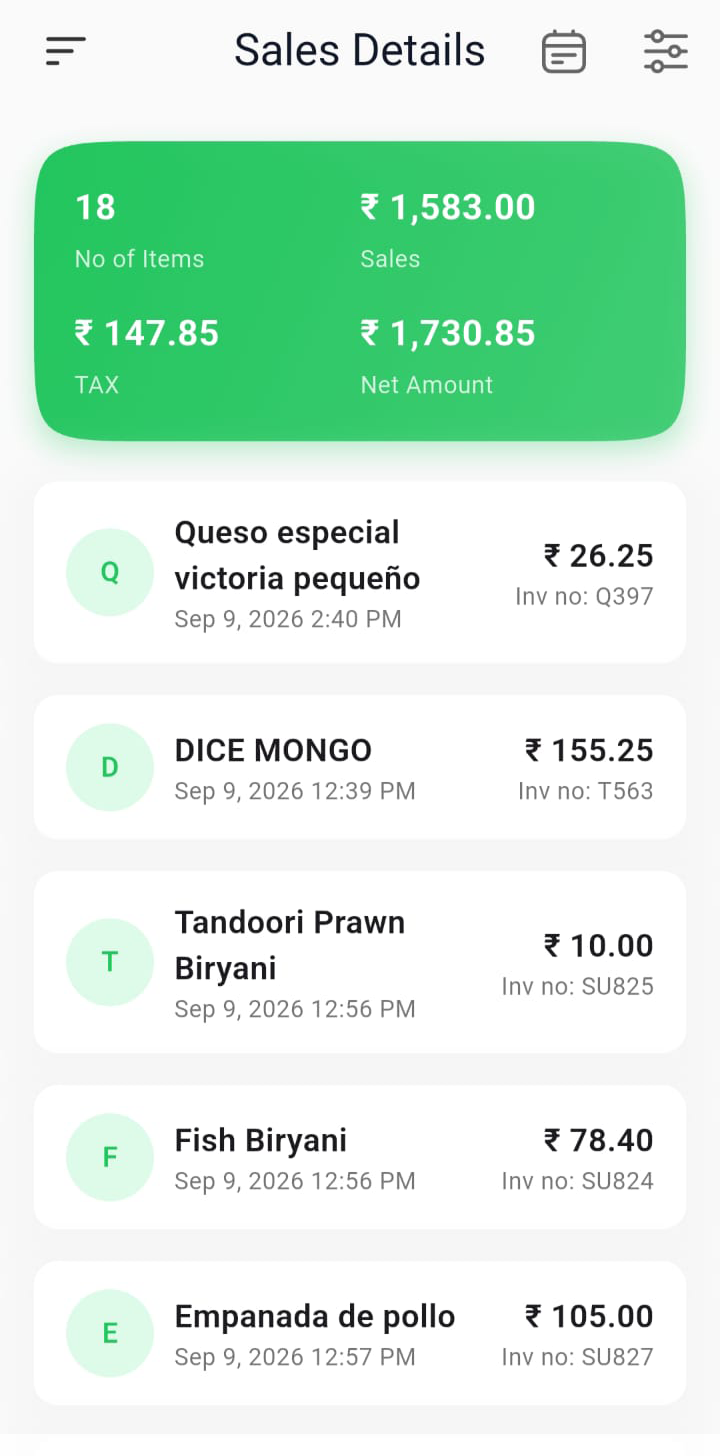
- Shows individual items sold with sales, tax, and net amount. Tap an item to view its details.
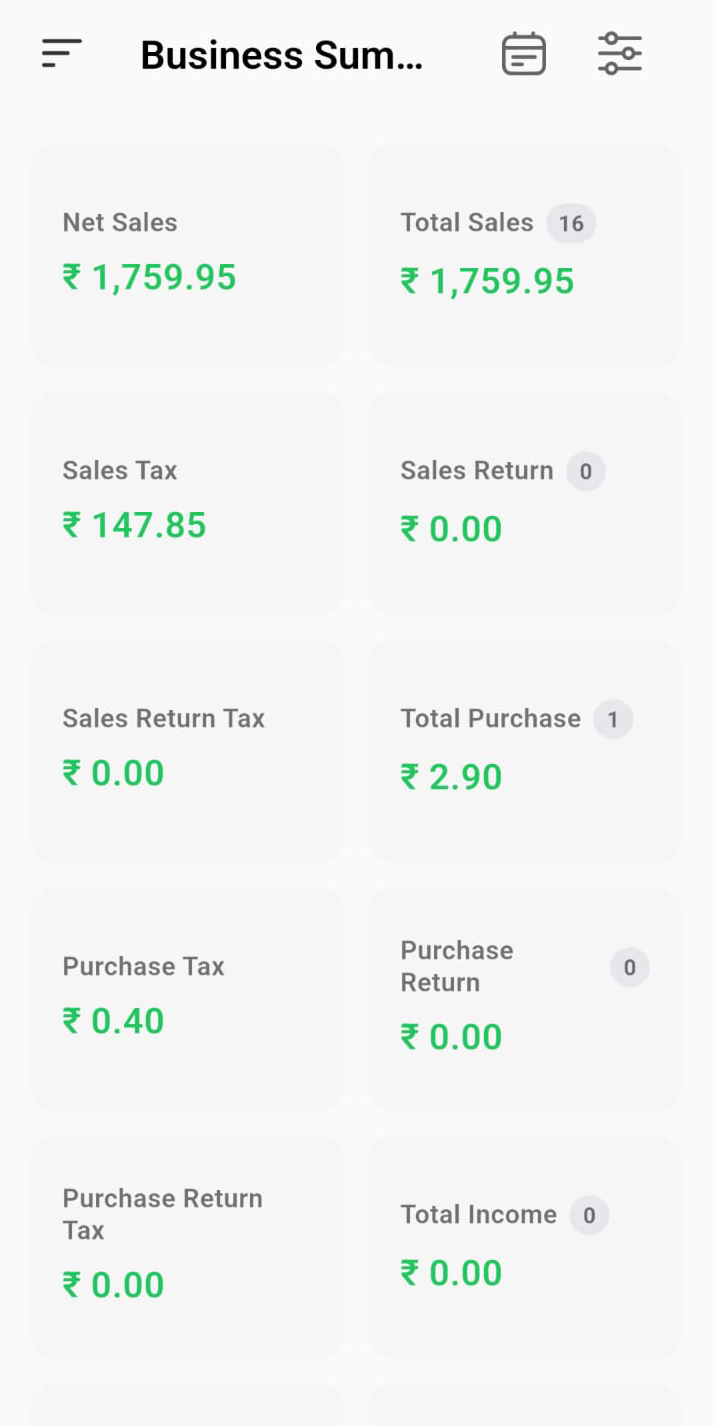
Business Summary
- Shows daily and period totals for sales, returns, purchases, income, expenses, cash in, and cash out.
Refunds
Lists sales refunds with total refund amounts. Tap a refund to view its payment, totals, tax, and invoice details.
Sales by Item
Groups sales by item to show sales value, quantity, tax, and profit.
Sales by Pay Types
Groups sales by payment method and shows total sales and refunds.
Sales by Group
Shows sales performance by product group, including quantity sold and total sales.
Sales by Employee
Shows sales performance by employee, including transaction count and total sales.
Sales by Brand
Shows sales performance by brand, including transactions, total sales, and average sale.
Sales by Order Type
Groups sales by order type, such as dine-in, takeaway, and delivery.
Sales by Tax
Shows sales and purchase amounts with the related tax amounts by tax rate.
Sales by HSN
Groups GST sales by HSN code, showing quantity, taxable value, and CGST/SGST.
Sales by Cess
Shows sales cess collected by cess type, including amounts, transactions, and store.
Sales by Charges
Shows charges applied to bills, including charge value, transactions, and total.
Sales by Discounts
Shows discounts applied to sales, including discount value, transactions, and total discount.
Sales by Store
Compares net sales across stores. Tap a store to view its complete sales breakdown.
Registers
Lists register sessions with login/logout times and closing cash. Tap a session to view cash movements, sales, refunds, and notes.
Day Registers
Lists business-day sessions with cash and sales totals. Tap a day to view cash movements, sales, and refunds.
Cancelled KOT Items
Lists cancelled KOT items with quantity, value, and the user who cancelled them. Tap an item to view tax, cess, cost, store, and terminal details.
Ask Lio (AI Assistant)
Ask questions about your business in plain language and get answers with charts, tables, or key figures. You can ask follow-up questions in the same chat, and your conversations are saved for later.
Connect Watch
Links a compatible Lithos watch to your account using a connection code. Enter the code shown on your watch and tap Connect to complete the pairing.
Reference — Shared Controls & Filters
Shared Controls & Filters (used across screens)
The common pickers and filters that most report and list screens share.
The same pop-up controls are reused across the app to narrow what you're viewing. They behave the same everywhere, so when another section mentions "the date range picker" or "the filter", this is what it means.
Key Features & How to Use:
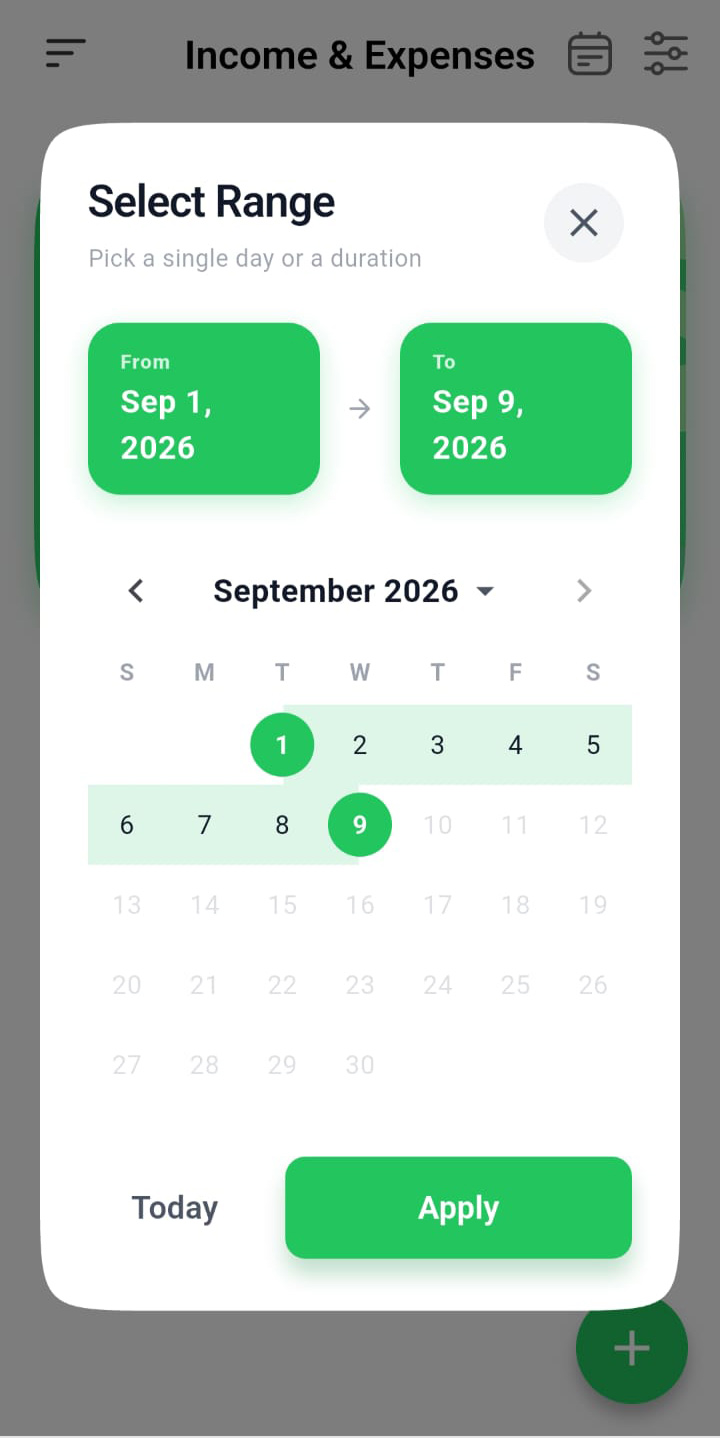
- Date range picker (calendar icon) — pick a single day, or tap a start day then a later day for a range (the days between highlight). Move months with the arrows, or tap the month/year title to jump to another year. Today resets to the current day; Apply confirms. There are no "Yesterday/This Week" preset buttons — only Today.
- Filter sheet (funnel icon) — a panel that slides up with the screen's filter fields (text boxes, dropdowns and tap-to-open selectors). A red "clear all" icon resets everything; Apply runs the filter.
- Stores — a searchable checklist with Select All / Deselect All to choose one or more locations.
- Customer / Supplier / Account — a search list; type to find a name, or choose All.
- Brand / Group — a searchable single-choice list; the current choice is ticked in green.
- Terminals and other multi-selects — a searchable checklist with Select All / Deselect All.
Connect with us to know more
To learn more about it feel free to book a meeting with our team
Was this article helpful?