
Unit Of Measurement [UOM]
Manage units of measurement (UOM) to accurately track, sell, and report inventory based on how each item is quantified.
In LithosPOS, managing Units of Measurement (UOM) is crucial for accurately tracking and selling your inventory items. You can select the appropriate UOM for each product to ensure that sales, inventory management, and reporting are aligned with how your products are quantified.
Add a New UOM
When adding a new item in the item window, if the Unit of Measurement (UOM) you need is not available in the drop-down list, you can easily create a new one. To do this, click on ‘+Add Unit’ in the drop-down list. You will then be prompted to enter the UOM, name, and specify the number of decimal points that will be used to represent quantities for this unit. Once saved, the new UOM will be available for selection when adding or editing items.
You can also add a new Unit of Measurement (UOM) from the back office. To do this:
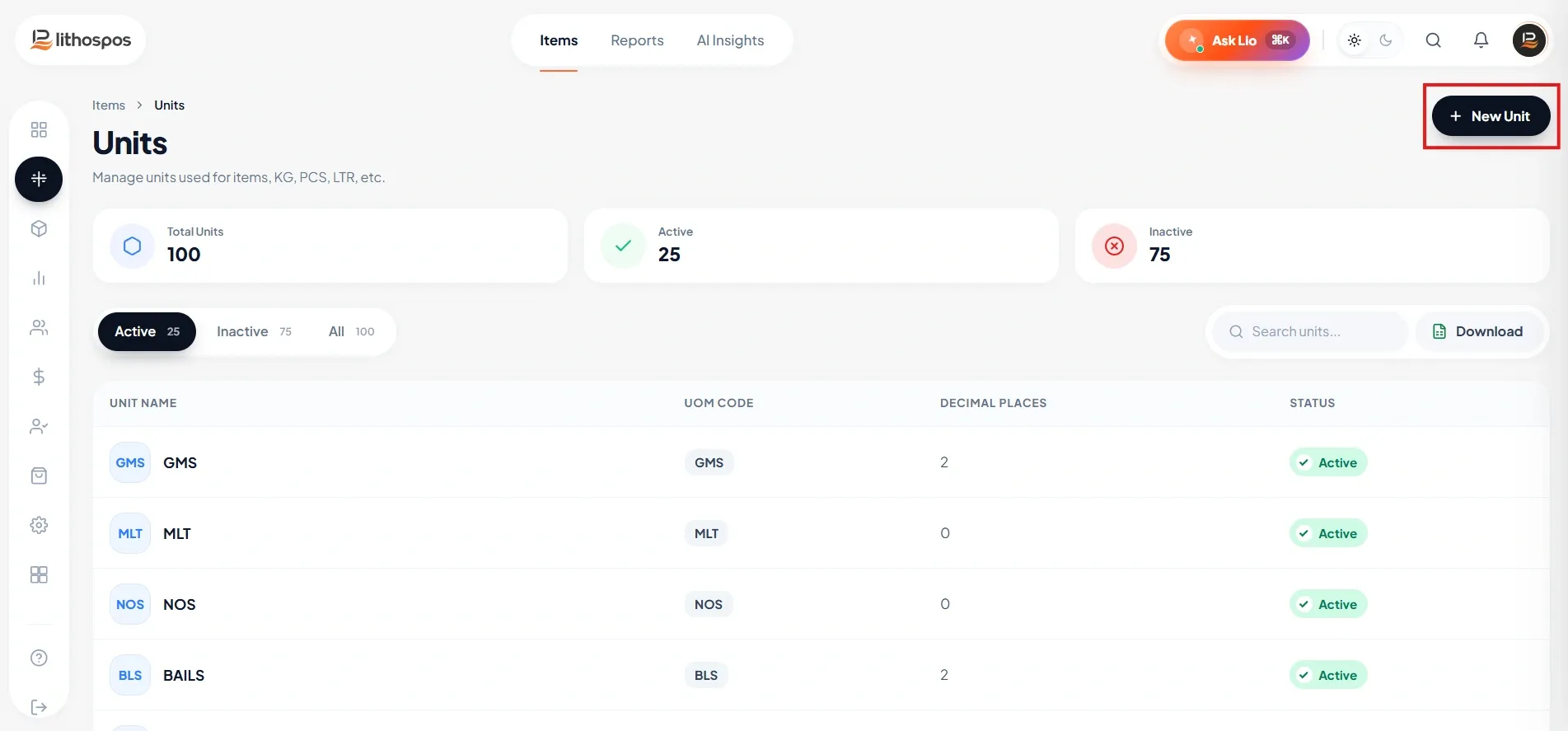
- Navigate to Items: Log in to the LithosPOS back office and go to the ‘Items’ section.
-
Access Units: Click on ‘Units’ to manage your UOMs.
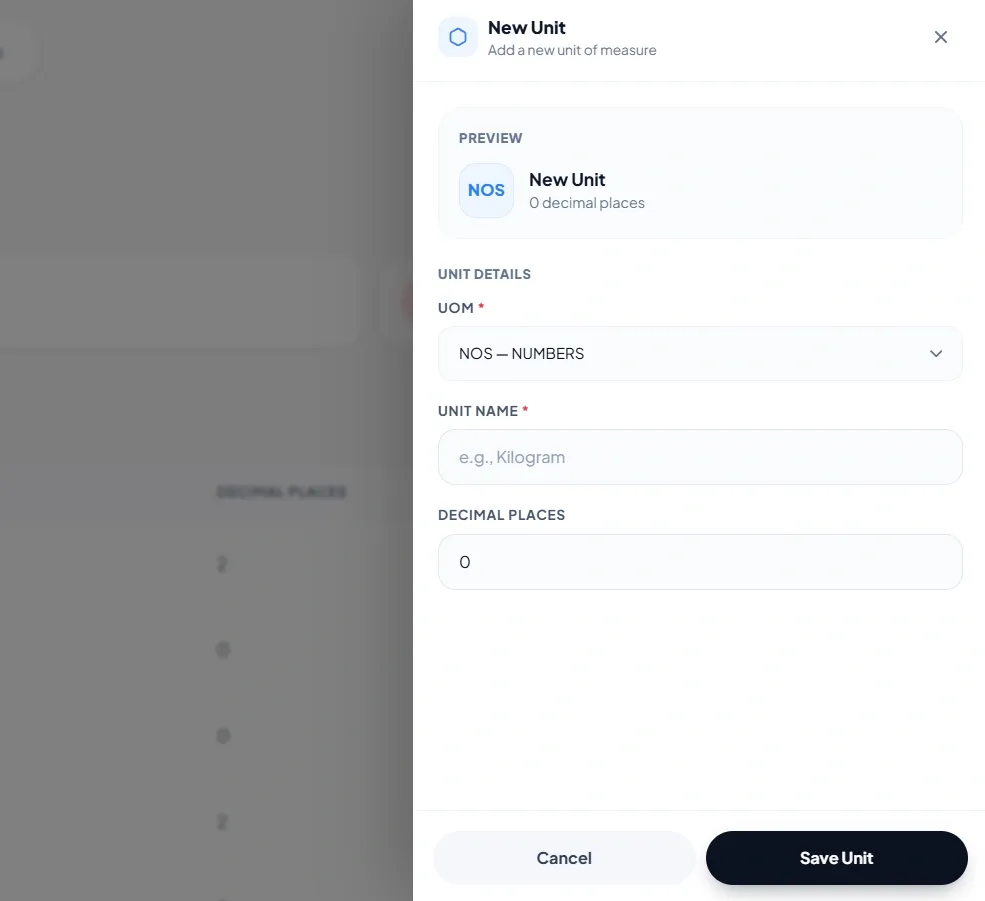
Add a New UOM
- Click on the ‘+Add Unit’ button.
- Search and select the UOM Type.
- Enter the required details such as the UOM name and specify the number of decimal points that will be used to represent quantities for this unit.
- Once you’ve entered the details, click ‘Save.’ The new UOM will then be available for selection when adding or editing items in your inventory.
Managing UOMs
-
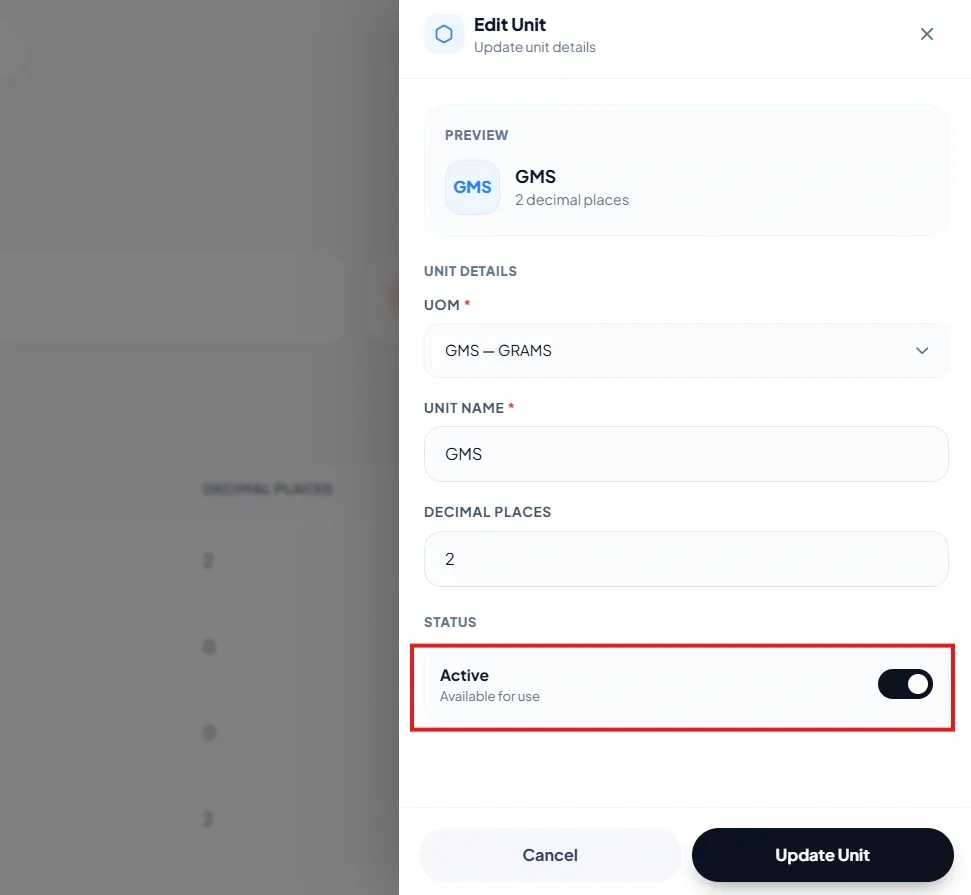
Activate and Deactivate UOMs: Similar to categories, you can activate or deactivate UOMs based
on your needs. To do this, access Items then click units to go to the UOM management screen, select the
desired UOM, and toggle the ‘Active’ button to enable or disable it. Click ‘Submit’ to apply the
changes.
- Select a UOM for an item: Choose the desired UOM from the drop-down list. LithosPOS supports various units such as kilograms, numbers, liters, gallons, pieces, and more.
Connect with us to know more
To learn more about it feel free to book a meeting with our team
Was this article helpful?