
Xero mapping and what a day posts
Map a store's sales, charges, taxes and payment types to your Xero chart of accounts and tax rates, choose how sales are split into invoice lines, and see how a closed register appears in Xero.
Mapping tells LithosPOS where in your Xero chart of accounts each kind of money a register takes is recorded, which Xero tax rate each LithosPOS tax uses, and which bank or clearing account each payment type is paid into. Open the store from Integrations > Xero and go to Mapping.
This page assumes the store is already connected. See Xero Integration to connect a store.
What a register posts
Each closed register posts:
- Sales invoice
LPOS-<store>-<register>— an authorised invoice to the LithosPOS Sales contact, when the register has sales. The amounts are tax exclusive and every line carries the tax the till charged. - Payments on the invoice — one per payment type, into the bank or clearing account mapped to it. The part no payment covered (on-account sales, lottery payouts) is paid into the Unsettled / suspense account, so the invoice is always fully paid.
- Credit note
LPOS-<store>-<register>-CN— when the register has active returns, with one refund per payment type.
The invoice holds:
- Sales — one line per item group and tax rate (Sales: Coffee (VAT 20%)) or one line per tax rate (Sales (VAT 20%)), net of every item, promotion and bill discount. With Show discounts as their own line, sales are posted before discounts and the discounts are one negative Discounts line.
- Charge: … — one line per delivery, service or other charge.
- Tips, Gift vouchers sold and Card surcharge, each on its own account.
- Rounding — the bill round-off, plus any difference of a few cents between the lines and the register total.
The reference on every document names the store, the terminal and the business date. Voided bills and inactive returns are left out, and cash handed over above the bill is treated as change.
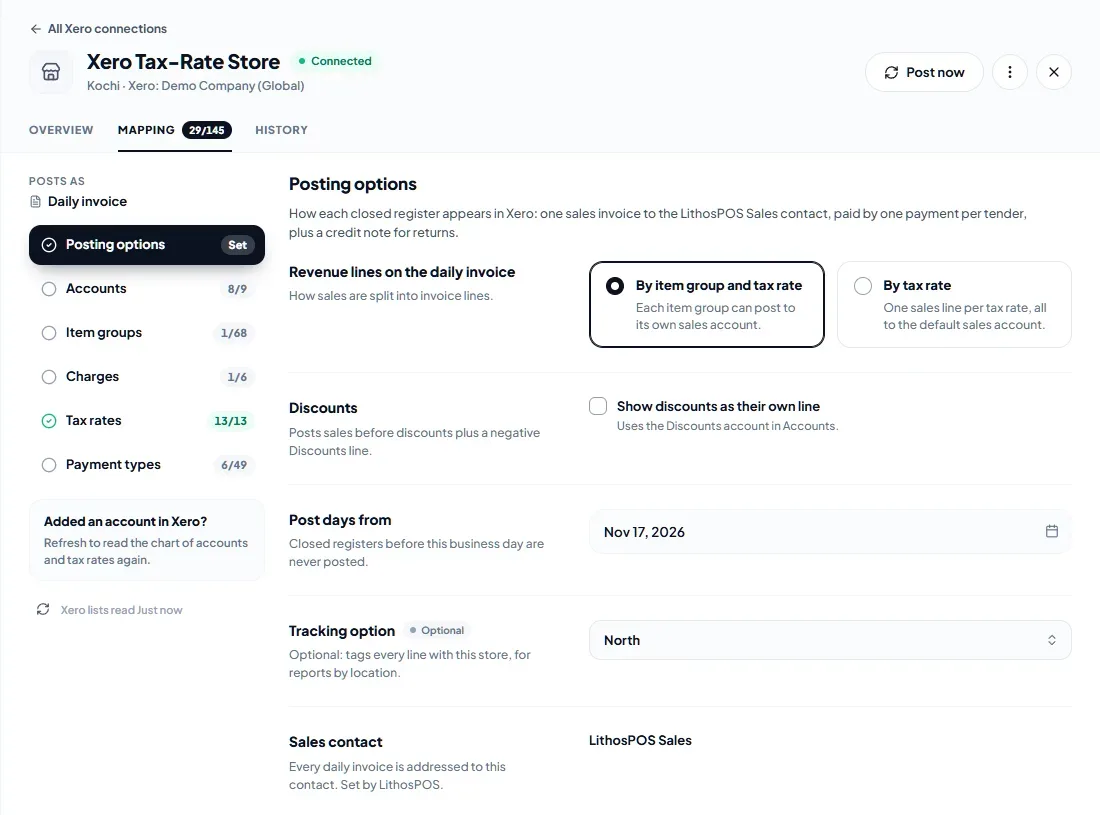
Posting options
- Revenue lines on the daily invoice — By item group and tax rate lets each item group post to its own sales account. By tax rate posts one sales line per tax rate, all to the Default sales account.
- Discounts — turn on Show discounts as their own line to post sales before discounts with a separate Discounts line. It needs the Discounts account.
- Post days from — closed registers whose business day is before this date are never posted.
- Tracking option — optional. Choose a Xero tracking category option (for example Region: North) to tag every line the store posts, for reports by location.
- Sales contact — every daily invoice is addressed to LithosPOS Sales. LithosPOS sets it up in Xero.
Accounts
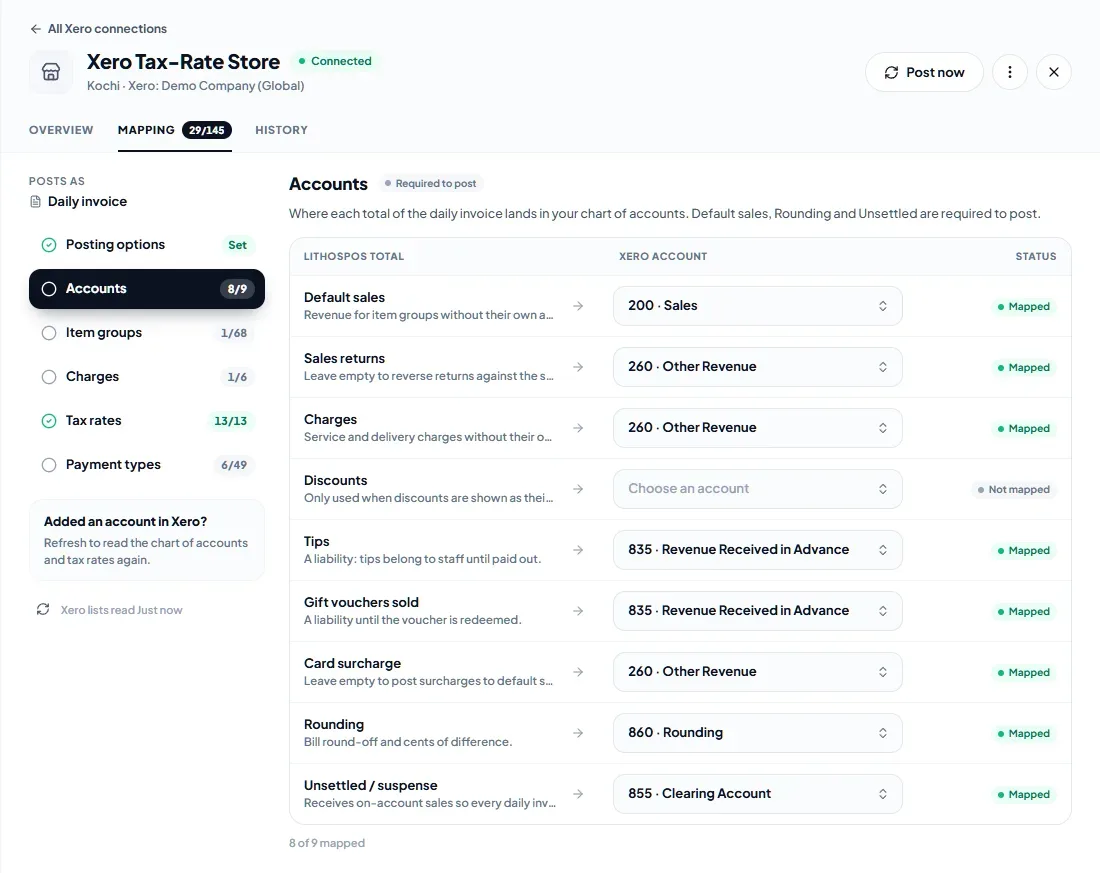
Where each total of the daily invoice lands in your chart of accounts. Default sales, Rounding and Unsettled / suspense are required to post.
- Default sales — revenue for item groups without their own account.
- Sales returns — leave empty to reverse returns against the sales accounts.
- Charges — service and delivery charges without their own account.
- Discounts — only used when discounts are shown as their own line.
- Tips — a liability: tips belong to staff until paid out.
- Gift vouchers sold — a liability until the voucher is redeemed.
- Card surcharge — leave empty to post surcharges to default sales.
- Rounding — bill round-off and cents of difference. LithosPOS suggests the account Xero uses for rounding.
- Unsettled / suspense — receives on-account sales so every daily invoice is paid. It must accept payments.
Item groups
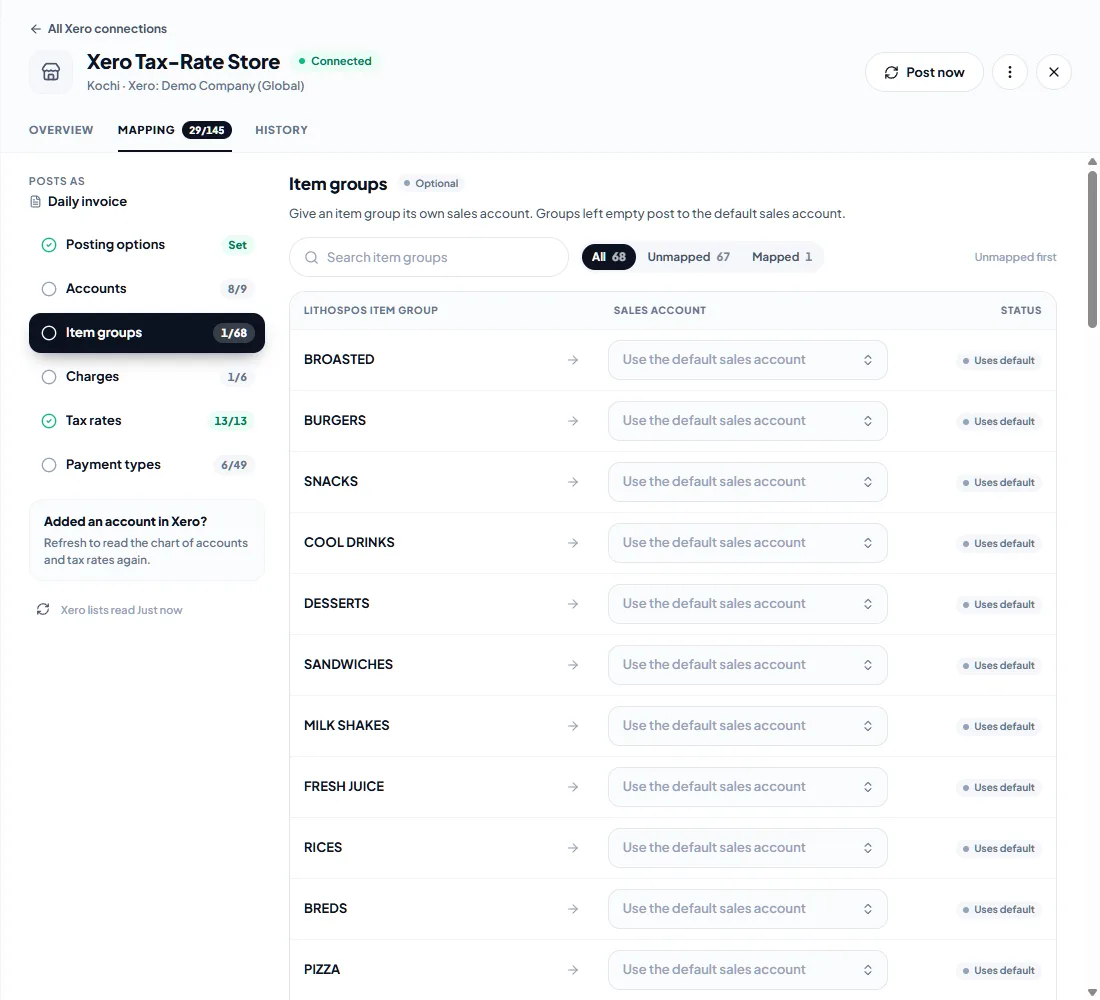
Give an item group its own sales account. Groups left empty post to the Default sales account. This section is used only when revenue lines are posted By item group and tax rate.
Charges
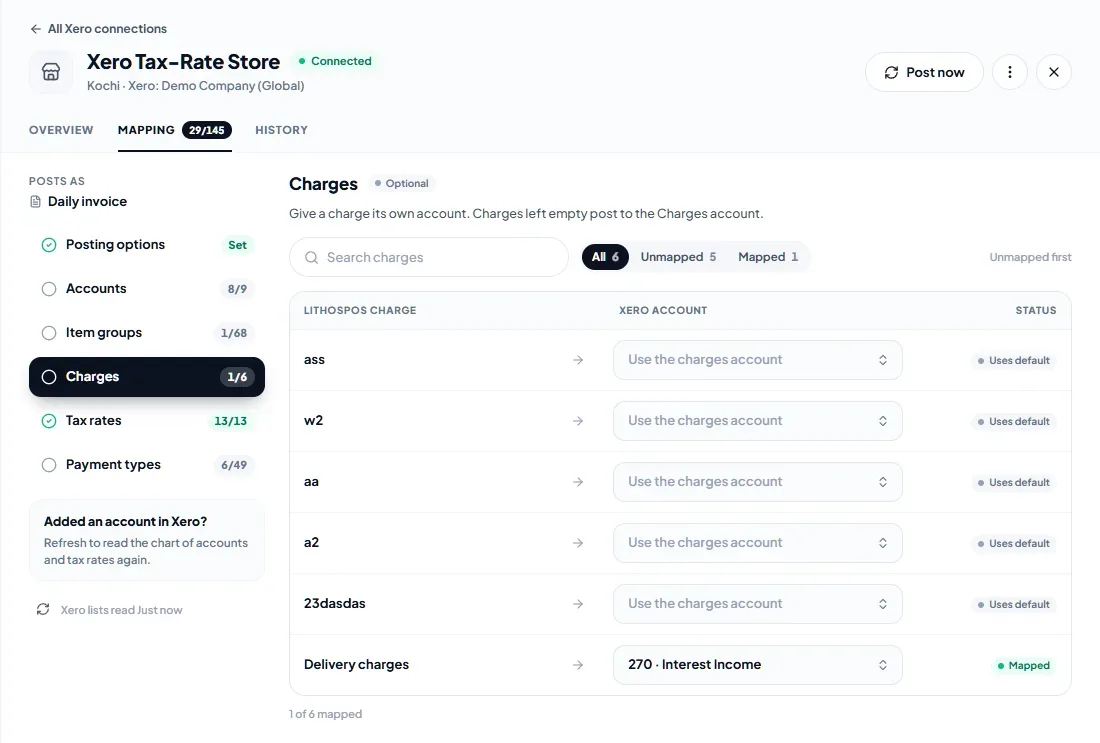
Give a charge its own account. Charges left empty post to the Charges account.
Tax rates
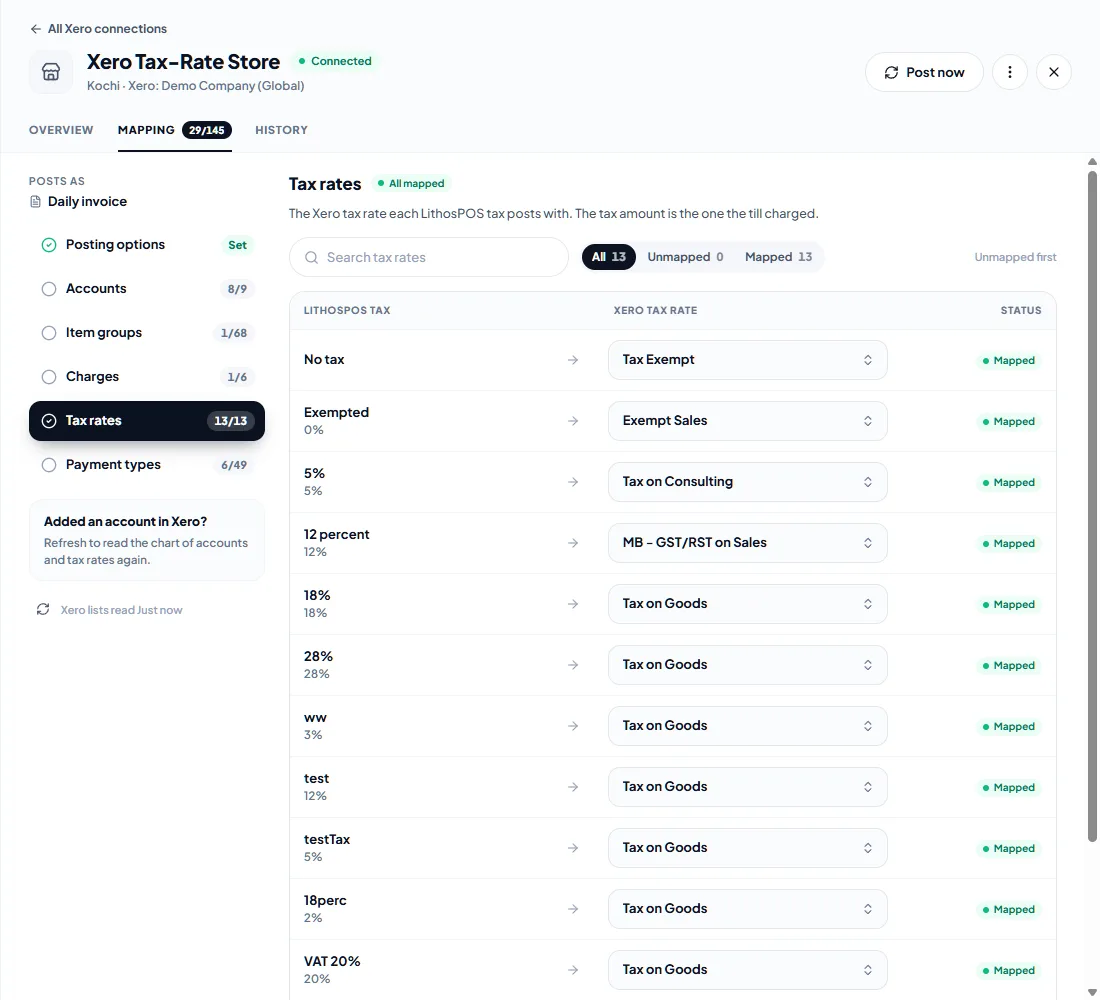
The Xero tax rate each LithosPOS tax posts with. Each Xero rate shows its percentage; pick one with the same rate as the LithosPOS tax. The tax amount on every line is the one the till charged, so Xero does not recalculate it. No tax is the rate used for tips, gift vouchers and rounding.
Payment types
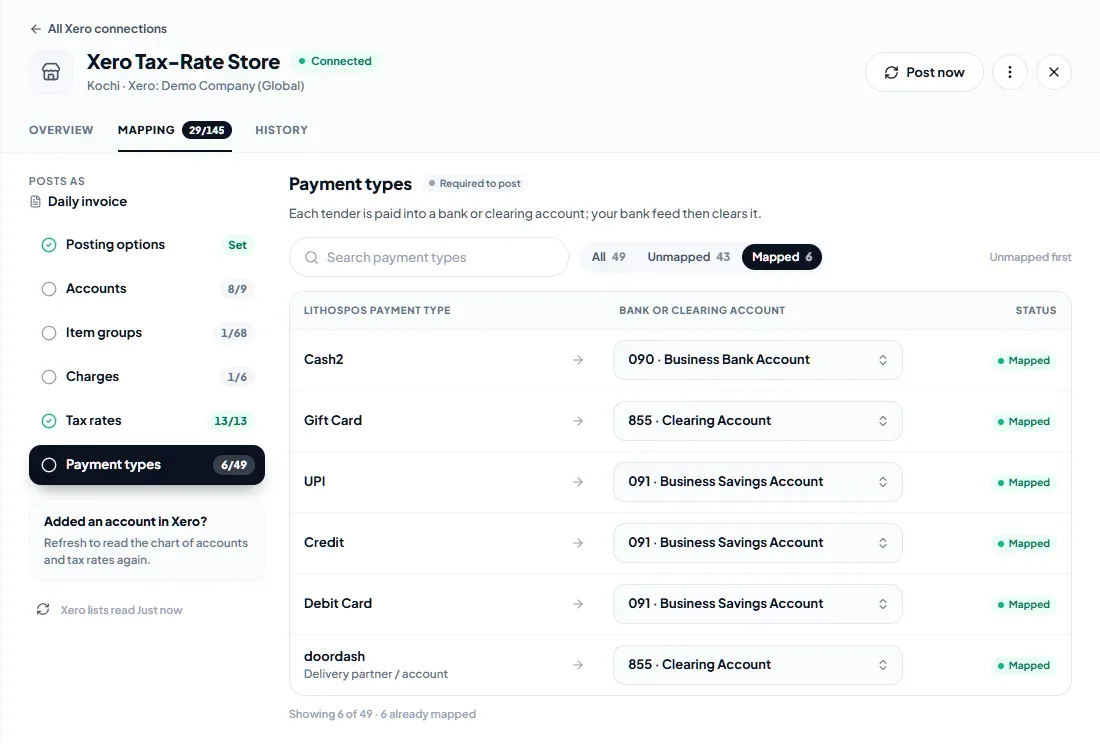
The bank or clearing account each payment type is paid into. Only accounts that can receive payments are offered: accounts of type Bank, and accounts with Enable payments to this account turned on in Xero. Delivery partner accounts such as Uber Eats or DoorDash that have taken a payment at the store are listed too.
A payment type that the store has used but that is not mapped is marked Required, and a register paid with it waits until it is mapped.
Save and keep it current
- Pick values and click Save changes in the bar at the bottom. Discard drops the changes.
- Required to post on a section means a register that needs it is held until it is set. Nothing is lost: once you save, held registers post on the next automatic run.
- Added an account or tax rate in Xero? Click Refresh next to Xero lists read to read the chart of accounts and tax rates again.
- An account that was archived or deleted in Xero shows Not valid in Xero. Pick another one.
Was this article helpful?