
Composite Items
Create and manage bundled products by combining multiple inventory items and selling them as a single unit.
A composite item is a bundled product that combines different items already available in your inventory, allowing you to sell them as a single unit. This feature simplifies the sales process for products that are often sold together, such as meal combos in a restaurant or gift sets in retail. Instead of managing each component individually at the point of sale, you can streamline the transaction by offering the composite item, making it easier for customers to purchase and for staff to process.
From an inventory management perspective, composite items provide significant advantages. When a composite item is sold, the system automatically deducts the corresponding quantities of each individual item from your inventory. This ensures that your stock levels remain accurate without the need for manual adjustments, reducing the risk of errors. Additionally, since composite items do not maintain separate inventory, you can focus on managing the stock of individual components, leading to more efficient inventory control and better visibility into your overall stock levels.
Adding Composite Items
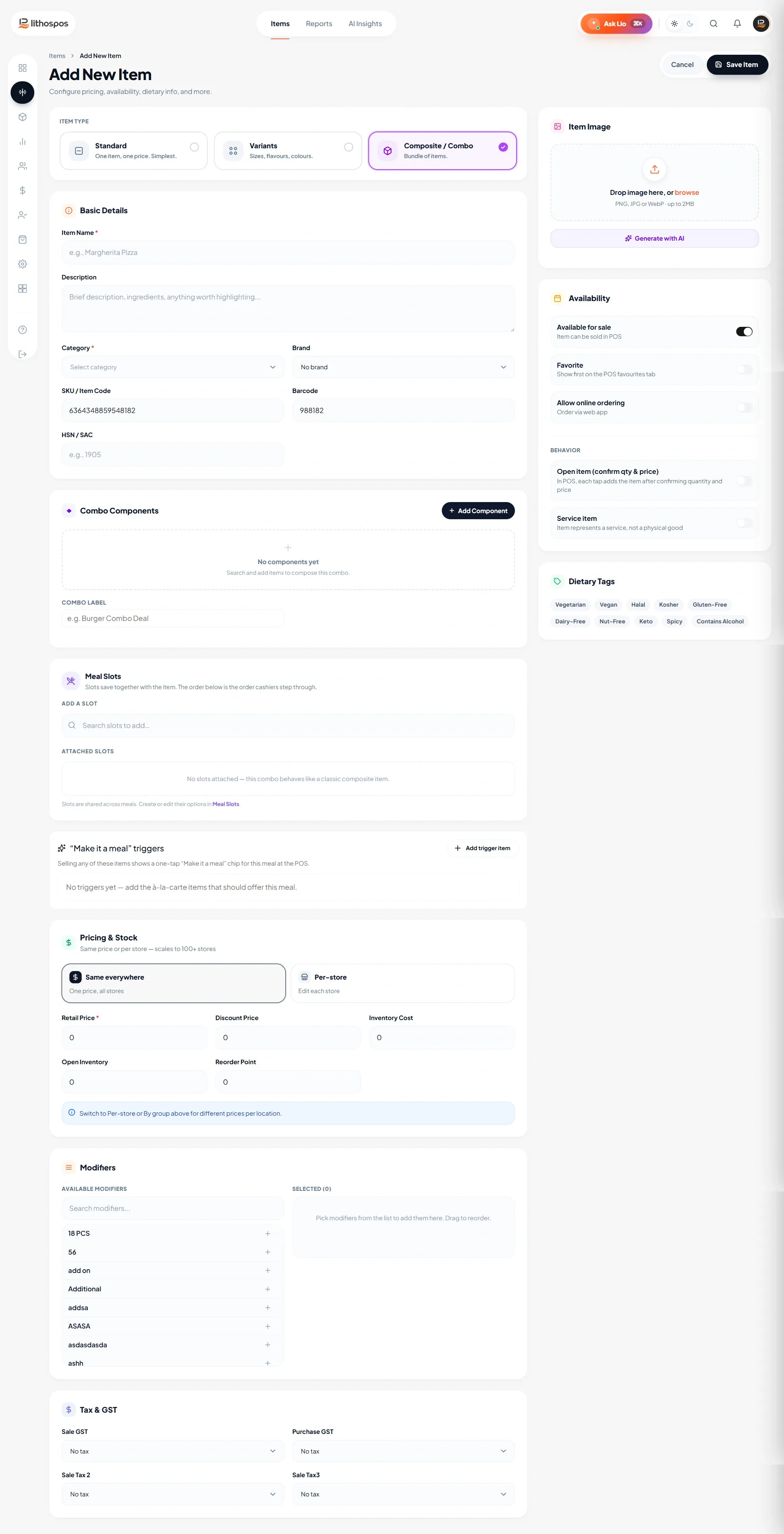
- Click on 'Items' followed by 'Add Item' then Click on the Composite item.
- Name: Give a name to Combo in the ‘Item’ column.
- Category: Then, select a category from our current list of categories Or add a new one if necessary. These categories will make it easier to identify and organize items in the POS and item library.
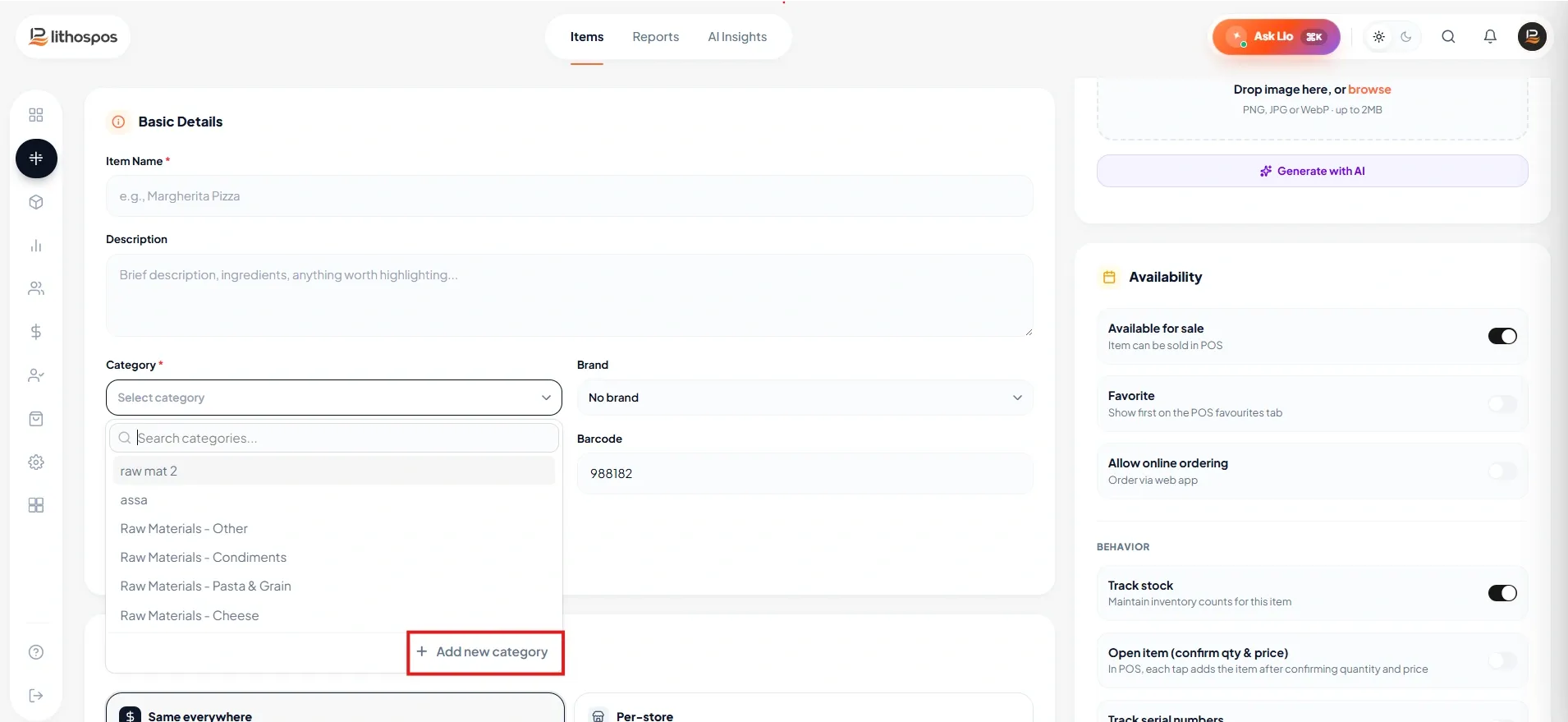
- Unit: Select a Unit Of measurement for the product in the ‘Unit’ column. You can add a new UOM If
required by clicking on ‘+Add Unit’ in the drop-down list, In LithosPOS, you can sell items in various
units of measurement (UOMs) such as kilograms, numbers, liters, gallons, pieces, and more.
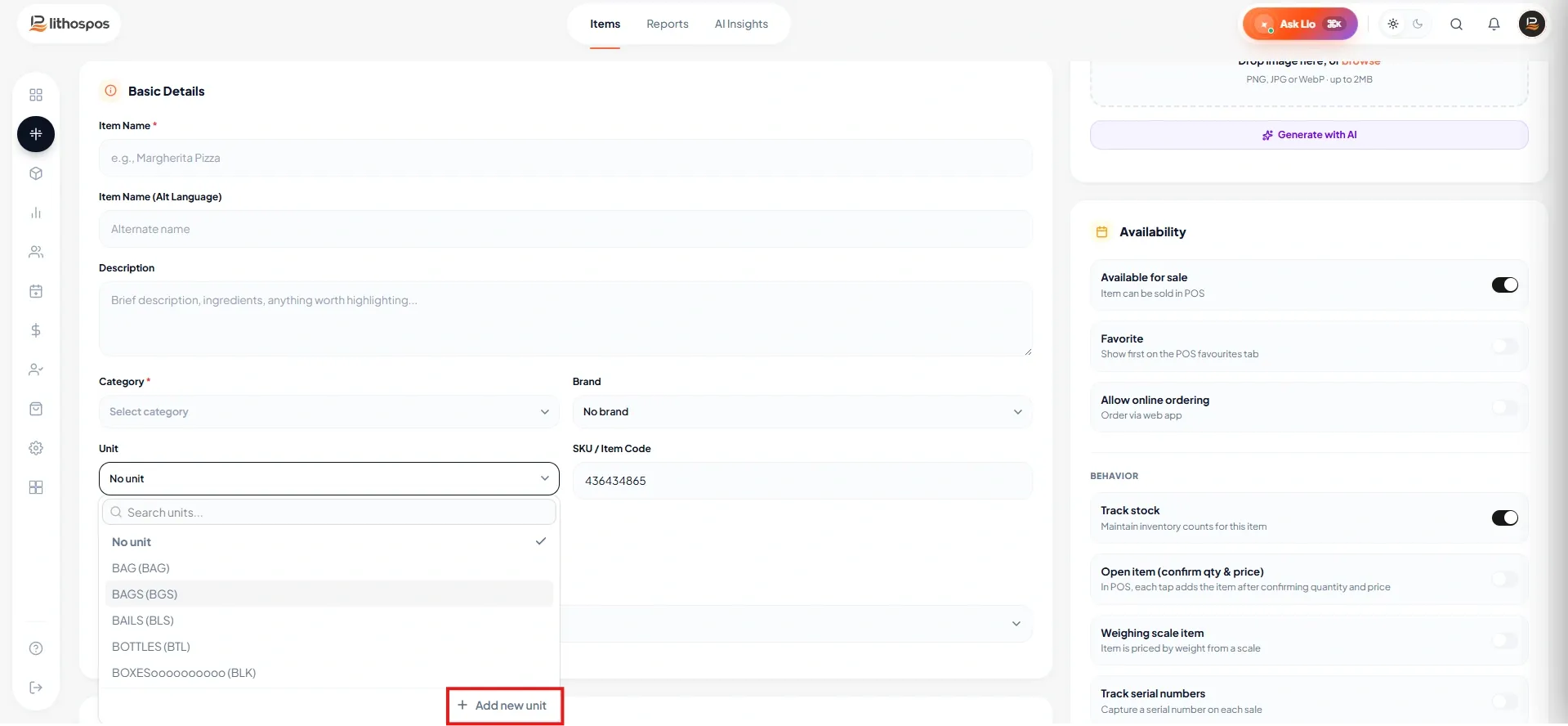
- Item second Language: In this column you can add item name in second language to display multiple name in the POS.
- Enter the Description
- SKU: LithosPOS automatically generates an SKU Code, but you have the option to edit this if required.
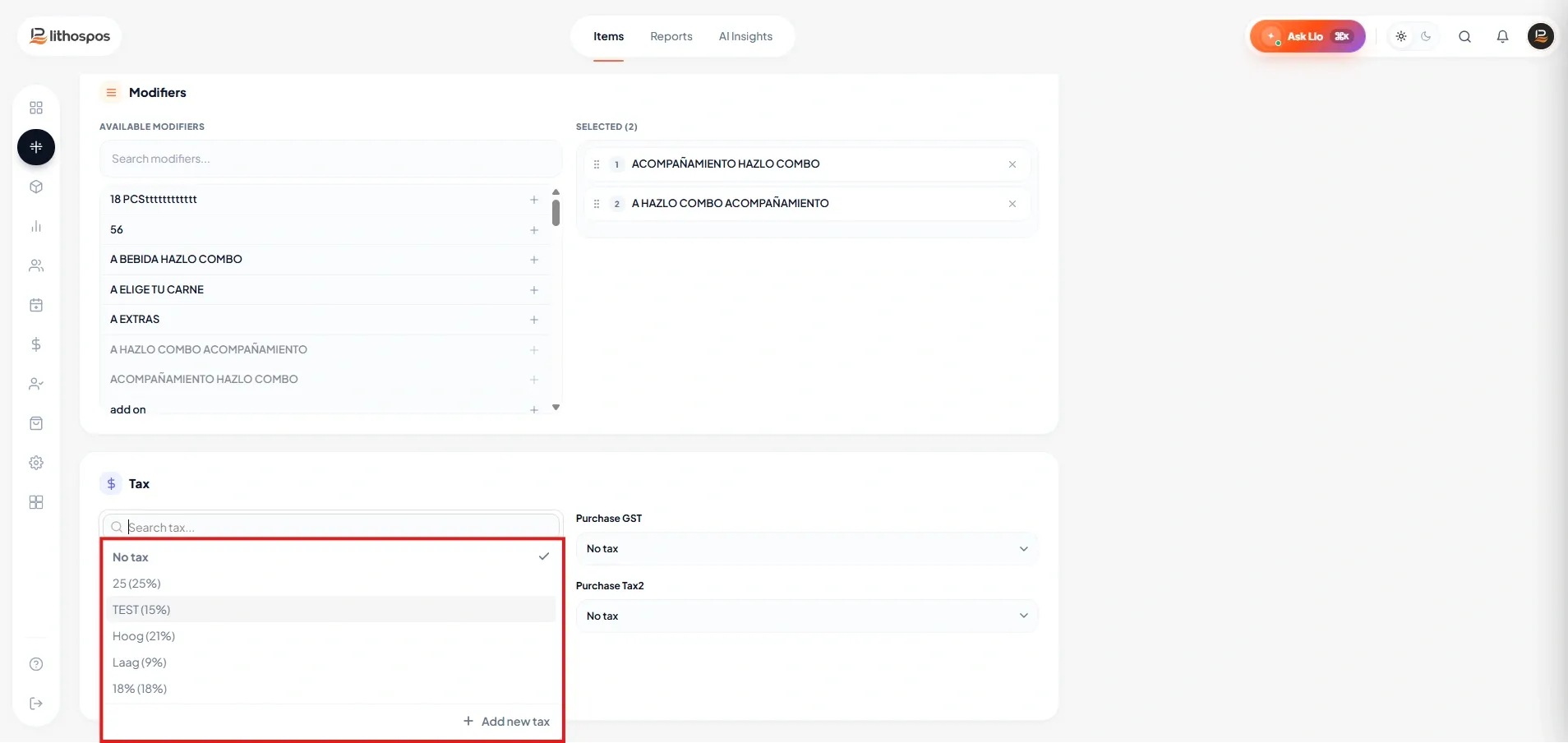
-
Tax: Select appropriate sales taxes/purchase taxes for the product or add new Tax. You can add a
new tax if required. You can add multiple taxes for an item in LithosPOS.
- Enter the HSN
- Brand: Select the brand for the product to get brand-based inventory and sales reports. You can add a new brand by clicking on “+Add Brand” then enter a brand name and submit.
- Modifiers: If you want to assign modifiers to this item select the already added modifiers from the list.
- Adding Image: Next, add an image to your product so employees and online customers have a visual reference for the item. The image size must be within the specified limit. [256x256, 64 KB]
- Price: The item price details and various inventory details for each store are listed below.
- Retail price & markup: Enter the cost of the item, then enter either the markup or the retail price the subsequent column will be auto-calculated. Here the automatic markup calculation can be disabled in settings, to do that go to settings>general setting>navigate to features then toggle off the “Markup Automation” button, and click save.
- Minimum Retail Price: Input a minimum retail price to prevent underselling. The system will block any attempt to sell an item below this price.
- Activate: The toggle buttons against each store can be used to activate or deactivate an item in that particular store.
Customization
Customize your item using these toggle buttons.
- Track stock: Enable this option to mark the item as stockable and maintain its inventory quantity. A stockable item is an item whose available quantity is tracked in inventory.
- Salable: The 'Salable' button determines if the item can be sold. You can add non-salable items, such as ingredients used in combo dishes, to your inventory.
- Weighing scale: If this item requires a weighing scale toggle on the weighing scale button.
- Serial number tracking: For items requiring serial number tracking toggle on the Serial Number Tracking button.
- Weight Item: If it is a weight item, turn on the Weight Item button. Doing this will open a pop-up keyboard in the POS to enter the weight when adding this item to the sales cart.
- Favorites: Designate items as 'favorites' for quick access on the POS screen. Adding frequently sold items as favorites allows for faster and easier access during transactions.
- Veg: If it is a vegetable item toggle on the ‘Is Veg’ button.
- Online sale: Enable 'Online sale' to allow the item to sell online
- Service: Activate the 'Service' button to mark the item as a service.
- EBT: Then, turn on the EBT option if the item can be sold under EBT, which is only applicable in the US.
- Save: Finally save the item.
Connect with us to know more
To learn more about it feel free to book a meeting with our team
Was this article helpful?