

 LithosPOS
Connect Your Grubtech Account With LithosPOS
Integrating grubtech with LithosPOS allows you to sync your online orders, menus, and outlet operations seamlessly. Orders placed via Grubtech will be sent directly to the POS, where you can generate order reports accordingly. Grubtech sales reports can be generated from both the POS and the back office. You can filter sales by Grubtech [aggregator], manage items and categories, and send payments to Grubtech accounts.
To Set up Grubtech in Back Office Settings
- Go to Back office settings and click on Aggregators.
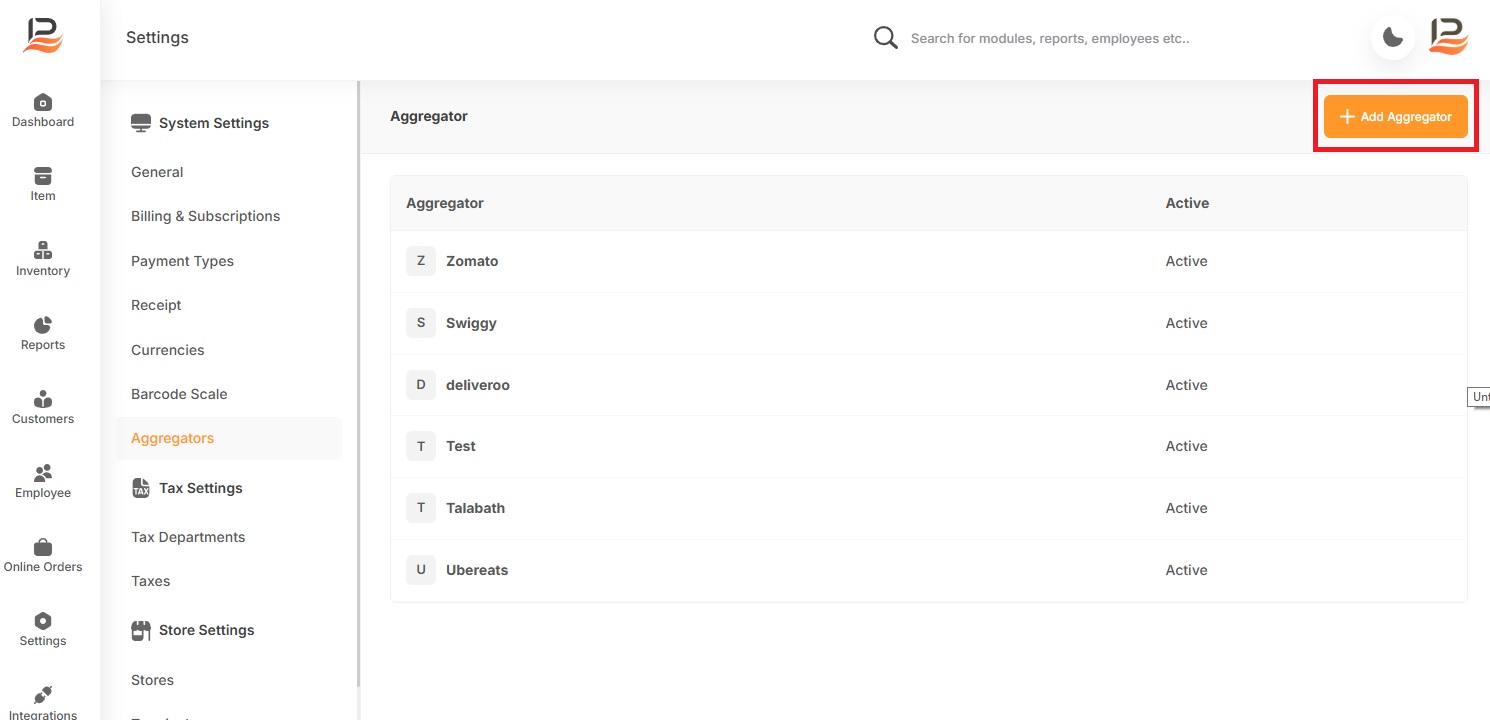
- Click on the ‘+Add Aggregator' button.
-
Enter the aggregator name, followed by choose the Grubtech from the type List.
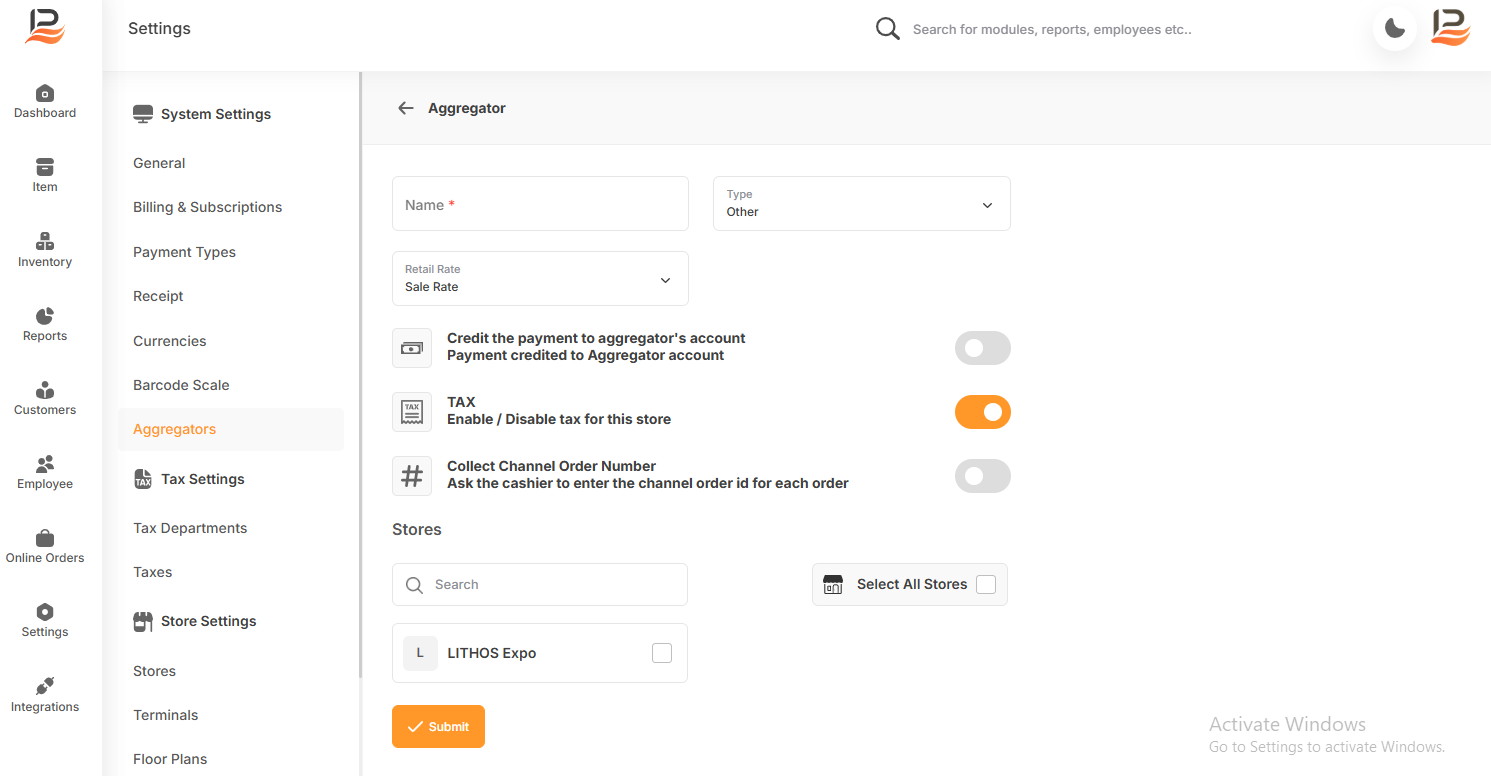
- Then select the rate.
- Enable the first button to credit the payment to the Grubtech account.
- Activate the Tax button to enable tax.
- If you enable the ”Collect channel order number” the system will ask the cashier to enter the channel order ID for each order. This will ensure accurate tracking and matching of orders with their corresponding transactions on the Grubtech platform, streamlining reconciliation processes
- If you have multiple stores, assign those stores to Grubtech by selecting the stores from the following lists of stores.
- Finally, click submit.
Grubtech Installation
- Start by navigating to the Integrations section.
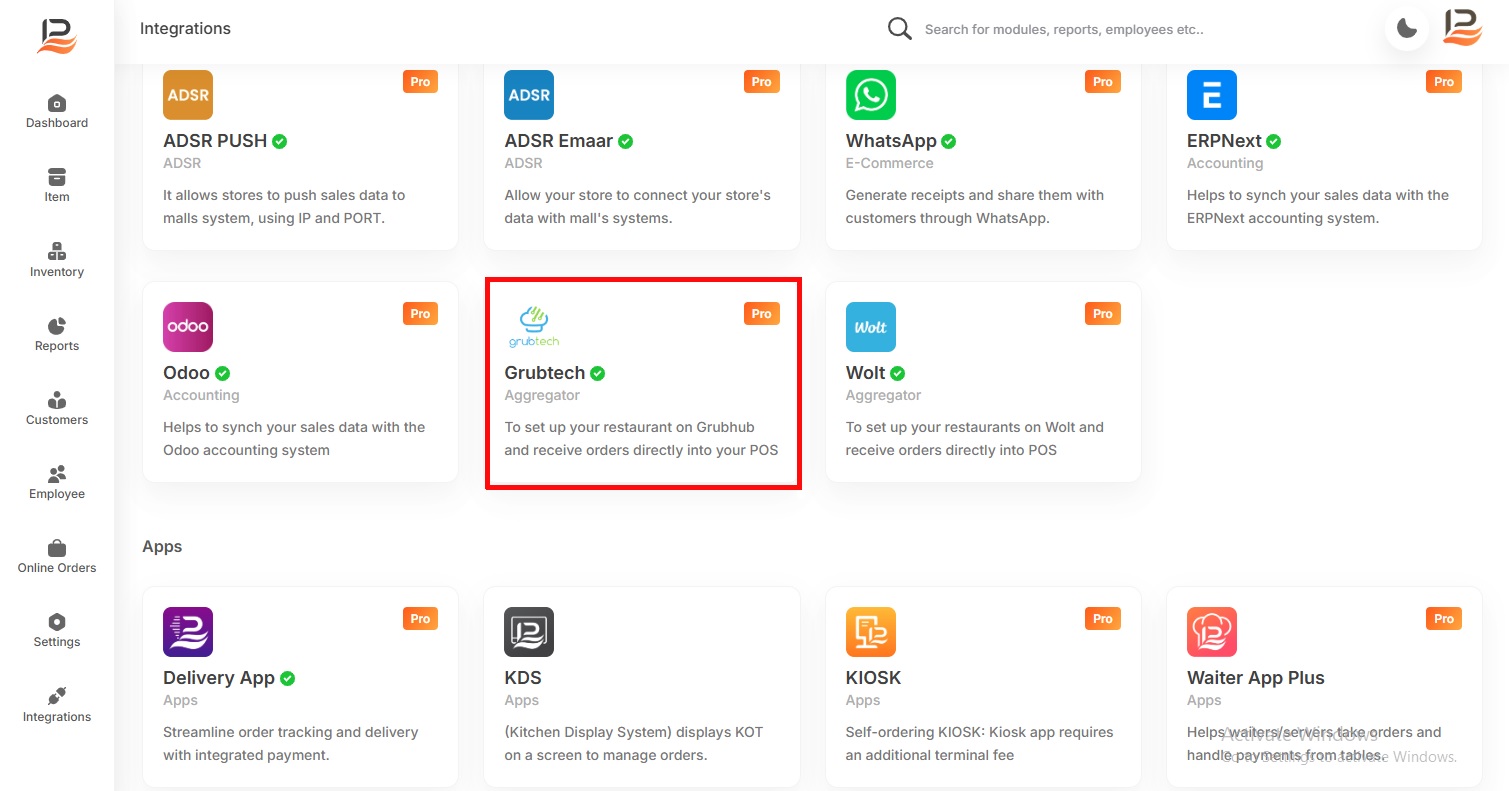
- Click on the Grubtech and click 'Install Now'.
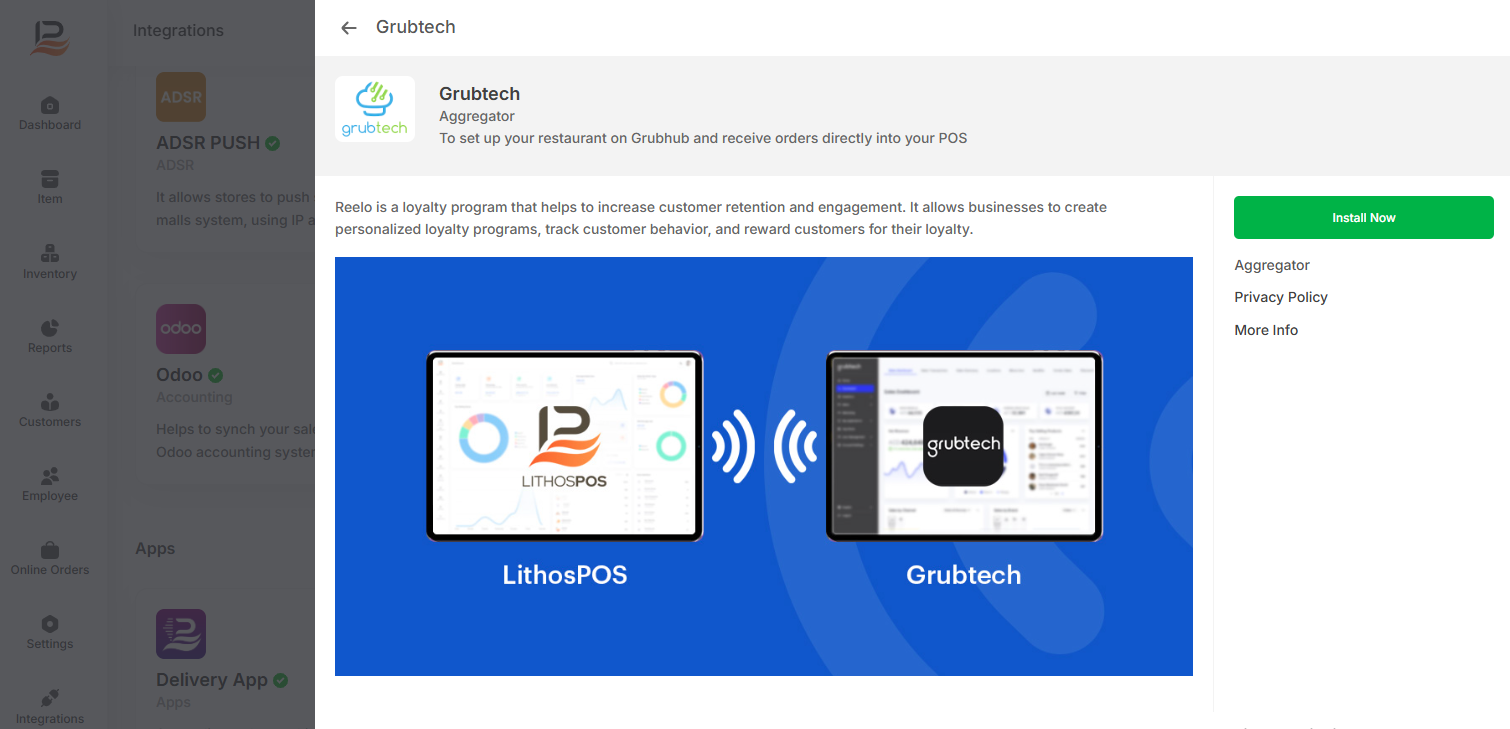
- Then click on ‘+New connection” to add a new connection.
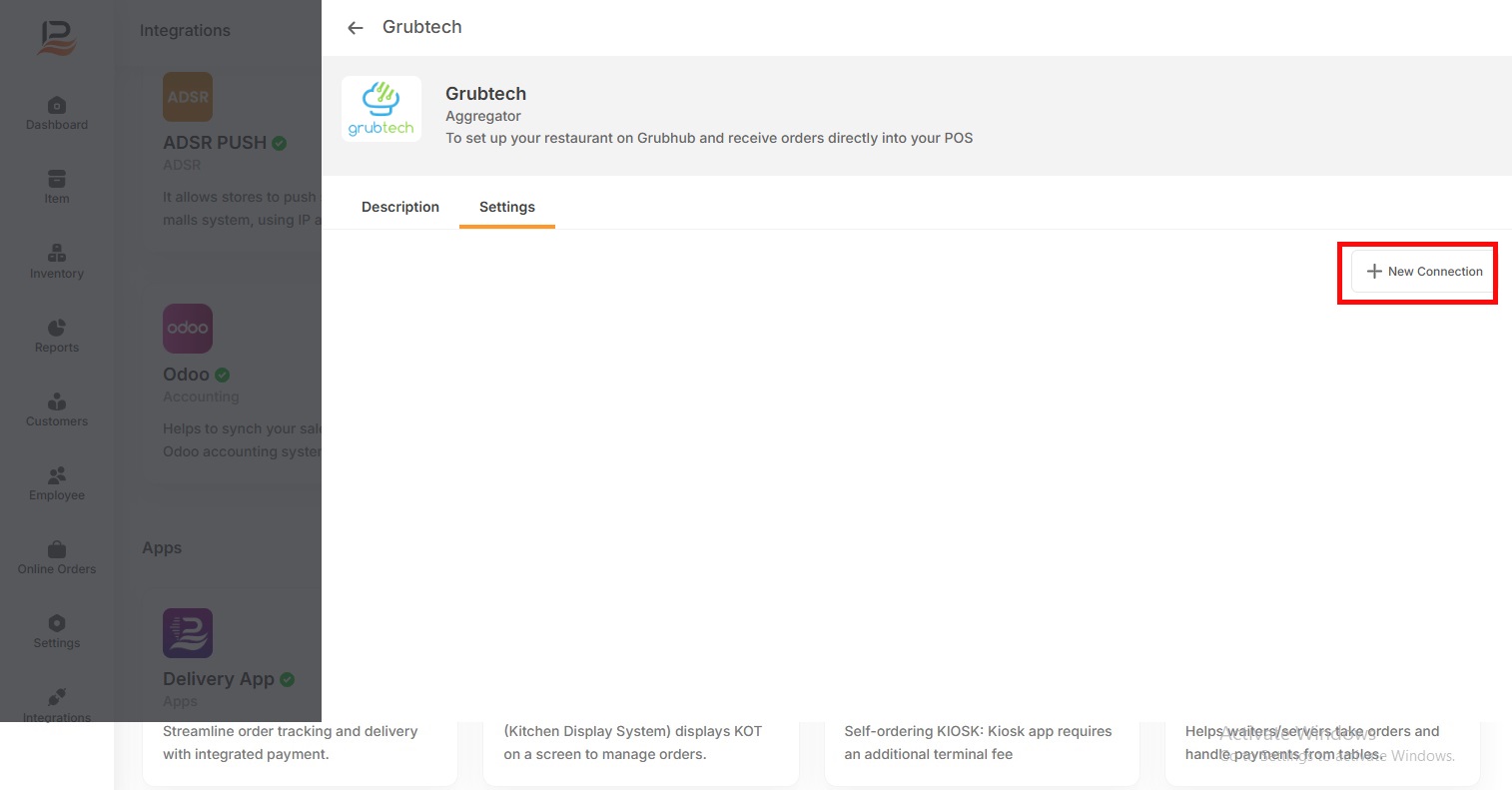
- Enter Grubtech store ID
- Enter Grubtech service ID
- Select the store to which you want to connect this aggregator.
- Select Grubtech from the list.
- Enable Auto accept if you want to accept the orders from the grubtech automatically.
- Copy the Grubtech webhook URL and click on Submit.
Your Grubtech account is ready to accept orders.
Connect with us to know more
To learn more about it feel free to book a meeting with our team