

 LithosPOS
Dejavoo Payment Platform
Dejavoo is a payment solution that enables merchants and applications to process card payments using payment terminals and cloud-based services. It is commonly used in retail POS systems, kiosks, and custom business applications. At a high level, Dejavoo supports two ways of working:
- Terminal-based payments (P2P / local)
- Cloud-based payments (remote / hosted)
Both methods ultimately route transactions through the iPOSpays payment gateway, which handles authorization, settlement, and security.
-
Backoffice Configuration
- Log-in to the back office.
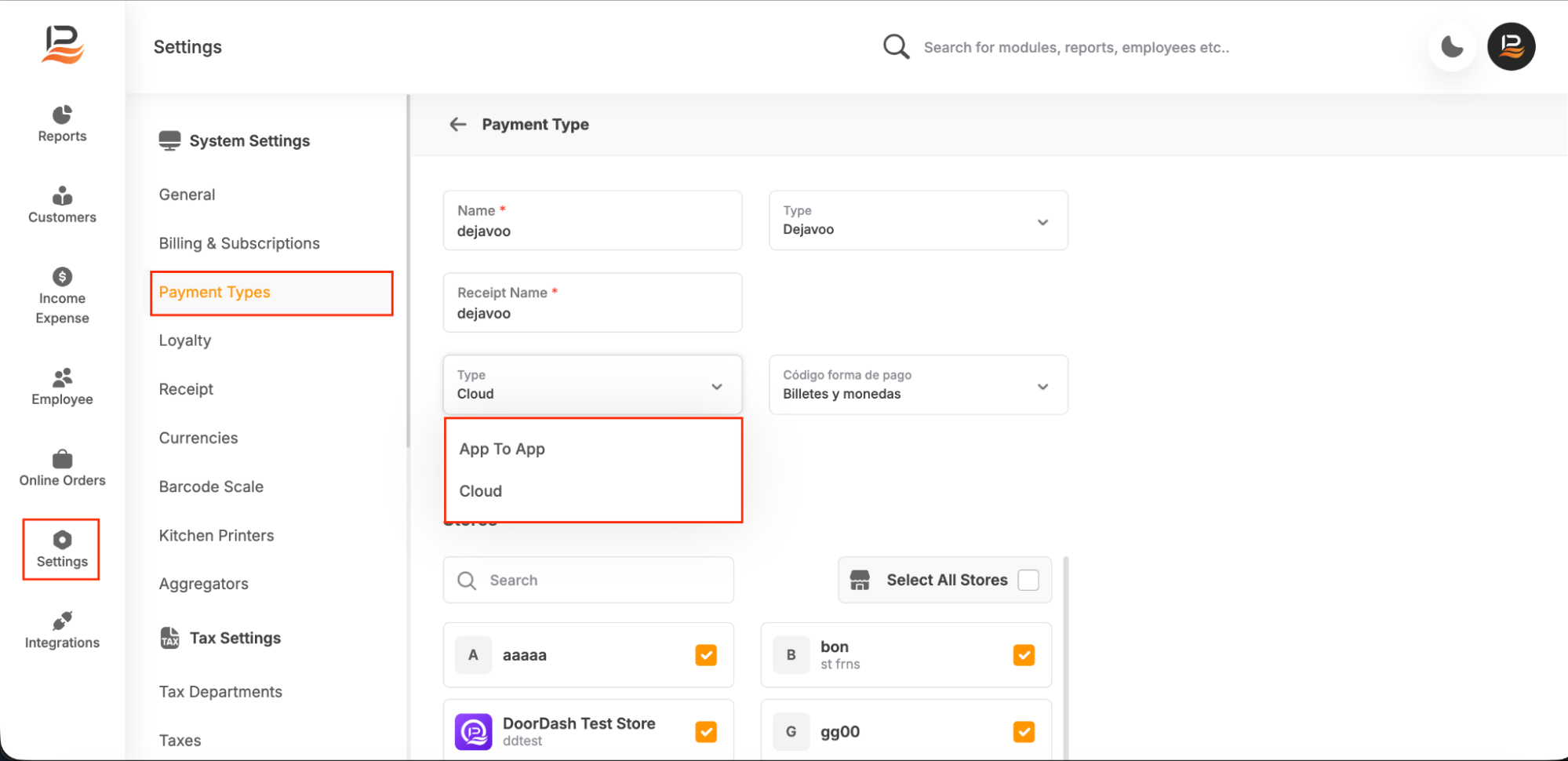
- Go to Settings on the side menu, then select Payment Types, and select Dejavoo.
- Change the type to App to App or Cloud as required.
- Save the changes and sync the configuration from the POS.
Terminal Configuration
P2P configuration
- Configure your terminal first and open POS on the terminal.
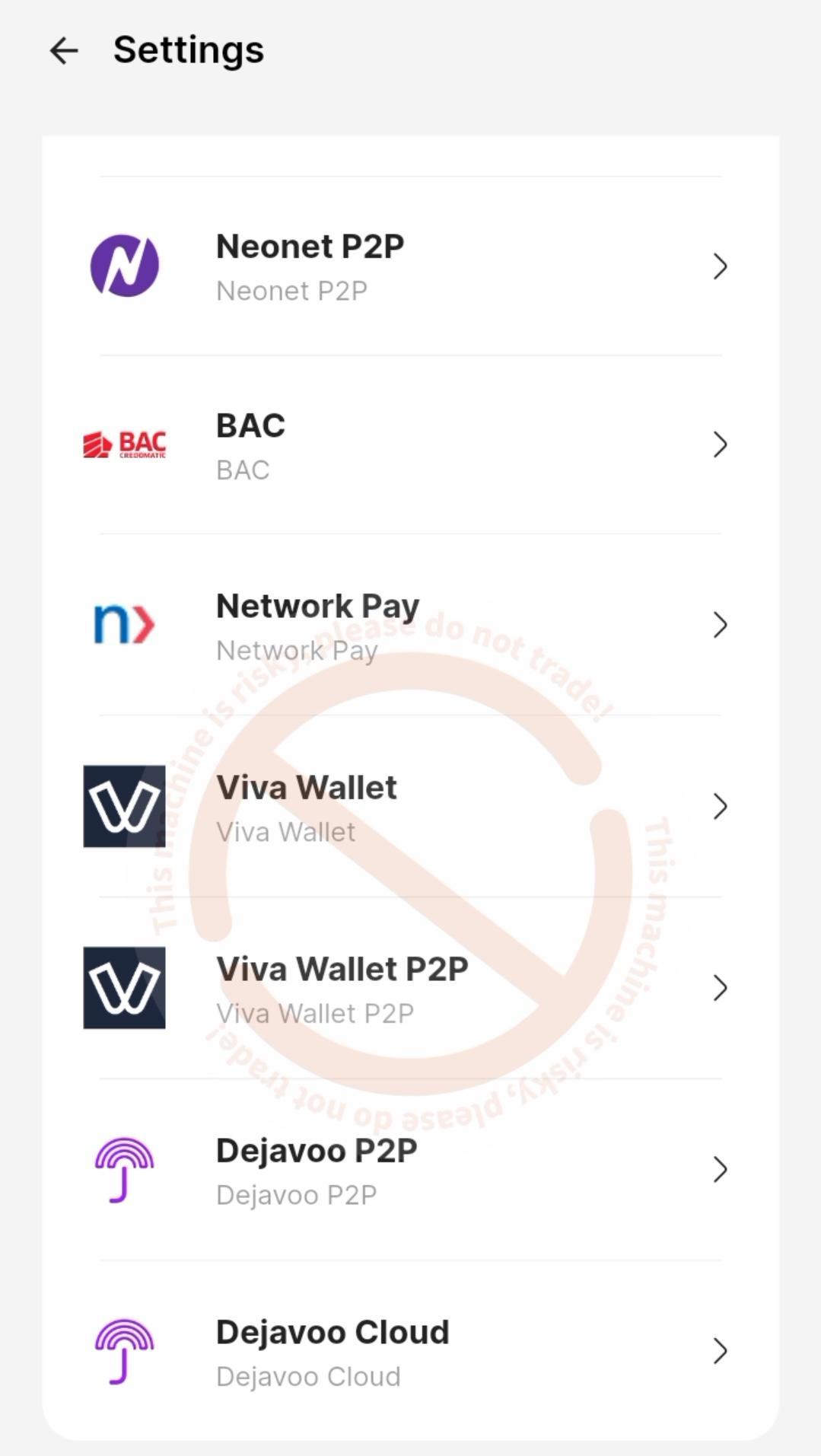
- Open POS settings under Payment Configuration and locate Dejavoo P2P.
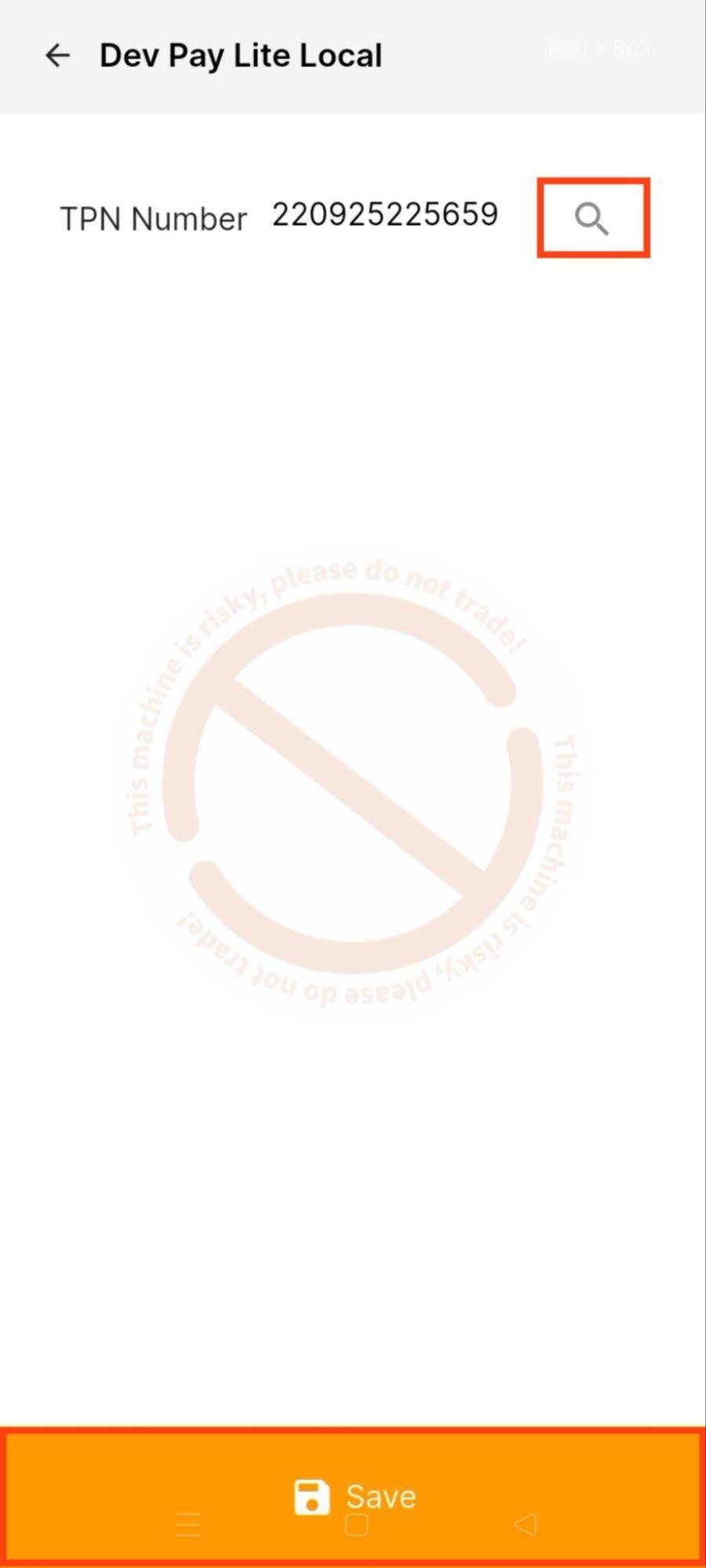
- Configure the terminal by adding the TPN number or use the search icon to automatically verify the TPN, then save.
- Configuration for the P2P method is complete.
Cloud configuration
- Open POS settings under Payment Configuration and locate Dejavoo P2P.
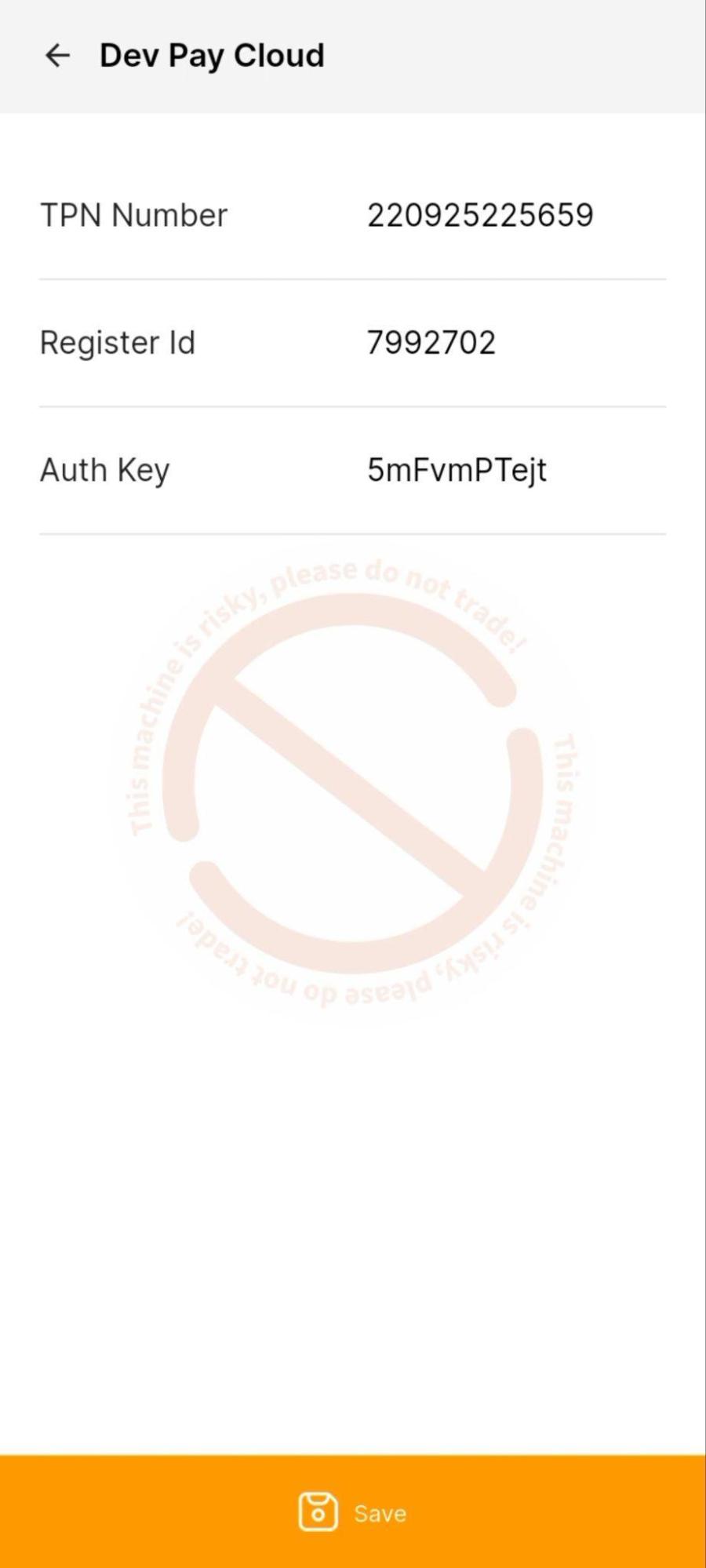
- Configure the terminal by entering the TPN Number, Register ID, and Auth Key.
- Save the configuration.
- Configuration for the Cloud method is complete.
-
Payment Flow — Sale Transaction
P2P Sale
- Add items to cart.
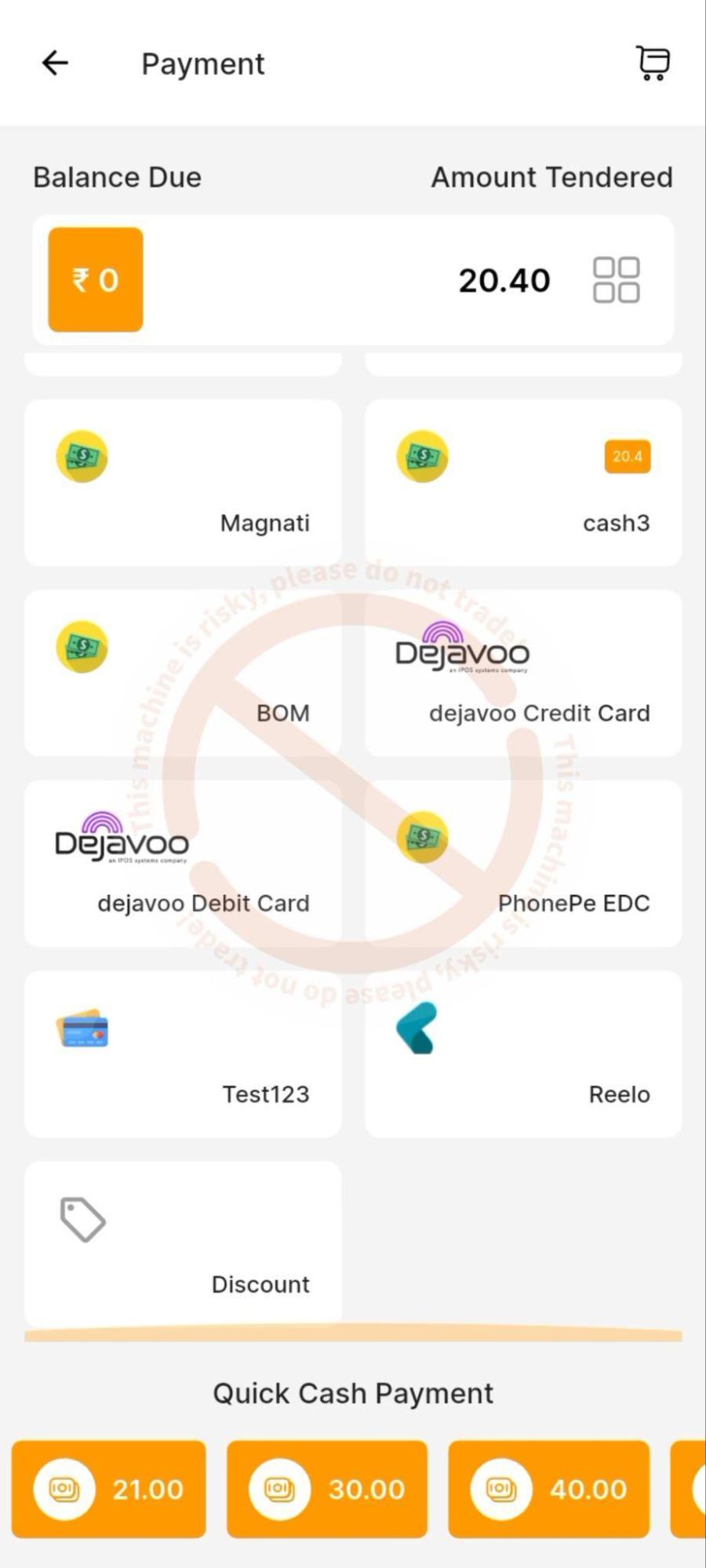
- Proceed to the payment screen.
- Choose Dejavoo debit or credit card from the listed payment methods.
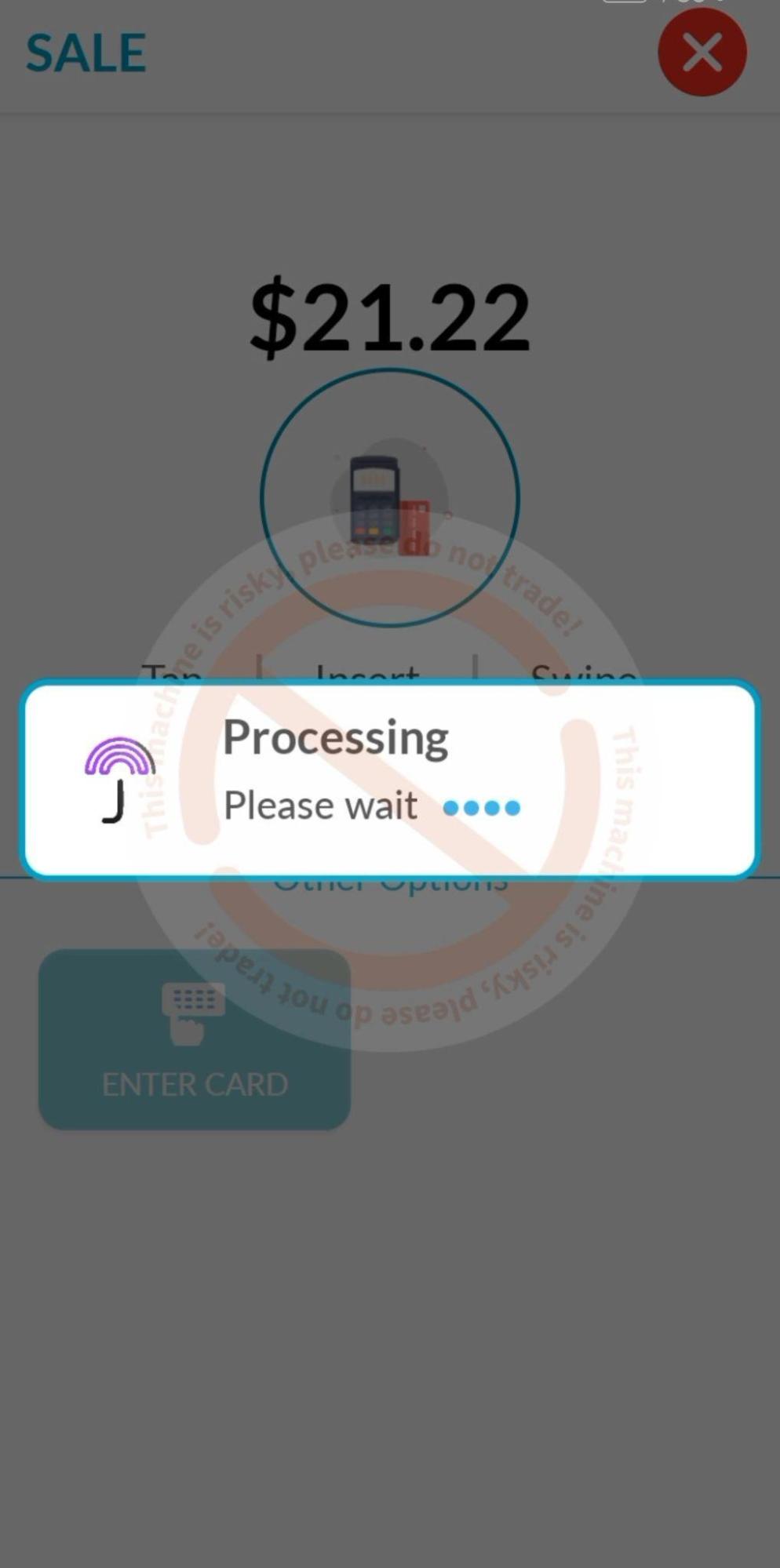
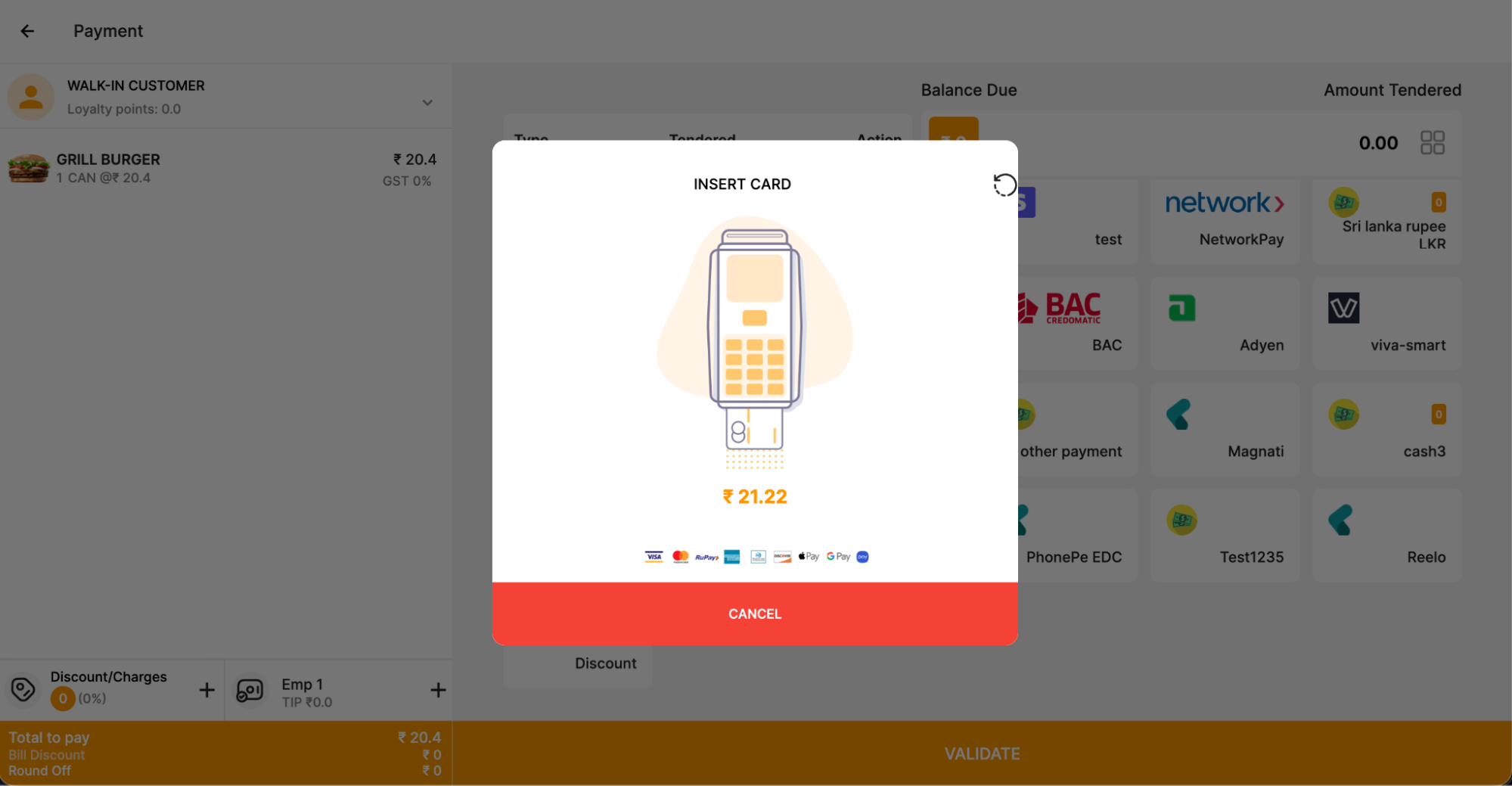
- The Dejavoo payment interface opens with the payable amount displayed.
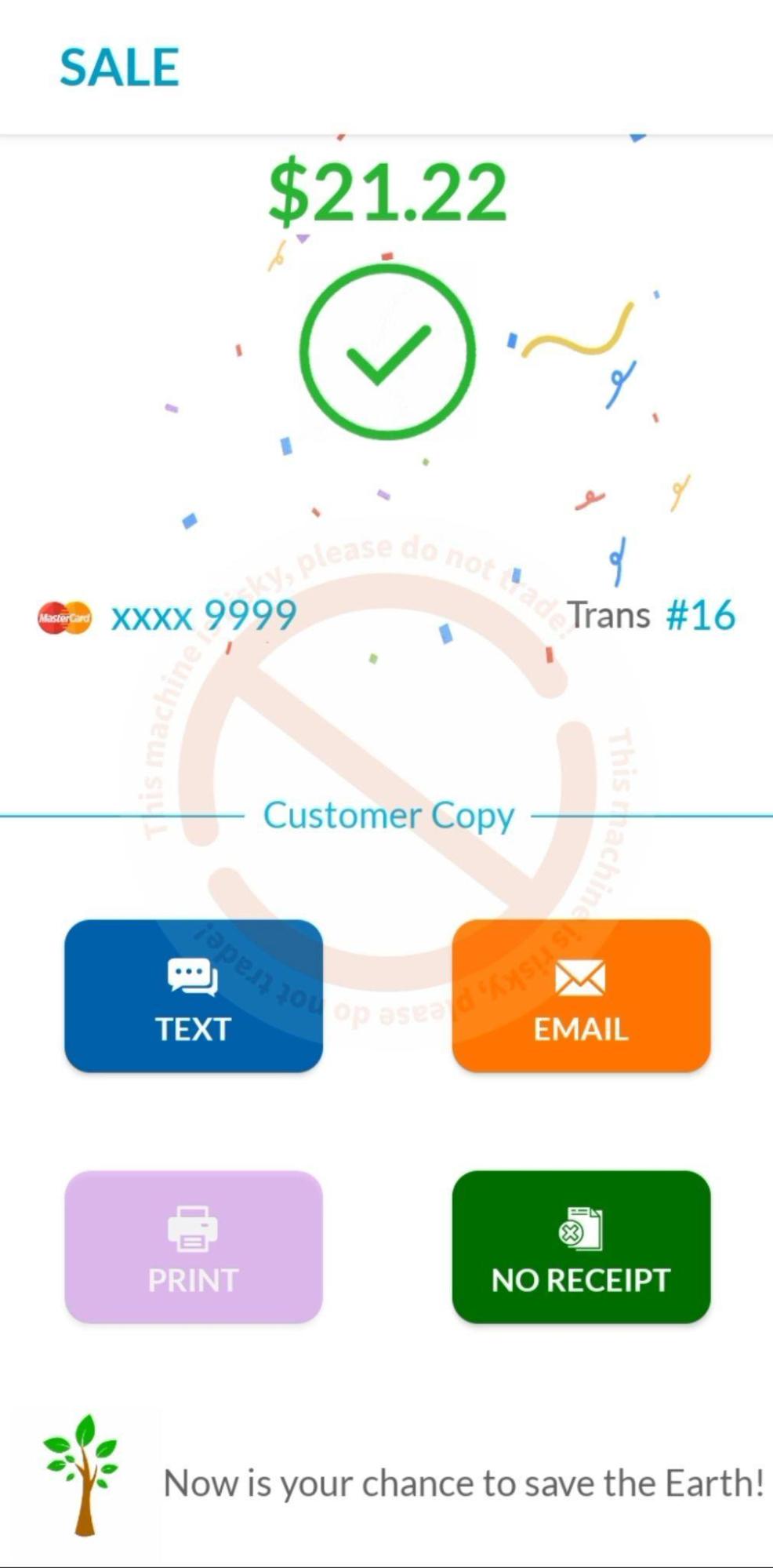
- After completing the payment, return to the POS to view the payment status.
- Print the receipt from the POS or from the Dejavoo terminal if required.
Cloud Sale
- Add items to cart.
- Proceed to the payment screen.
- Choose Dejavoo debit or credit card from the listed payment methods.
- The payment request is sent to the Dejavoo terminal via the cloud, with the payable amount displayed on the terminal and the progress shown on the POS screen.
- After the payment is completed, the payment status is displayed on the POS screen.
- Print the receipt from the POS or from the Dejavoo terminal if required.
-
Payment Flow — Void Sale
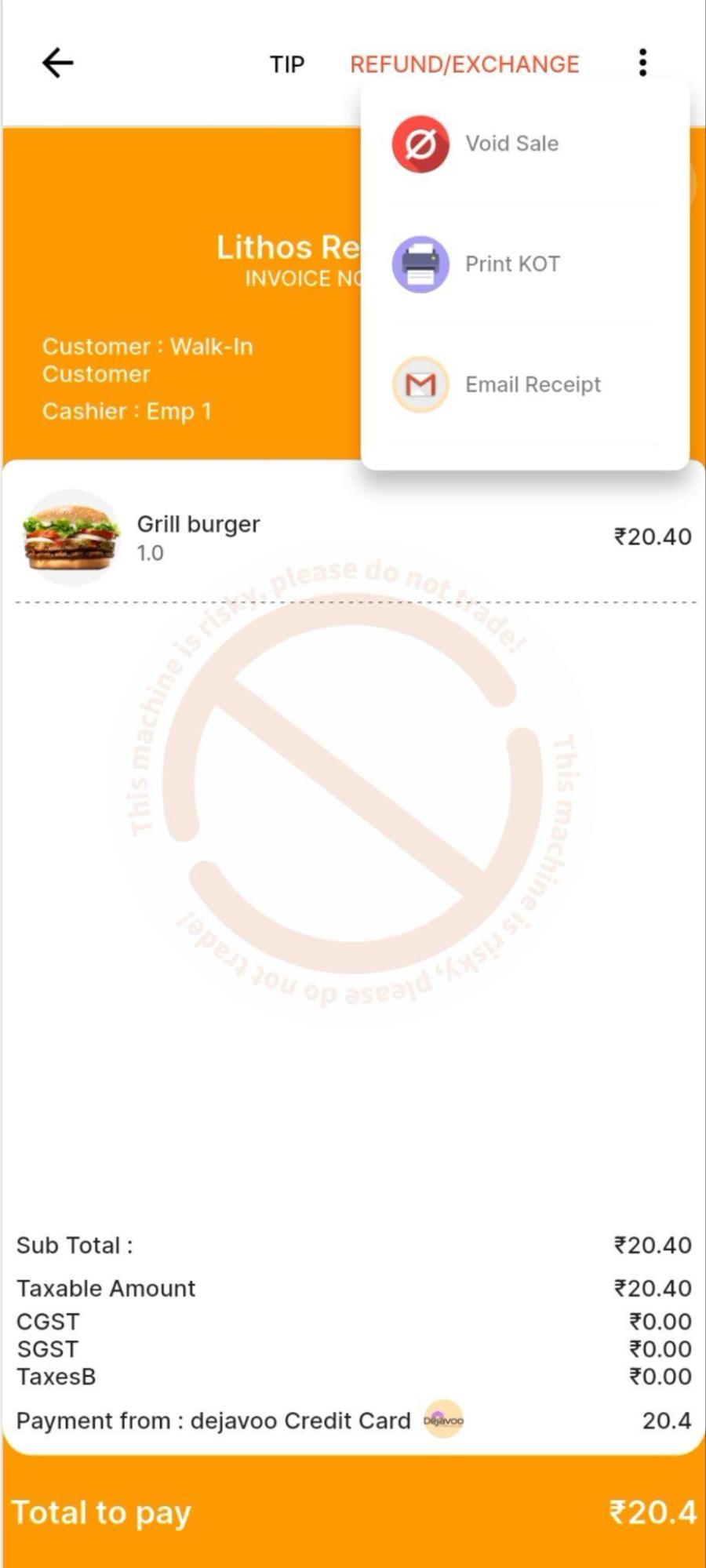
- Open the POS sales screen and select the sale to be voided.
- Tap the three-dot menu at the top right of the sale detail view.
- Select Void from the dropdown menu.
- Add a note if required.
P2P Void Sale
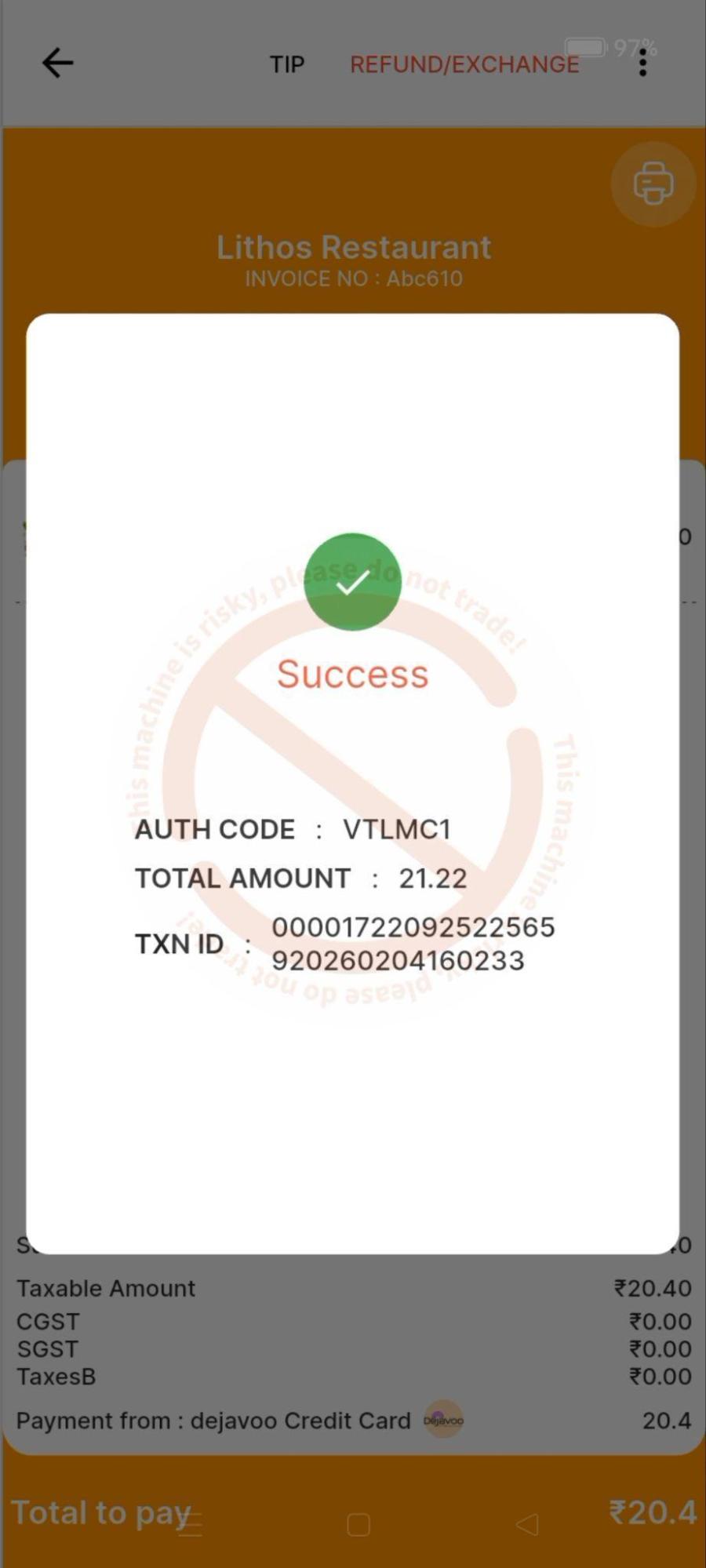
- The void is processed in the Dejavoo application and returns status to the POS.
- Print the receipt if required.
Cloud Void Sale
- The void process status is displayed on the screen until the process is complete.
- Print the receipt if required.

-
P2P Payment Flow — Refund Sale
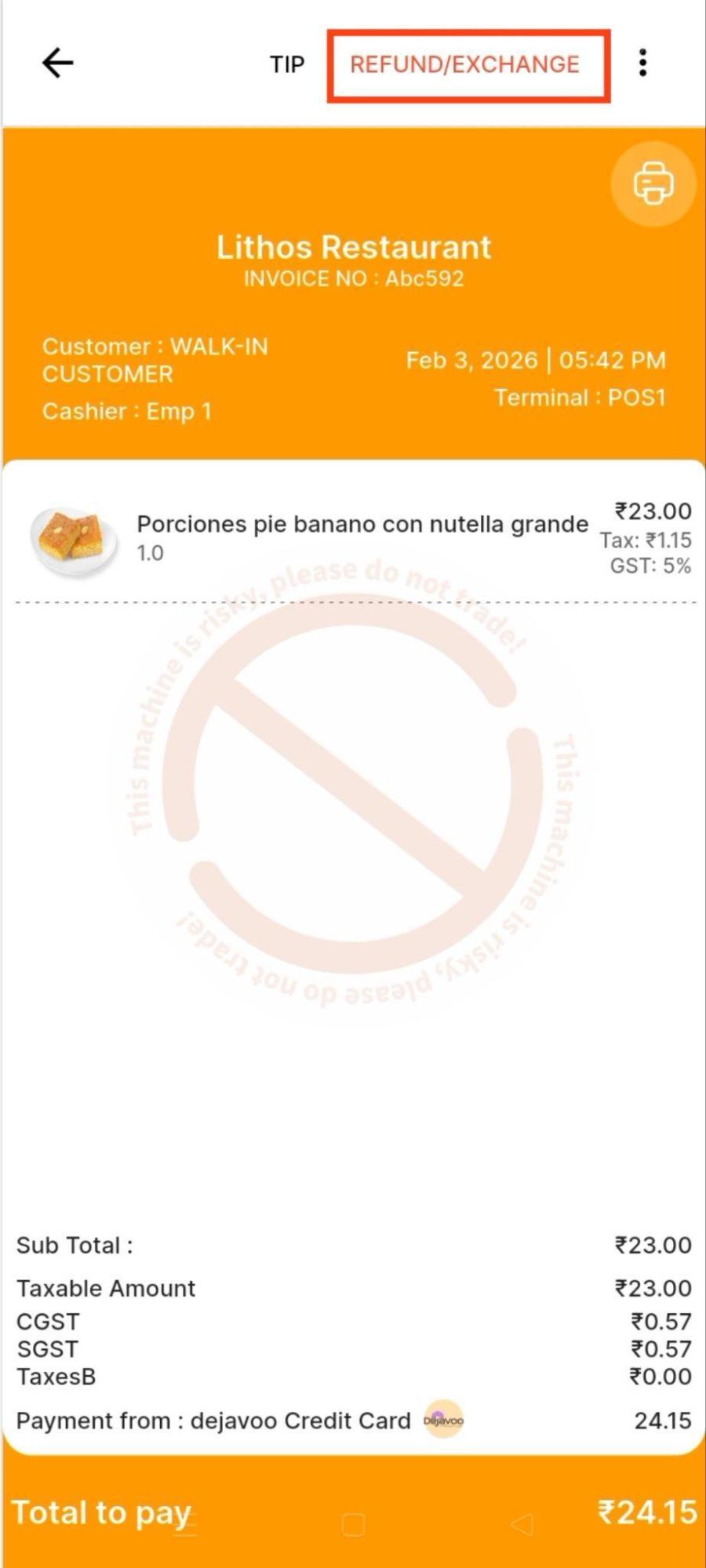
- Open the POS sales screen and select the sale that requires a refund.
- Tap the REFUND / EXCHANGE button at the top right of the sale detail screen.
- The POS switches to refund mode.
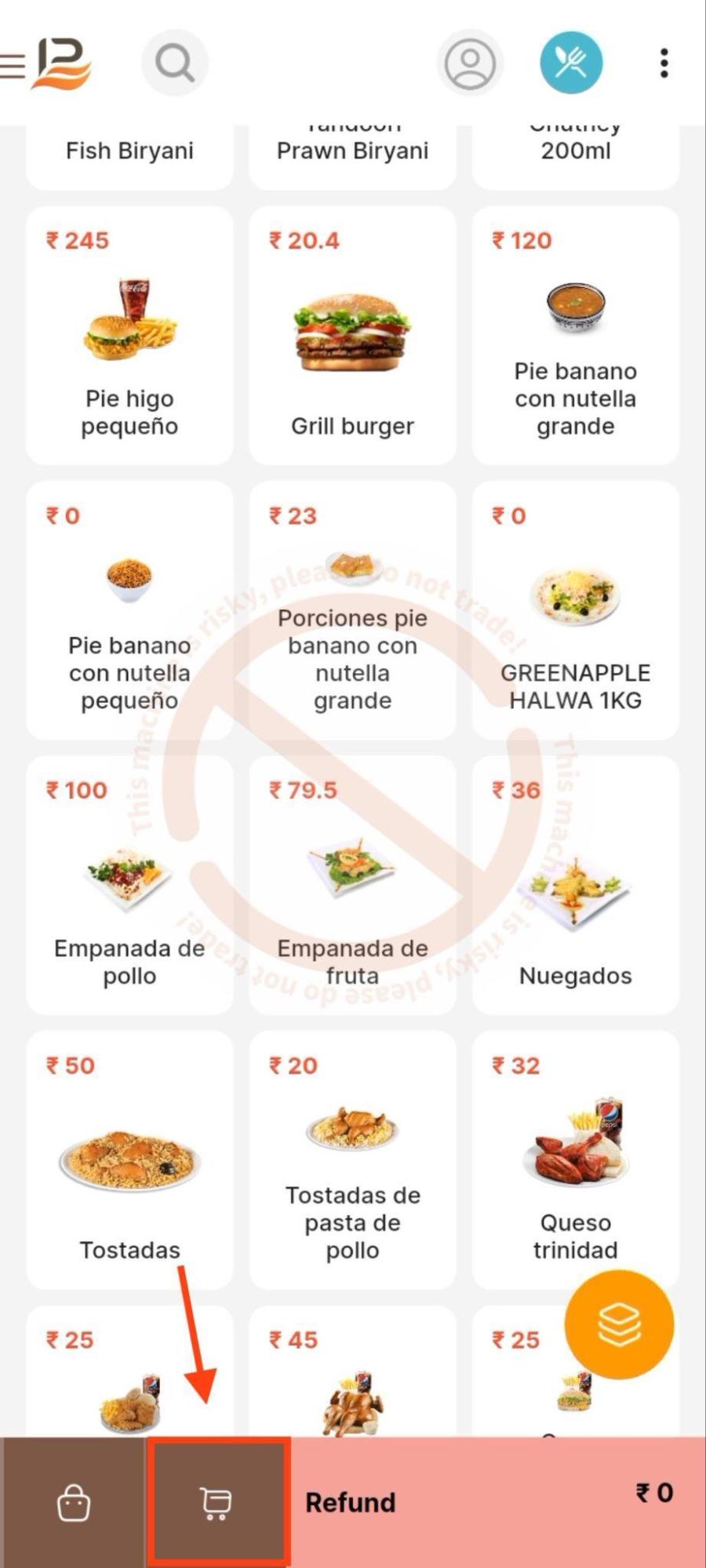
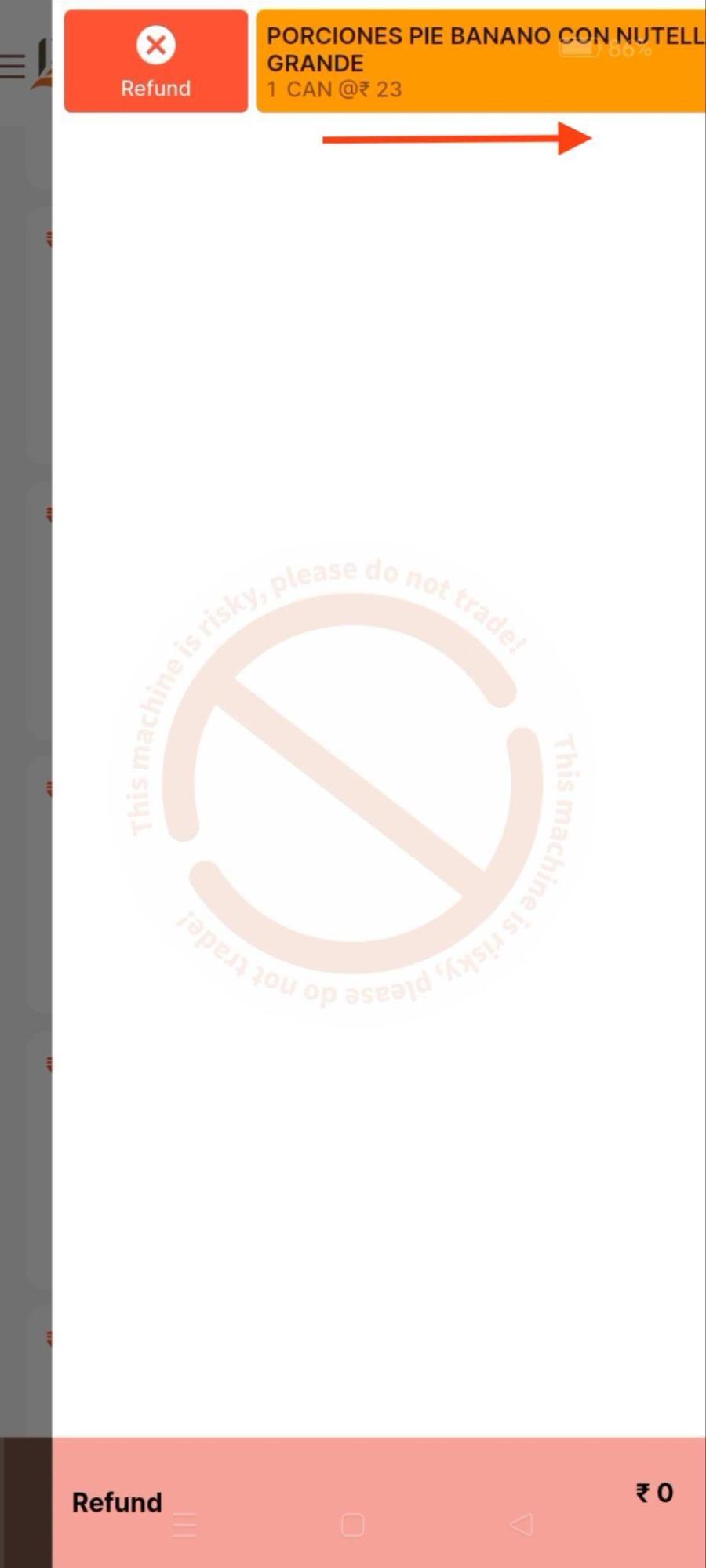
- Open the cart and swipe right on items to select Refund.
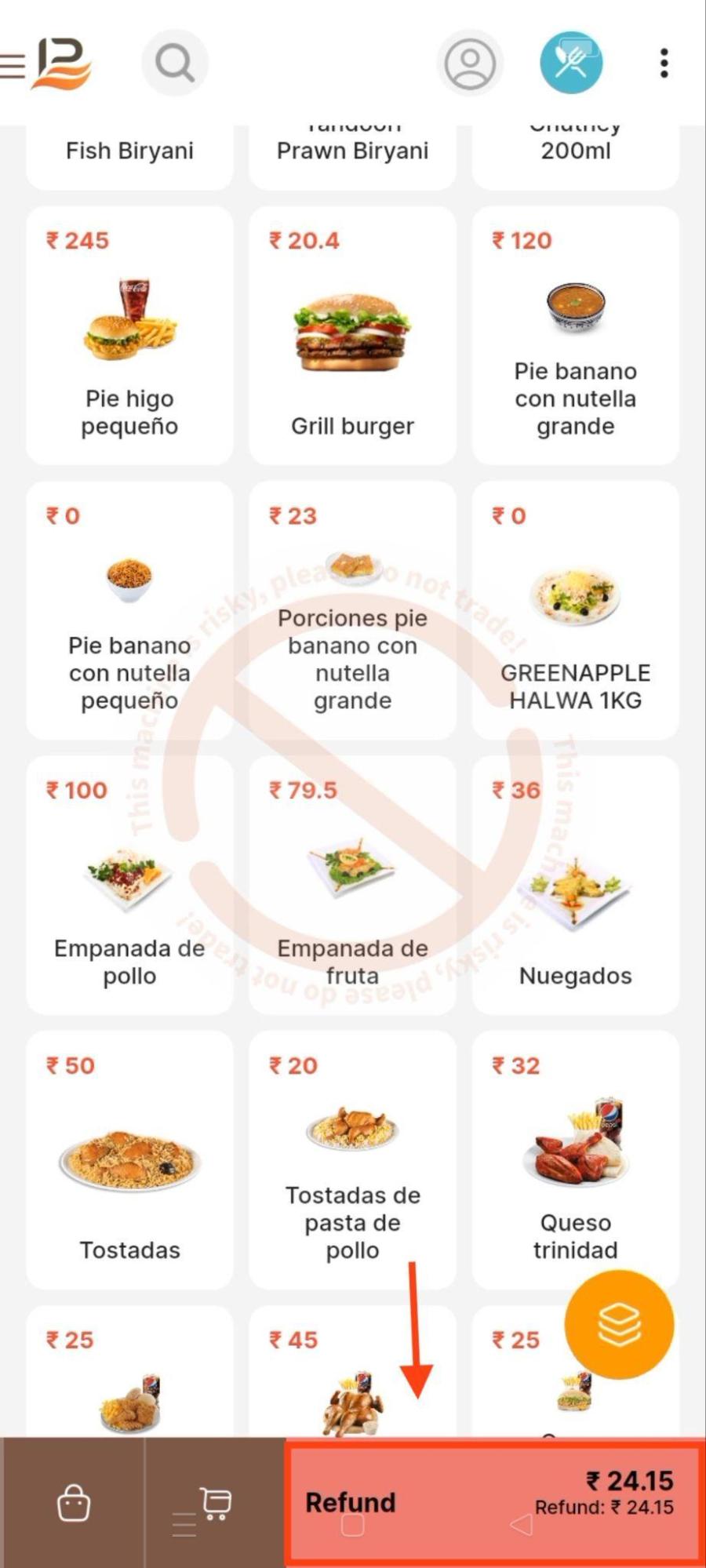
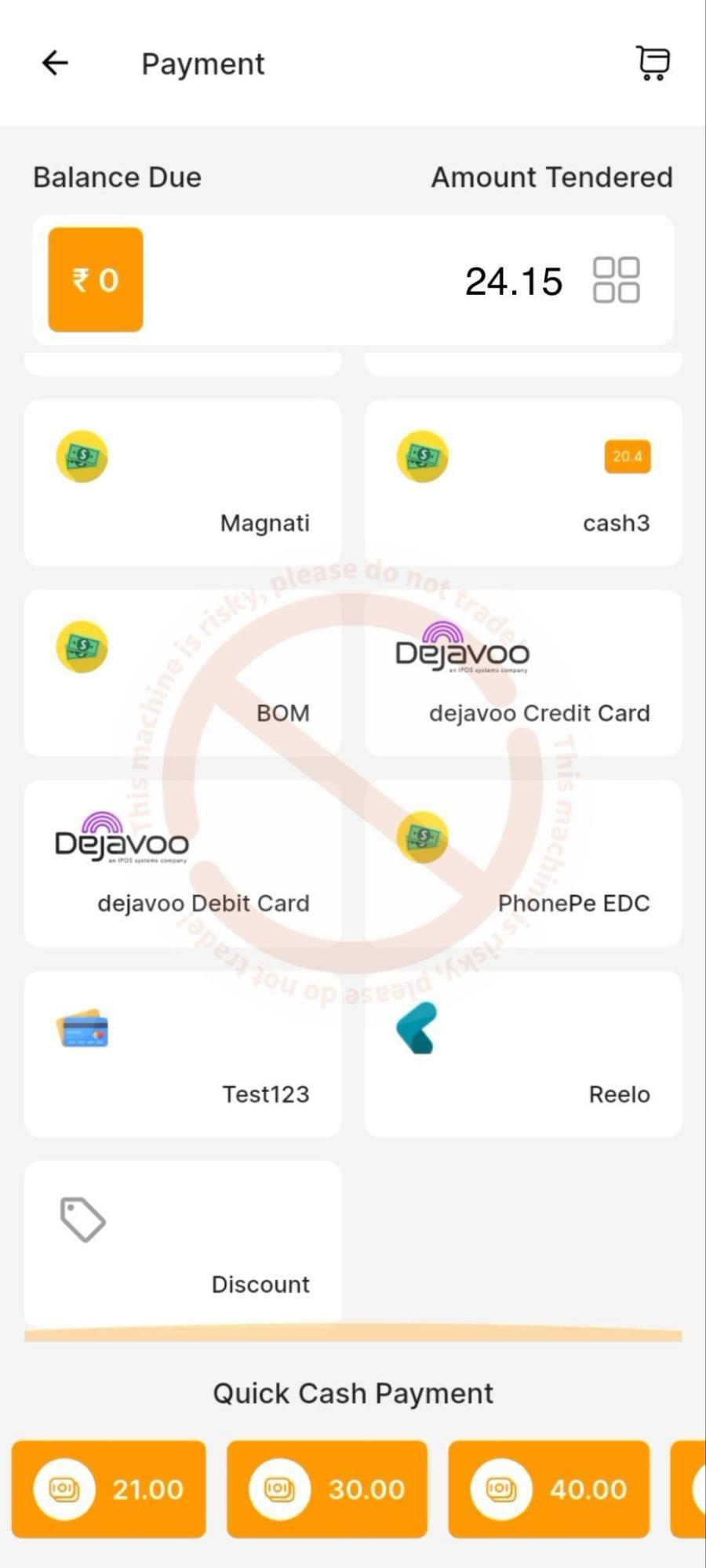
- Proceed to checkout and select Dejavoo debit or credit card.
P2P Refund Sale
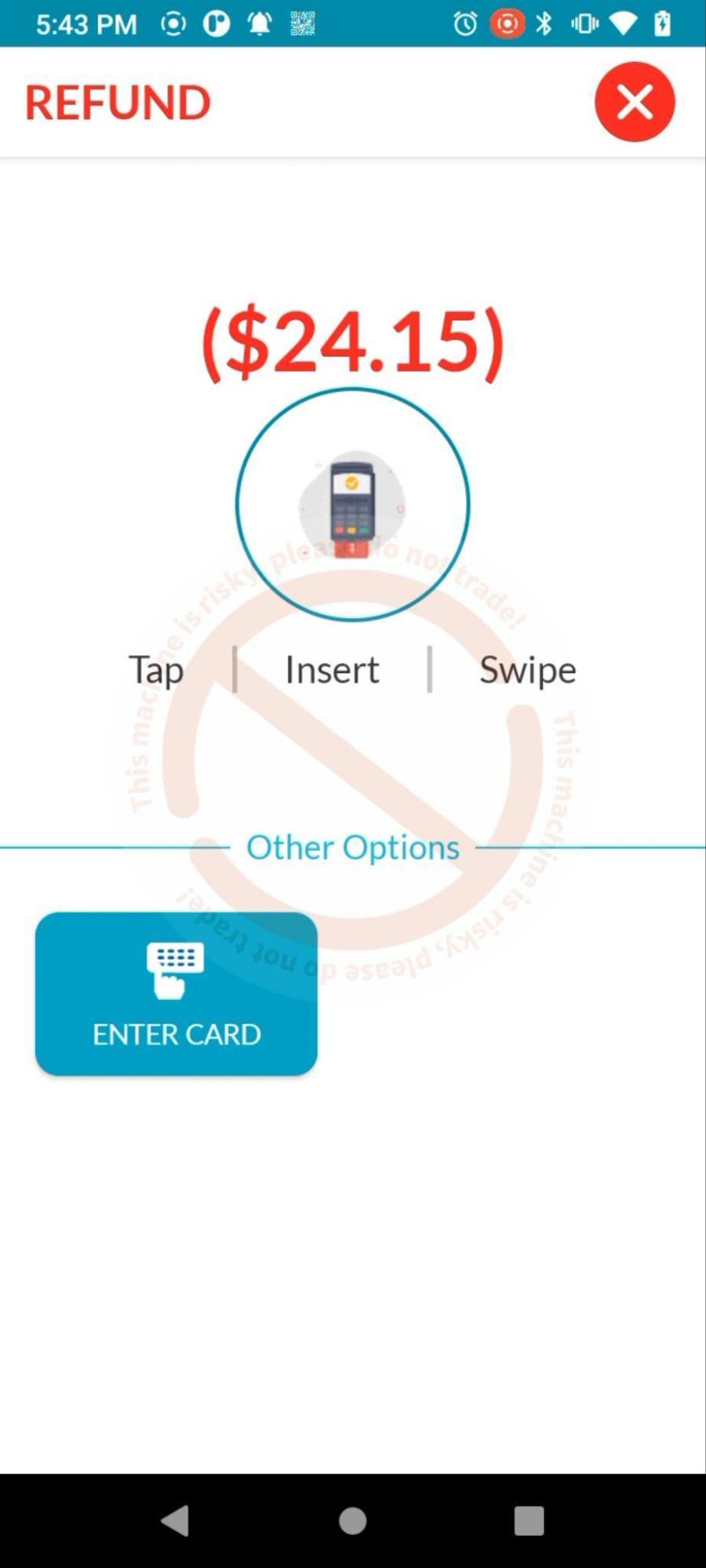
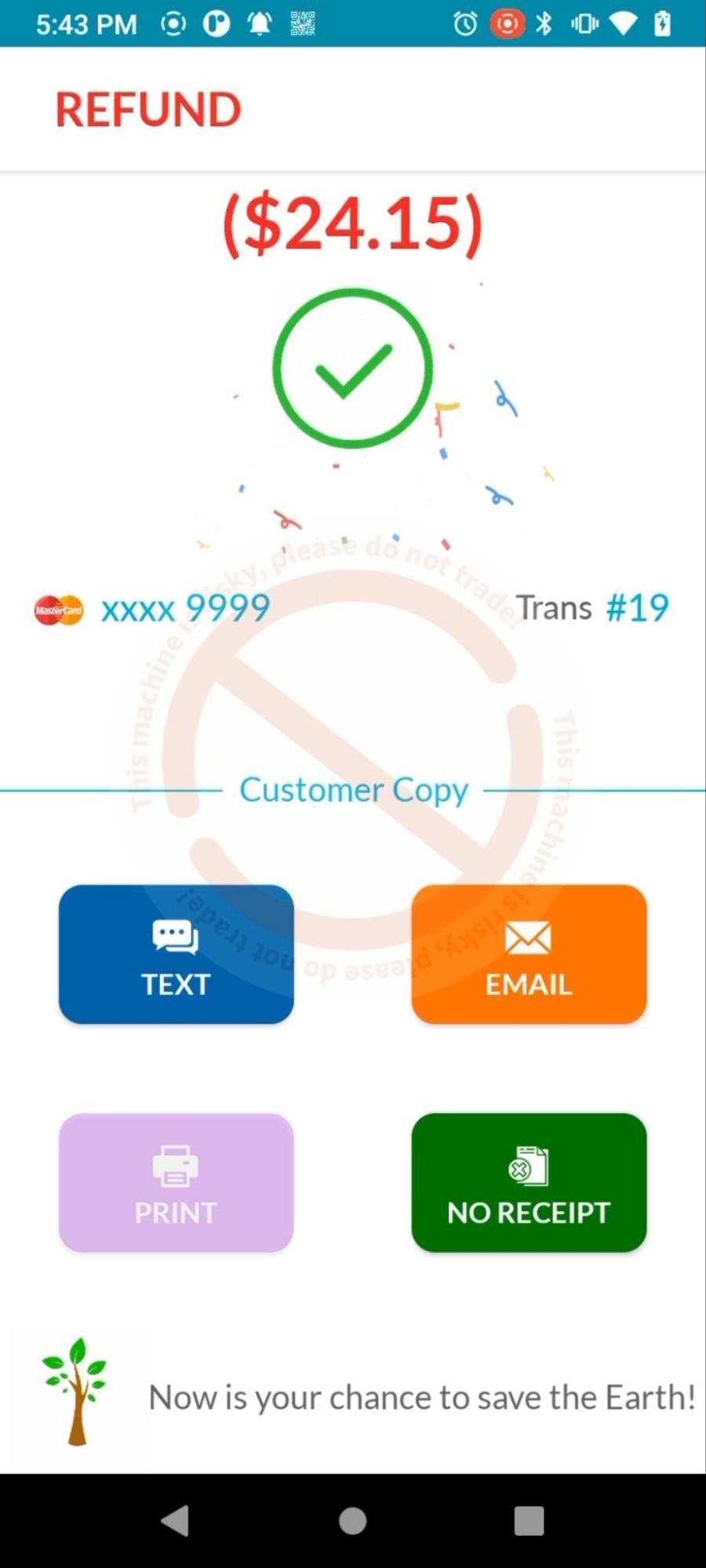
- Complete the refund in the Dejavoo interface and return to the POS.
- View refunded sales under Reports → Sales Refund.
Cloud Refund Sale
- The refund request is shown on the terminal, and once completed, the status is updated on the POS screen.
- View refunded sales under Reports → Sales Refund.
-
Payment Flow — Tip Adjustment
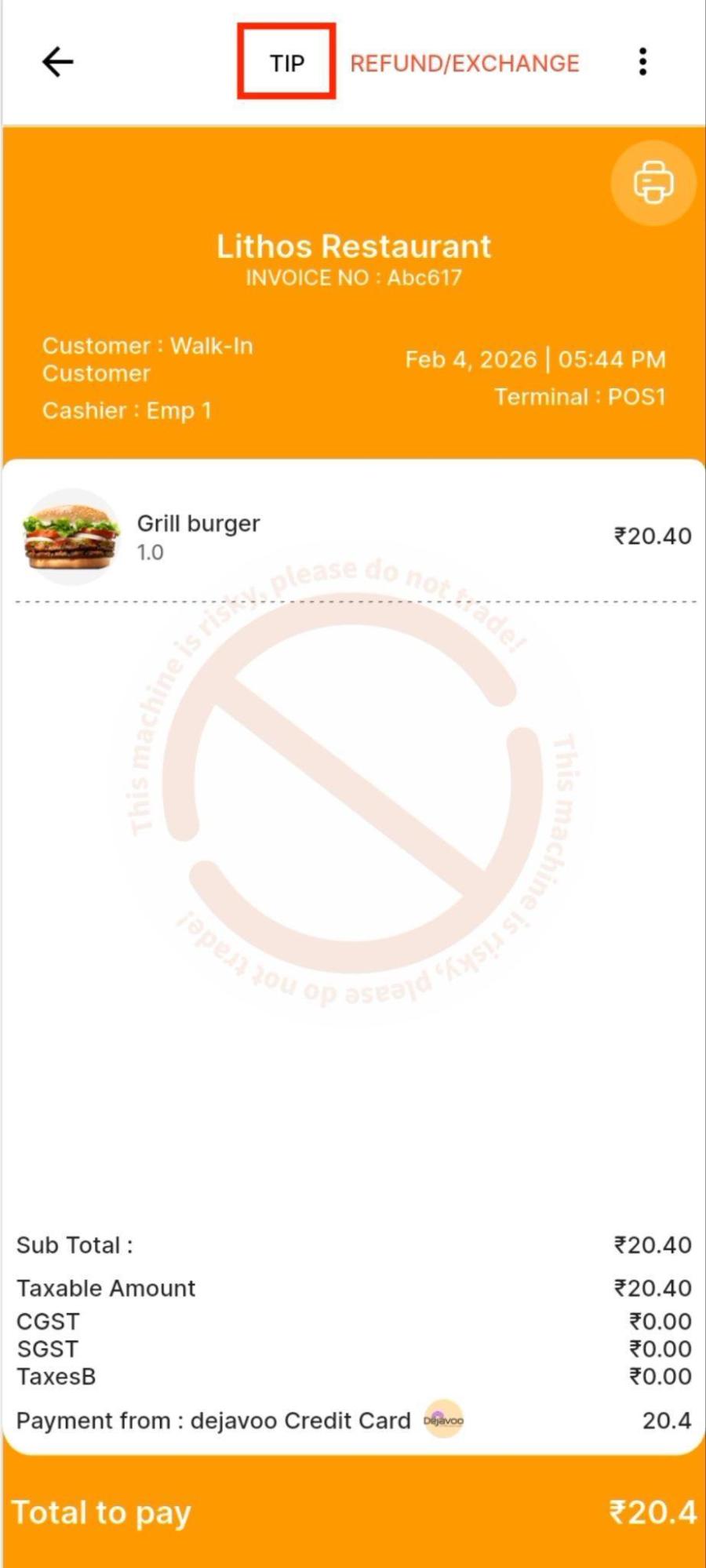
- Open the POS sales screen and select a Dejavoo credit transaction.
- Tap the Tip button at the top of the sale detail screen.
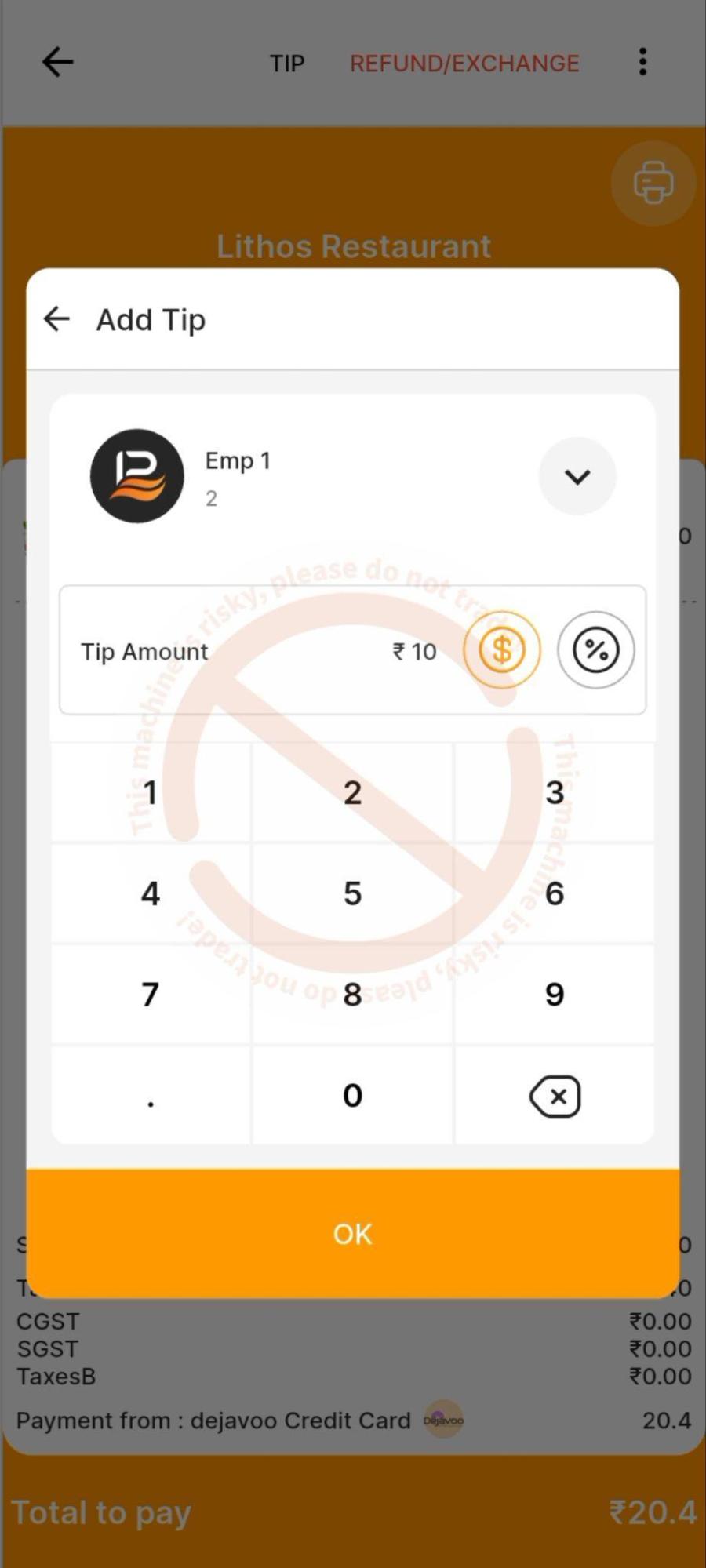
- Enter the tip as a percentage or amount and tap OK.
P2P Refund
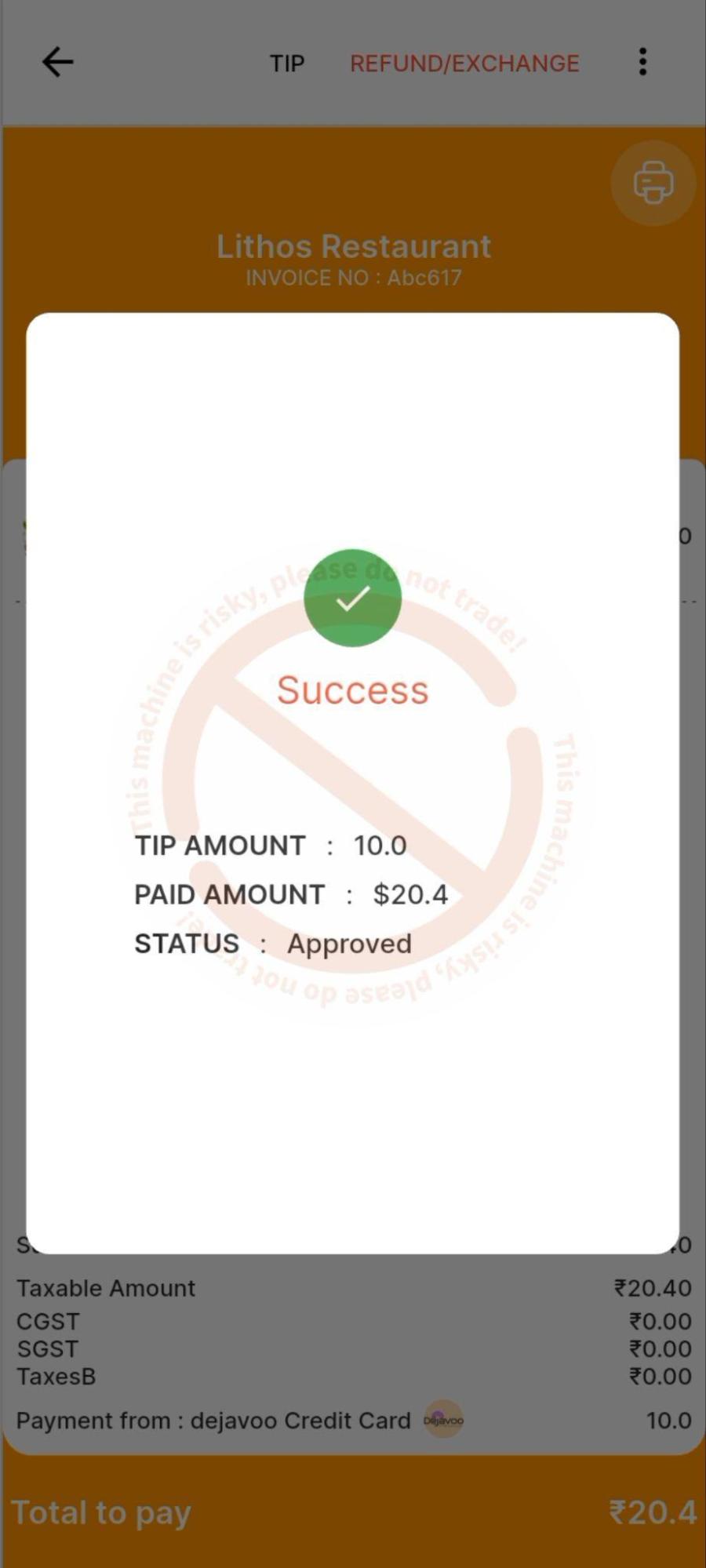
- The Dejavoo interface processes the adjustment.
- Updated tip and payment details are displayed in the sale view.
Cloud Refund
- The request is sent to the terminal via the cloud, and once the tip adjustment is completed, the status is updated on the POS screen.
- Updated tip and payment details are displayed in the sale view.
-
Payment Flow — Preauth Sale
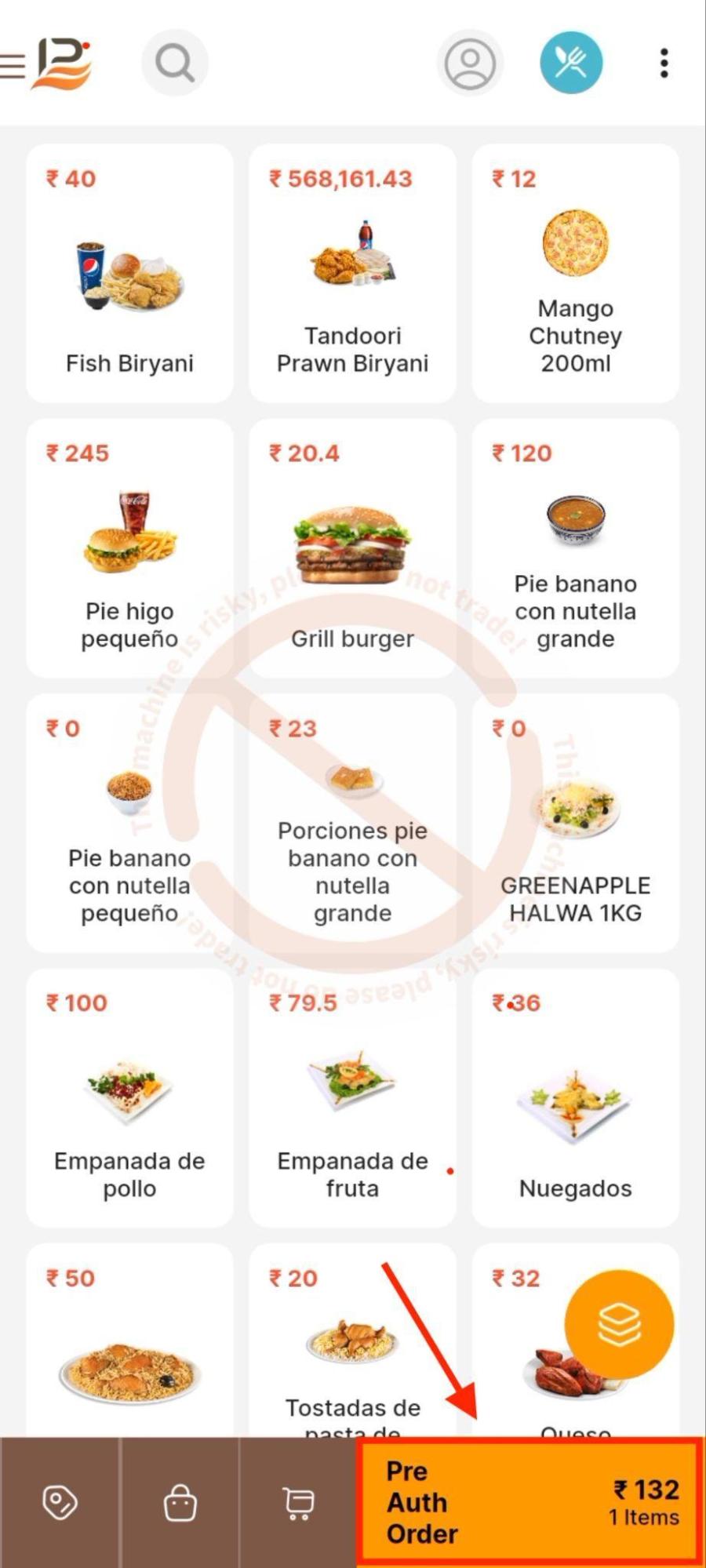
- Add items to the cart.
- Swipe right on the Pay button and select Pre Auth Order.
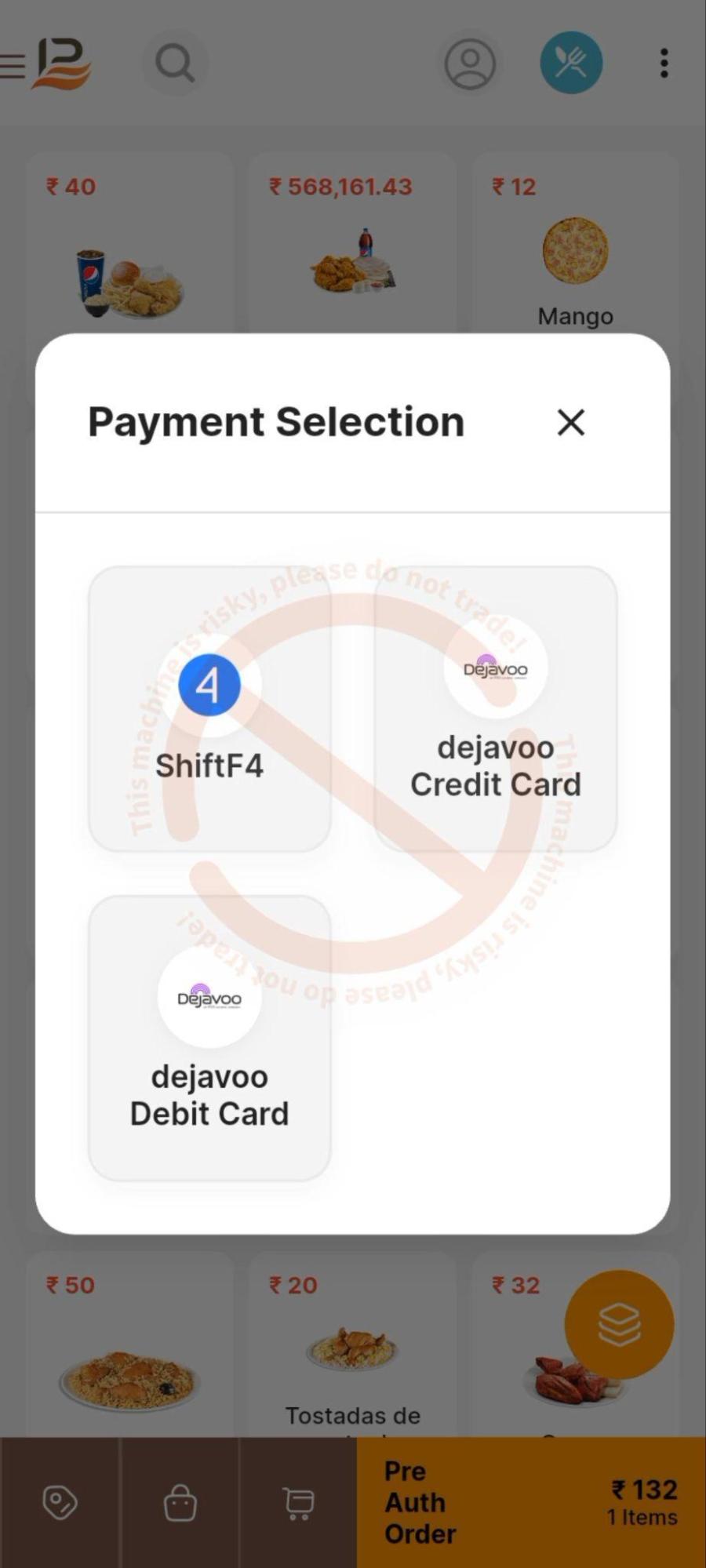
- Select Dejavoo credit or debit card.
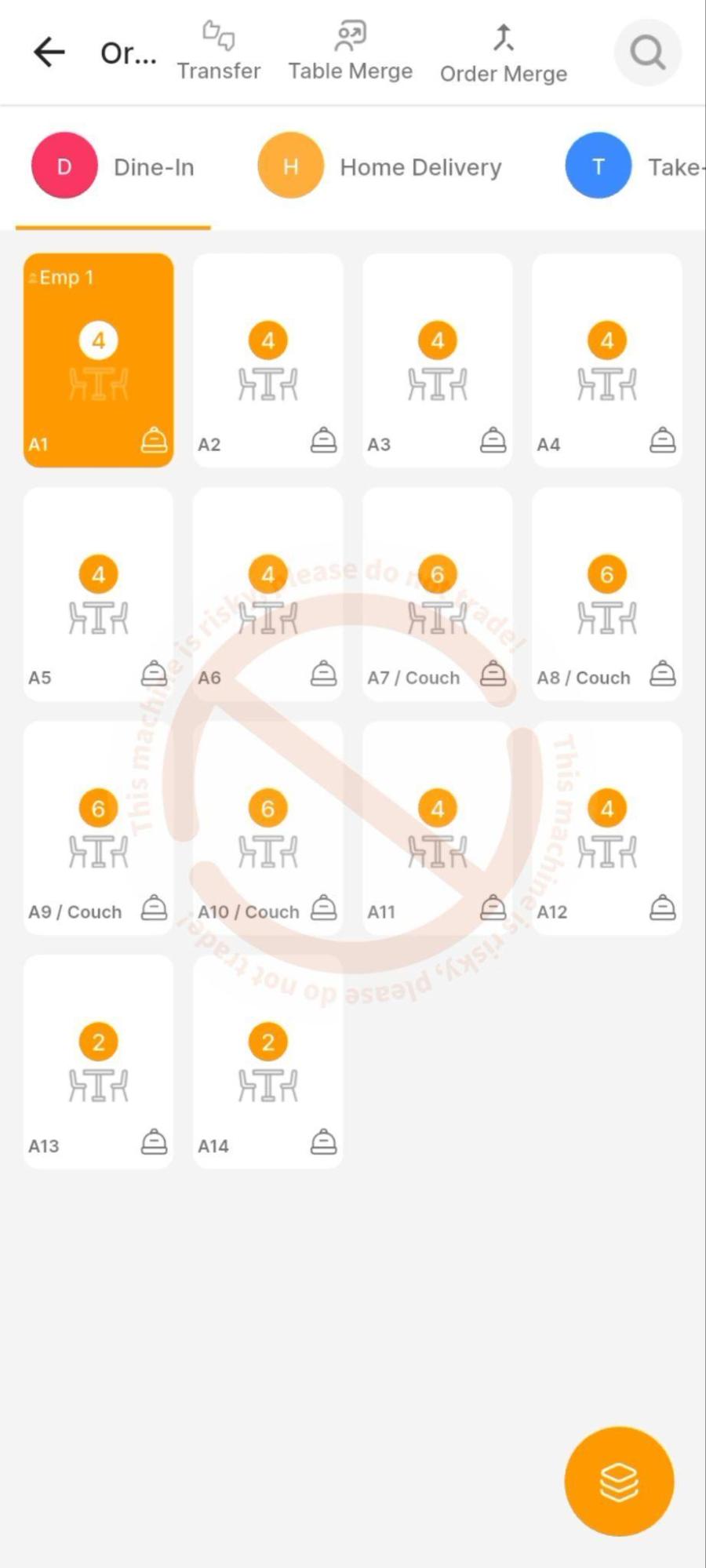
- Select a table to save the order.
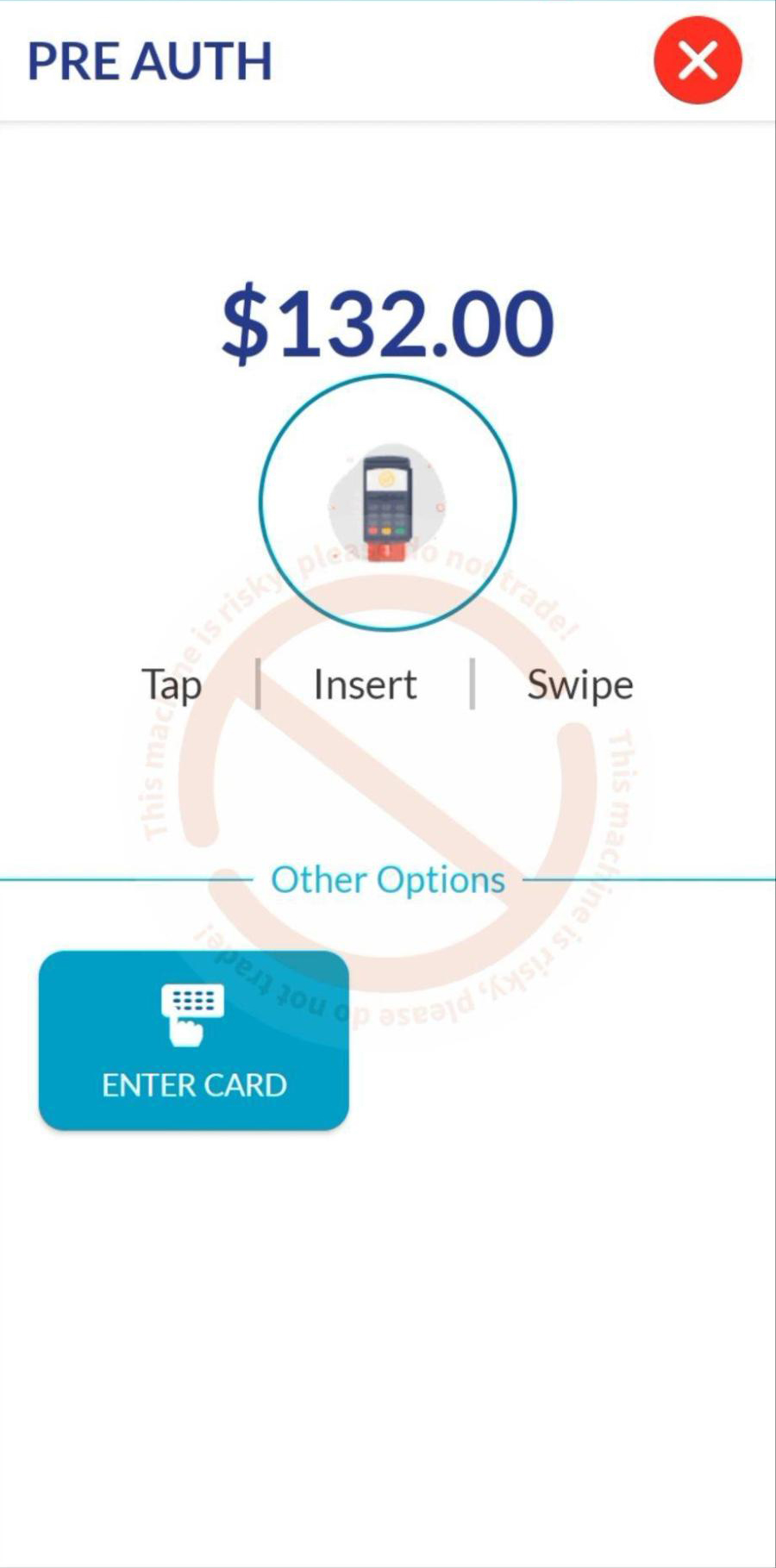
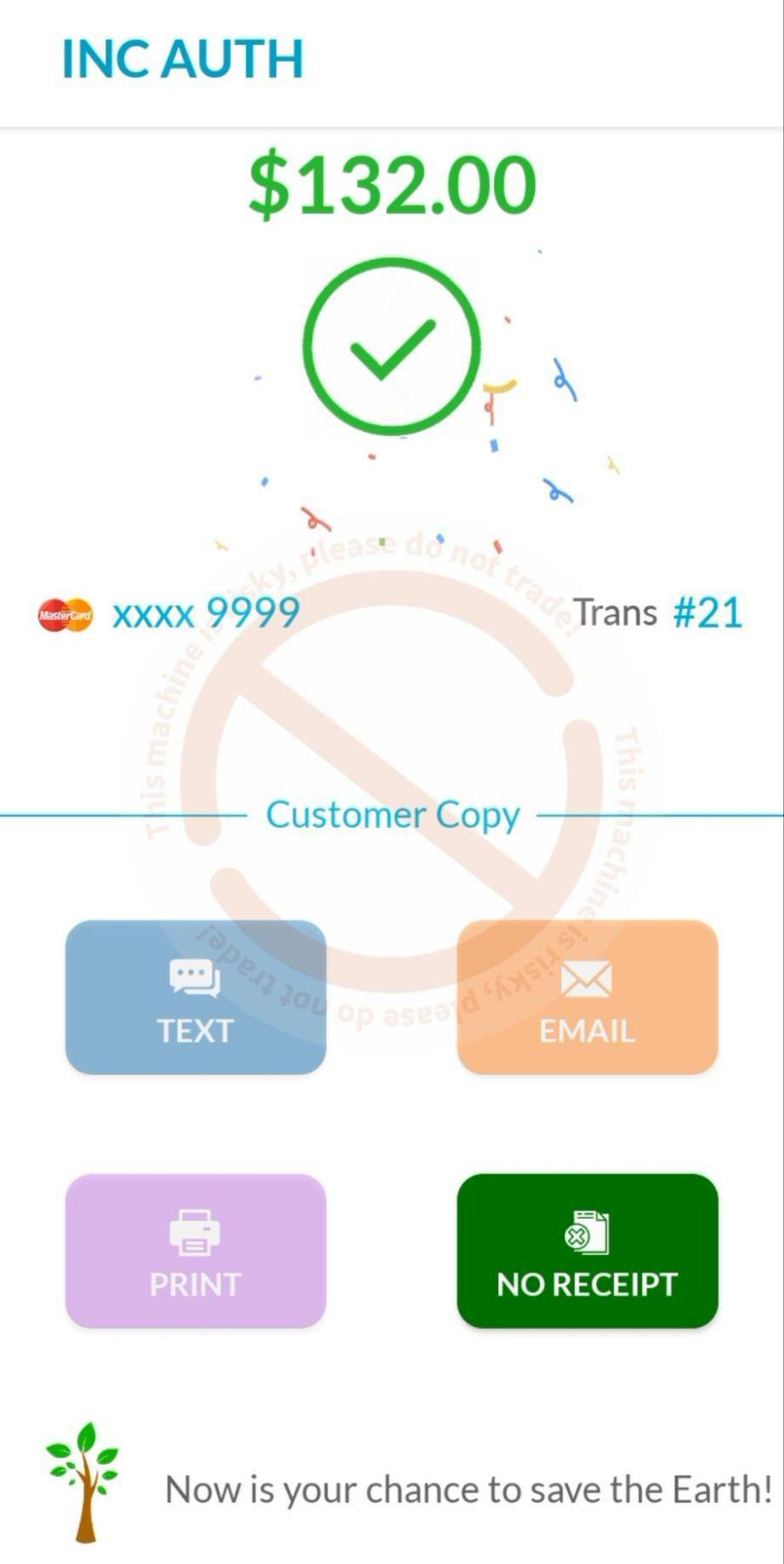
- Complete the preauth in the Dejavoo interface and return to the POS.
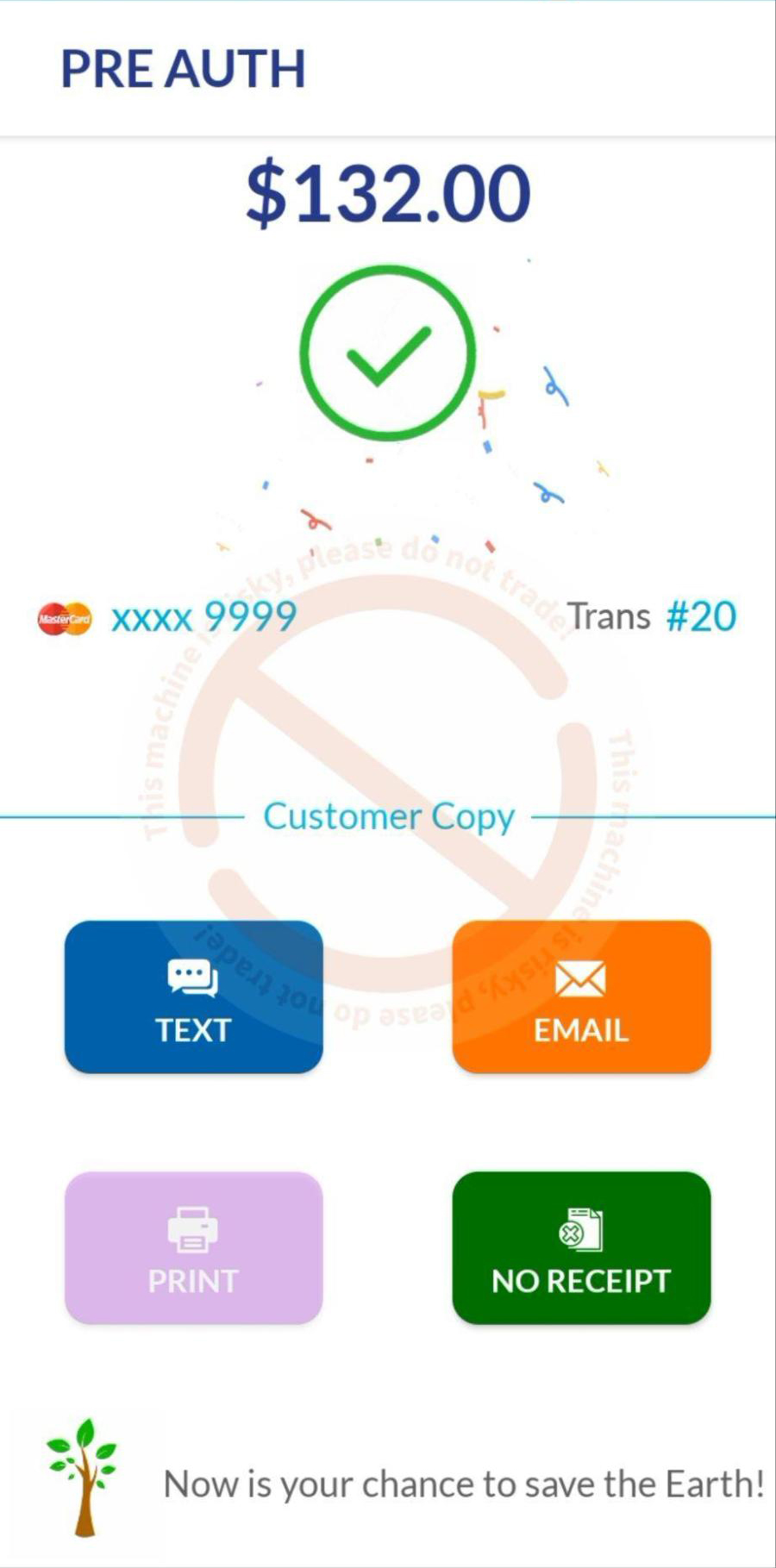
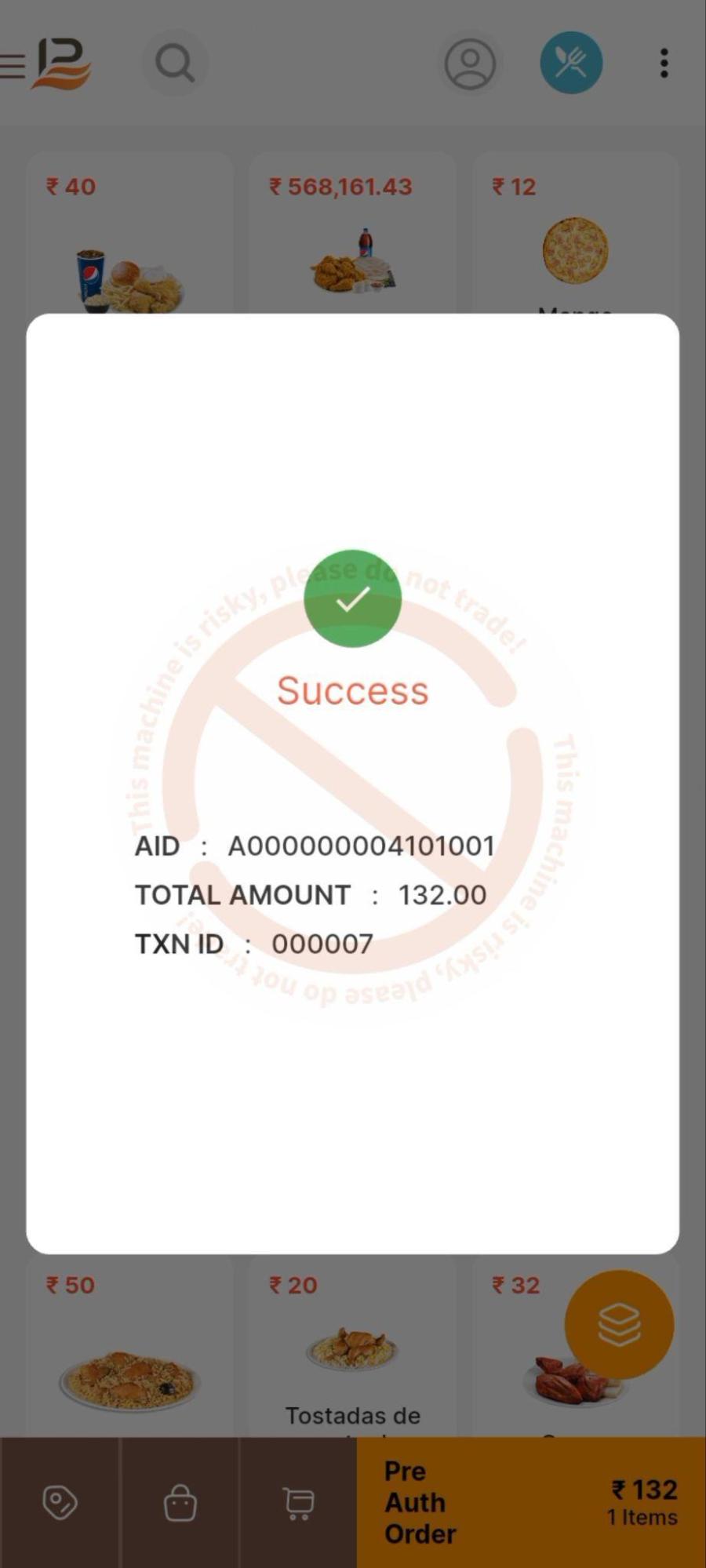
Capture Preauth
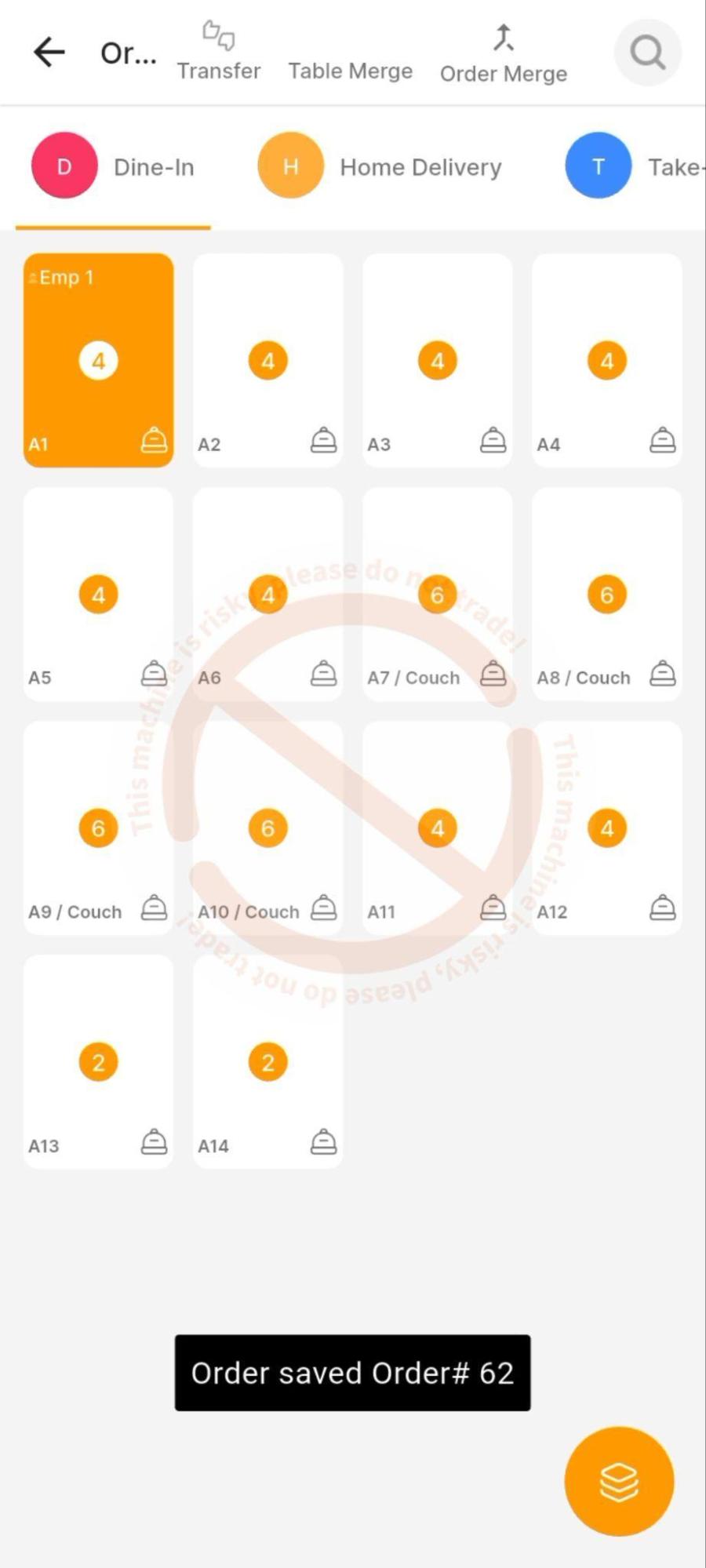
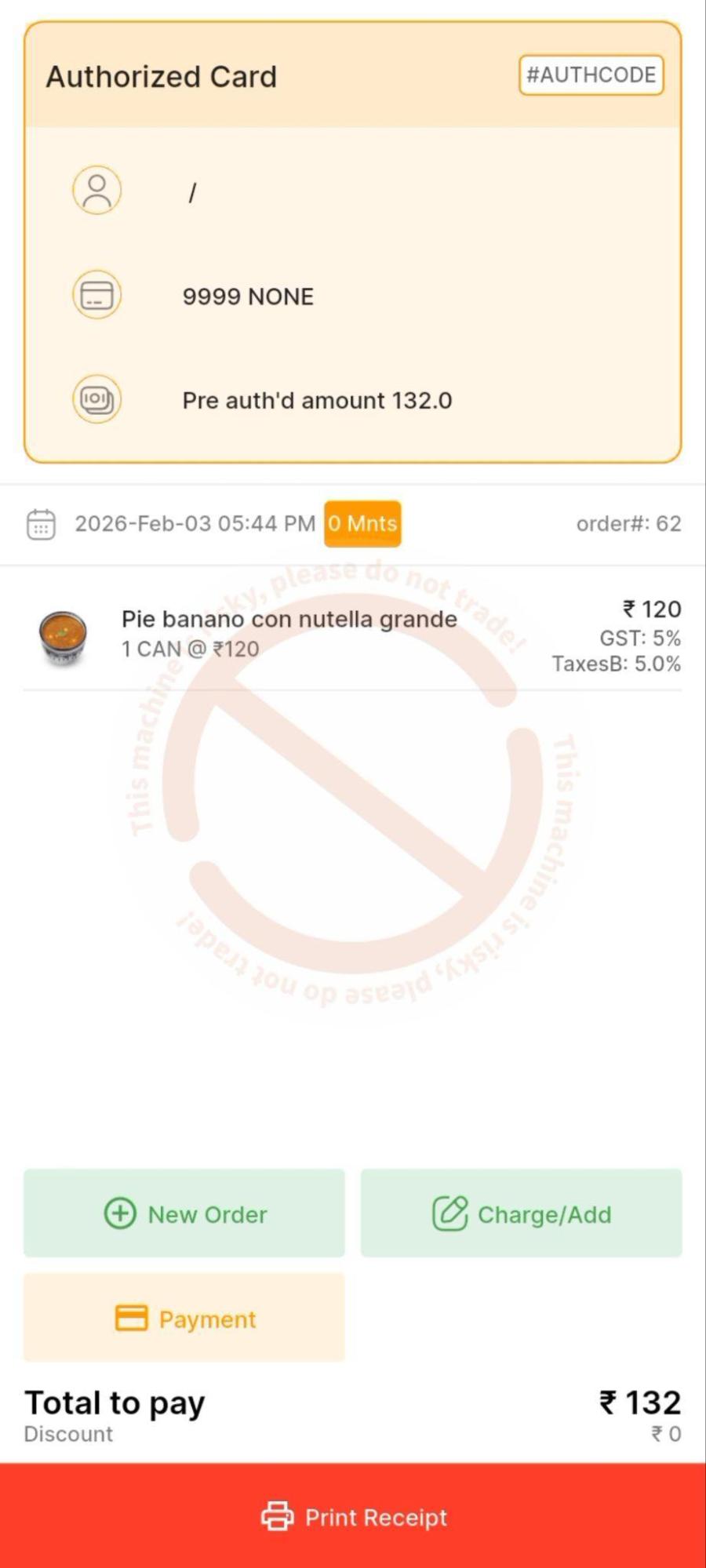
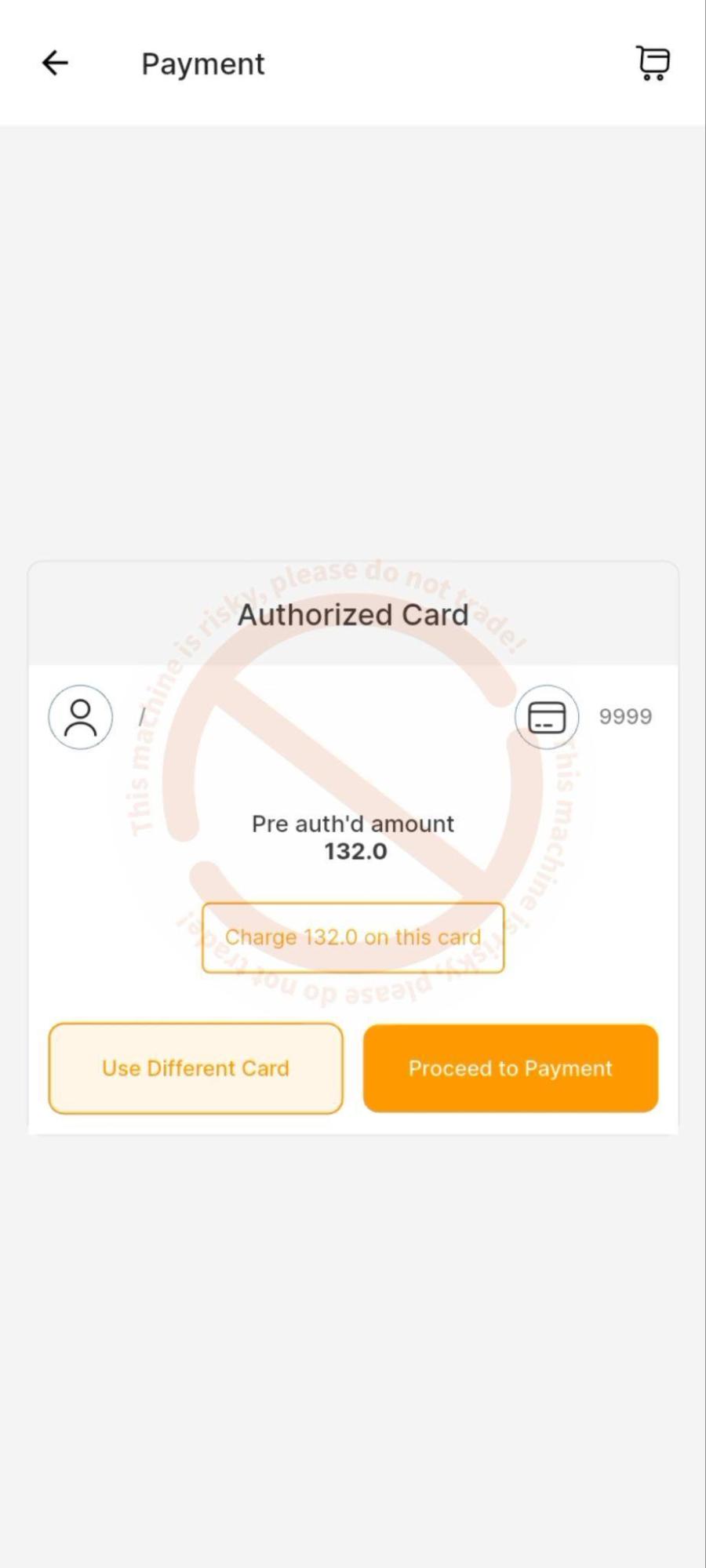
- Go to the Orders screen and select the saved preauth order.
- Review card and preauth details and proceed to payment.
- The Dejavoo interface completes the capture automatically.
- Return to the POS and view the status.
-
Payment Flow — Batch Settlement
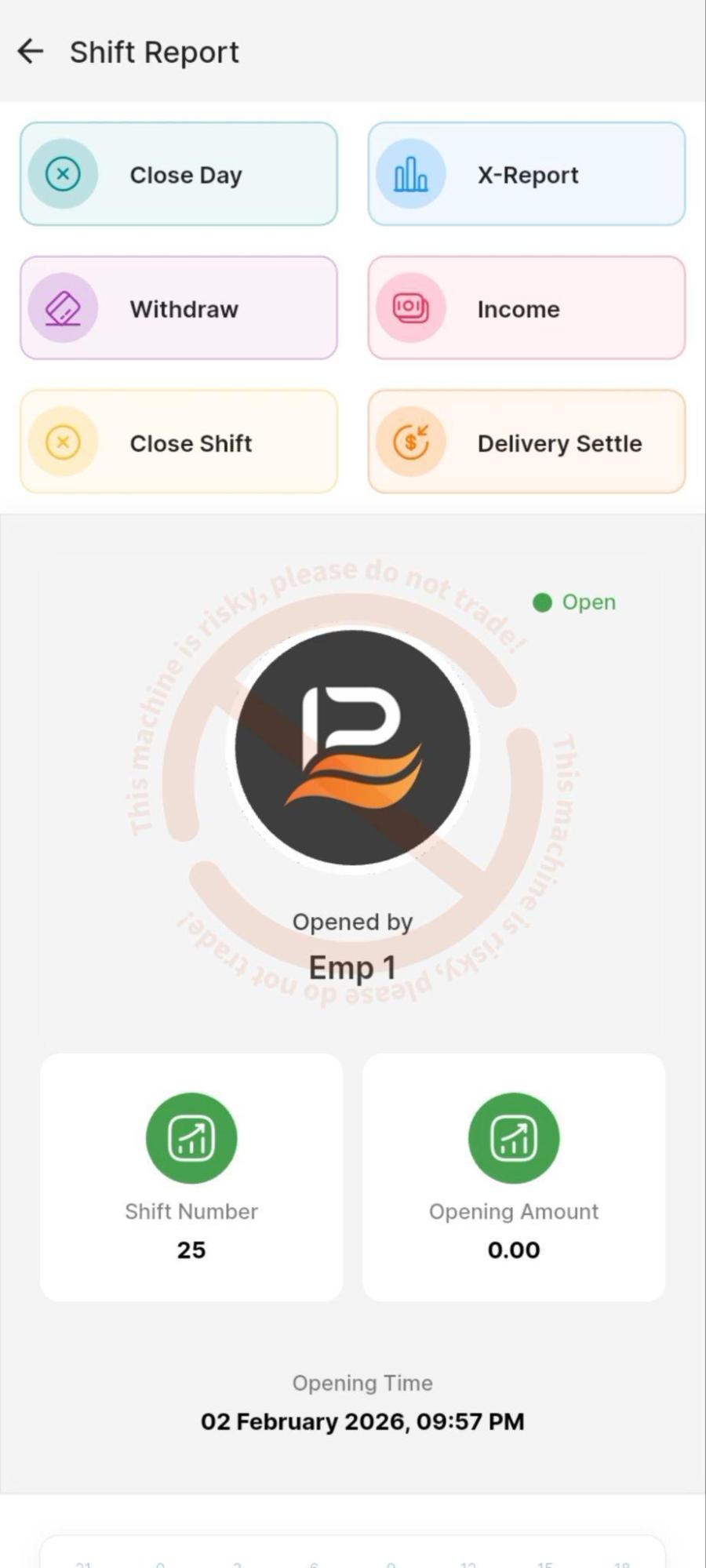
- Go to the POS Current Shift screen.
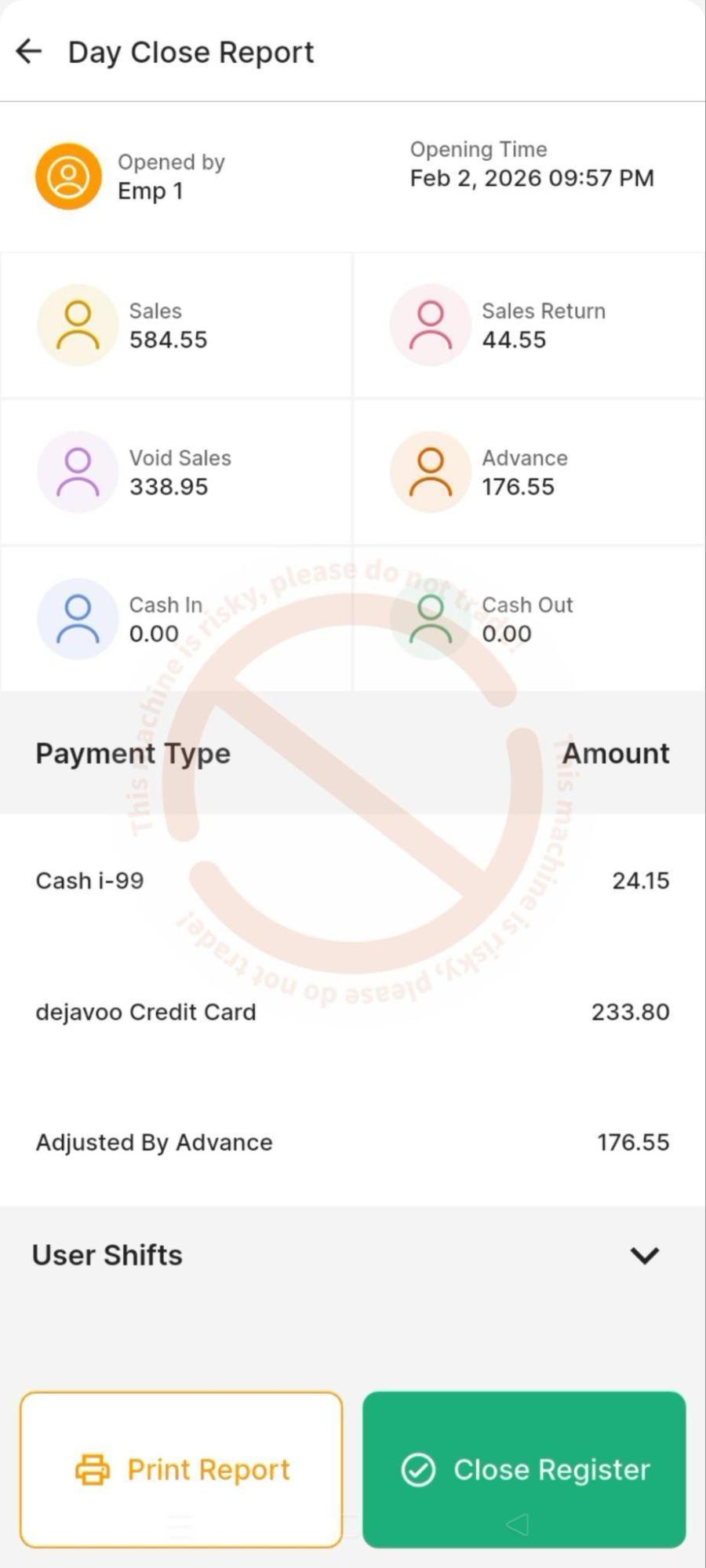
- Select Close Day.
- Select Close Register.
P2P Batch Settlement
- The system navigates to the Dejavoo interface.
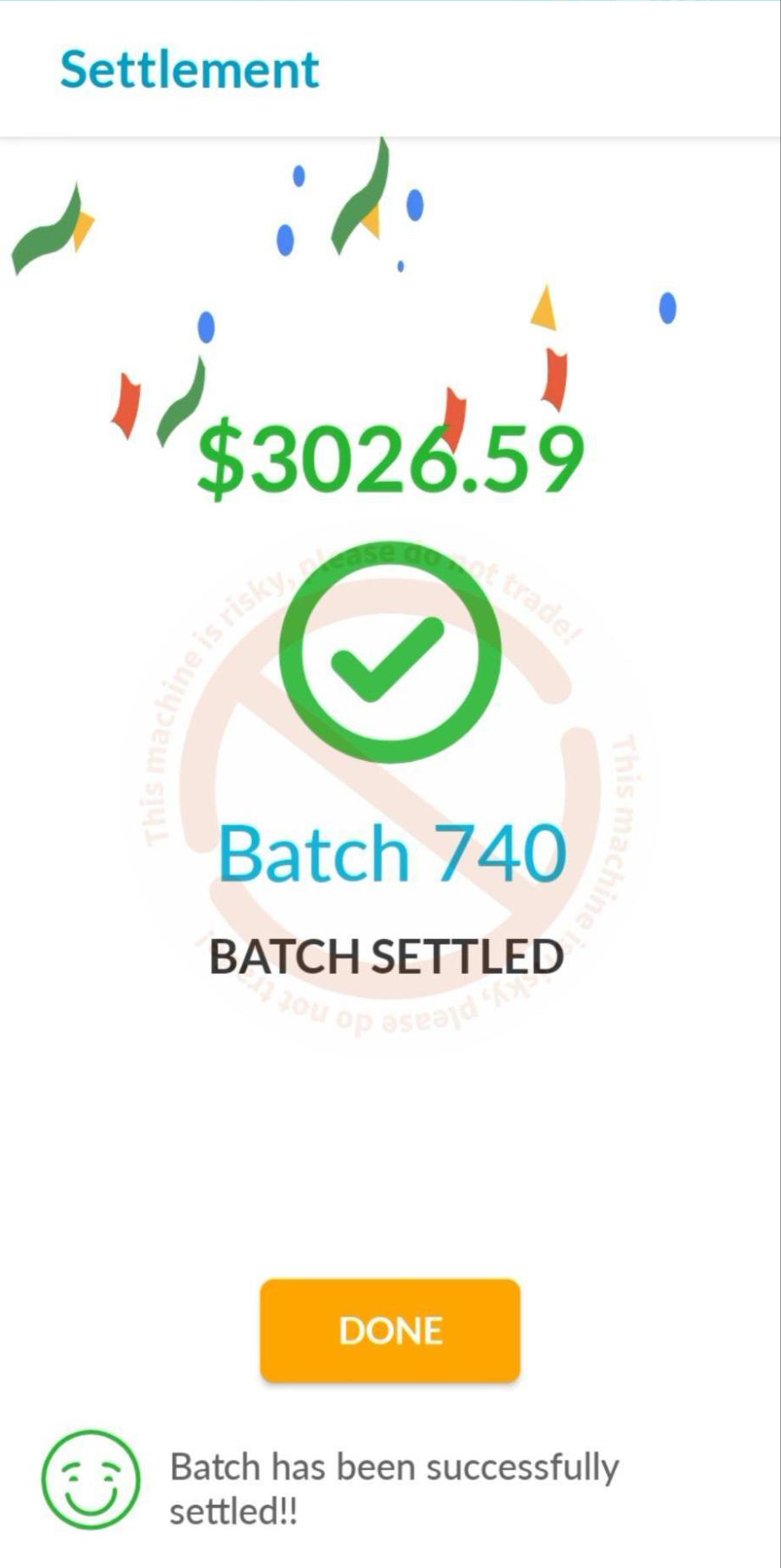
- Batch settlement is processed and a batch settled confirmation is shown.
- Control returns to the POS with the settlement status.
- Print the settlement receipt if required.
Cloud Batch Settlement
- The request will redirect to the dejavoo terminal and after the batch is settled pos batch settlement is processed along with the receipt.
Connect with us to know more
To learn more about it feel free to book a meeting with our team