
Phonepe EDC
LithosPOS supports integrated payments through phonePe EDC, allowing you to accept payments swiftly and securely.
It facilitates various payment methods, ensures quick transactions and reduces manual errors, improving your overall efficiency. If you require any further assistance with integrated payment settings feel free to reach out to our support team.
Settings in LithosPOS Back Office
- To add the integrated PhonePe EDC Payment method, log in to the back office at
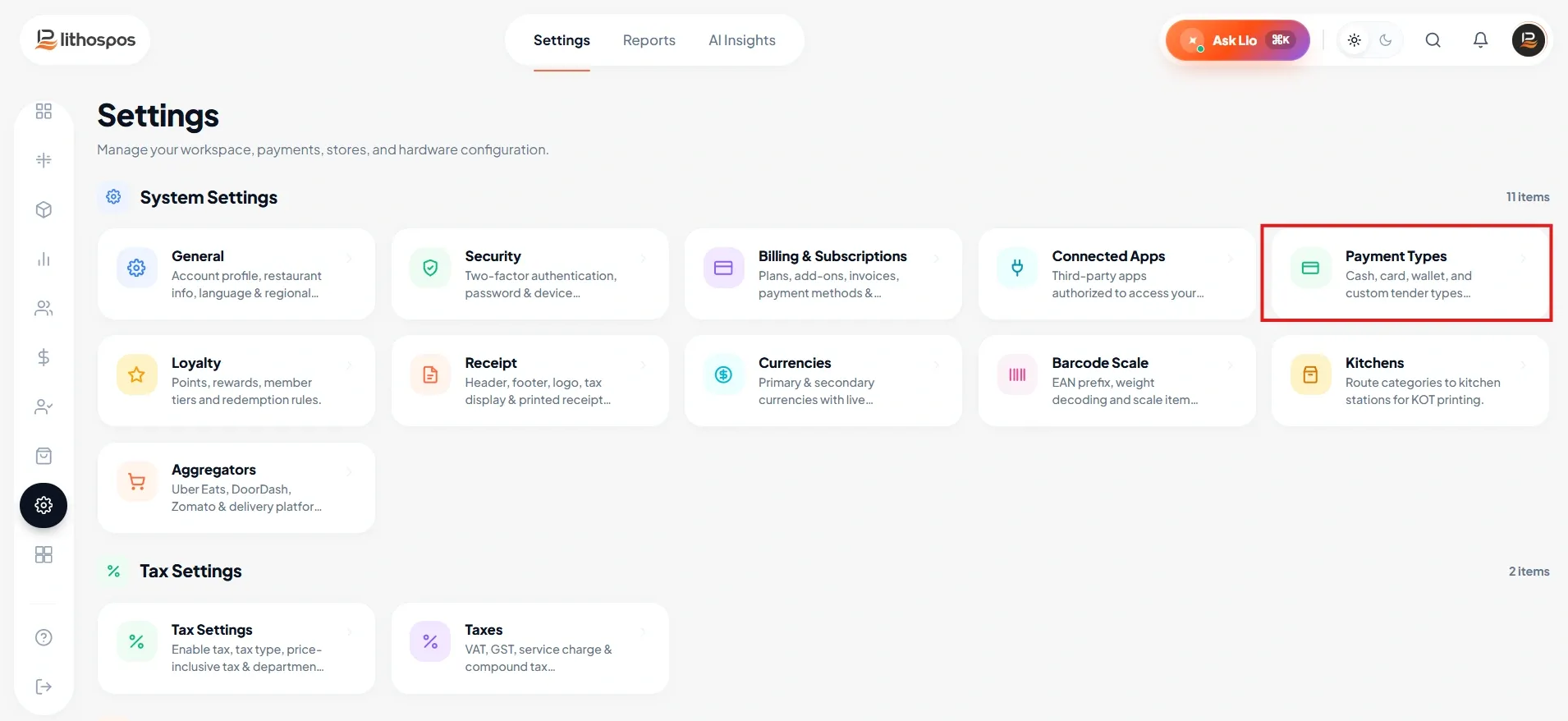
my.lithospos.comusing your company email ID and password. - Navigate to Settings > Payment Types.
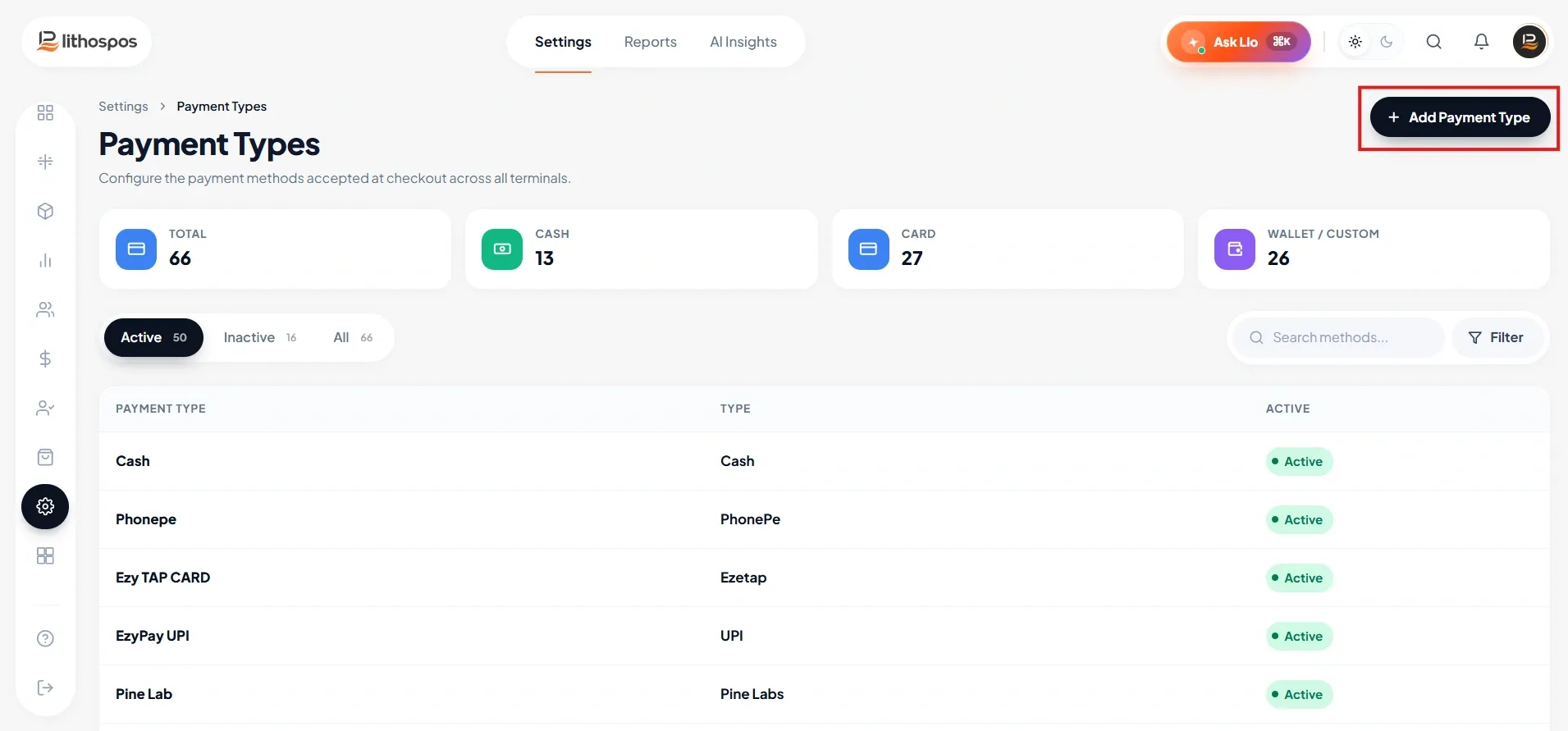
- Click the “+ Add Payment Type” button.
- A window titled ‘New Payment Type’ will appear.
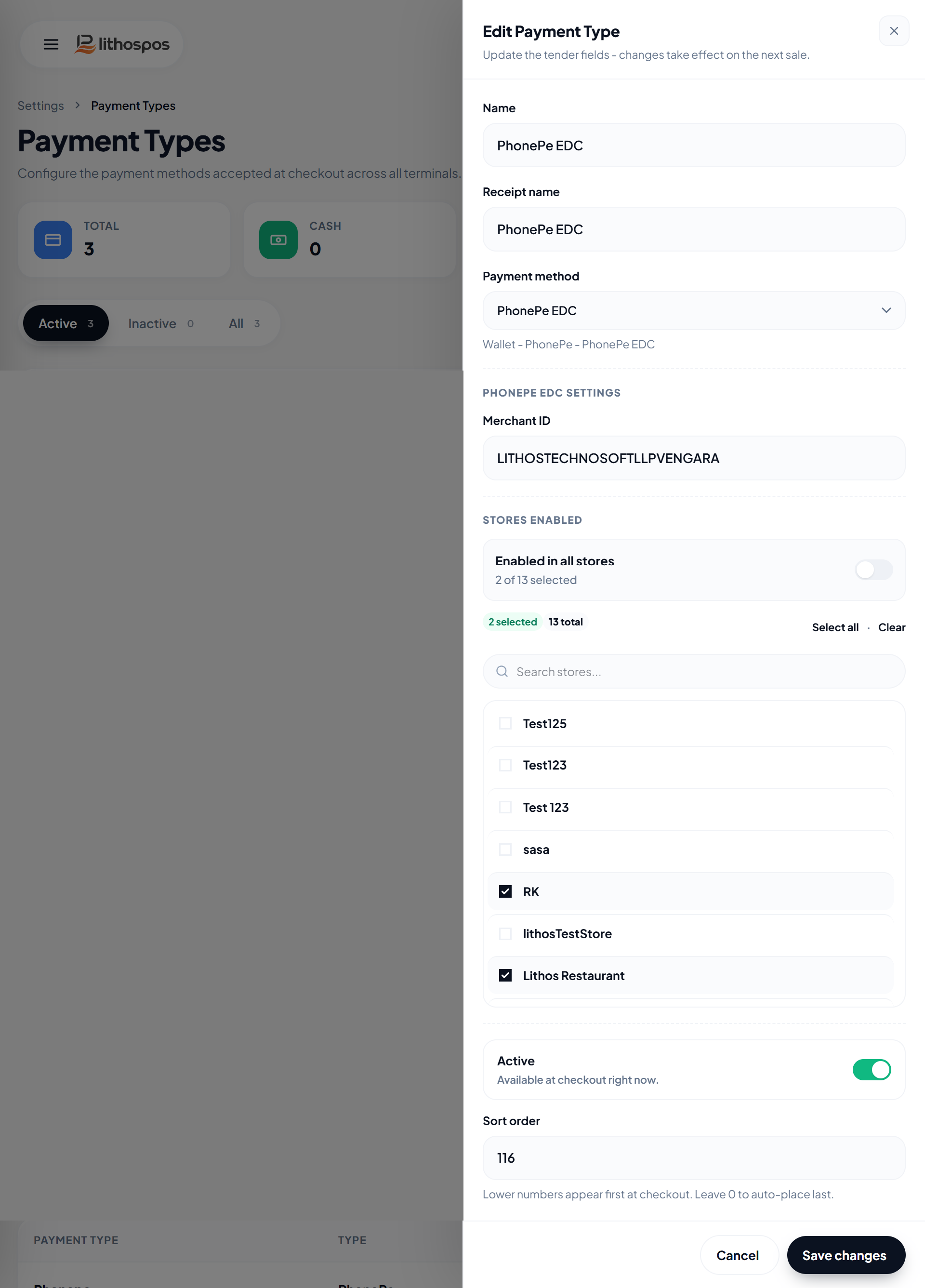
- In the 'Payment Type' column, enter the name you want to display in the POS app.
- From the Payment Method dropdown, select PhonePe EDC.
- In the 'Receipt Name' field, enter the name that should appear on the receipt printout.
- Enter the Merchant ID in the 'Merchant ID' field.
- Toggle the Activate/Deactivate button to enable or disable this payment method.
- If you have multiple stores, select the stores where you want this payment type to be available.
- Click Save Changes to save your settings.
Now, when a customer scans and pays using PhonePe Terminal, the payment window will close only once the required payment amount is received in your bank account.
Settings in the POS
To configure PhonePe EDC settings directly on the POS:
- On the POS menu, Navigate to 'Settings'.
- Select 'Phonepe Terminal' , On clicking, a popup will appear to enter the Terminal ID & Store ID.
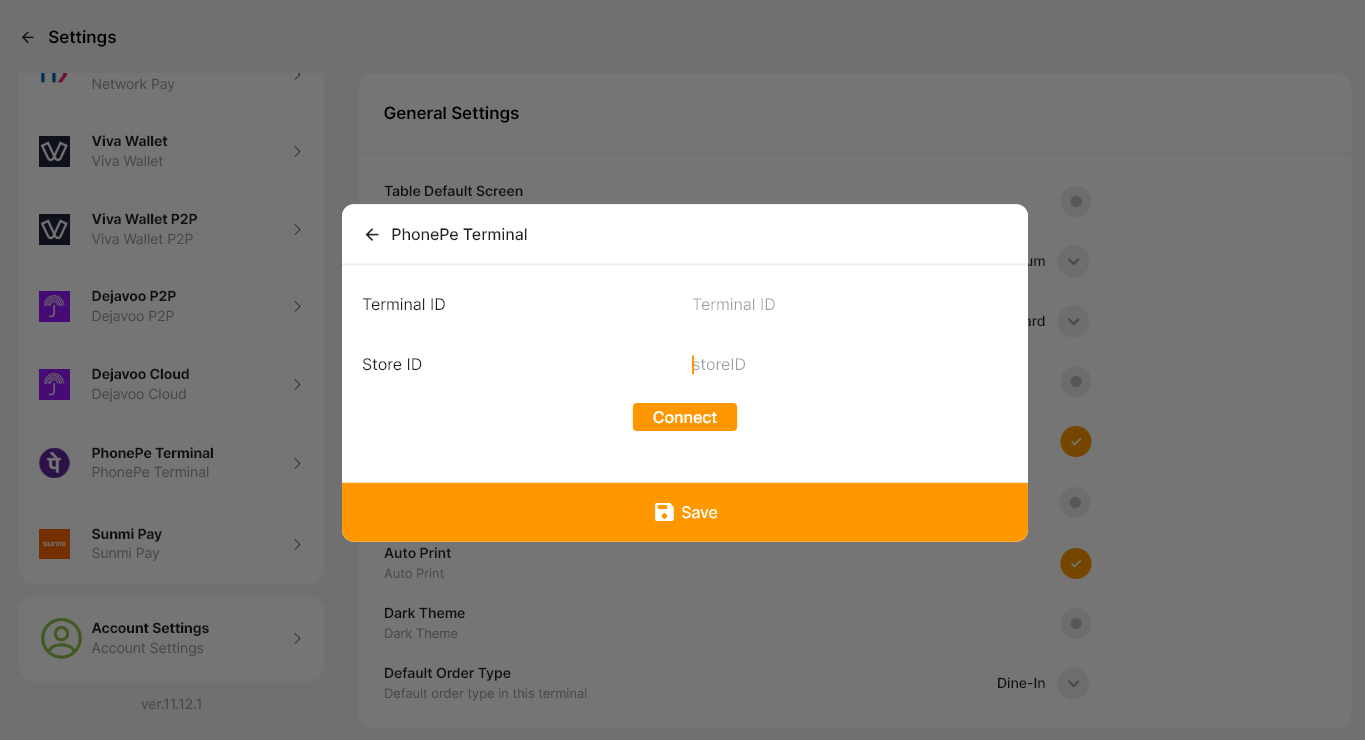
- After entering the required details click on Connect button,
- once connected click Save to finalize the settings.
How to Accept Payments with PhonePe EDC in LithosPOS
Once your setup is complete, you can start processing payments using the integrated PhonePe EDC terminal.
- Add items to the cart on the POS screen & Tap ‘Pay’ button.
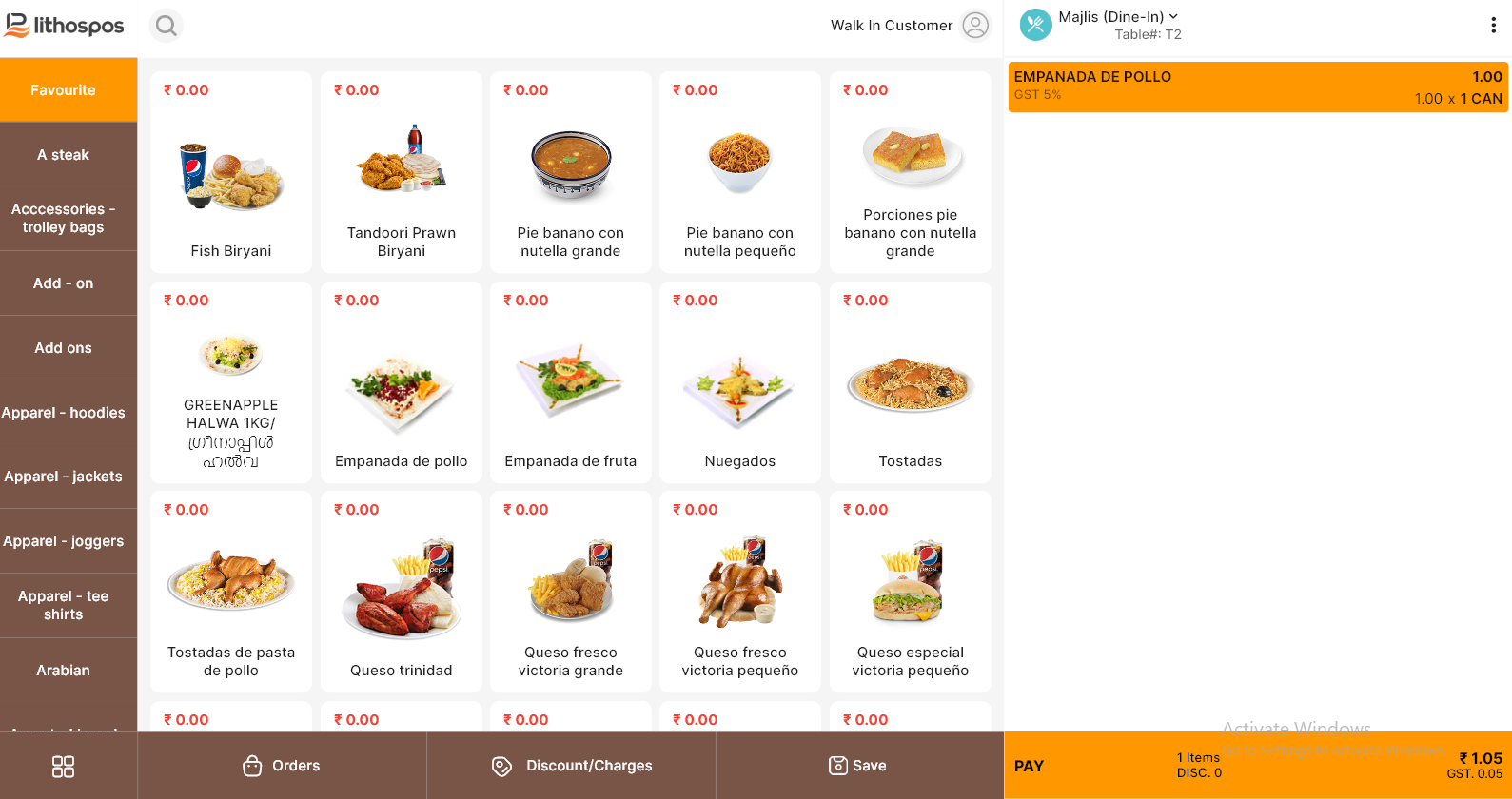
- Choose PhonePe EDC as the payment method.
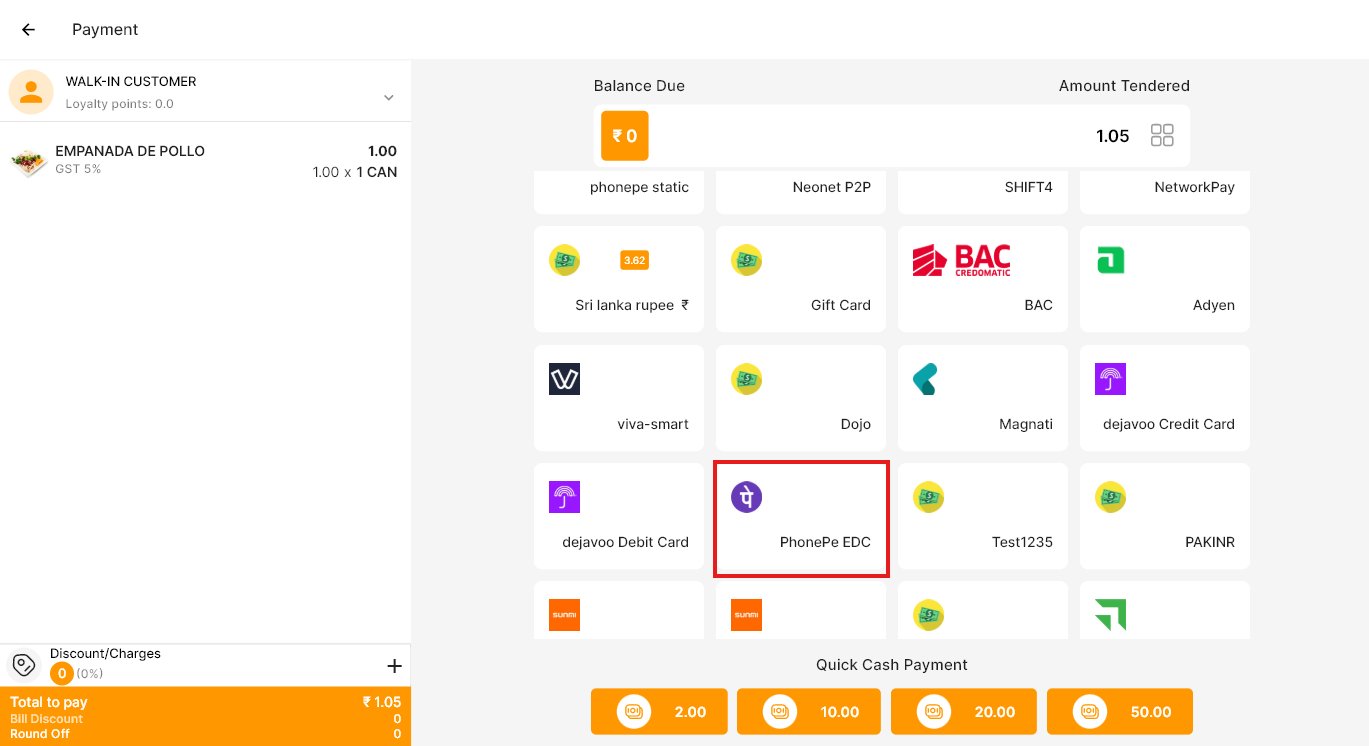
- The total amount will automatically be sent to the PhonePe EDC terminal.
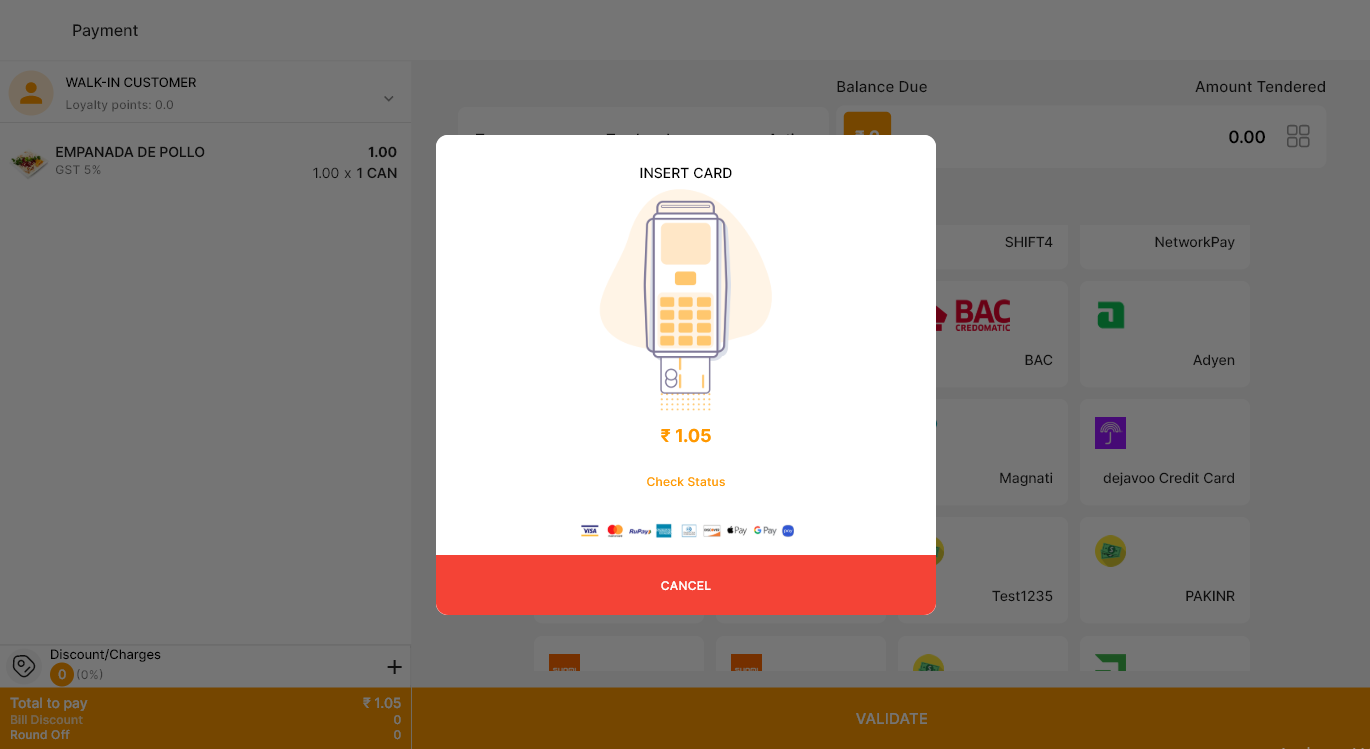
- Ask the customer to swipe, insert, or tap their card or to scan the QR.
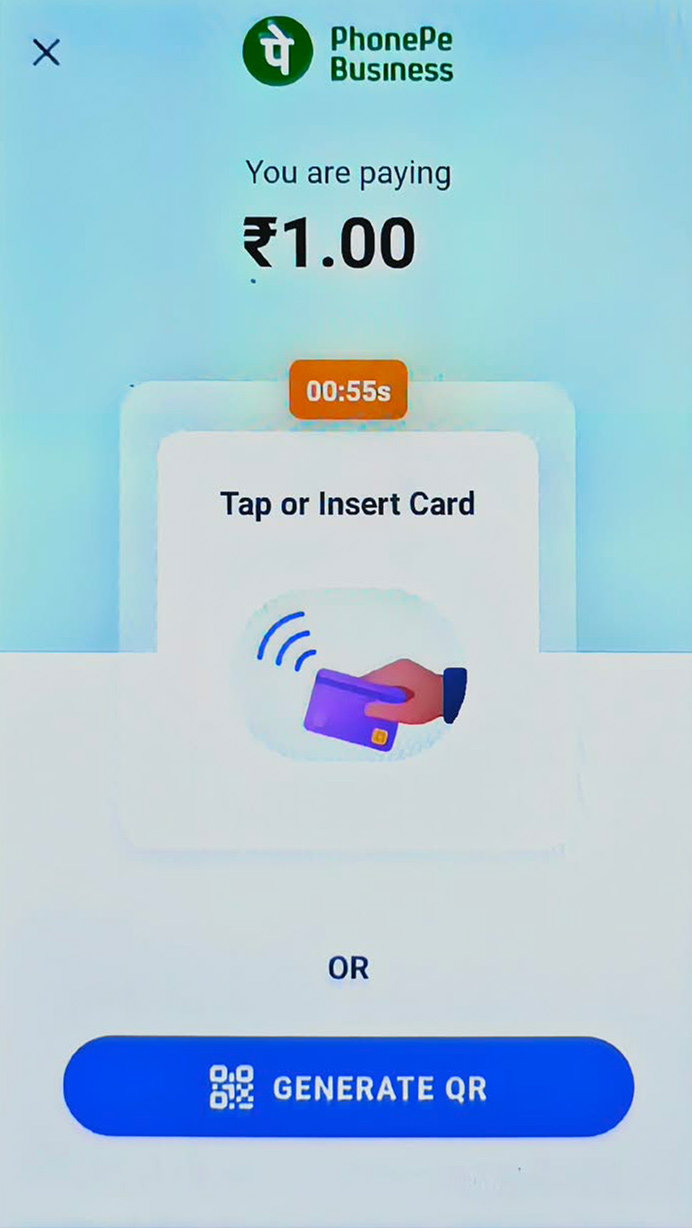
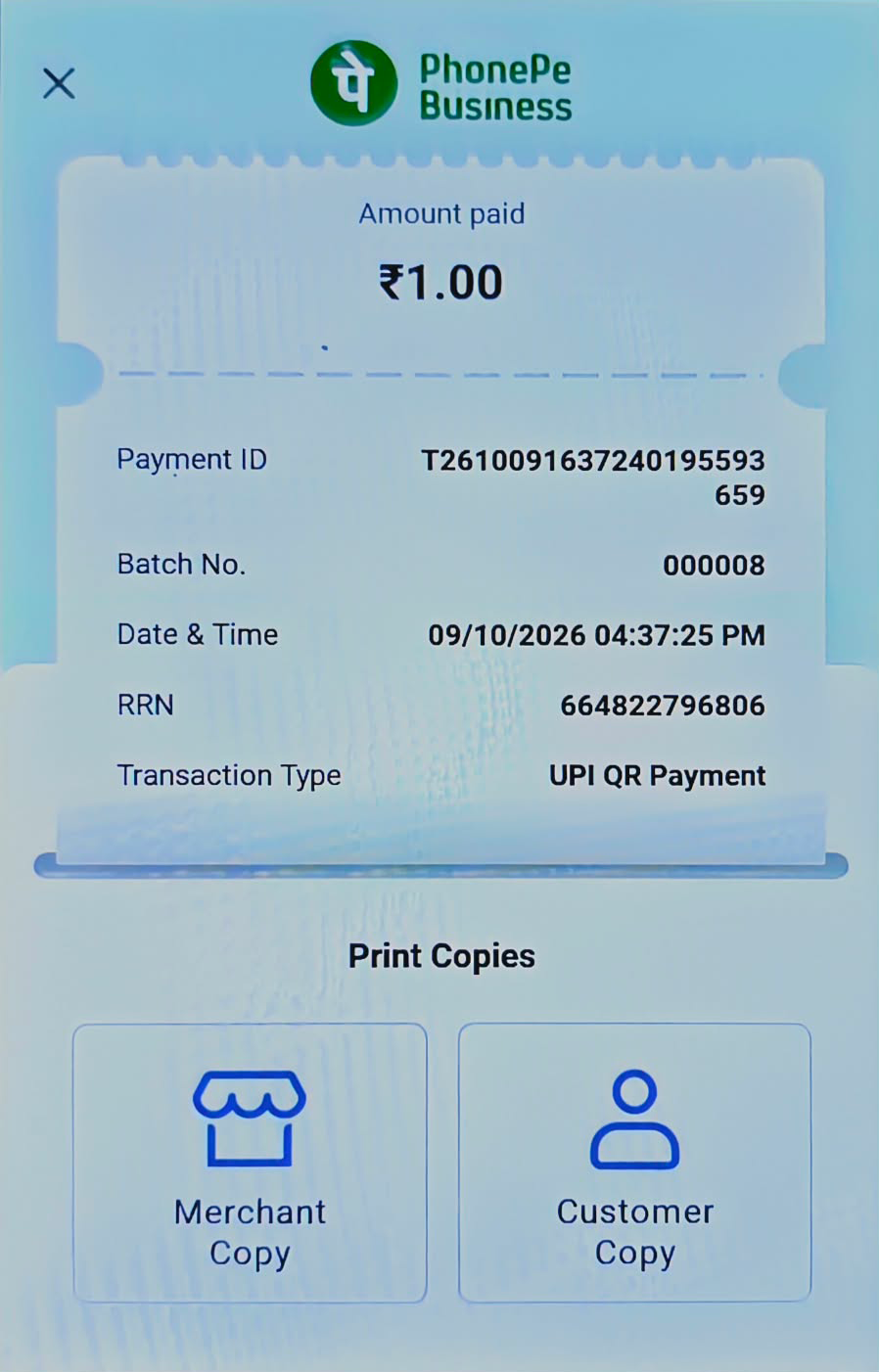
- After successful payment, the PhonePe Business device displays the payment confirmation screen with the amount paid, Payment ID, transaction details, and options to print the merchant or customer receipt.
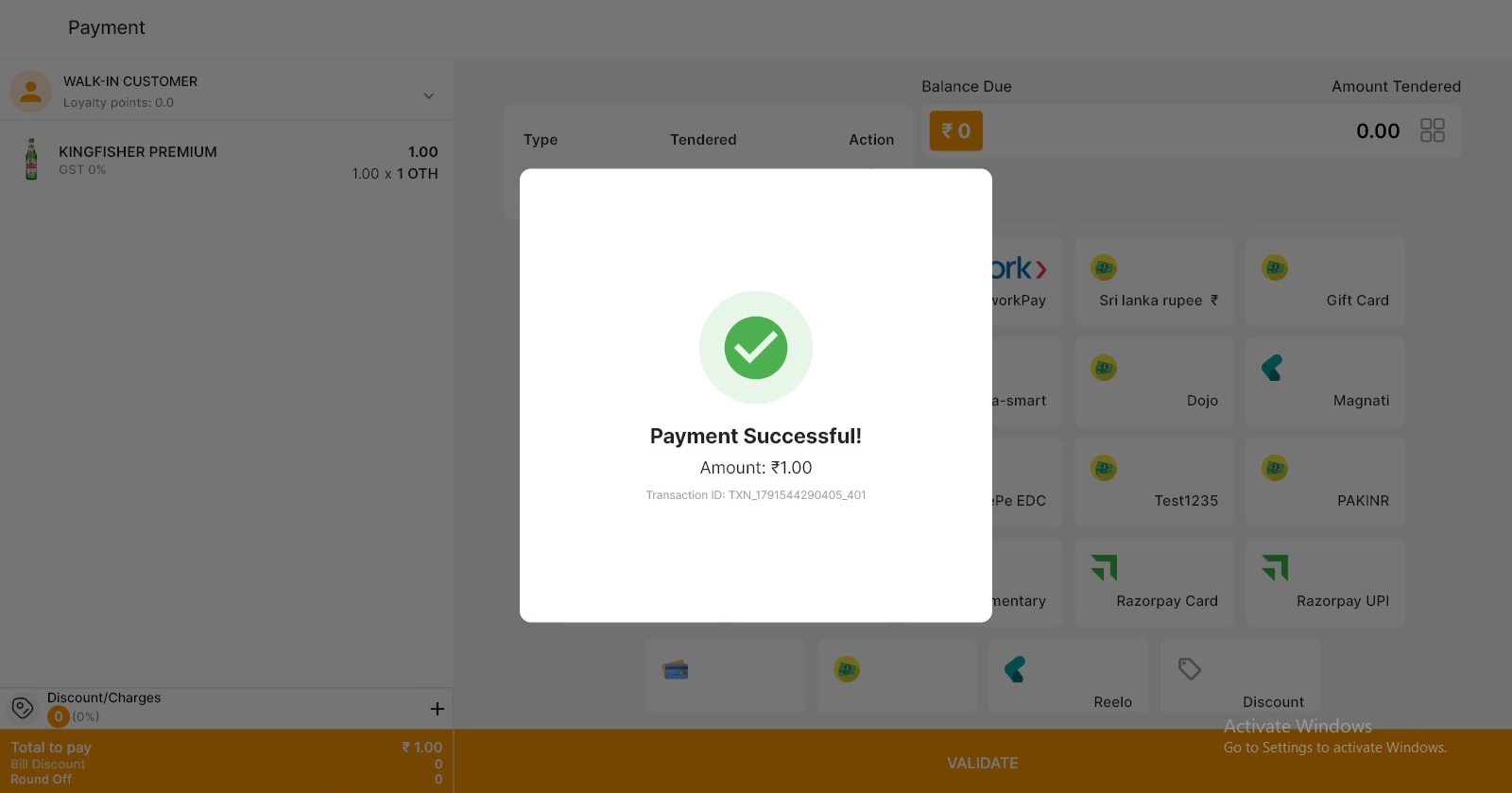
- Once the transaction is approved, LithosPOS completes the payment and generates a receipt, while the POS screen displays a “Payment Successful!” confirmation popup.
Connect with us to know more
To learn more about it feel free to book a meeting with our team
Was this article helpful?