
DoorDash Integration with LithosPOS
Integrating DoorDash with LithosPOS allows you to manage DoorDash orders directly from your POS system, streamlining operations and improving efficiency. Follow the steps below to complete the integration and manage orders.
Updated
Integrating DoorDash with LithosPOS allows you to manage DoorDash orders directly from your POS system, streamlining operations and improving efficiency. Follow the steps below to complete the integration and manage orders.
Configure DoorDash in LithosPOS Back Office
Step-by-step Instructions:
- Login to the Back Office: Go to my.lithospos.com and log in to the Back Office (BO).
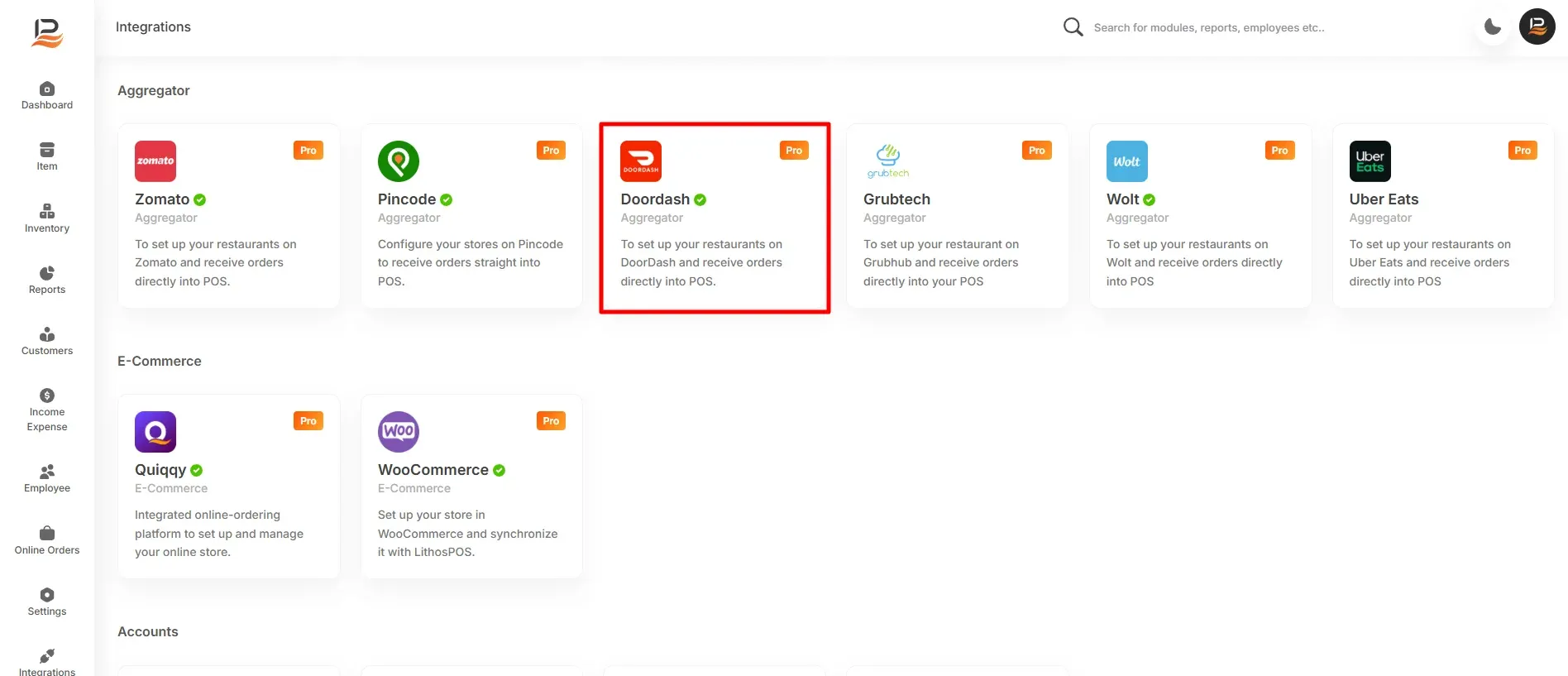
- Start by navigating to the Integrations section.
- Install DoorDash App
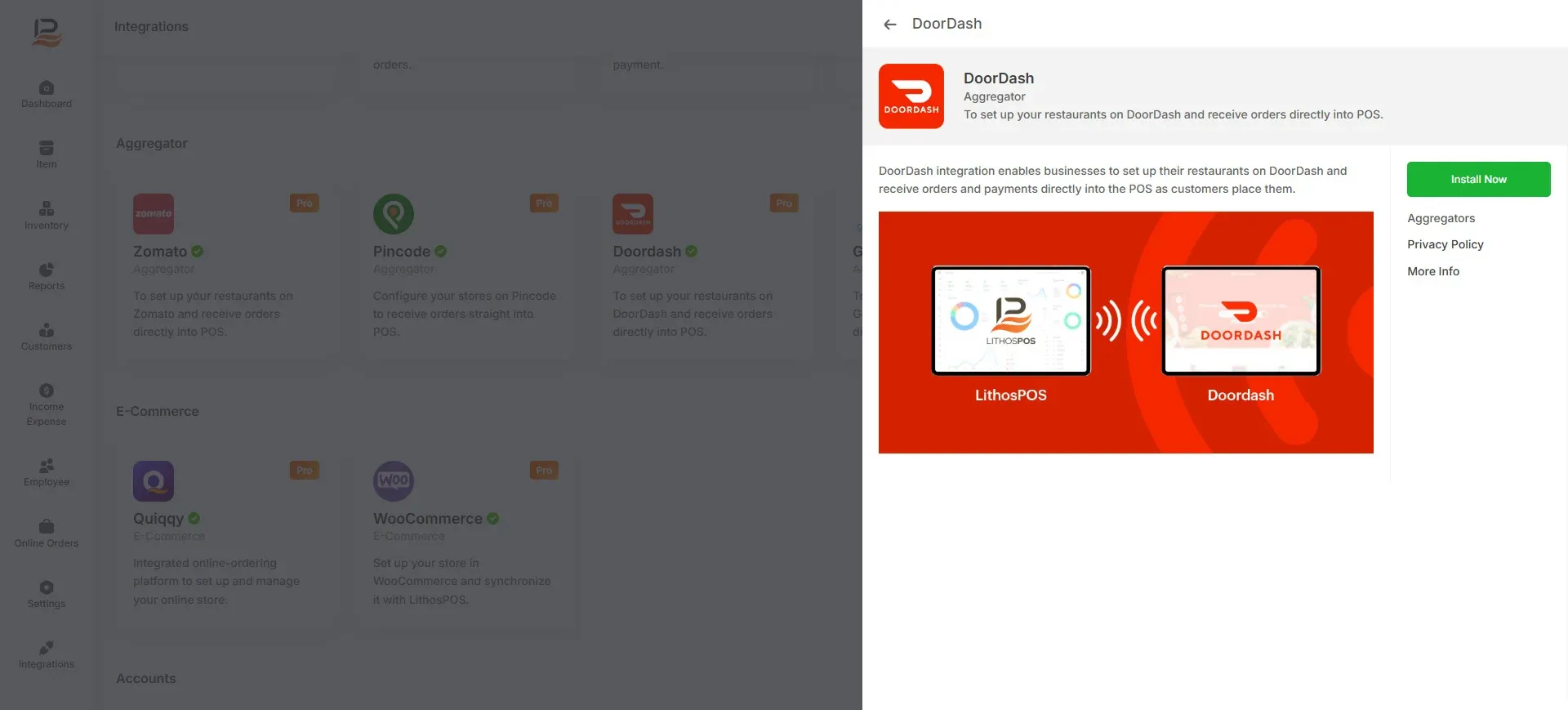
- Click on DoorDash and click Install Now
- The app is installed
Add New Connection
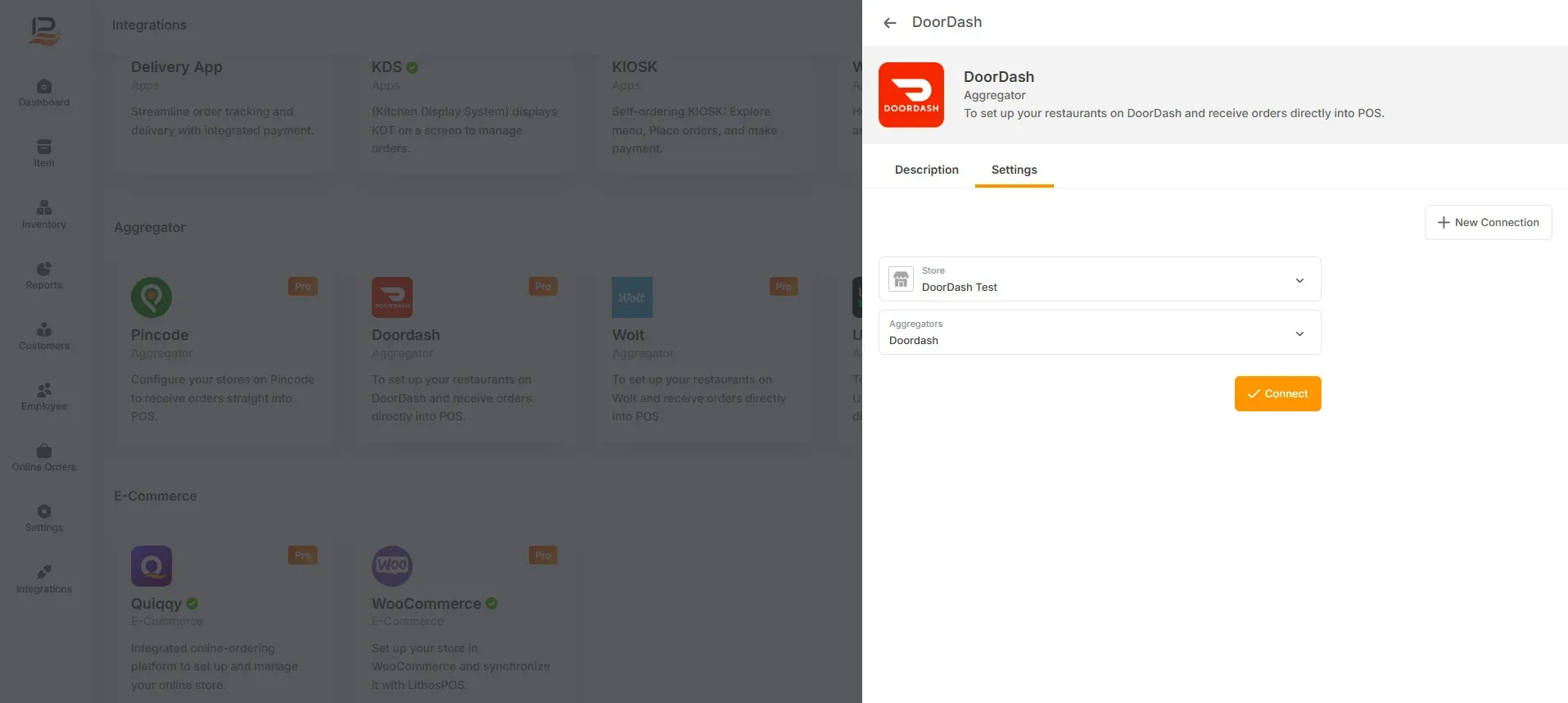
- Once the app is installed, click + Add New Connection in the aggregator settings.
- Select your Store and choose DoorDash as the aggregator.
- Click the Connect button.
DoorDash Connection Steps:
- Pick Menu: Pick the menu from the menu list
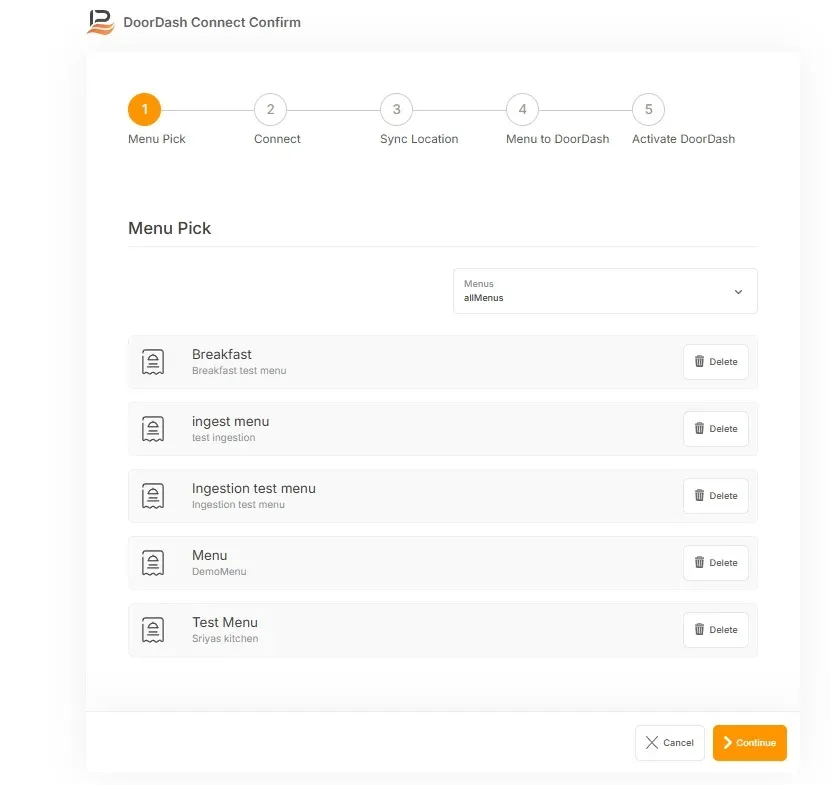
- Connect: You will be redirected to the DoorDash login window.
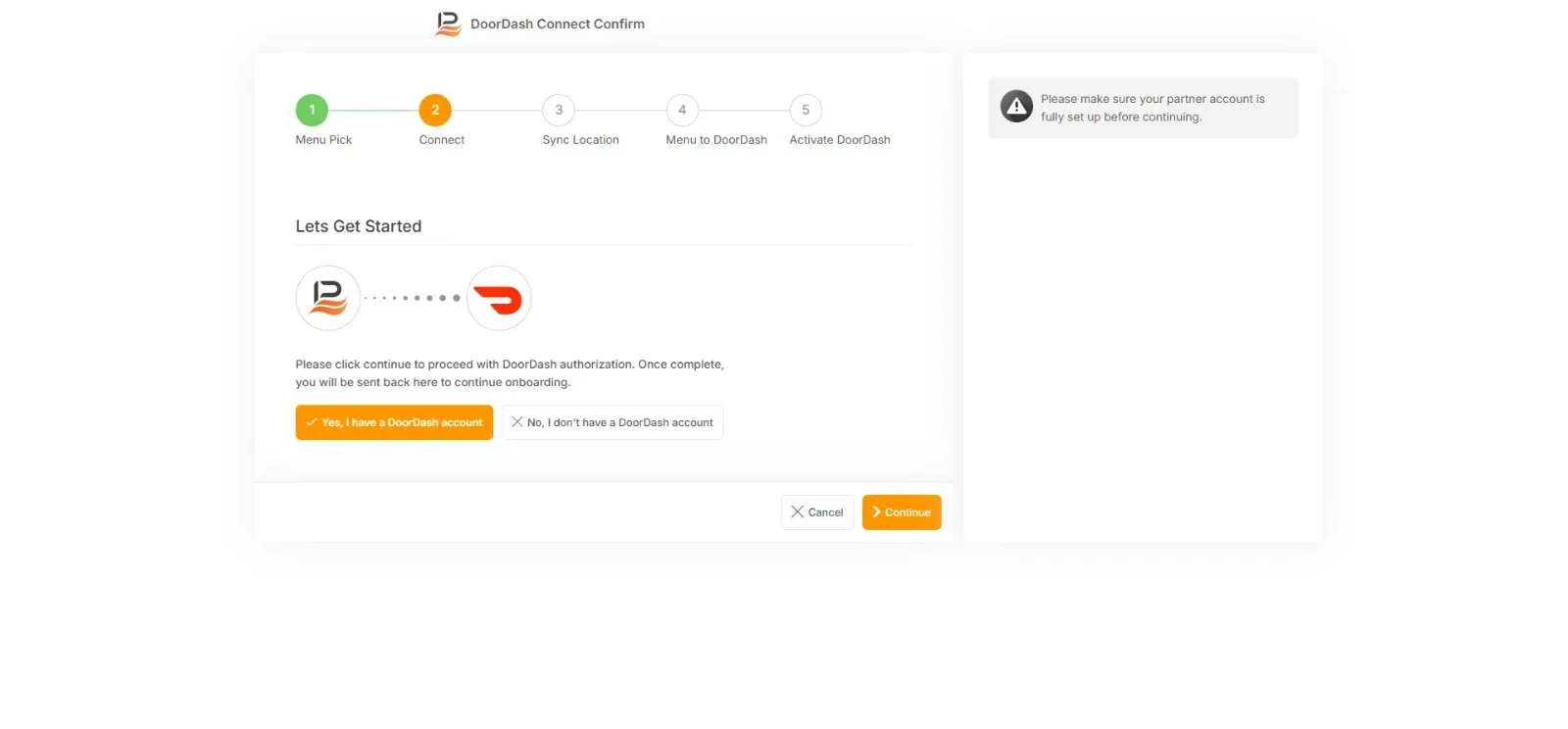
- Log in with your DoorDash credentials.
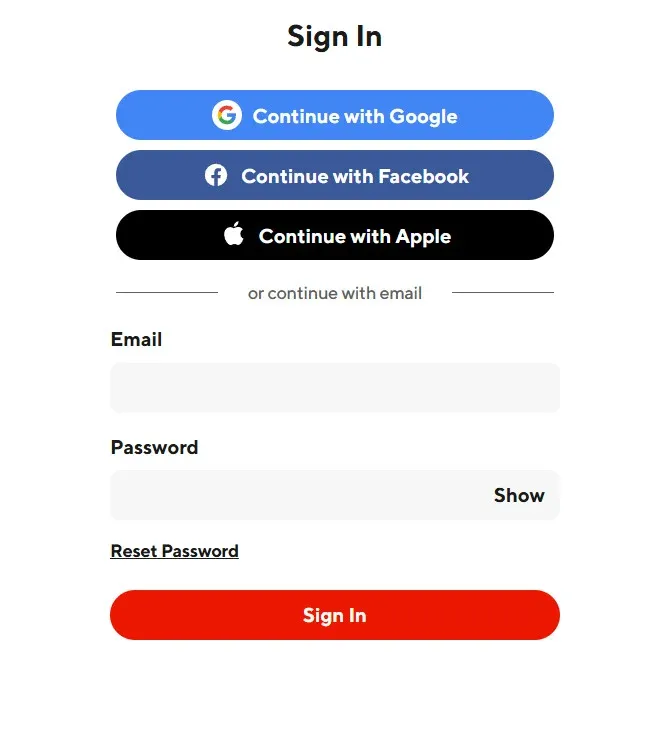
-
If you don’t have an account, click Sign up and complete the registration process.
Sync Location
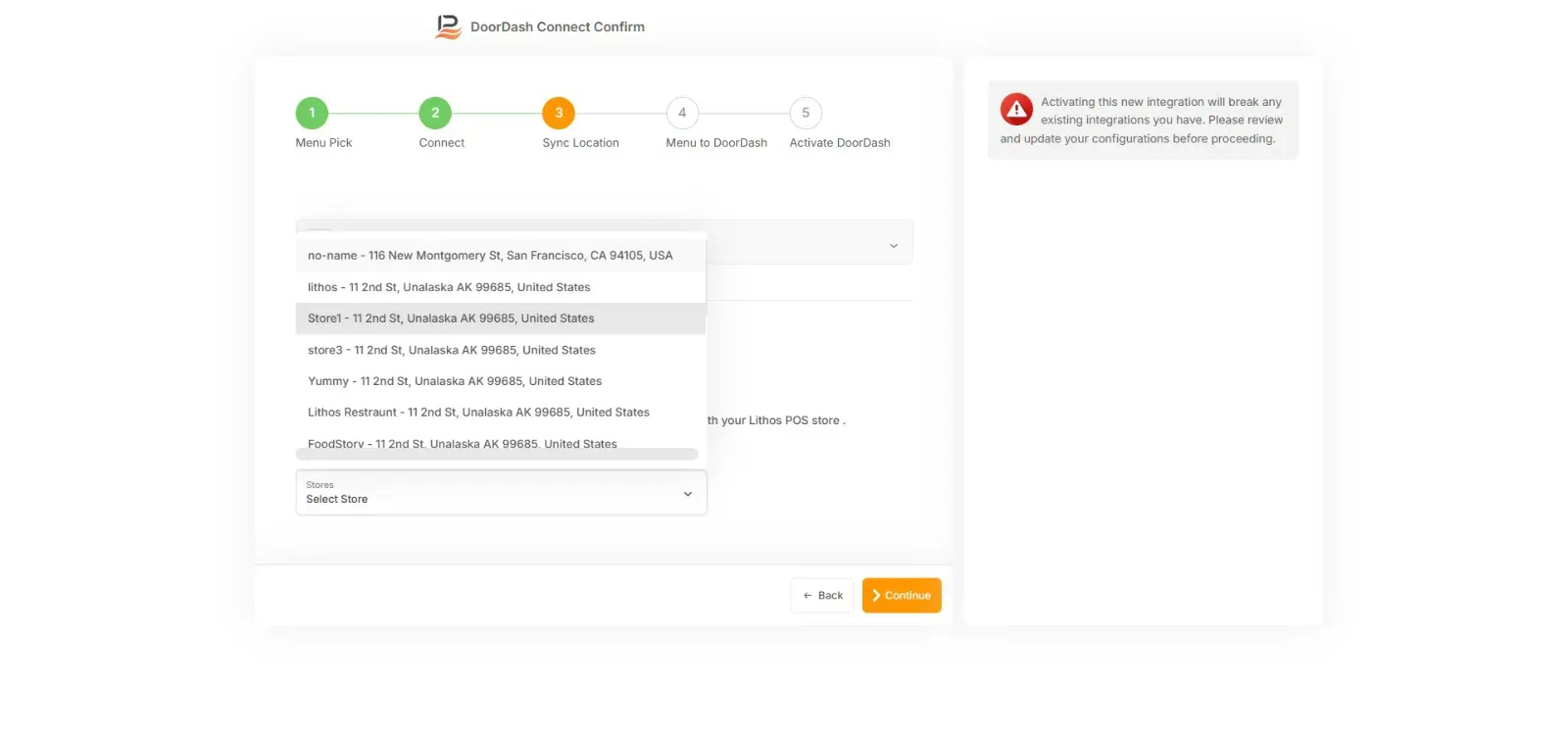
- A dropdown menu will appear; select your DoorDash location.
- Click Continue to sync with the POS. Sync Menu to DoorDash
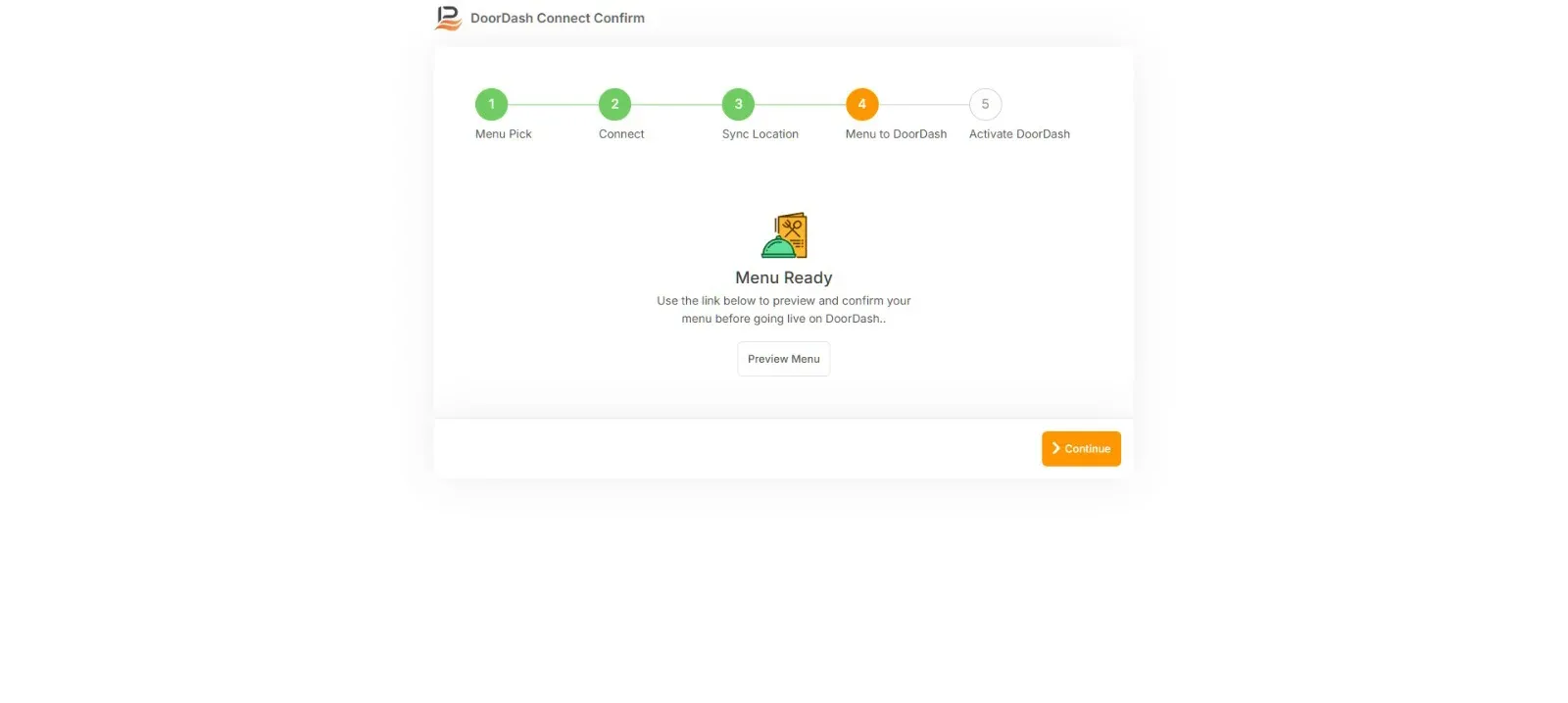
- Once the location is synced, click on the menu icon to review the synchronized menu.
Activate DoorDash
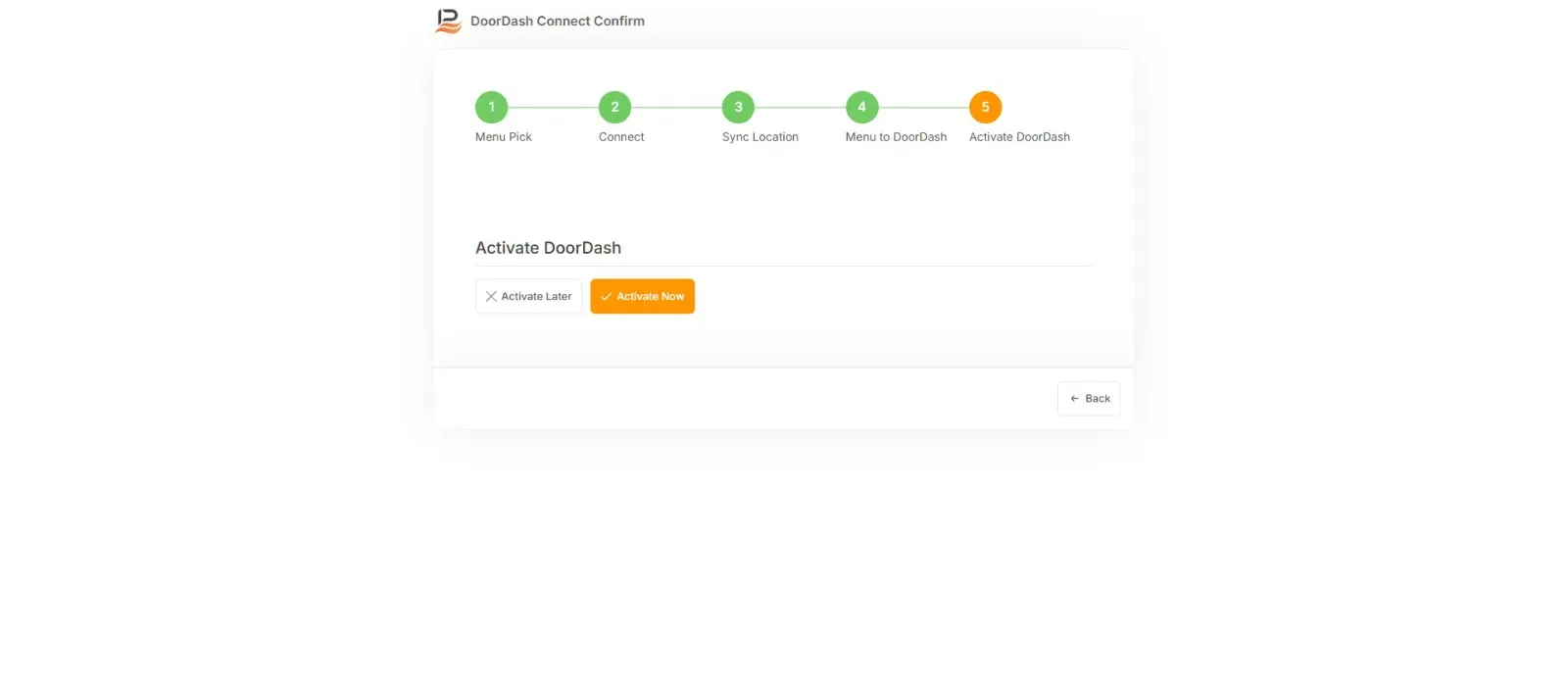
- Click the Activate button to complete the setup.
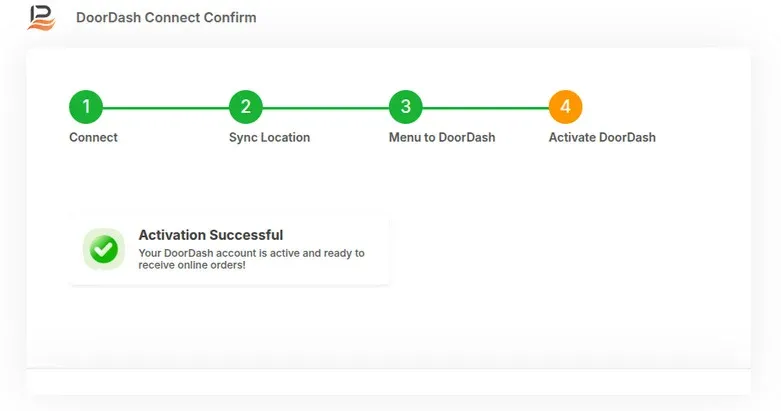
- A confirmation message will appear: “Activation Successful.”
Connect with us to know more
To learn more about it feel free to book a meeting with our team
BOOK A DEMO
Was this article helpful?