
On Account Sale
The On Account Sale feature in LithosPOS allows you to manage credit sales efficiently, providing a streamlined way to handle transactions where payment is deferred.
LTLithosPOS TeamMis à jour
This feature is crucial for businesses that offer credit to their customers, as it enables you to track outstanding balances, update repayments, and monitor accounts with ease.
Key Benefits
- Effortless Credit Sales Management: Easily process sales on credit and keep accurate records of what each customer owes.
- Repayment Tracking: Update repayments as customers pay off their balances, ensuring your records are always up-to-date.
- Customer-Wise Reporting: Monitor individual customer accounts, providing insights into credit usage and repayment patterns, helping you make informed decisions.
- Enhanced Financial Control: Improve your business's financial management by keeping a close eye on credit sales, reducing the risk of bad debt, and ensuring timely repayments.
Setting up the ‘On Account’ feature in the Back Office
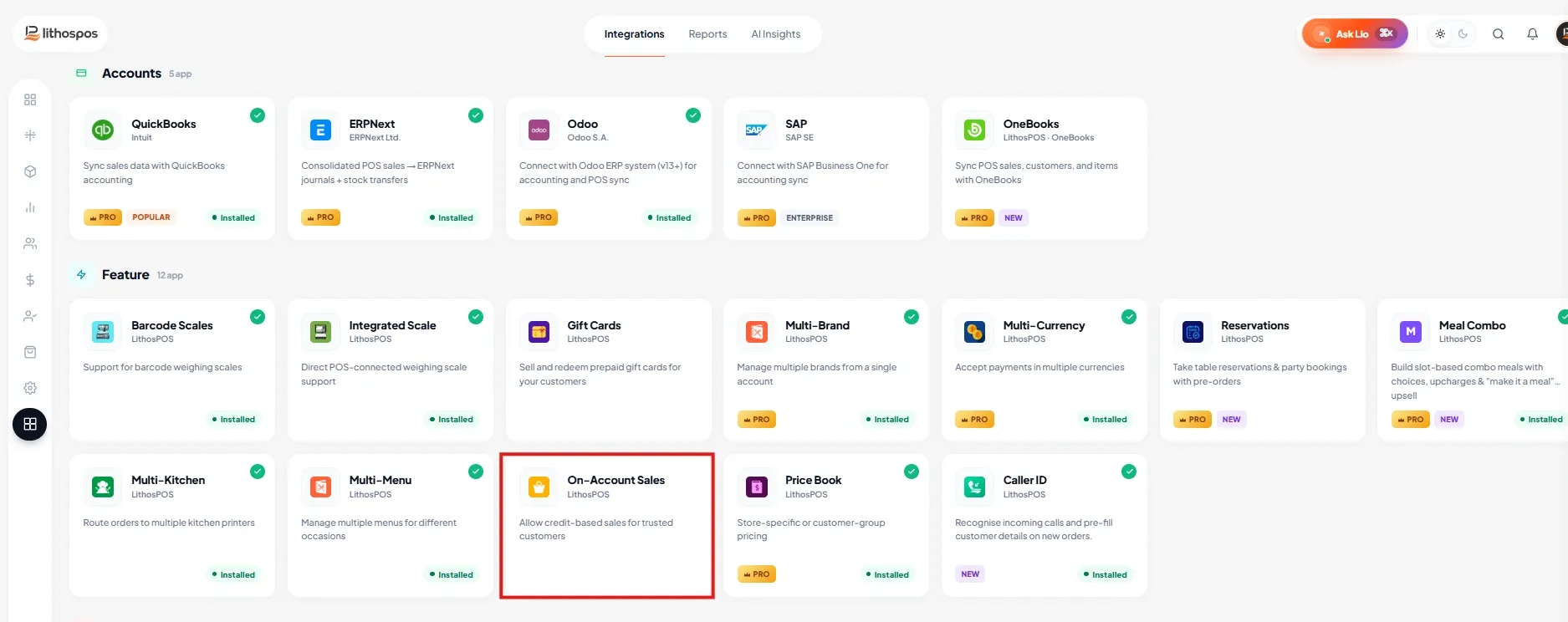
Install the ‘On Account’ feature
- Login to the Back office and select 'Integrations' in the side menu.
- Click on the On Account app and cllick 'Install Now' to install the feature.
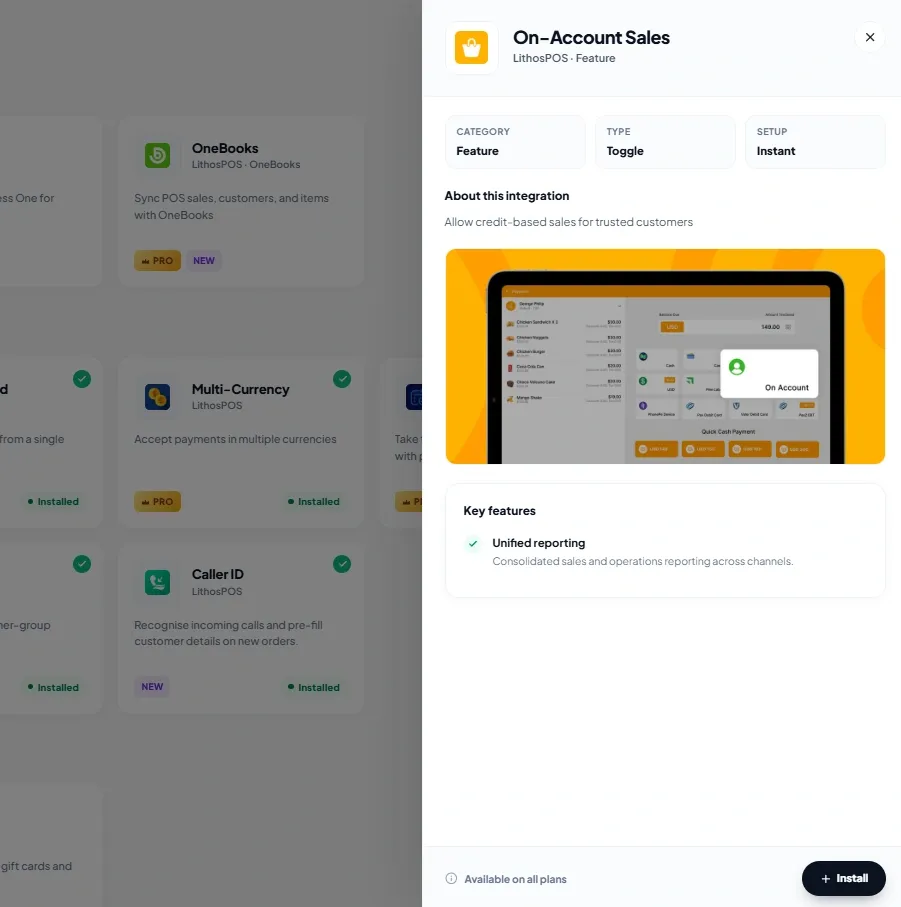
On Account feature in the POS Settings
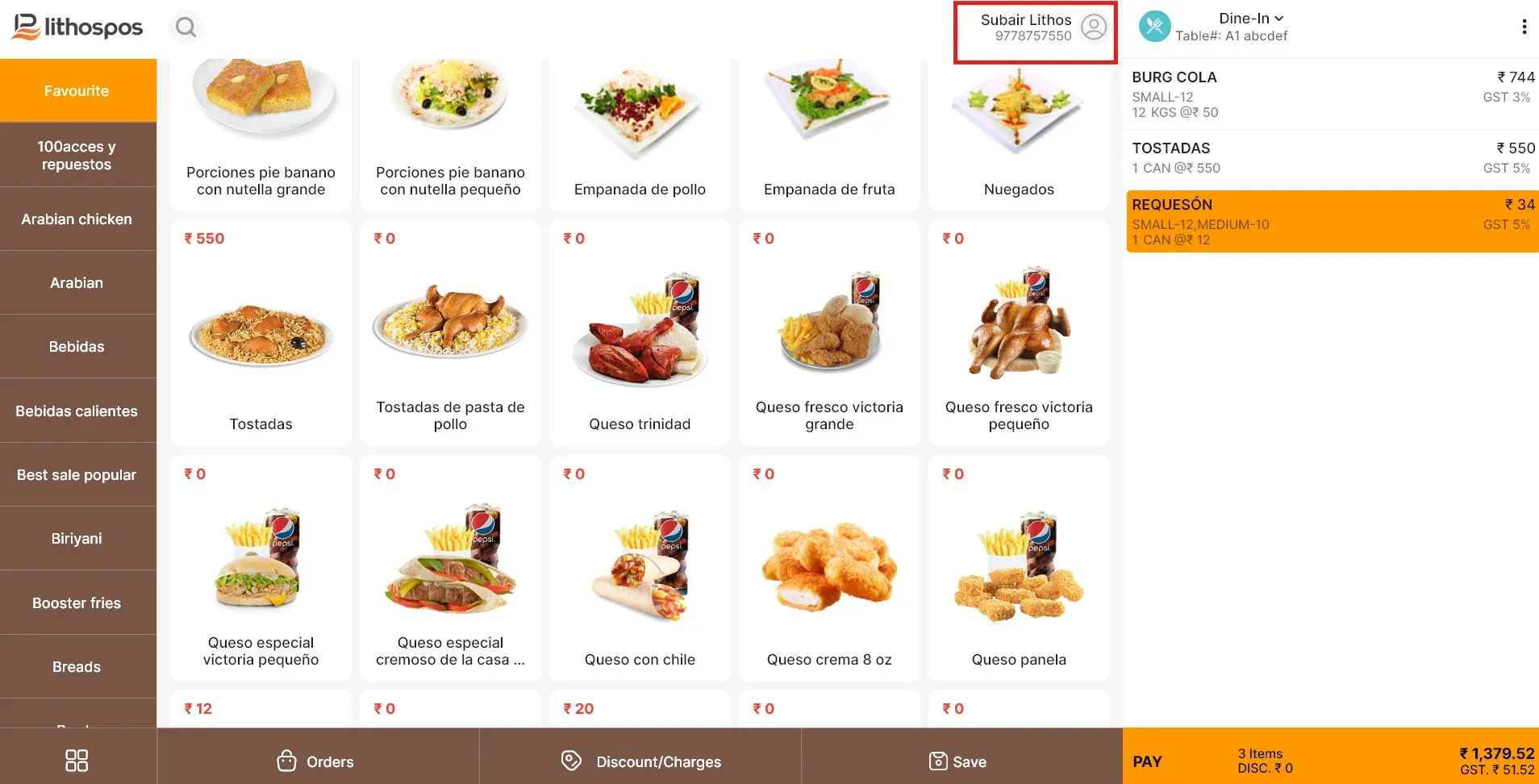
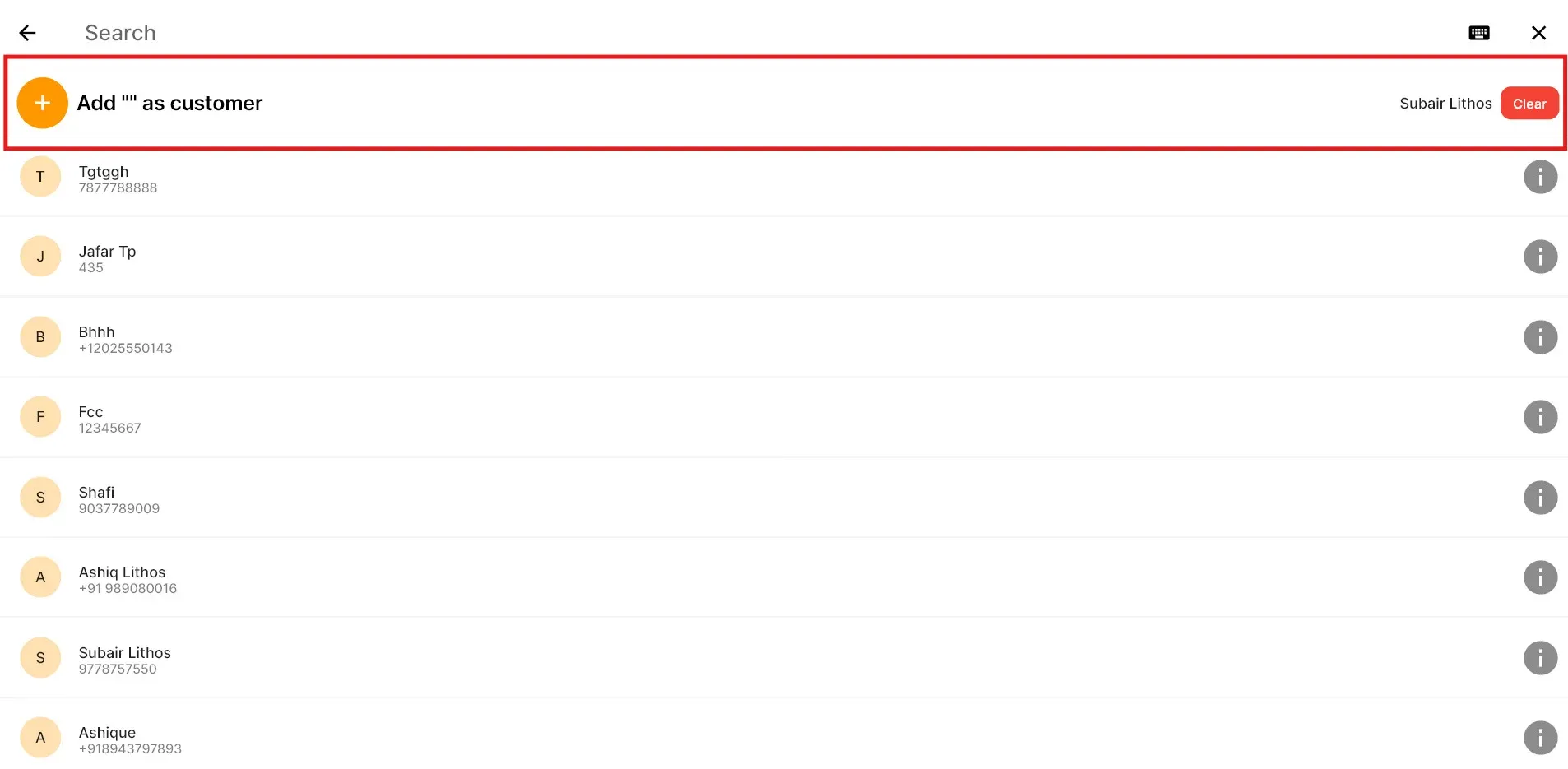
- In the POS app, select the customer name (for the customer to whom you want to provide a credit sale). If it is a new customer, add their details, such as name and mobile number, and save.
- Add items to the cart and place the order.
- Now, proceed to the payment window by clicking on Payment. (The On Account option will now be available in the payment options.)
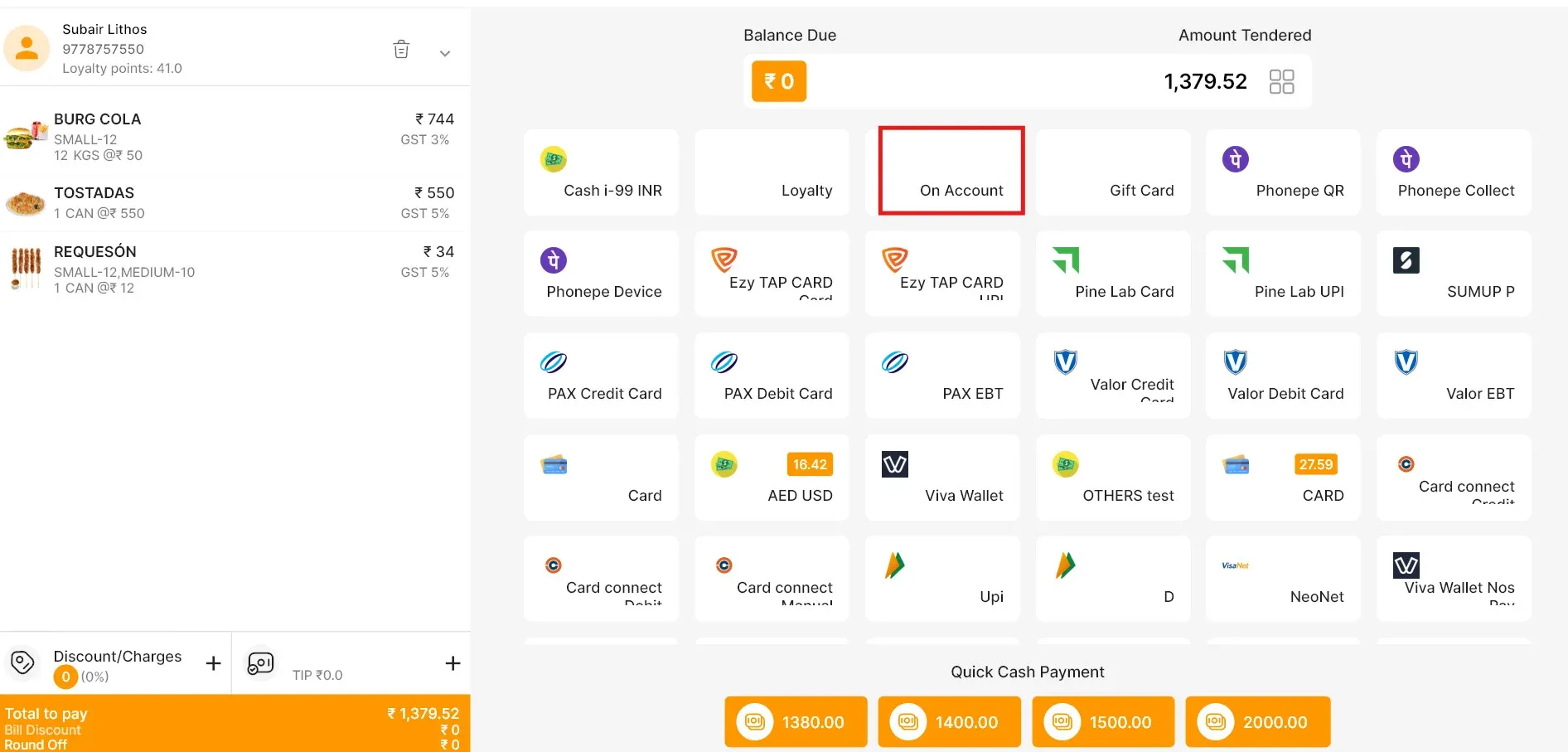
- Click ‘On Account’ and complete the order. (The sale value of the order will be added as credit for the selected customer.)
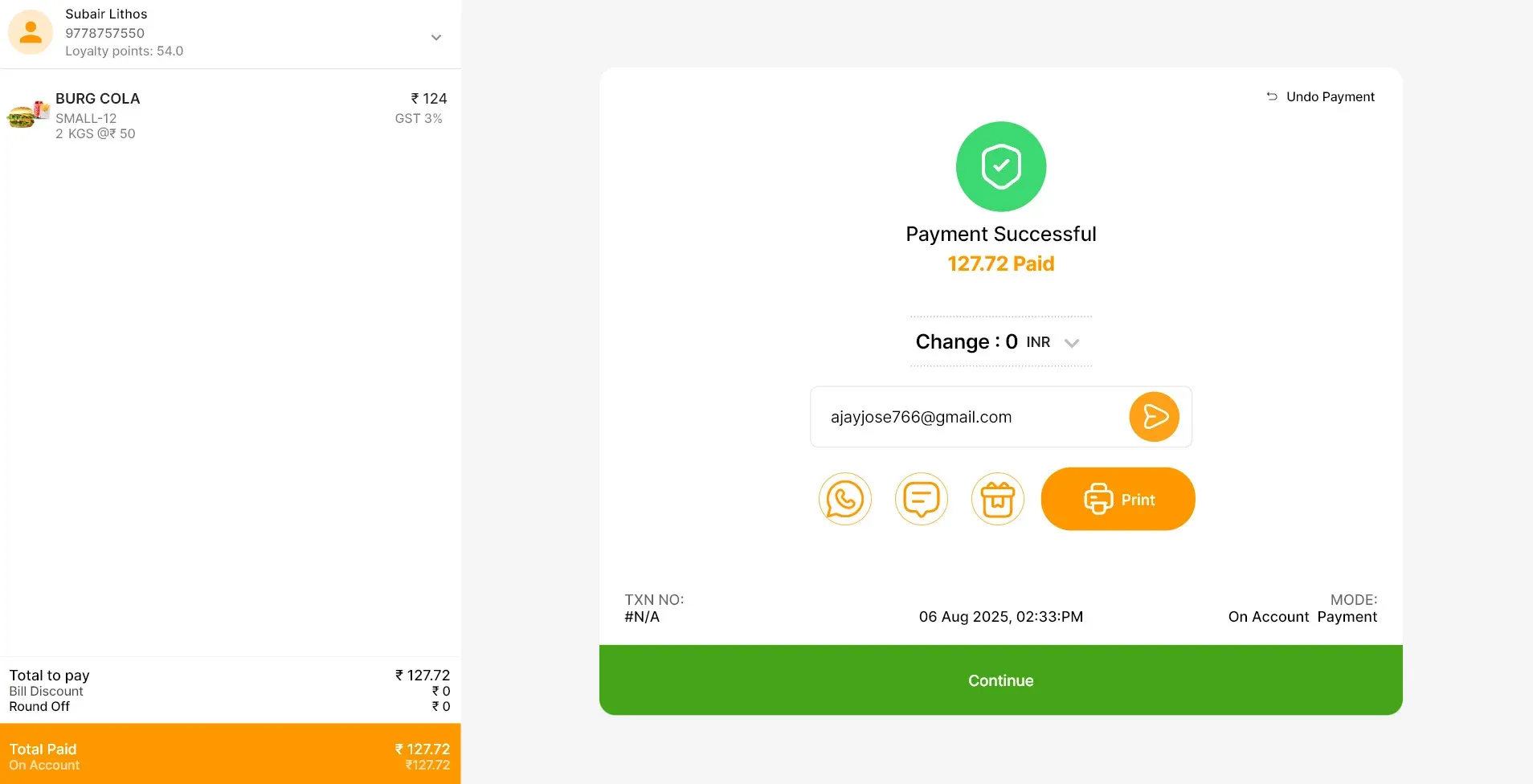
Make Repayment on the POS app
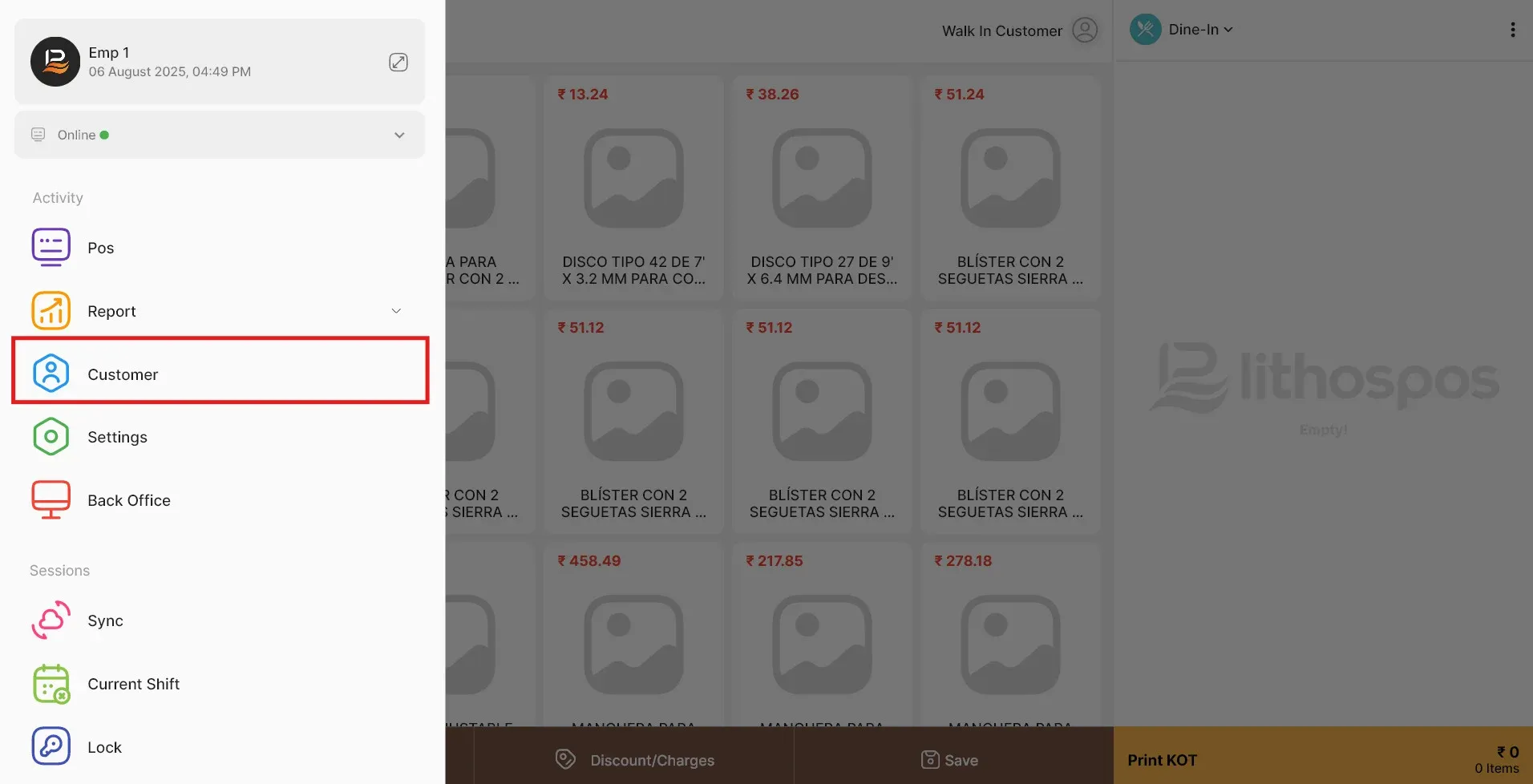
- Click on the POS menu and select Customers. (The customer's name along with their balance will be listed.)
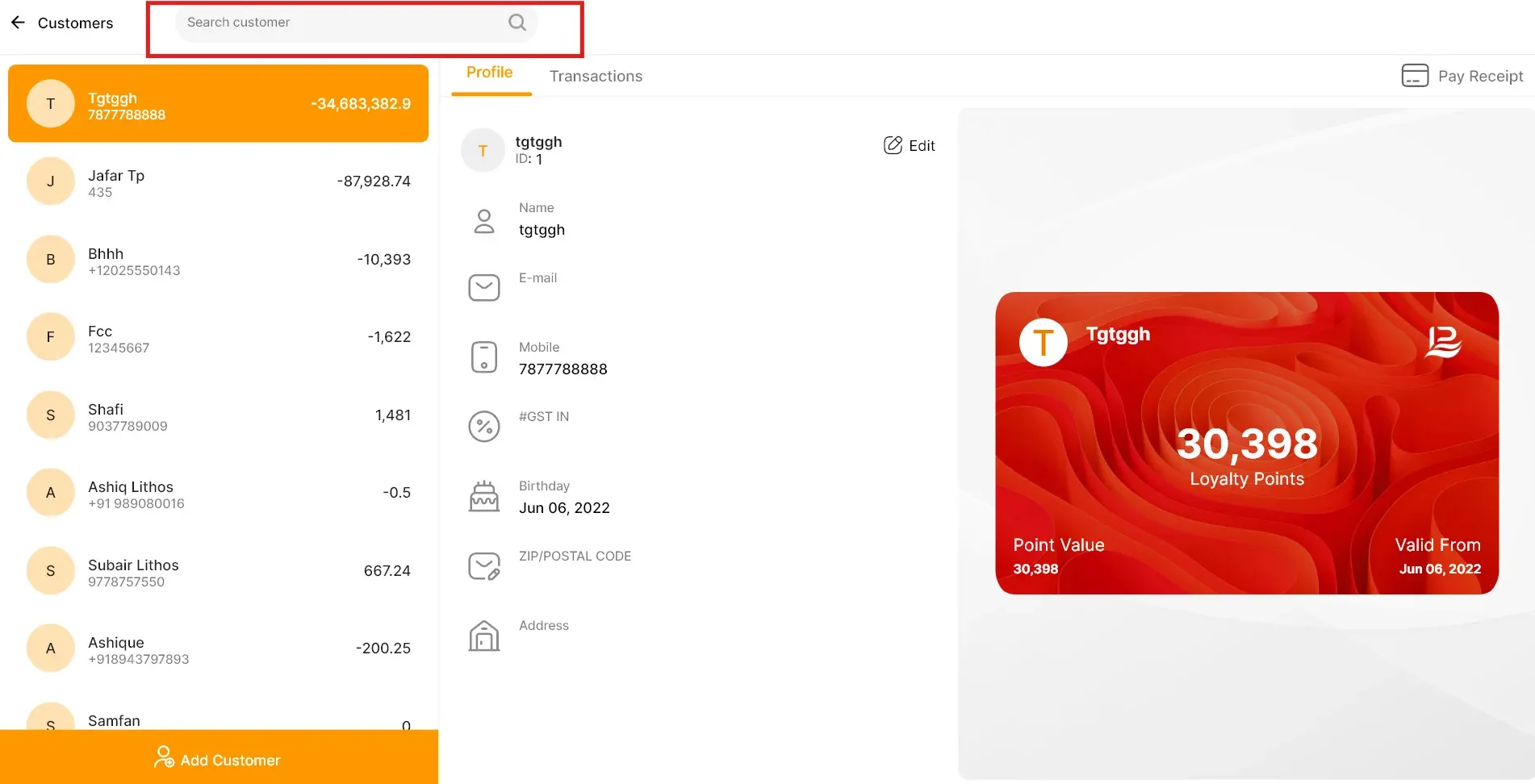
- Use the search function to find a customer by entering their name or phone number. (The particular customer with their balance will be listed.)
- Click on the transaction to view the transaction history of the selected customer.
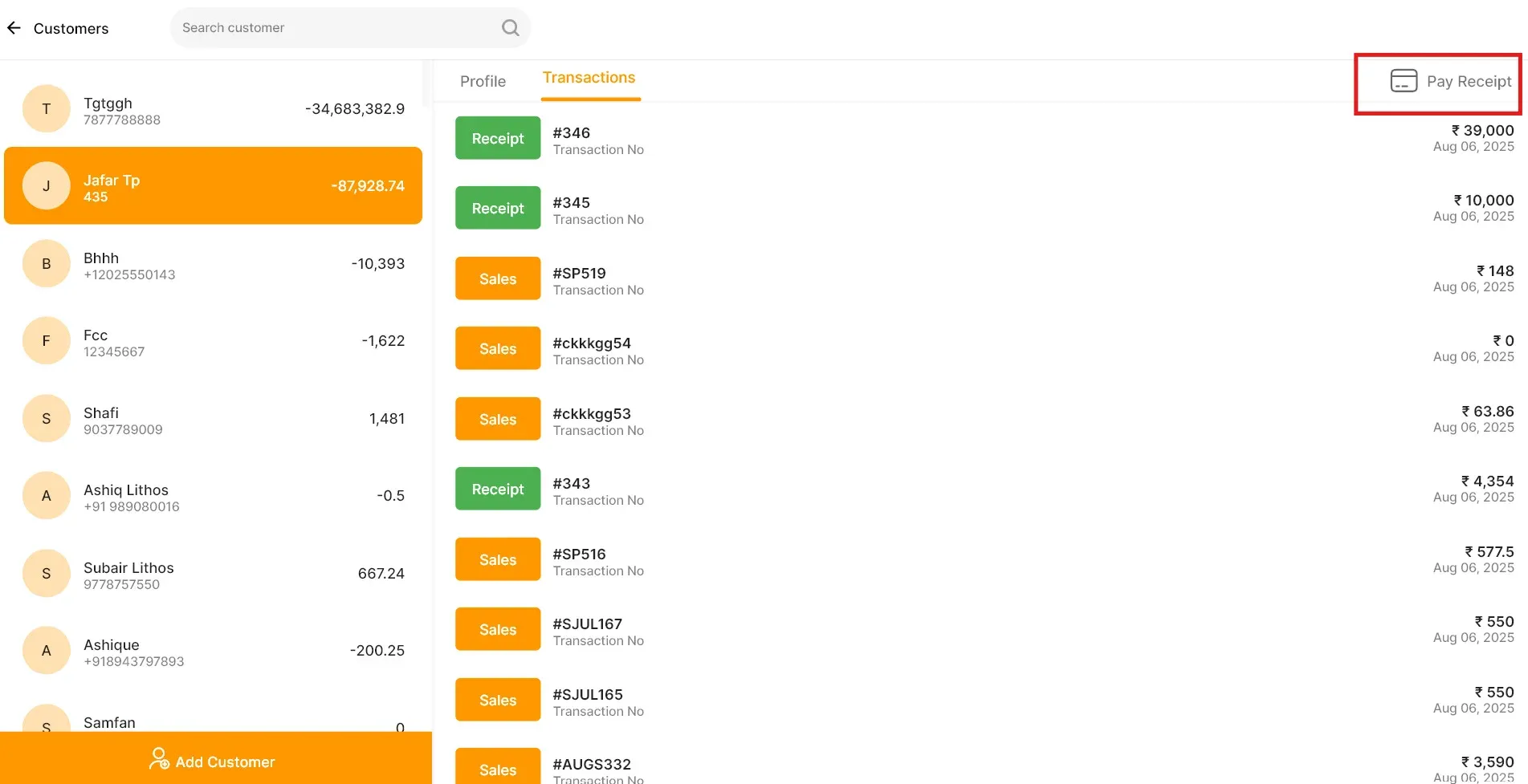
- Click the Pay button at the top right of the screen to make a payment. A pop-up window with the due amount will appear.
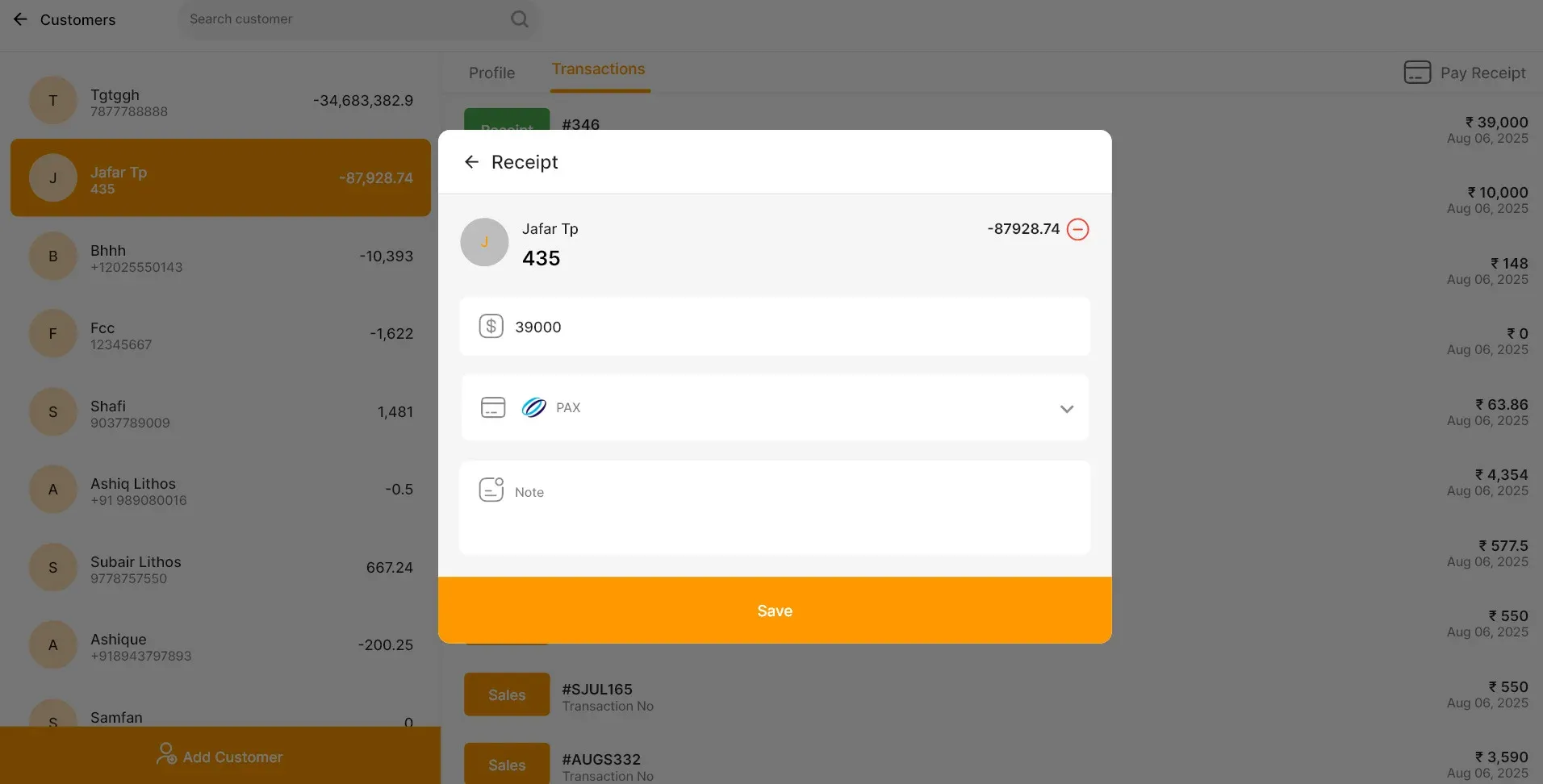
- Enter the amount, choose the payment method, and add notes if required. Then click Save and click Yes to confirm.
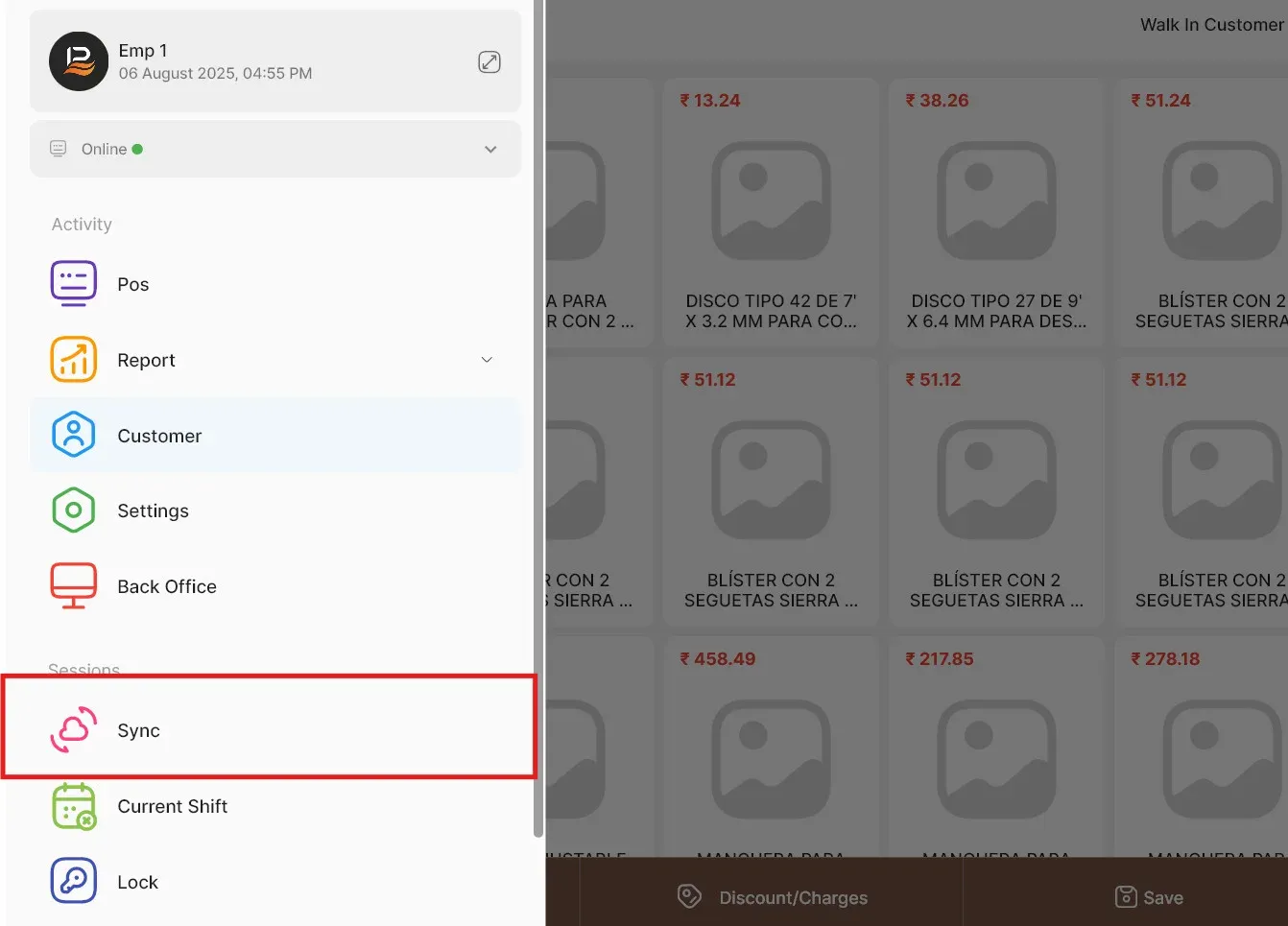
- Now sync the POS to get the updated balance for this customer.
- Check Customer credit balance in the Back office
- In the Back Office Select Customers on the side panel.
- Click on search and type the name in the ‘CustomerName’ to filter customers.
- Click on the four dots to view the filtering options and enable balance. Now the customers and their balance will be displayed along with other information.
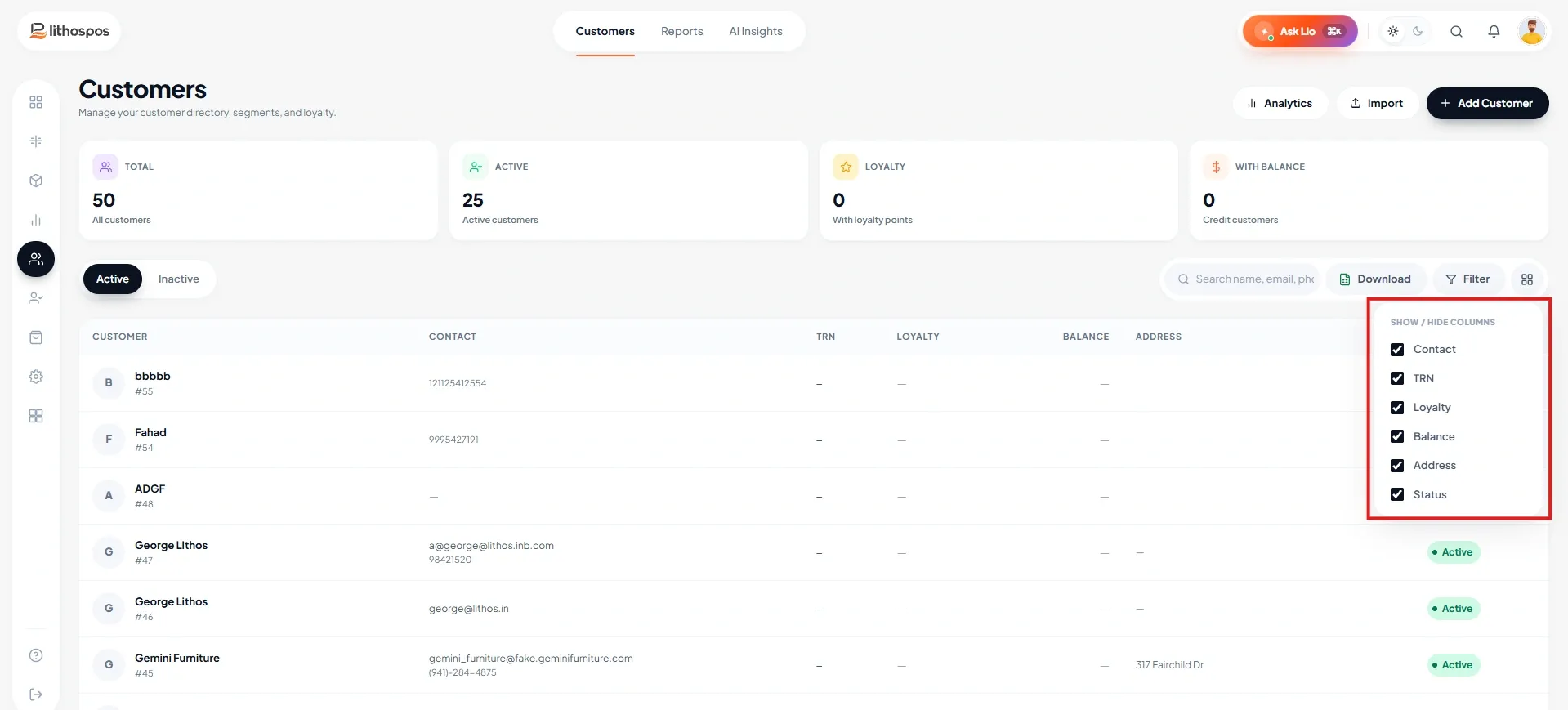
- You can download this list by clicking on the download icon for offline verification.
Connect with us to know more
To learn more about it feel free to book a meeting with our team
Cet article vous a-t-il été utile ?