
Odoo Integration with LithosPOS
LithosPOS now integrates seamlessly with Odoo ERP, enabling businesses to manage retail and F&B operations more efficiently. This integration connects your POS with Odoo’s powerful ERP modules, ensuring smooth synchronization of sales, inventory, and accounting data.
LTLithosPOS TeamMis à jour
This feature is highly beneficial for businesses that need centralized control across multiple outlets or want to automate backend operations such as accounting, purchasing, and stock management.
Key Benefits
- Centralized Data Management: All sales, stock, and financial data from LithosPOS sync directly with Odoo, reducing manual work.
- Accurate Accounting: Sales and payment data flow automatically into Odoo’s accounting module, ensuring error-free financial records.
- Real-Time Inventory Sync: Stock levels update instantly in Odoo when items are sold in LithosPOS, helping avoid over-selling or stock-outs.
- Improved Decision-Making: With consolidated reports in Odoo, businesses can analyze sales, profits, and stock trends across locations.
- Seamless Workflow: Automates order-to-invoice and purchase processes, saving time and operational costs.
- Scalability: Perfect for multi-store businesses or chains that need centralized ERP management.
Table of Contents – LithosPOS & Odoo Integration
Introduction
- What this integration does
- Benefits for your business
Setup in LithosPOS Back Office
- Enabling Odoo integration
- Adding connection details
Basic Configuration
- Mapping products and categories
- Syncing inventory, sales, and customers
- Payment and tax settings
- How data flows between LithosPOS and Odoo
Back Office Settings in LithosPOS
Enabling Odoo Integration
- Log in to LithosPOS Back Office.
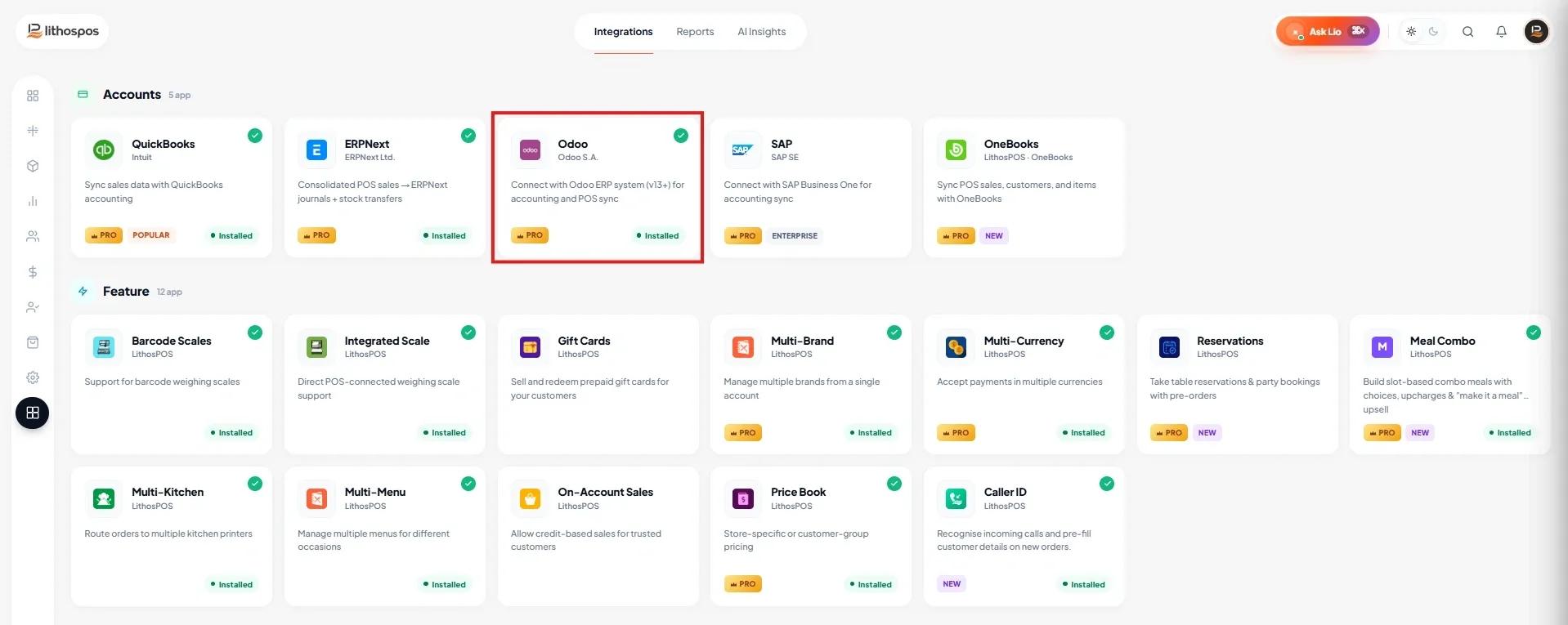
- Navigate to Integrations > Odoo.
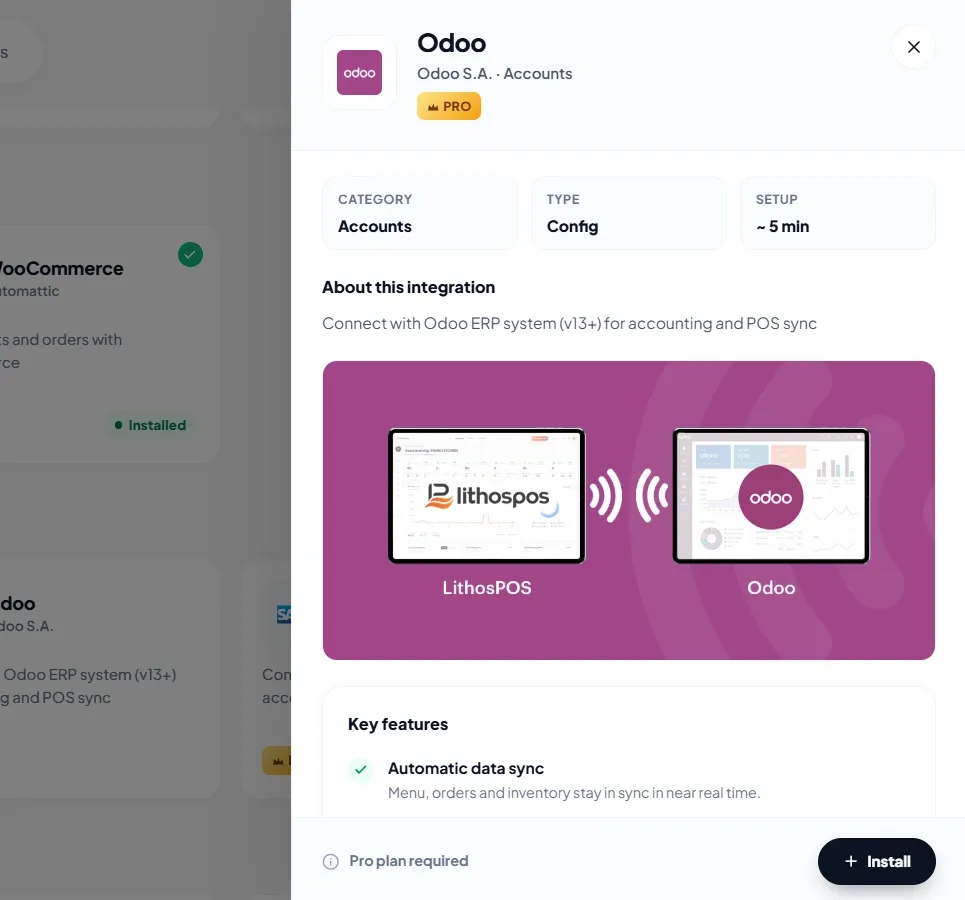
- Click on the ‘Install Now’ button.
- Then click +New connection.
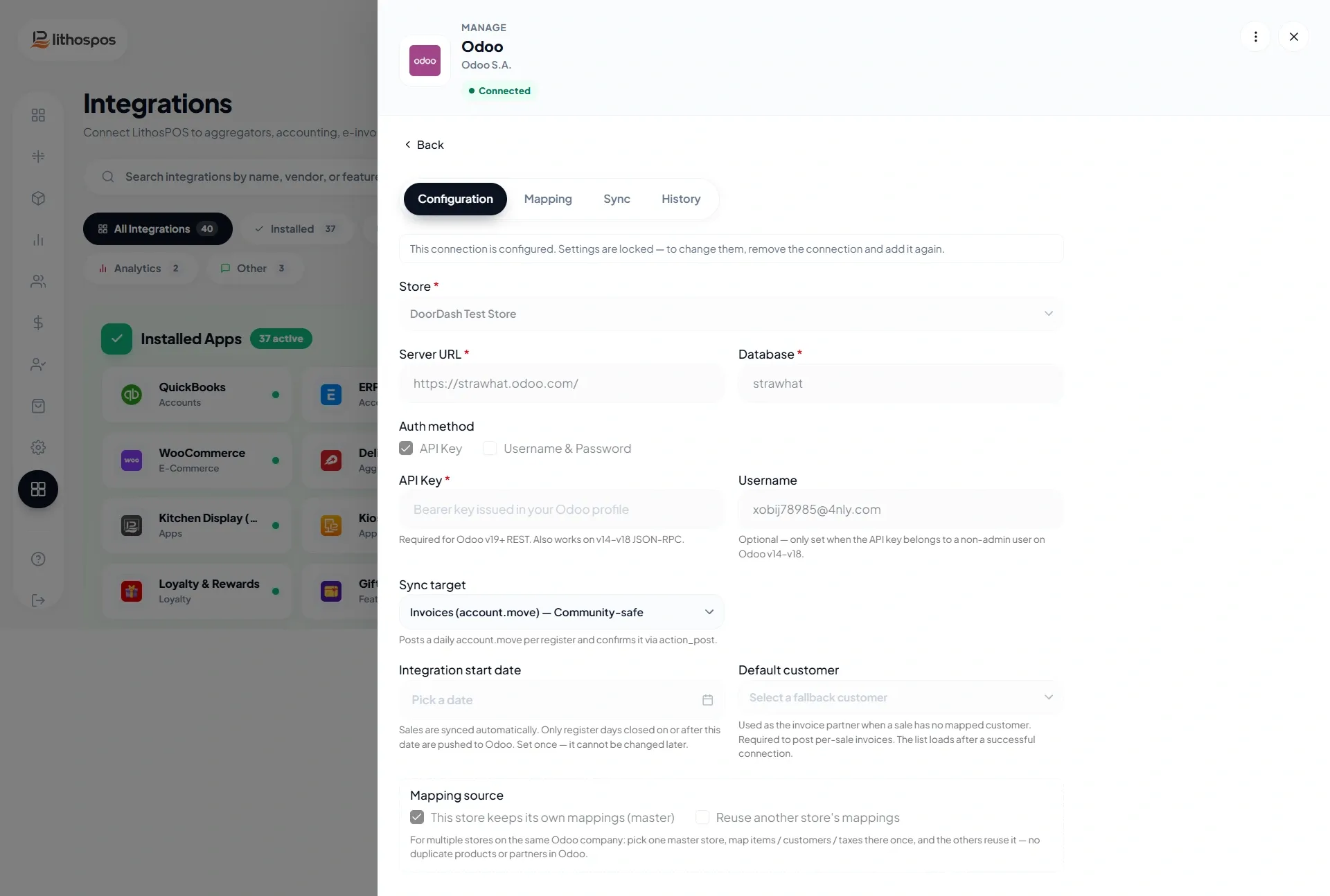
Enter Odoo Connection Details
- Select Store from the store list.
- Database: The Odoo database name where data will sync.
- User Name: Enter user name, usually the email address.
- URL/Odoo Domain:. Your Odoo instance link (e.g., https://yourcompany.odoo.com).
- Key: Generate an API key from Odoo user settings and paste it here.
- Then select the Connection Type:
Mapping Settings
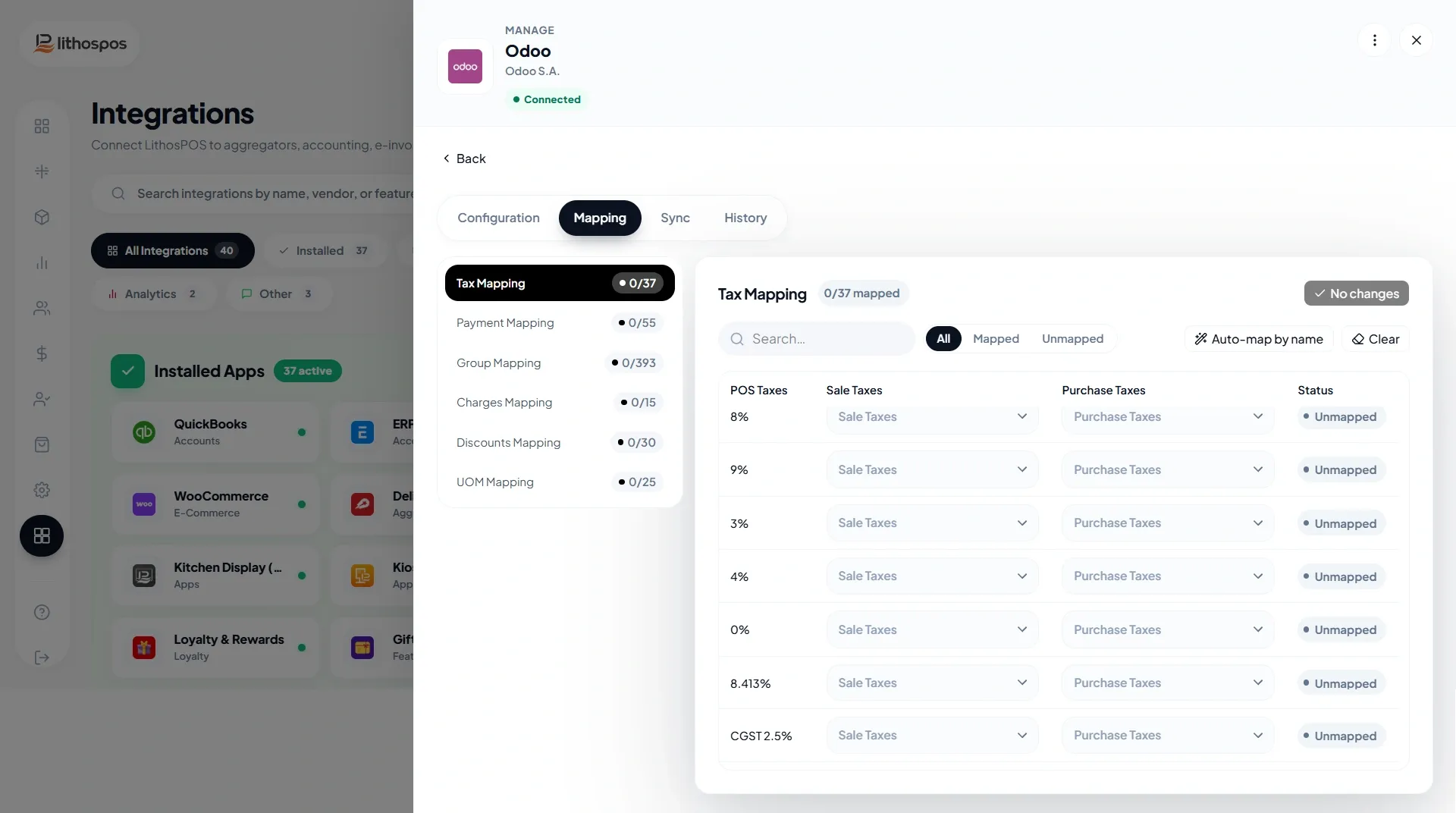
- Store Mapping: Map your store with the corresponding Odoo stores manually.
- Customer Mapping: Select the customer that you created in Odoo to synchronize sales data for non-registered customers (in LithosPOS, these are called “Walk-in Customers”). Then click Continue.
- Tax Mapping: Align tax structures between LithosPOS and Odoo sales and purchase taxes. Then click Continue.
- Payment Mapping: Map POS payment methods (cash, card, wallet, etc.) with Odoo.
- Discount & charges: Map POS Discount & Charges with Odoo. Then click Continue.
Synchronization Options
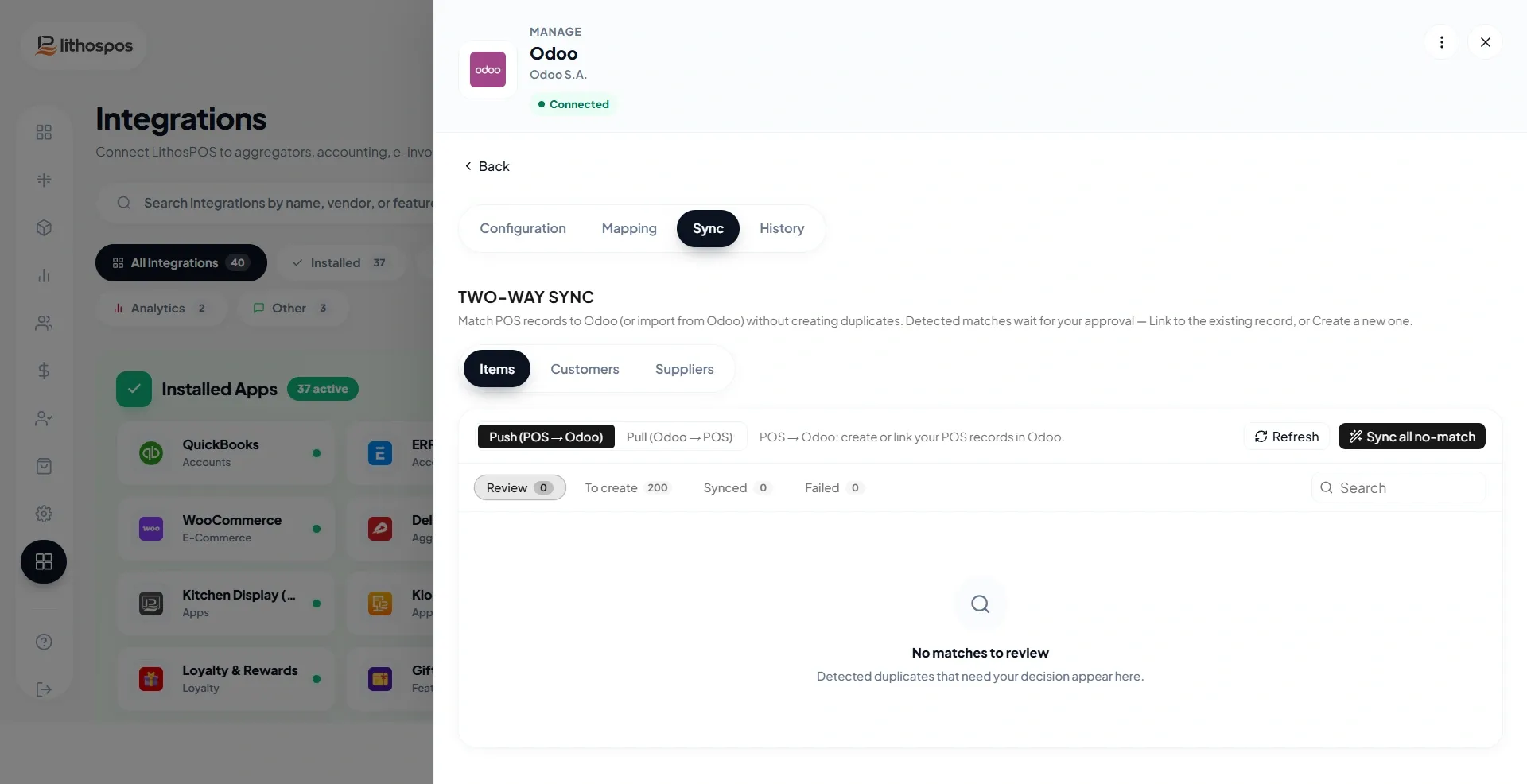
- This setting allows you to choose how the sync works — either two-way (POS ↔ Odoo) or one-way (POS → Odoo or Odoo → POS)
- The three-dot menu located on the right side includes the Sync option, which initiates the synchronization process when selected.
- Customer Sync: Share customer profiles and loyalty details with Odoo’s CRM.
- Product & Inventory Sync: Update stock in Odoo whenever sales or purchases happen in LithosPOS.
- Supplier Sync: Enable automatic pushing of supplier data from POS to Odoo.
- 'Check Update' button is provided to facilitate the mapping process for newly created items such as tax, UOM, payment types etc.
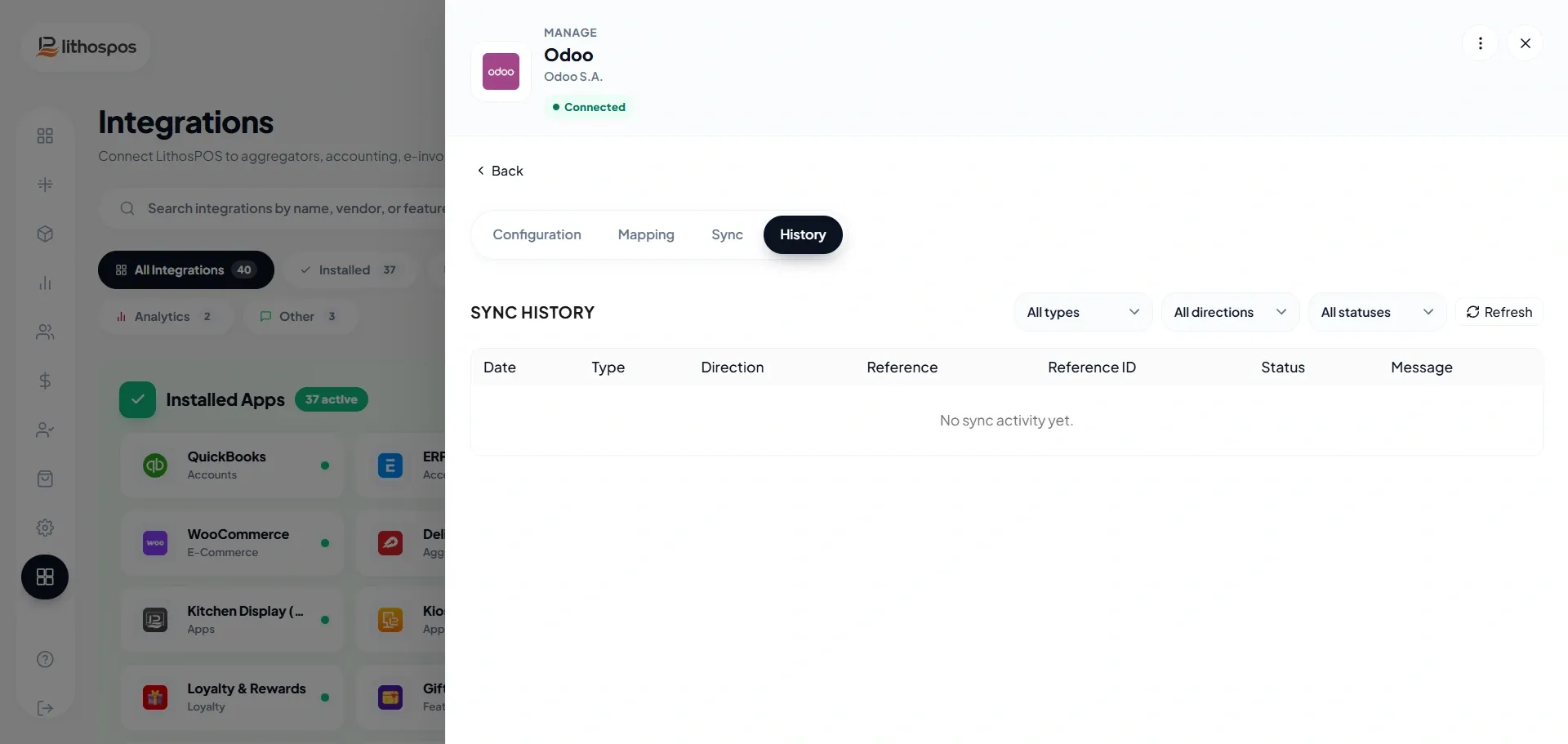
- In the History option, you can view the complete sync history.
Support & Troubleshooting
- Ensure you have the required Odoo license and admin rights on your PC.
- Contact LithosPOS support for help with connector installation or data access issues.
Connect with us to know more
To learn more about it feel free to book a meeting with our team
Cet article vous a-t-il été utile ?